HCL Notebook PC Manuel utilisateur

Rev 1.0
Notebook PC
User’s Guide

TRADEMARKS:
All brand and product names are trademarks or registered trademarks of their respective companies.
NOTE:
Specifications and Information found in this guide are subject to change without notice. Any changes therefore
will be incorporated in future editions. The Manufacturer assumes no responsibility for errors or omissions in
this document. Actual product may vary from photos shown in this guide.

Notational Conventions
Throughout this manual, the following conventions are used to distinguish elements of text.
Note:
Identifies additional information that requires special attention.
Warning :
Identifies additional information that requires special attention.
Tip :
Identifies additional information that requires special attention.
Caution:
Identifies important information that, if not followed,
may result in loss of data or damage to the computer.
Keyboard keys are shown in a bold typeset. For example: Press Enter to complete.
When keys are joined by a plus sign (+), press the first key, and, while keeping the first key down, press the remaining keys ,
finally release all the keys. When necessary, keys are also shown in graphics.
Any title, command, setup item, or button that you can see on the screen is shown in boldface.

Overview
Chapter – 1
Introducing the Notebook PC ………………………………………………… 1-1
Chapter – 2
Knowing the Parts ……………………………………………………………... 2-1
Chapter – 3
Getting Started ……………………………………………………………….... 3-1
Chapter – 4
Using the Notebook PC …………………………………………………….… 4-1
Chapter – 5
Troubleshooting ……………………………………………………………….. 5-1
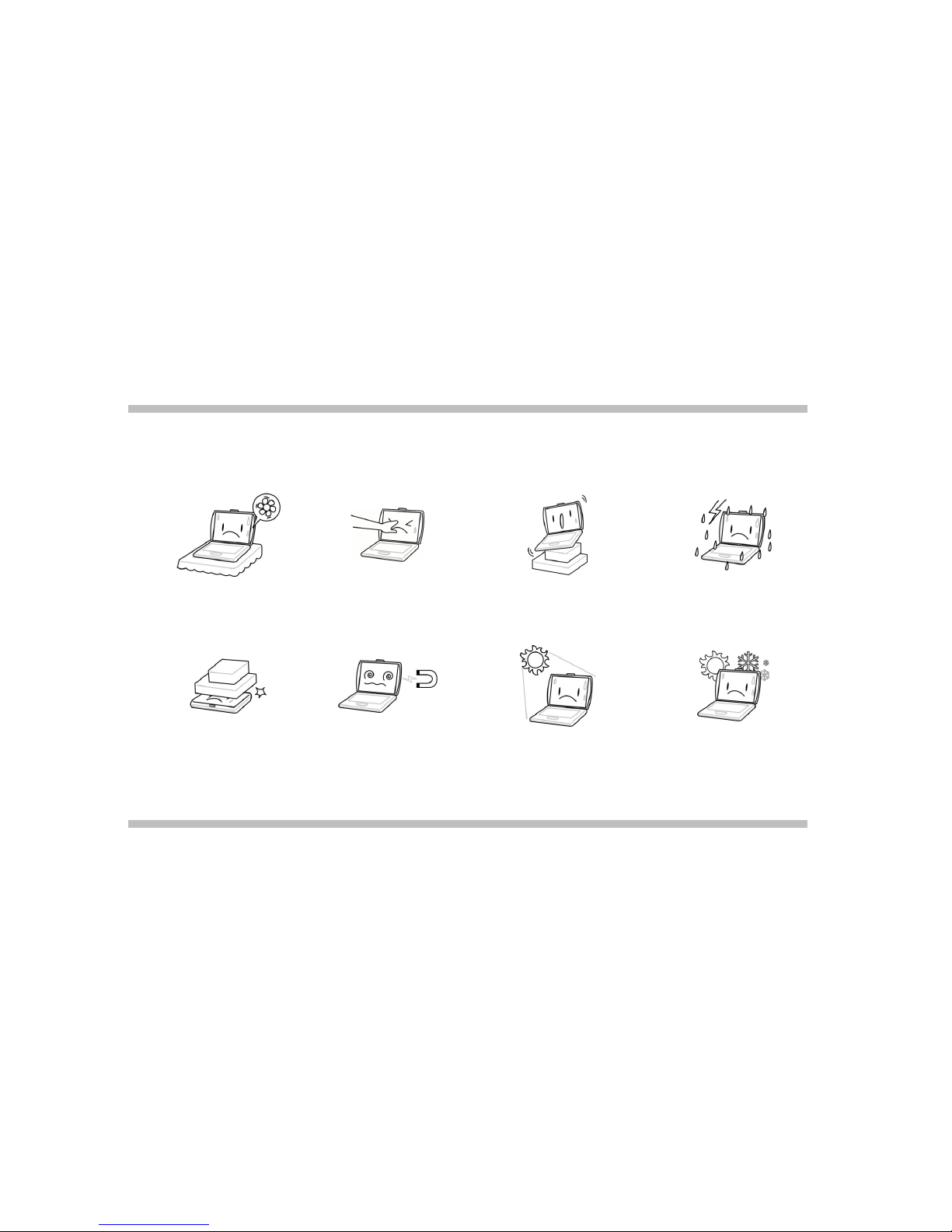
TAKING CARE OF YOUR NOTEBOOK PC
To prevent possible overheating of the
computer's processor, make sure you
don't block the openings provided for
ventilation.
DO NOT press or touch the display
panel.
DO NOT place on uneven or unstable
work surfaces.
DO NOT use your notebook computer
under harsh conditions.
DO NOT place or drop objects on the
computer and DO NOT apply heavy
pressure on it.
DO NOT subject the computer to
magnetic fields. DO NOT expose to direct sunlight. DO NOT use or store in extreme
temperatures.

Avoid sudden changes in temperature
or humidity by keeping it away from
A/C and heating vents.
DO NOT expose the computer to rain
or moisture.
DO NOT place near fire or other
sources of heat.
DO NOT tamper with the batteries.
Keep them away from children.
DO NOT expose to dust and/or
corrosive chemicals. DO NOT slam your notebook shut and
never pick up or hold your notebook by
the display.
DO NOT spray water or any other
cleaning fluids directly on the display.
If you are traveling with your computer,
remember to carry it as hand luggage.
Do not check it in as baggage.

User's Guide Introducing the Notebook PC
1-1
Chapter - 1
Introducing the Notebook PC
Congratulation on the purchase of new HCL Notebook Computer!
Transportation Precautions
To prepare the Notebook PC for transport, you should turn it OFF and disconnect all
external peripherals to prevent damage to the connectors. The hard disk drive's head
retracts when the power is turned OFF to prevent scratching of the hard disk surface
during transport. Therefore, you should not transport the Notebook PC while the
power is still ON. Close the display panel to protect the keyboard and display panel.
Operating Environment
Since users are likely to maintain the same posture for a long period of time when using the computer, they
will be exhausted more easily if compared with other users engaged in other general operations. This section
will illustrate the suggested posture and the operating environment for the use of the computer.
Health Management
Take a 2 to 3-minute break every 30 minutes after you have operated the machine for a long time.
Sedentariness will also cause stress. Do some gentle gymnastics during your break for recreation. When you
have symptoms such as eyestrain, sleepiness, dizziness, stiff in the shoulders, or numbness of the wrists or
hands, have a rest right away. In case these sympt oms remain the next day, please contact your doctor as
soon as possible.

User's Guide Introducing the Notebook PC
1-2
Posture When You Are Using the Computer
Please use the computer with your body relaxed and with a good sitting posture. For this, please pay attention to the
following tips.
Adjust the height of the desk and the chair to look down from a position a little bit higher than the screen.
Adjust the chair until you can lean your back closely on the chair and sit down with your back stretched.
Relax with no strength put onto your shoulders and bend your knees comfortably.
Put your wrist comfortably to keep it parallel to the desk.
Your eyes will feel t ired easily if you cannot see the screen clearly. Pay attention to the following tips and adjust the screen
constantly to ensure its clear visibility.
Use appropriate lighting
Use the same appropriate lighting that is intended for office use when you use the computer.

User's Guide Introducing the Notebook PC
1-3
Adjust the angle of the display to the position with which you can see the display clearly
You won't see the screen clearly if the display reflects light. In addition, the visibility of the display varies with the angle due to its
feature. Adjust the angle of the display to ensure its clear visibility.
Clean the display
A dusty display makes the screen hard to see clearly. Wipe gently with a soft, dry cloth to clean the display regularly.
Cover Your Notebook PC
You can purchase an optional carrying case to protect it from dirt, water, shock, and scratches.
Note :
The Notebook surface is easily dulled if not properly cared for. Be careful not to rub or scrap the Notebook PC surfaces when transporting your
Notebook PC.
Cover Your Batteries
If you intend to use battery power, be sure to fully charge your battery pack and any optional battery packs before going on long
trips. Remember that the power adapter charges the battery pack as long as it is plugged into the computer and an AC power
source. Be aware that it takes much longer to charge the battery pack when the Notebook PC is in use.

User's Guide Introducing the Notebook PC
1-4
Important Safety Instructions
Portable computers take the most beating from end users. This section gives you detailed information about how to
maintain a safe working environment while using the notebook computer. You can maintain its condition and performance
by following these guidelines. Please read it carefully to ensure maximum safety.
Before cleaning the notebook computer, make sure it is disconnected from any external power supplies (i.e. AC
adapter, car adapter and so on).
When cleaning, do not use liquid or sprayed detergent for cleaning. Instead, use moisture sheet or a cloth for cleaning.
Use your Notebook where the socket outlet is nearby and easily accessible.
Please keep the notebook computer away from humidity.
Lay the notebook computer on a reliable surface when installing. A drop or fall may cause injury.
The openings on the enclosure are for air convection hence the notebook computer can be protected from overheating.
DO NOT COVER THE OPENINGS.
Be careful of using power supply. The notebook computer has specific power requirements.
Use only a power adapter approved for use with this notebook computer.
While unplugging the power cord, disconnect it by the plug head, not by its wire.
Make sure the socket and any extension cords you may use can support the total current load of all the connected
devices.
Place the power cord in such a way that people cannot step on it. Do not place anything over the power cord.
All cautions and warnings on the notebook computer should be noted.
If the notebook computer is not in use for a long time, disconnect it from mains to avoid possible damage by transient
over-voltage.
Never pour any liquid into openings as this may cause fire or electrical shock.
Never open the body of notebook computer. For safety reason, the notebook computer should only be opened by
qualified service personnel.
Do not leave this notebook computer in an environment unconditioned. Storage temperature above 60ºC (140ºF) may
damage the notebook computer.
To avoid any damage to the internal device, you should first disconnect the AC adapter and remove the battery pack
from the notebook when replacing any internal device.
Autres manuels pour Notebook PC
3
Table des matières
Autres manuels HCL Ordinateur portable

HCL
HCL NB-ASTRA Instructions d'installation

HCL
HCL Notebook PC Manuel utilisateur

HCL
HCL Laptop Manuel utilisateur

HCL
HCL Notebook Computer Manuel utilisateur

HCL
HCL ME 44 Aviator NB Manuel utilisateur

HCL
HCL MiLeap M06 Manuel utilisateur

HCL
HCL L-19 series Manuel utilisateur

HCL
HCL M 50 Shimmer Manuel utilisateur

HCL
HCL Notebook PC Manuel utilisateur

HCL
HCL ME 54 series Manuel utilisateur