MIDI 5
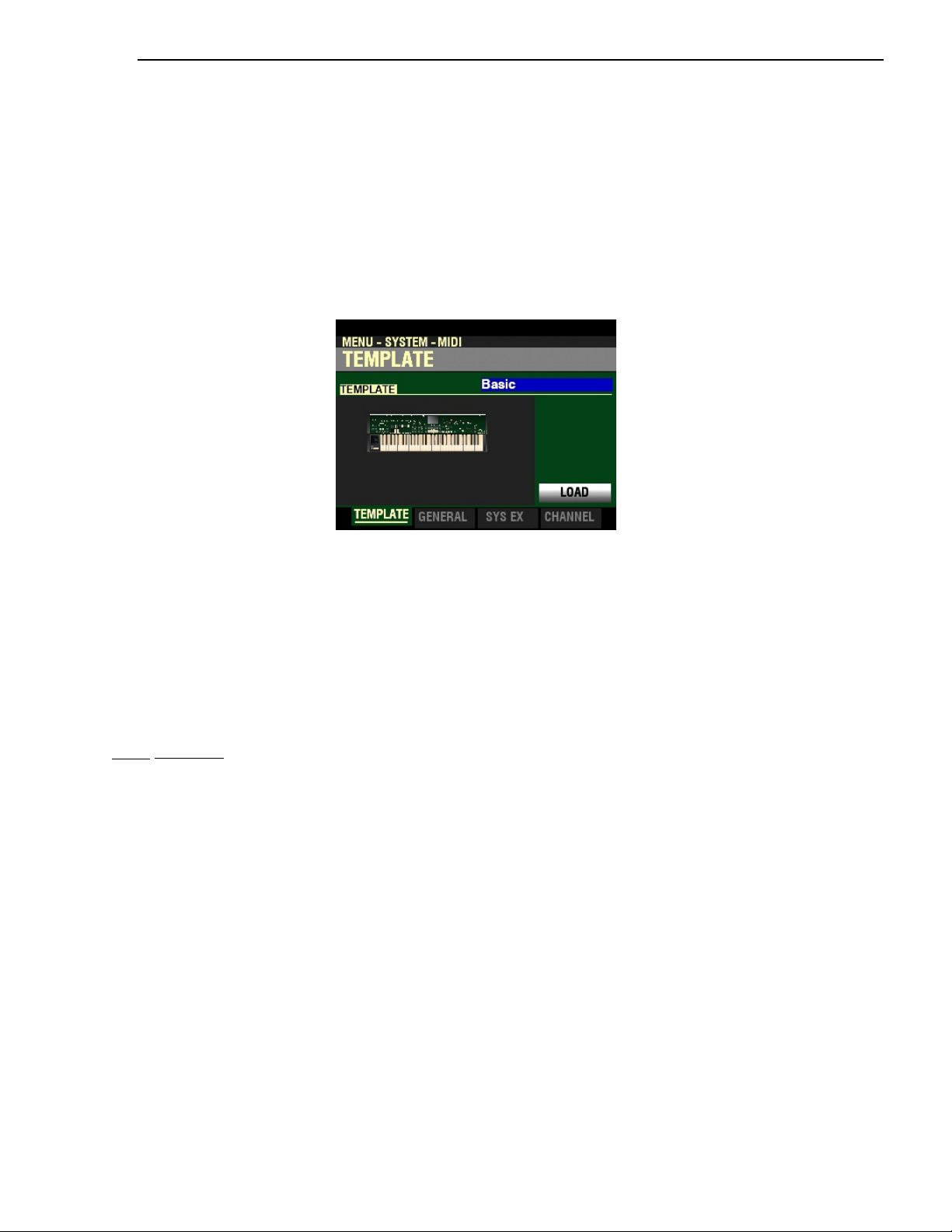
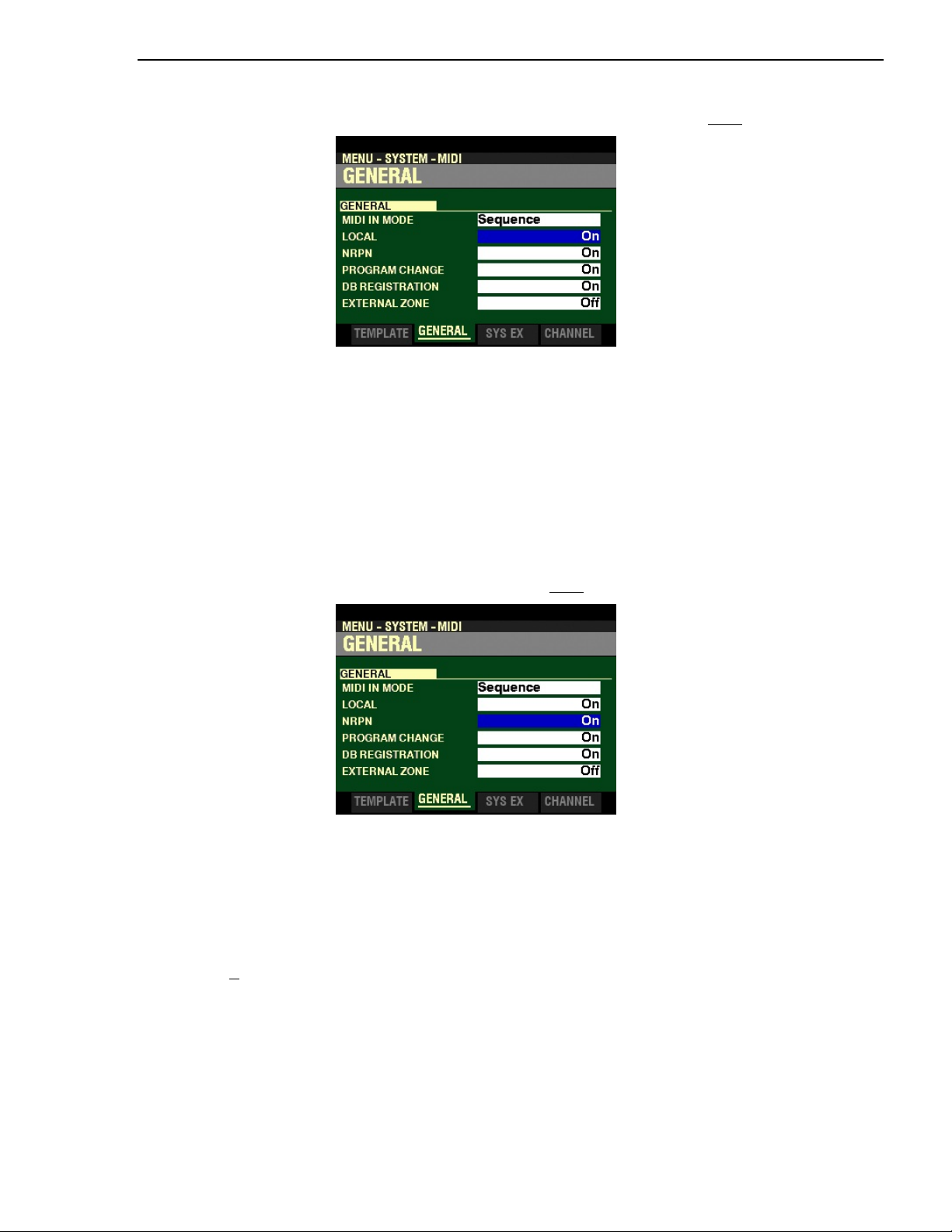
4. Press the ENTER button. The Information Center Display should now look like this:
You are now in the MIDI FUNCTION Mode. You may now use the DIRECTION and PAGE buttons
in conjunction with the VALUE knob to change the MIDI performance of your SK PRO. This is
explained starting below.
uHow MIDI Works on the SK PRO:
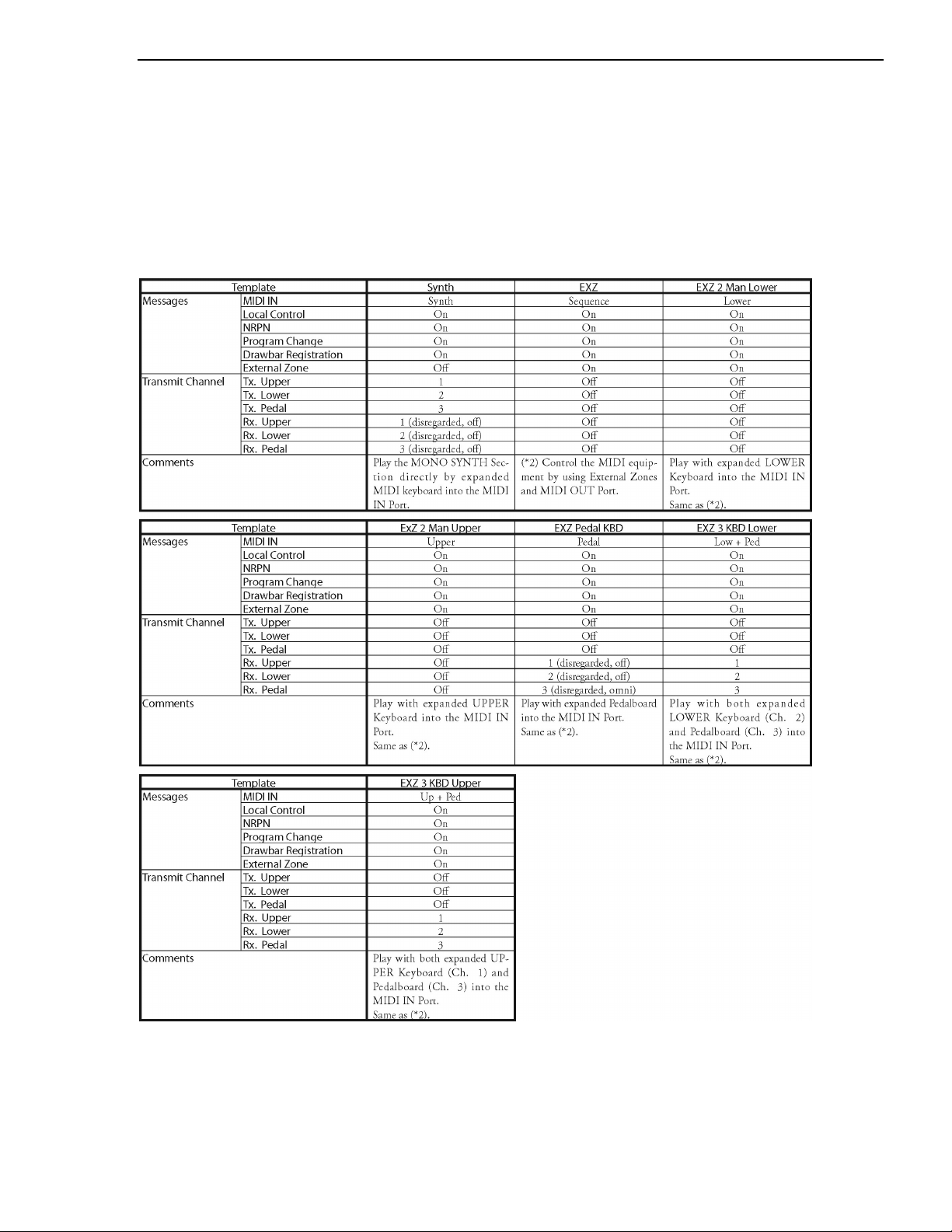
The SK PRO can function in a large variety of MIDI environments. In addition to transmitting basic MIDI
information such as Note On/Note Off and Note Velocity, the SK PRO also can transmit Program Changes,
Control Changes, NRPN and System Exclusive (SyxEx) codes.
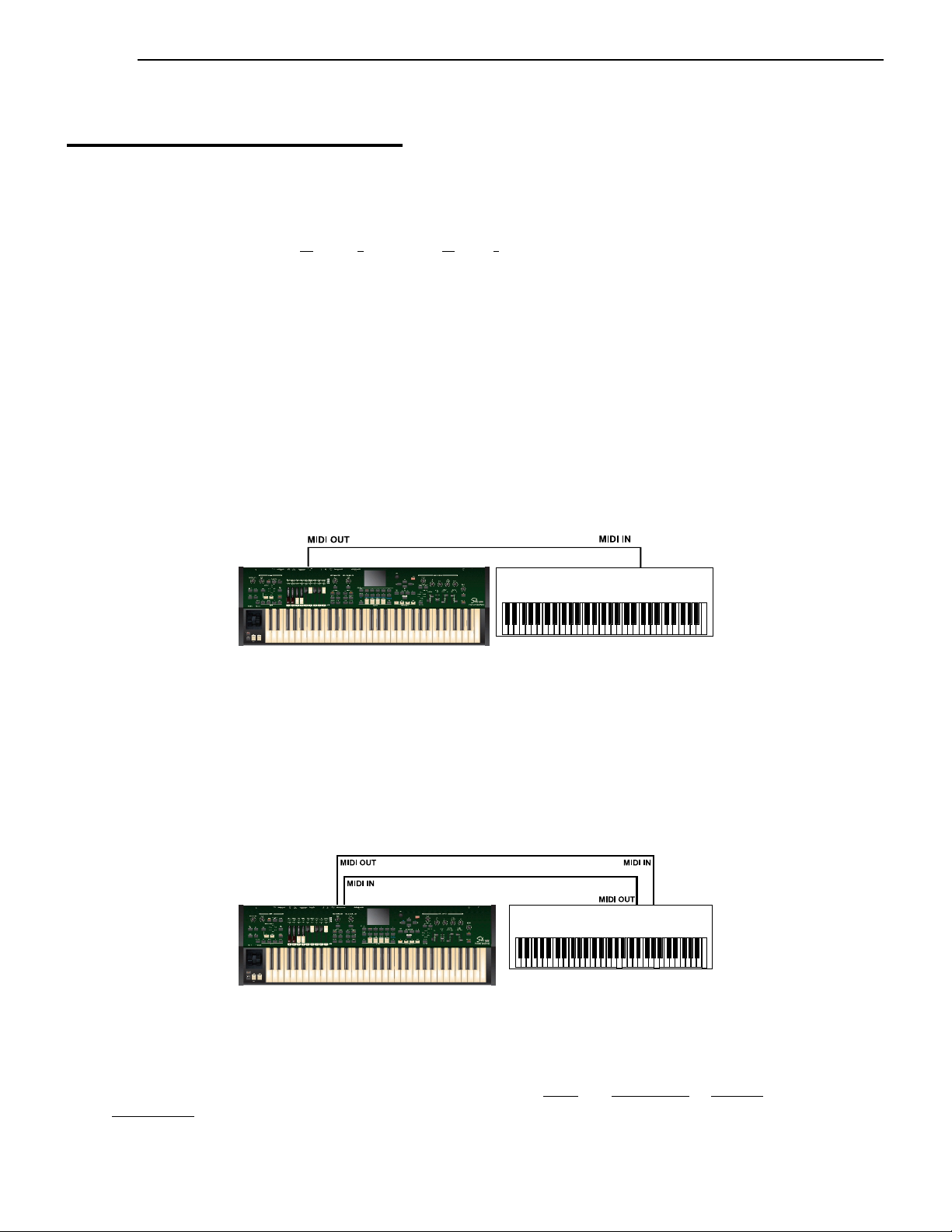
It is also possible to use the SK PRO as a MIDI Master or Controller Keyboard for layering or multi-timbral
(playing more than one sound at the same time) applications. The following paragraphs explain this in
more detail.
tINTERNAL ZONES
The internal sounds of the instrument - both Drawbars and Extra Voices - will play on what are called the
Internal Zones. The Internal Zones transmit Note On/Note Off and Velocity data from the UPPER, LOWER
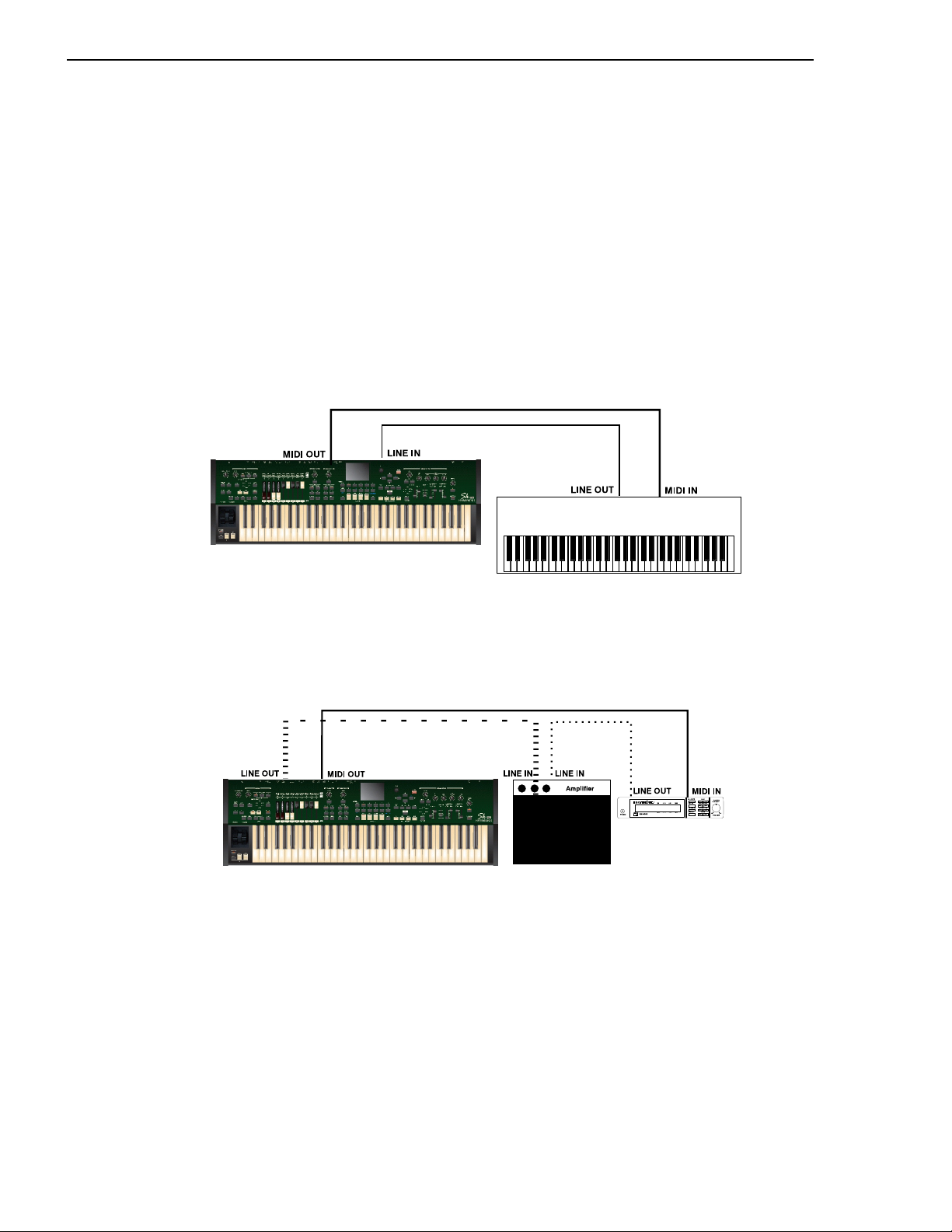
and PEDAL Parts. These channels will both send (MIDI OUT) and receive (MIDI IN) data, and are
therefore used when recording and playing back sequences.
NOTE: The UPPER Channel, in addition to Note On/Note Off and Velocity, also is used for transmitting
Controller data.
tEXTERNAL ZONES
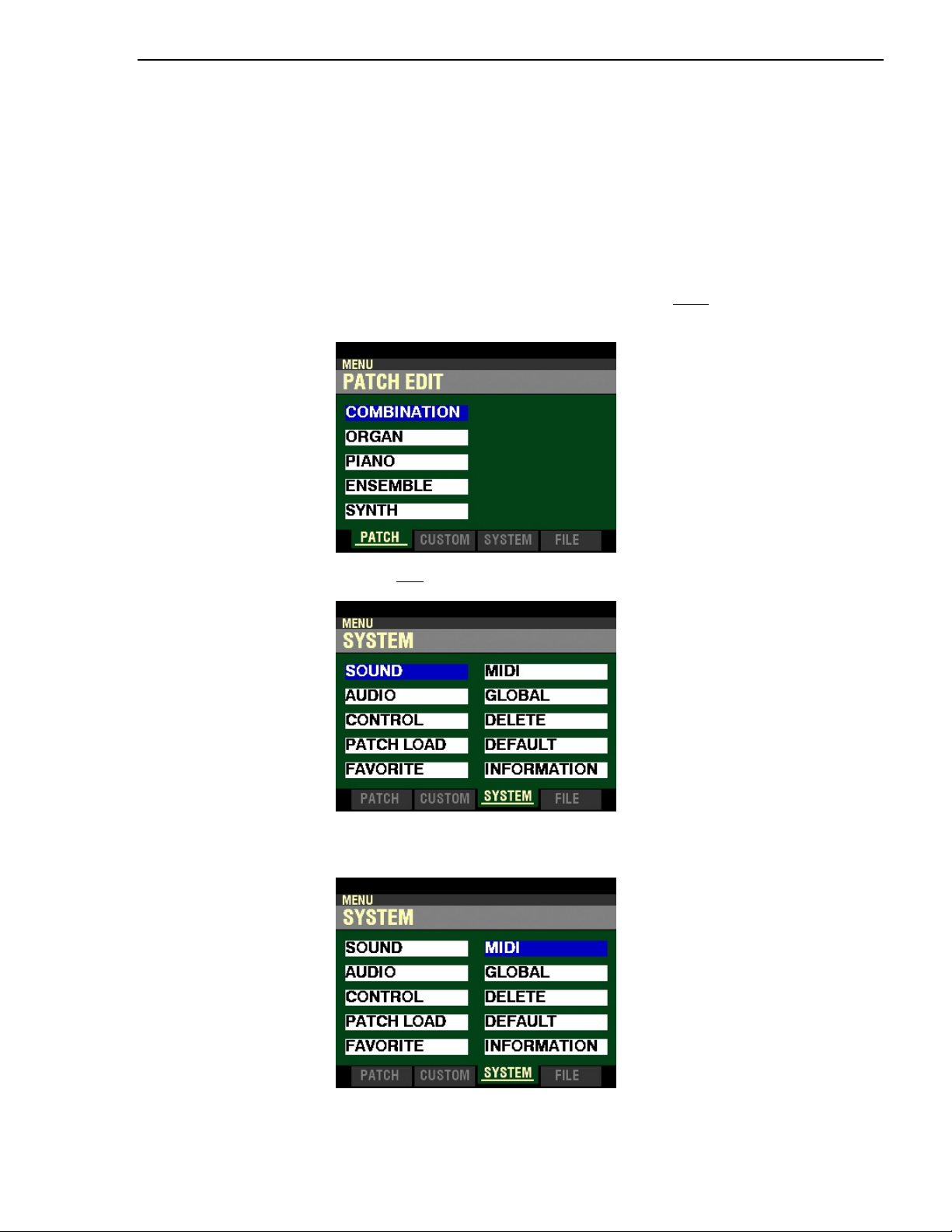
The External Zone Channels allow you to use the SK PRO as a MIDI Master or Controller Keyboard.
These allow you to play additional sounds from another MIDI instrument such as a sound module. The
External Zones transmit but do not receive MIDI data - in other words, they are MIDI OUT only.
There are three (3) External Zone Channels which can be assigned to the UPPER, LOWER or PEDAL Parts.
In addition, different configurations can be saved to different Patches - for example, one Patch can have all
three External Zones assigned to UPPER, another Patch can have one External Zone each for UPPER,
LOWER and PEDAL, etc.
The Internal and External Channels of the instrument are referred to as Zones. The features available for
the Zones are found in the ZONE Edit Menu. This is explained fully starting on page 20.