
Hall Technologies HT-CAM-1080PTZ Manuel utilisateur

Hall Technologies February 03, 2023 Page 1 of 52
Hall Technologies • 1234 Lakeshore Dr Suite #150 Coppell, TX 75019 • halltechav.com
HT-CAM-1080PTZ
Full HD PTZ Camera
USER MANUAL
January 23, 2023
Hall Technologies February 03, 2023 Page 2 of 52
Important Safety Instructions
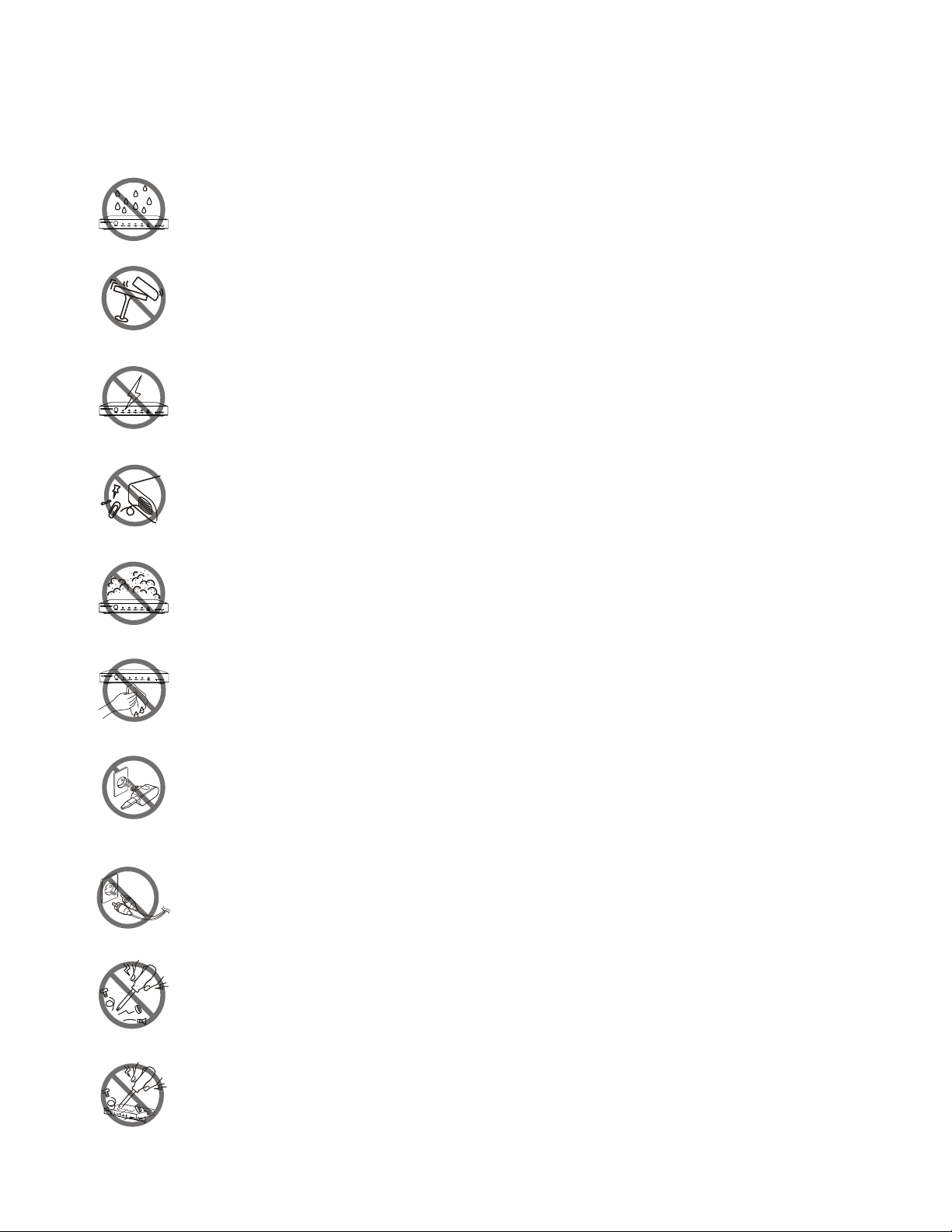
1. Do not expose this apparatus to rain, moisture, dripping or
splashing and that no objects filled with liquids, such as vases,
shall be placed on the apparatus.
2. Do not install or place this unit in a bookcase, built-in cabinet or
in another confined space. Ensure the unit is well ventilated.
3. To prevent risk of electric shock or fire hazard due to
overheating, do not obstruct the unit’s ventilation openings with
newspapers, tablecloths, curtains, and similar items.
4. Do not install near any heat sources such as radiators, heat
registers, stoves, or other apparatus (including amplifiers) that
produce heat.
5. Do not place sources of naked flames, such as lighted candles,
on the unit.
6. Clean this apparatus only with dry cloth.
7. Unplug this apparatus during lightning storms or when unused
for long periods of time.
8. Protect the power cord from being walked on or pinched
particularly at plugs.
9. Only use attachments / accessories specified by the
manufacturer.
10. Refer all servicing to qualified service personnel.

Hall Technologies February 03, 2023 Page 3 of 52
Table of Contents
Introduction 4
Web UI 23
Overview
Preview
Features
Monocular Tracking
Package Contents .
Configuration: audio
Product Views .6
Configuration: video configure / video encode
Front View
Configuration: video configure / stream publish
Rear View
Configuration: video configure / rtp multicast
Dimensions View
Configuration: video configure / video parameters / focus
Rotary Dial 7
Configuration: video configure / video parameters / style
Connectors & Indicator_______________
Configuration: video config/video parameters/exposure
RS-232 INTERFACE
Configuration: video configure / video parameters / color
RS-232 MINI-DIN 8-PIN
Configuration: video config / video parameters / image
RS-232 (DB9)
Configuration: video configure / video parameters / nr
Setup u
Configuration: video configure / video osd
Installation
Configuration: video configure / osd font size
Step one
Configuration: video configure / video out
Step two
Configuration: network configure / network port
Step three
Configuration: network configure / ethernet
Step four
Configuration: network configure / dns
Application Wiring g
Configuration: network configure / srt
Scenario A : USB-B Output
Configuration: network configure / rtsp
Scenario B : HDMI & HD-SDI Outputs
Configuration: system configure / system attribute
Scenario C : Streaming
Configuration: system configure / system time
Control – IR Remote Control l
Configuration: system configure / user set
Key Combinations
Configuration: system configure / update
OSD Menu u
Configuration: system configure / default
Main Menu
Configuration: system configure / reboot
Monocular Tracking
Soft Codec Support 45
Setup
Google Meet
Camera
Microsoft teams
Camera - exposure
Zoom
Camera - color
Video
Camera - image
Troubleshooting 48
Camera - focus
No Image
Camera - noise reduction
Abnormal Image
PTZ
Shaky or Vibrating Image
Video - format
No Video in Soft Codec
Version
Specifications 49
Restore Default

Hall Technologies February 03, 2023 Page 4 of 52
Introduction
OVERVIEW
The HT-CAM-1080PTZ is an HD PTZ camera. With built-in AI intelligence, the camera can automatically
pan, tilt, and/or zoom to the best view to include all participants or track a presenter, and regions can
be set in the view to prevent the camera from tracking undesired areas. And, built around a low noise
CMOS image sensor, the lens provides for a clean and clear video even in low lit areas.
The HT-CAM-1080PTZ includes multiple output options including HDMI, 3G-SDI, USB3.0, and LAN, with
simultaneous sub streams. When used as the main or sub stream, the USB3.0 output supports multiple
audio/video compression standards and multiple soft codec applications such as Google Meet,
Microsoft Teams, and Zoom.
With a height of just over 7” the camera’s small form factor allows for it to be installed in any room
without being obtrusive. The camera can be fixed to a tripod, installed on the wall using the included
wall mount, or installed to the ceiling (ceiling mount sold separately).
FEATURES
! Multiple video output interfaces including HDMI, SDI, USB 3.0, LAN
! Full HD Resolution up to 1920x1080@60fps
! Up to 12x optical zoom and 15x digital zoom
! 1/2.8 inch high quality CMOS image sensor
! Auto Framing with superior face detection to automatically frame the view according to the
number of people in the room
! Supports multiple audio/video compression standards, including H.264/H.265 video compression
and AAC, MP3 and G.711A audio compression
! USB 3.0 dual coding stream adding a simultaneous output for YUY2, MJPEG, H.264, NV12, H.265
video coding
! Low noise CMOS with advanced 2D/3D noise reduction technology providing for a high signal-to-
noise ratio for clean and clear video even in low-lit areas
! Built-in high accuracy step driving motor for quiet and smooth pan and tilt movement
! Supports multiple applications such as personal video conferencing, collaboration meetings,
enterprise video conferencing, etc.
! Supports multiple soft codec applications such as Google Meet, Microsoft Teams, and Zoom.

Hall Technologies February 03, 2023 Page 5 of 52
Package Contents
! 1x 1080p PTZ Camera
! 1x USB 3.0 Type-B to Type-A Cable, 3m (9.8ft)
! 1x 9-pin Female D-Sub to 8-pin Male mini-DIN cable
! 1x IR Remote Control
! 1x Power Adapter
! 1x Wall Mount

Hall Technologies February 03, 2023 Page 6 of 52
Product Views
FRONT VIEW REAR VIEW
DIMENSIONS VIEW

Hall Technologies February 03, 2023 Page 7 of 52
Connectors & Indicators
No.
Name
Description
1
Camera Lens
Camera Lens
2
Camera Base
Base of the PTZ Camera
3
LED
Solid green LED when the camera is on.
Flashes green when commands are received from the remote control
4
Infrared Receiver
Receives the remote-control commands.
5
Tripod Screw
Used for securing to a tripod.
6
Hole
Used for positioning and securing to a tripod.
7
3G-SDI
BNC connector for 3G-SDI output signal
8
HDMI
HDMI output
9
USB
USB 3.0 Type-B output connector.
10
LINE IN
3.5mm stereo audio input
11
SYSTEM SELECT
Select the desired video format of the camera (see Rotary Dial section for the complete
list of options).
12
RS232 IN
8-pin mini-DIN connection for controlling the PTZ camera using RS232 protocols
13
RS232 OUT
8-pin mini-DIN loop through RS232 connection to next camera
14
RS422/RS485
Phoenix connection for controlling the PTZ camera using RS422/RS485 protocols
15
LAN
RJ45 Ethernet port, PoE
16
DC12V
Power supply connection (when not using PoE)
17
Switch
Power on/off switch

Hall Technologies February 03, 2023 Page 8 of 52
PRODUCT WIRING and CONNECTIONS DIAGRAM
RS-232 INTERFACE

Hall Technologies February 03, 2023 Page 9 of 52
RS-232 MINI-DIN 8-PIN
RS-232 (DB9)
Rotary Dial
Rotate the dial to select the desired video format.
A camera reboot is needed after changing the selection.
By default, F is selected on the rotary dial, which allows
for video format selection on the OSD menu (accessed
with the remote control).
Hall Technologies February 03, 2023 Page 10 of 52
Setup
INSTALLATION
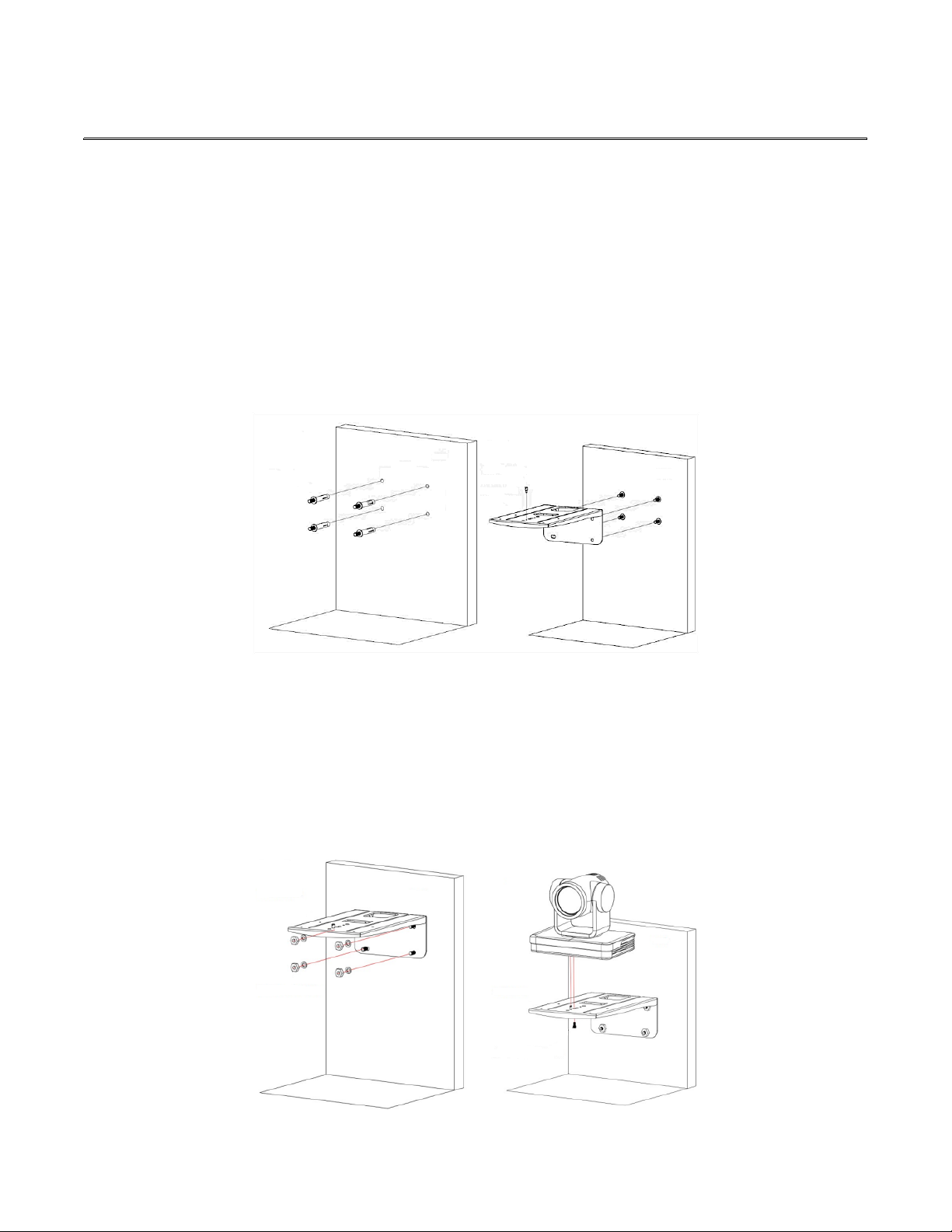
To install and connect the HT-CAM-4K-EPTZ camera, do the following:
1. Step One
Mark the mounting holes on the wall and drill the appropriate size hole to mount either the
included M6 swelling bolts or drywall anchors (not included).
2. Step Two
Insert the limiting post onto the top of the wall mount.
3. Step Three
Secure the wall mount to the wall using the included M6 nuts and washers, or, if using drywall
anchors in step one, secure using the drywall anchor screws.
4. Step Four
Mount the camera to the top of the wall mount and secure with the included camera bolt.
Autres manuels pour HT-CAM-1080PTZ
1
Table des matières
Autres manuels Hall Technologies Caméra de sécurité


