
Hall Technologies HT-HV75-IFP Manuel utilisateur

Hall Technologies June 2, 2023 Page 1 of 34
Hall Technologies • 1234 Lakeshore Dr Suite #150 Coppell, TX 75019 • halltechav.com
HT-HV75-IFP, HT-HV86-IFP
Hall Vision Interactive Flat Panel
USER MANUAL
June 2, 2023

Hall Technologies June 2, 2023 Page 2 of 34
Safety Warnings
1. Use only the power supply and voltage indicated on the label.
2. A three-prong power cord is included. Confirm that the ground terminal of the wall outlet is well grounded
before installation. Route the power cord away from passageways to avoid treading; also keep away from
areas where the cord may get pressed.
3. Do not overload the power outlet.
4. In case of thunderstorms, pull out the power plug and network cable to avoid damage.
5. If the panel is to be unused for a long period of time, please power it off and pull out the power plug.
6. If there is an abnormal sound or smell, please power the panel off immediately and pull out the power
plug.
7. Keep away from flammable and explosive materials.
8. Be careful to prevent any liquid or metal objects from entering the panel. If liquid or metal objects do enter
the panel, stop using it and contact the maintenance personnel as soon as possible.
9. When the panel is moved from a low temperature environment to a warmer temperature environment,
condensation may form inside. If this occurs, the panel should remain unplugged for at least 24 hours prior
to powering up the panel.
10. When lifting and moving the panel, handle it with at least two persons. Avoid impact to the panel.
11. To avoid injury, install the panel according to the mounting instructions.
12. Do not place the panel:
a. In direct sunlight, moisture, high/low temperature, or dusty environments.
b. In poorly ventilated or fully enclosed mounts
c. Where flammable or explosive material is present.
d. Where any combustible or corrosive gas is present.
13. In order to avoid the risk of explosion, do not expose any batteries to sunlight, fire, or high temperature.
Precautions
•Do not attempt to disassemble/assemble this product as you may get exposed to the dangerous voltage or
other electronic hazards. If necessary, please contact the maintenance personnel.
•If the product is dirty, first disconnect the power plug, then wipe the surface with a slightly damp cloth. Do
not apply force while wiping the display screen as it may scratch the screen. Do not wipe with such solvents
as alcohol, gasoline, acid, alkali, detergent, volatile oil and diluents as these solvents may damage the panel.
•Condensation may appear inside the screen in high humidity. This is a normal phenomenon as temperature
differences between the external and internal glass surface may lead to water droplets on the internal glass
surface. These droplets will disappear automatically after 24 hours of normal use.
•Do not insert any sharp or metal object into the vent or touch the signal connectors with any sharp or metal
object. Short circuits and/or electric shock can be caused.
•Do not exert pressure on the screen as it is made of glass.
•Do not place the product on an unsteady portable mount, shelf, or table.
•Openings on the panel are designed for heat dissipation to ensure good performance. Vents should not be
covered with objects such as curtains as they may impede proper ventilation.
•Do not allow a still picture or an active picture containing stationary text or icons to remain on the screen for
too long. This will leave a “ghost” image on the screen and will not disappear after shutdown.

Hall Technologies June 2, 2023 Page 3 of 34
Table of Contents
Introduction........................................................................................................................................................ 4
Overview................................................................................................................................................ 4
Features ................................................................................................................................................. 4
Package Contents ............................................................................................................................................... 5
HT-HV55-IFP........................................................................................................................................... 5
HT-HV75-IFP........................................................................................................................................... 5
HT-HV86-IFP........................................................................................................................................... 5
Optional Accessories.............................................................................................................................. 5
Panel Description ............................................................................................................................................... 6
Front Panel Buttons ............................................................................................................................... 6
Inputs/Outputs ...................................................................................................................................... 7
Installation.......................................................................................................................................................... 8
Application Wiring.............................................................................................................................................. 9
Integration with HT-TRK1....................................................................................................................... 9
Integration with HT-CALIPSO ............................................................................................................... 10
Integration with HT-ODYSSEY............................................................................................................... 10
Control – Remote Control ................................................................................................................................ 11
Basic Operations – Startup / Standby .............................................................................................................. 12
Startup ................................................................................................................................................. 12
Standby ................................................................................................................................................ 12
Basic Operations – Sidebar Buttons................................................................................................................. 13
Sidebar Buttons Overview ................................................................................................................... 13
Switching Sources ................................................................................................................................ 14
Source Settings .................................................................................................................................... 15
Audio Settings...................................................................................................................................... 16
Screen Drop-down............................................................................................................................... 17
Multitask Manager............................................................................................................................... 17
Basic Operations – System Settings.................................................................................................................. 18
Network and Connection..................................................................................................................... 18
Volume and Display ............................................................................................................................. 19
Wallpaper............................................................................................................................................. 20
Date and Time...................................................................................................................................... 21
Language and Input Method ............................................................................................................... 22
Power Settings ..................................................................................................................................... 23
Security Settings .................................................................................................................................. 24
Other.................................................................................................................................................... 25
About ................................................................................................................................................... 26
Basic Operations – Utilities .............................................................................................................................. 27
Basic Operations – Android Home Page........................................................................................................... 28
Home Page........................................................................................................................................... 28
S-Write ................................................................................................................................................. 29
File Manager........................................................................................................................................ 30
Technical Parameters........................................................................................................................................ 31
Troubleshooting ............................................................................................................................................... 32
Specifications.................................................................................................................................................... 33

Hall Technologies June 2, 2023 Page 4 of 34
Introduction
OVERVIEW
Introducing the Hall Vision HT-HV, the latest addition to the interactive flat panel (IFP) market! This
cutting-edge product boasts a range of advanced features that make it the ideal solution for interactive
presentations, collaborative meetings, and classroom instruction.
The Hall Vision HT-HV offers exceptional touch accuracy, thanks to its high-precision touch technology.
With 40-point touch capability, multiple users can interact with the panel simultaneously, making group
collaboration and brainstorming a breeze. The panel's 4K resolution ensures that images and videos are
displayed with stunning clarity and detail.
Powered by the latest Android 13 operating system, the Hall Vision HT-HV offers seamless integration
with a range of apps, including productivity tools, educational software, and multimedia applications. It
also features wireless video casting, enabling users to easily share content from their mobile devices to
the panel.
The Hall Vision HT-HV comes in sizes of 75" or 86", allowing users to choose the size that best suits their
needs. It is also equipped with a range of connectivity options, including Wi-Fi hotspot and Bluetooth,
allowing for easy integration with a range of devices.
Whether you're looking to enhance your classroom, boardroom, or collaborative workspace, the Hall
Vision HT-HV is the ultimate interactive flat panel solution. With its advanced features, exceptional
performance, and multiple size options, it's sure to revolutionize the way you work, learn, and
collaborate!
FEATURES
•4K Resolution
•Powered by Android 13
•Google Play provides access to multiple teaching applications
•High accuracy touch screen
•40-point touch
•Readily accessible USB-C on the front of the panel
•Two RJ-45 ports for LAN bridging
•Built-in wireless video casting, both from and to participants
•Built-in Hotspot for sharing internet connectivity to guests
•Bluetooth connection for wireless audio playback
•Optional Windows OPS

Hall Technologies June 2, 2023 Page 5 of 34
Package Contents
HT-HV75-IFP
•1 x 75” Interactive Flat Panel
•1 x Power Cord
•1 x Remote Controller
•2 x Stylus Pens
•2 x Batteries
•1 x Wall-mounted Bracket
HT-HV86-IFP
•1 x 86” Interactive Flat Panel
•1 x Power Cord
•1 x Remote Controller
•2 x Stylus Pens
•2 x Batteries
•1 x Wall-mounted Bracket
OPTIONAL ACCESSORIES
•Floor Stand
•OPS/PC Module
Hall Technologies June 2, 2023 Page 6 of 34
Panel Description
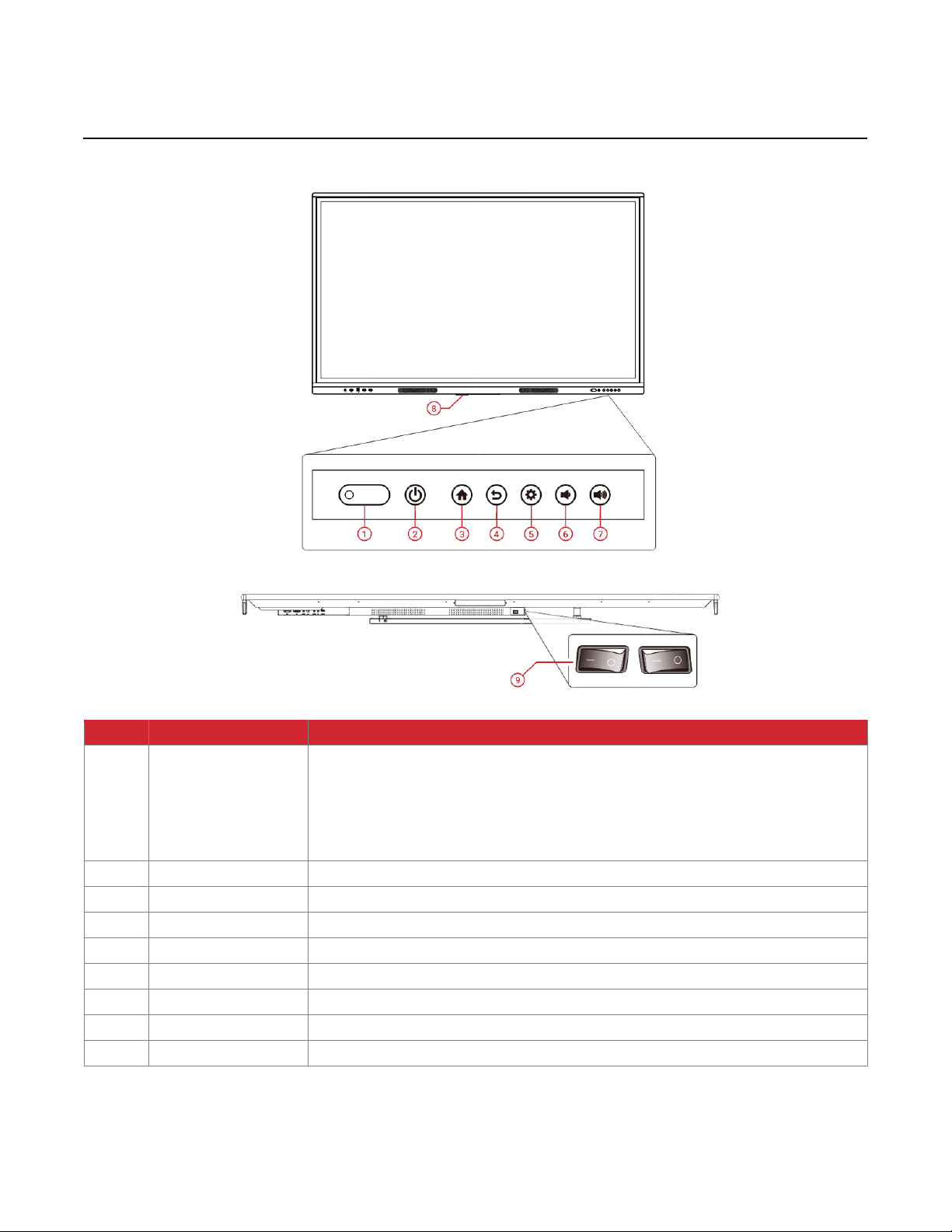
FRONT PANEL BUTTONS
ID
Name
Description
1
Light Window
•Indicator LED light providing status of power.
oSolid Red LED: the display is in standby mode.
oSolid Green LED: the display is powered on.
•Remote control receiving window (point remote IR control to this window)
•Senses ambient room light for auto brightness adjustment
2
Power
Powers on/off the display
3
Home
Shortcut button to quickly access the Android home screen.
4
Return
Acts as an escape key to return to the previous screen/menu.
5
Settings
Accesses the settings menu.
6
Volume Down
Decreases the audio level of the built-in loudspeakers
7
Volume Up
Increases the audio level of the built-in loudspeakers
8
Wi-Fi
Support for Wi-Fi
9
Power Switch
Powers on or powers off the display

Hall Technologies June 2, 2023 Page 7 of 34
INPUTS/OUTPUTS

Hall Technologies June 2, 2023 Page 8 of 34
Installation
INSTALLATION
Note: Before installation, please ensure the device is disconnected from the power source.
To install the device on the wall:
1. After unpackaging the IFP, remove the Wall Hanging Bracket from the back of the IFP by removing
the two screws.
2. Place the included Wall Hanging Bracket against the wall and, after leveling the bracket, mark the
four holes to be drilled. Drill the four holes and insert the sheet rock expansion screws (as needed).
Secure the Wall Hanging Bracket to the wall using the mounting screws provided.
3. Install the two panel mounts to the back of the display’s VESA receiving screws using the mounting
screws provided.
4. Using at least two people to lift the panel, lift and hang the display mounts to the wall mount.

Hall Technologies June 2, 2023 Page 9 of 34
Application Wiring Examples
In addition to being a standalone interactive flat panel, the Hall Vision Interactive Flat Panels can be used
in various applications with additional technology products. The following shows a few of those examples
with the benefits of each.
INTEGRATION WITH HT-TRK1
This application is perfect for classrooms and training rooms as it integrates with multiple technology
products shown in the diagram, with the HT-TRK1 solution at the core, providing simple control of source
switching and volume control. By using microphones and loudspeakers, teachers can ensure that all
students can hear them clearly and maintain classroom discipline. With document cameras and
interactive flat panels, teachers can provide visual aids and real-time demonstrations that help students
better understand complex concepts. PTZ cameras connecting to soft codec applications such as Google
Meet, Microsoft Teams, and Zoom enable remote learning and collaboration opportunities, allowing
students to connect with experts from all over the world. Wireless presentation capabilities with HT-
RANGER also allow teachers to showcase student work, facilitating collaboration and creativity.

Hall Technologies June 2, 2023 Page 10 of 34
INTEGRATION WITH HT-CALIPSO
This application includes similar features as the HT-TRK1 solution but intended for smaller classrooms,
training rooms, and conference rooms. With the HT-CALIPSO’s built-in camera, microphones, and
speakers, integrated with the Hall Vision IFP, teachers and instructors can take provide interactive lessons
that can be heard by all in the room and on a soft codec video call.
INTEGRATION WITH HT-ODYSSEY
Integration with HT-ODYSSEY is similar to the integration with HT-CALIPSO but brings the microphone,
speakers, and laptop connections to the table. Touch signals on the Hall Vision Interactive Flat Panel
pass through the HDBaseT receiver back to the HT-ODYSSEY and into the connected laptop.
Ce manuel convient aux modèles suivants
1
Table des matières


