
Gulfstream Aerospace PlaneBook Manuel utilisateur

owners manual
Electronic Document Manager
smaller. faster. better.
PlaneBook OM Cover.indd 1 6/5/2008 6:35:12 AM

© Copyright 2008 Gulfstream Aerospace Corporation
Gulfstream Aerospace
P.O. Box 2206, M/S C-20
Savannah, GA 31402
912-965-3520 (Fax)
1-800-810-4853 (United States)
1-912-965-4178 (International)
Then:
Sales, Invoicing and Distribution: option 3, then option 1.
Flight Crew Technical Information: option 3, then option 2.
®
All rights reserved. Except as expressly provided herein,
no part of this manual may be reproduced, copied,
transmitted, disseminated, downloaded or stored in any
storage medium, for any purpose, without the expressed
prior written consent of Gulfstream.
Information in this document is subject to change without
notice. Gulfstream reserves the right to change to improve
its products and to make changes in the content without
obligation to notify any person or organization of such
changes or improvements. Visit Gulfstream’s customers-
only web site (www.myGulfstream.com) for current
updates and supplemental information concerning the use
and operation of this product.
PlaneBook™ is a registered trademark of Gulfstream
Aerospace Corporation and may not be used without the
expressed permission of Gulfstream.

PREFACE
© Gulfstream 2008 i PlaneBook™ Owner’s Manual
Welcome!
Congratulations on your acquisition of Gulfstream’s
PlaneBook™. To obtain the most value from your invest-
ment, it is suggested that you take the time to read this
manual and learn how to use the system.
Important Numbers
Record the configuration part number (Configuration P/N)
and unit serial number (S/N) here in case your unit ever
needs service or if you need to contact technical support.
Both of these numbers can be found on the bottom of the
unit, on two white decals. The configuration part number
(Configuration P/N) decal is usually placed above the serial
number (S/N) decal.
Configuration P/N: ______________________________
Unit S/N: ______________________________
Technical Support
It is our foremost concern to ensure that you are always
100% satisfied with PlaneBook™, including support after
the sale. Given that a computer is still a machine, however,
it is foreseeable that machines will break from time to time.
We ask that you please take the following steps toward
obtaining technical support:
1. Ensure you’ve first checked all of the documentation
that was included with the Fujitsu FG-1620G Tablet PC,
the PlaneBook™ Quick Reference Guide, and this
PlaneBook™ Owner’s Manual.
2. If you are unable to solve your problem using the docu-
mentation, contact Flight Crew Technical Information us-
ing the information on the following page.

PREFACE
PlaneBook™ Owner’s Manual ii © Gulfstream 2008
Contact Gulfstream
If you have any questions or encounter any difficulty while
using PlaneBook™, please contact Gulfstream:
By telephone:
1-912-965-4178 or
1-800-810-GULF (4853)
For Flight Crew Technical Information questions or
technical support issues, select option 3, then option 2.
For Sales, Invoicing and Distribution questions, such as
subscriptions and billing, select option 3, then option 1.
Second Tier Technical Support
Our staff at Gulfstream should be able to answer any ques-
tions and remedy any difficulty of the PlaneBook™ portion
of the Fujitsu FG-1620G Tablet PC. However, if we determine
the problem is with the PC itself and not the PlaneBook™ sys-
tem, we may elect to confer with our PC provider and then
get back in touch with you, or we may escalate your issue
directly to our PC provider for assistance.
Regardless of your technical support issue, we request
that you always contact Gulfstream first to ensure the
best and quickest service.

TABLE OF CONTENTS
© Gulfstream 2008 i PlaneBook™ Owner’s Manual
Getting to Know PlaneBook™ .......................................... 1
References Available ..................................................1
The Operating State of Your Tablet: PlaneBook™
Mode versus Windows®Mode.......................................... 1
Windows®Mode ..........................................................1
PlaneBook™ Mode ......................................................2
Hardware Modifications Made for PlaneBook™ ............. 2
Changing From Windows®Mode to PlaneBook™
Mode and Vice Versa......................................................... 4
To Change From Windows®Mode to
PlaneBook™ Mode ......................................................4
To Change From PlaneBook™ Mode to
Windows®Mode ..........................................................5
The PlaneBook™ Desktop: Description .......................... 6
The “Open PlaneBook™ Taskbar” Button................7
The “Print Screen” Button..........................................7
The “PlaneBook™ Start” Button................................8
The PlaneBook™ Taskbar ..........................................8
The PlaneBook™ Taskbar Buttons............................ 9
“Document / Application” Buttons ..........................11
The “Utilities” Button Functions..............................12
The “Shut Down” Button Functions ........................24
Working with Your Pilot’s Manuals Suite ...................... 25
Document Navigation Button Functions.................25
The Centralized, Linked QRH Architecture .............26

TABLE OF CONTENTS
PlaneBook™ Owner’s Manual ii © Gulfstream 2008
GPS Setup Guide for JeppView FliteDeck3TM ............... 29
Introduction ............................................................... 29
PlaneBook™ Bluetooth™ Recognition of the
GPS Unit and Setup .................................................. 30
GPS Setup in Jeppesen FliteDeck3™ ..................... 37
Lithium-ion Battery and Power Management ............... 41
Recharging the Batteries.......................................... 42
Low Battery State...................................................... 43
Replacing the Battery ............................................... 44
Power Management .................................................. 46
Power/Suspend/Resume Button.............................. 46
Standby Mode............................................................ 47
Hibernation (Save-to-Disk) Feature ......................... 49
Windows™ Power Management .............................. 49

PLANEBOOKTM OWNER’S MANUAL
© Gulfstream 2008 1 PlaneBook™ Owner’s Manual
1. Getting to Know PlaneBook™
References Available
In addition to this owner’s manual, the following refer-
ences are available to assist you in getting to know
PlaneBook™. References to these guides will be given
throughout this manual:
• PlaneBook™ Quick Reference Guide
• Fujitsu’s “User’s Guide” for the Lifebook®P1620
Notebook
It is recommended that all of the above guides be read
and understood in order to minimize any otherwise
preventable “downtime” of PlaneBook™.
2. The Operating State of Your Tablet:
PlaneBook™ Mode versus Windows®
Mode
The Fujitsu FG-1620G PlaneBook™ system is capable
of operation in two different modes: Windows®mode
and PlaneBook™ mode.
Changing from Windows®mode to PlaneBook™ mode
(and vice versa) is described on page 4 of this guide.
Windows®Mode
When in Windows®mode, the FG-1620G functions as a
laptop PC, using Microsoft Windows®XP Tablet PC
Edition as its base operating system. Functions and
features in this mode are compatible with what is
expected of an ordinary compact tablet PC.

PLANEBOOKTM OWNER’S MANUAL
PlaneBook™ Owner’s Manual 2 © Gulfstream 2008
PlaneBook™ Mode
When in PlaneBook™ mode, the FG-1620G functions
as an electronic document management (EDM) tool for
flight crews who desire to operate in a paperless cock-
pit environment in accordance with FAA Advisory Cir-
cular No. 91-78, Use of Class 1 or Class 2 Electronic
Flight Bag (EFB), dated 07/20/07, or later approved
version. In addition to providing service as an EDM,
PlaneBook™ also may be loaded with additional data
and/or convenience programs, such as weight and
balance calculators, navigation charts, and aircraft
performance planning software.
3. Hardware Modifications Made for
PlaneBook™
(Refer to Fujitsu’s “User’s Guide” for the Lifebook®
P1620 Notebook, page 21, USING THE LIFEBOOK
APPLICATION PANEL.)
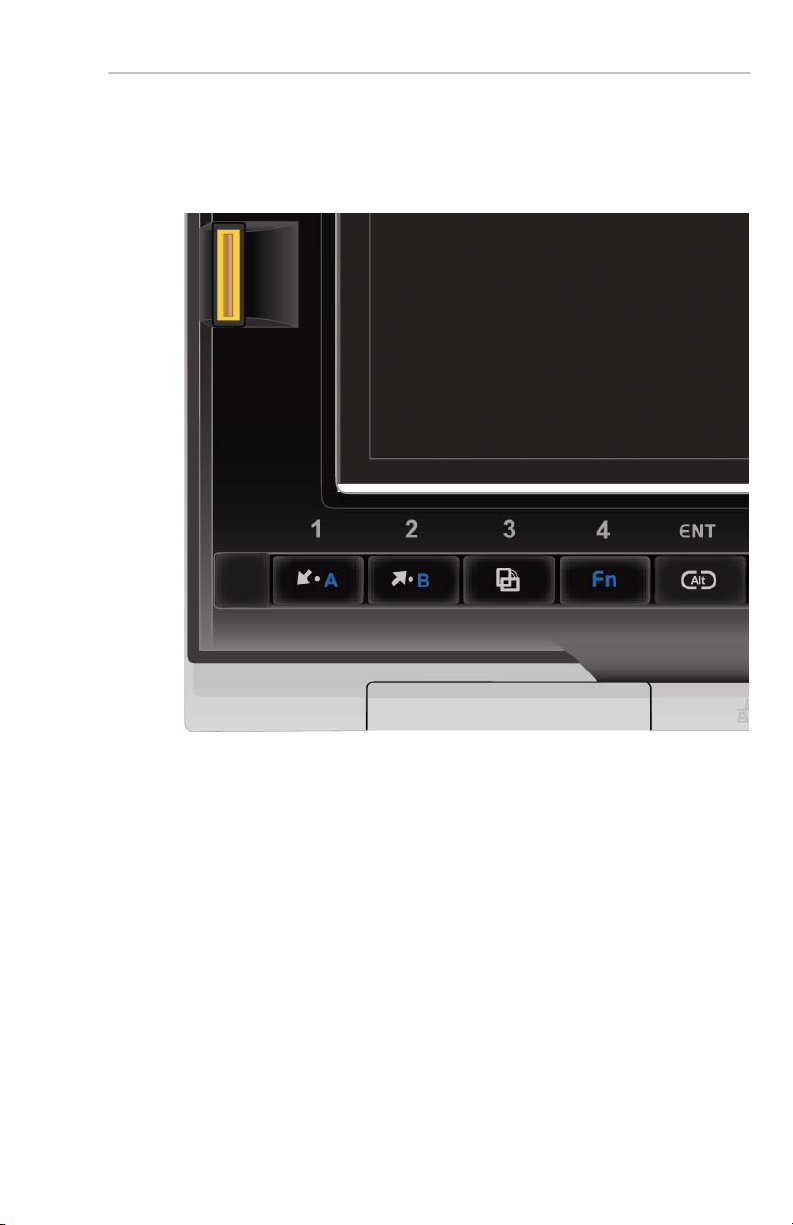
(See illustration on next page.) Two of the five applica-
tion buttons (bottom left corner of the display screen)
have been modified for use when in the PlaneBook™
mode. Buttons 1and 2have been modified to serve as
BRIGHTNESS control buttons. Pushing button 2(↑) in-
creases the screen brightness. Pushing button 1(↓)
decreases the screen brightness. Whenever either
button is pushed, the Brightness Min. / Max. scale is
displayed. The Min. / Max. scale automatically hides a
few seconds after the button is released.
In Windows®mode, buttons 1and 2serve primarily as
Page Up [button 2(↑)] and Page Down [button 1(↓)].
Secondary functions for these buttons can be assigned
at the discretion of the owner when in Windows®mode.
PLANEBOOKTM OWNER’S MANUAL
© Gulfstream 2008 3 PlaneBook™ Owner’s Manual
Buttons 3, 4and the ENT (Ctl+Alt+Del) button remain
unchanged in both the PlaneBook™ and Windows®
modes.

PLANEBOOKTM OWNER’S MANUAL
PlaneBook™ Owner’s Manual 4 © Gulfstream 2008
4. Changing From Windows®Mode to
PlaneBook™ Mode and Vice Versa
Note: Whenever the FG-1620G is shut down, it will re-
start in the operating mode it was in when previously
shut down (Windows®mode or PlaneBook™ mode).
To Change From Windows®Mode to PlaneBook™
Mode
After the FG-1620G has finished its startup routine, lo-
cate the Restart in PlaneBook™Mode icon and
double-click it.
This causes the following dialog box to be displayed.
Select Yes to restart the FG-1620G in PlaneBook™
Mode.
Table des matières


