
Grace GDI-IRD4500M Manuel utilisateur
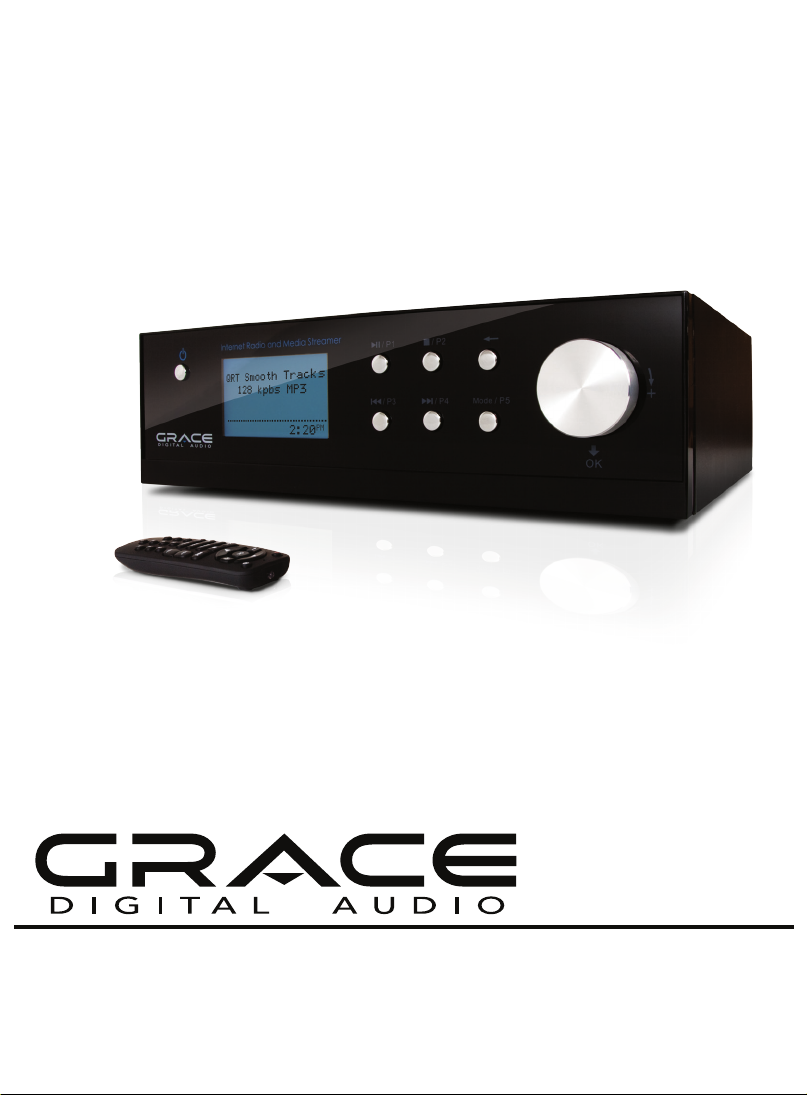
1BRAVADO-X Internet Radio and Network Media Player
GDI-IRD4500M
USER GUIDE
BRAVADO-X WiFi Internet Radio by Grace Digital Audio

2BRAVADO-X Internet Radio and Network Media Player
Table of Contents
Safety Warnings ..............................................................................................................................................................................4
Internet Radio and Network Music Player Quickstart Guide ..........................................................................................5
What you need before you can use your Internet radio ............................................................................................5
Radio Controls...........................................................................................................................................................................6
Remote Control.........................................................................................................................................................................8
Steps for connecting your radio to your wireless network .......................................................................................9
Step 1 - Power up the radio............................................................................................................................................9
Step 2 - Scan for a wireless network connection ...................................................................................................9
Step 3 - Connect to the wireless network.................................................................................................................10
Choosing a radio station to listen to.................................................................................................................................12
Choosing a Pandora radio station......................................................................................................................................13
Changing the volume.............................................................................................................................................................14
Storing a radio station in a preset ......................................................................................................................................14
Playing a preset radio station ..............................................................................................................................................14
Requesting a station that is currently unavailable.......................................................................................................15
Stations which enable you to choose what you listen to..........................................................................................15
Setting the clock.......................................................................................................................................................................16
Setting the alarm......................................................................................................................................................................17
Setting the sleep timer...........................................................................................................................................................20
Conguring ‘My Stu’...................................................................................................................................................................20
Registering an account on Grace Digital Audio’s website.........................................................................................20
Conguring ‘My Prole’..........................................................................................................................................................20
Conguring ‘My Stations’.......................................................................................................................................................21
Conguring ‘My Streams’.......................................................................................................................................................21
Conguring ‘My Podcasts’.....................................................................................................................................................21
Conguring ‘My Pandora’......................................................................................................................................................22
Accessing Pandora Feedback Menu..................................................................................................................................23
Media Player Quickstart Guide..................................................................................................................................................24
Setup your Windows PC to allow the radio to access your audio les via Windows Shares.........................24
Locate the shared audio les using the radio................................................................................................................26
Listening to a single shared track.......................................................................................................................................26
Listening to a complete shared album.............................................................................................................................27
Arranging (Queuing up) tracks for playback later........................................................................................................27
Arranging (Queuing up) albums for playback later.....................................................................................................27
Controlling playback...............................................................................................................................................................28

3BRAVADO-X Internet Radio and Network Media Player
Browsing the list of tracks currently (queued up) for playback...............................................................................28
Removing tracks from the list (queue) .............................................................................................................................28
Playing tracks in random order ...........................................................................................................................................29
Playing tracks in the list (queue) repeatedly ..................................................................................................................29
Set up a Windows PC to allow the radio to access your audio les via a UPnP server....................................30
Locating and playing media les using the radio and UPnP....................................................................................32
Browsing the list of tracks currently arranged (queued up) for playback ...........................................................33
Arranging (queuing up) UPnP tracks for playback later.............................................................................................33
Queuing up albums for playback later.............................................................................................................................33
Controlling playback...............................................................................................................................................................34
Removing tracks from the list (queue) .............................................................................................................................34
Playing tracks in random order ...........................................................................................................................................35
Playing tracks in the queue repeatedly............................................................................................................................35
Settings Menu .................................................................................................................................................................................36
Choosing the option you want from the Congure menu .......................................................................................36
<Network Cong> ...................................................................................................................................................................36
<Upgrade Firmware> .............................................................................................................................................................37
<Language>...............................................................................................................................................................................37
<Factory Reset>........................................................................................................................................................................37
<Register> ..................................................................................................................................................................................37
<Clock Setup>...........................................................................................................................................................................37
<Sleep Timer> ...........................................................................................................................................................................37
<Backlight> ................................................................................................................................................................................38
<UPnP>........................................................................................................................................................................................38
<Wi-Fi Strength> ......................................................................................................................................................................38
<Other Cool Stu> ..................................................................................................................................................................38
Troubleshooting .............................................................................................................................................................................39
Specications.............................................................................................................................................................................40
License Information and Warranty.....................................................................................................................................40
Appendix...........................................................................................................................................................................................41
Step 1: Set Up Media Sharing in Windows Media Player 11 .....................................................................................41
Step 2: Play Music on the Internet Radio.........................................................................................................................43
Using the USB Port as an USB-Ethernet Connection..................................................................................................43
Contact...............................................................................................................................................................................................44
Proposition 65 .................................................................................................................................................................................44
Table of Contents

4BRAVADO-X Internet Radio and Network Media Player
Please read before installation.
If this Internet radio has been moved from a cold place to a warm place, DO NOT plug it in for 2-3 hours (e.g.
from a cold car boot to a warm room). There is a possibility that moisture may have condensed in the Internet
radio, this can cause damage to your Internet radio. To avoid damage please unpack your Internet radio and
allow it to stand at room temperature for 2-3 hours before use. This will help any moisture evaporate and
prevent unnecessary damage to your Internet radio.
DO Ensure that the power plug is easily accessible.
COVERS Do not remove any xed covers as this may expose dangerous voltages.
WEATHER It is advisable to unplug an external antenna during a thunderstorm.
VENTILATION The ventilation holes on the casing of your Internet radio prevent it from over heating.
Do not block or cover these holes, especially with cloth or paper. Do allow a minimum
distance of 5cm around the apparatus for sucient ventilation.
DAMAGE Never use your Internet radio if it is damaged in any way. Always place your Internet radio
on a at level surface avoiding anywhere which may be subject to strong vibration.
TEMPERATURE Avoid extremes of temperature, either hot or cold, place your Internet radio well away
from heat sources such as radiators or gas/electric res.
DO NOT Use this apparatus in tropical climates.
MOISTURE Do not allow your Internet radio to be exposed to rain, moisture or dust. If any liquid is
spilt into your Internet radio it can cause serious damage. If you spill any liquid into your
Internet radio switch it o at the mains immediately. Contact your store immediately.
CAUTION Do not open any covers and do not repair yourself. Qualied personnel must carry out
repair work.
Proposition 65 Refer to page 44 of User Guide for details regarding Proposition 65 and this product
Safety Warnings

5BRAVADO-X Internet Radio and Network Media Player
Before you can use your Internet radio, you need the following:
• A broadband Internet connection.
• A wireless access point (Wi-Fi) connected to your broadband Internet, preferably via a router.
• If your wireless network is congured to use Wired Equivalent Privacy (WEP) or Wi-Fi Protected Access
(WPA) data encryption then you need to know the WEP or WPA / WPA 2 code so you can get the
Internet radio to communicate with the network.
• If your wireless network is congured for trusted stations you will need to enter the radio’s MAC address
into your wireless access point. To nd the radio’s MAC address use menu items as follows: Settings >
Network Cong > View Cong > MAC Address
• To enter the MAC address into your wireless access point, you must read the instructions supplied with
the wireless access point.
The Internet radio should work anywhere within 300 feet (100 meters) of the wireless access point.
Before you continue, make sure that your wireless access point is powered up and connected to your
broadband Internet. To get this part of the system working you must read the instructions supplied with
the wireless access point
What You Need Before You Can Use Your Internet
Radio and Network Streamer
INTERNET RADIO QUICKSTART GUIDE
6BRAVADO-X Internet Radio and Network Media Player
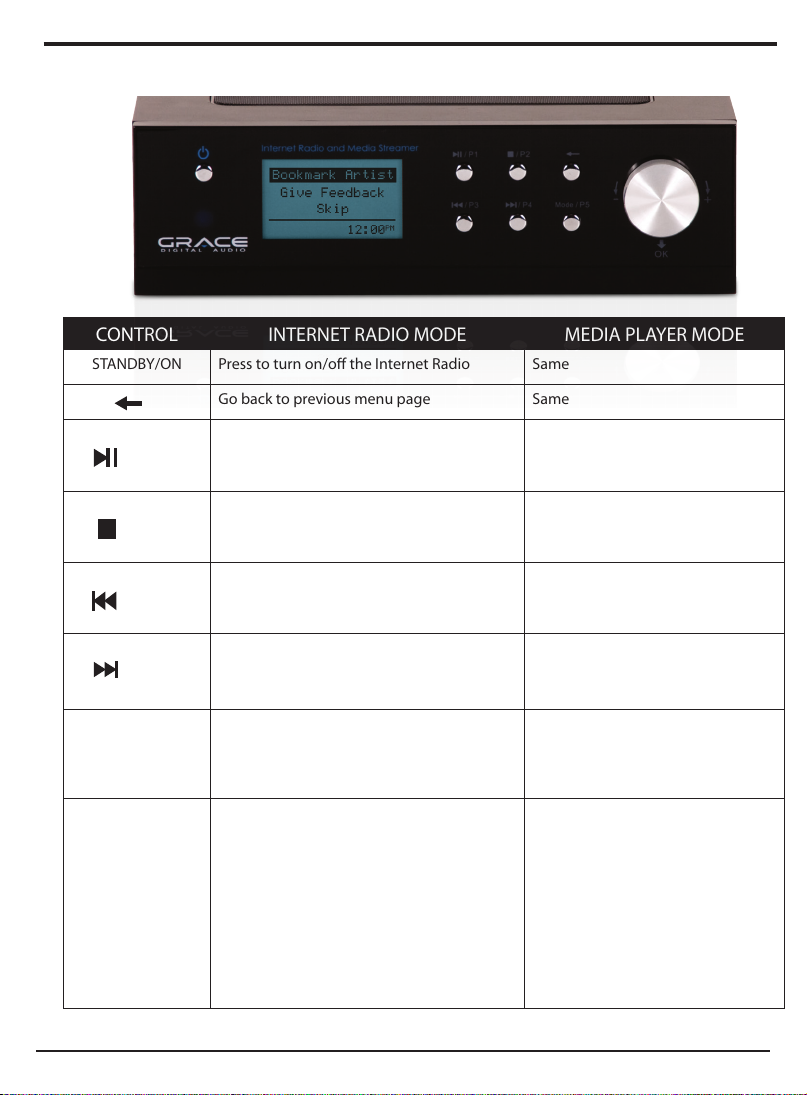
Radio Controls
CONTROL INTERNET RADIO MODE MEDIA PLAYER MODE
STANDBY/ON Press to turn on/o the Internet Radio Same
Go back to previous menu page Same
/ P1
Press and hold for 2 seconds to store
Preset station P1
Press to listen to Preset station P1
Play/Pause
/ P2
Press and hold for 2 seconds to store
Preset station P2
Press to listen Preset station P2
Stop
/ P3
Press and hold for 2 seconds to store
Preset station P3
Press to listen Preset station P3
Previous Track
/ P4
Press and hold for 2 seconds to store
Preset station P4
Press to listen Preset station P4
Next Track
Mode / P5 Press and hold for 2 seconds to store Preset
station P5
Press to listen Preset station P5
Select Mode for equalizer settings
Mode
PUSH /
Volume Knob
Pushing the select button inwards will
activate the currently selected menu item.
Turning the knob clockwise or counter
clockwise will increase or decrease the vol-
ume. This will also move up or down in the
menu. Push the button inward to select the
highlighted menu item. If selected in error,
press the ‘back’ button to move back to the
previous menu
Same
7BRAVADO-X Internet Radio and Network Media Player
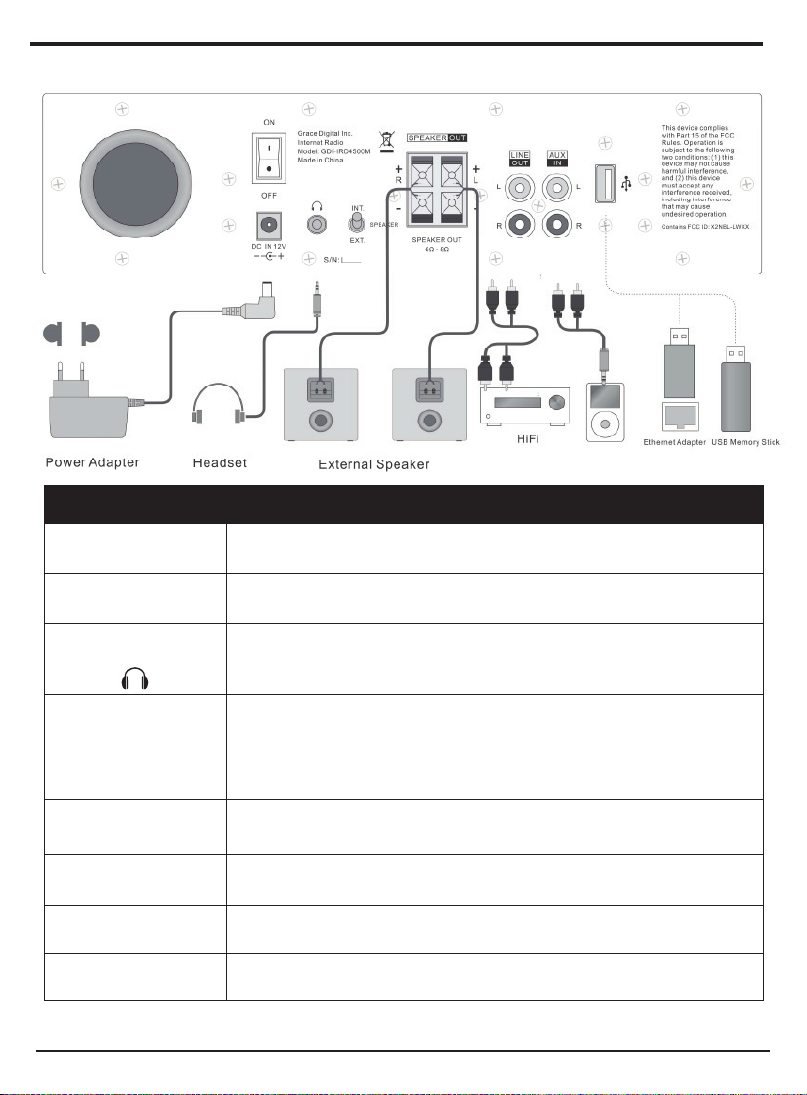
JACKS DESCRIPTION
ON / OFF
SWITCH
Master ON / OFF control for power. IMPORTANT: Switch MUIST be ON for the
power / standby switch on the front panel to operate the unit.
DC 12V Connection To supply power to the unit, connect the power adaoter to the DC connection
and a wall electrical power outlet
Headphone
Jack
The headphone jack is a stereo headphone jack. Plug stereo headphones in
for stereo playback of your music or to plug in and connect your internet radio
into a home stereo (cables not included)
INT - EXT SPEAKER
Selection Switch
The speaker switch is used to select between EITHER internal (INT) speaker or
external (EXT) speaker. Select ‘Speaker On’if internal speaker is desired.
IMPORTANT: IF audio is not heard check that SPEAKER INT has been selected
To listen to internatl speakers INT must be selected & Master Power switch ON
To list to external speakers EXT must be selected & Mater Power switch ON
RCA (L R) Jack
LINE OUT
Connect RCA cables to optional external speakers (not included). 16 watts at 8
ohms or 24 watts for 6 ohm speakers. NOTE: select EXT on the SPEAKER switch
SPEAKER OUT (L R)
Wire Connections
Connect optional external speakers to the SPEAKER OUT 6 Ω - 8Ω wire
connections
RCA (L R) Jack
AUX IN
Connect alternative audio devices to the RCA AUX IN jacks and play audio over
the system
USB Port Play audio from a USB ash drive or connect an optional USB ethernet adapter
for use as a LAN internet connection.. Refer to APPENDIX for details
8BRAVADO-X Internet Radio and Network Media Player
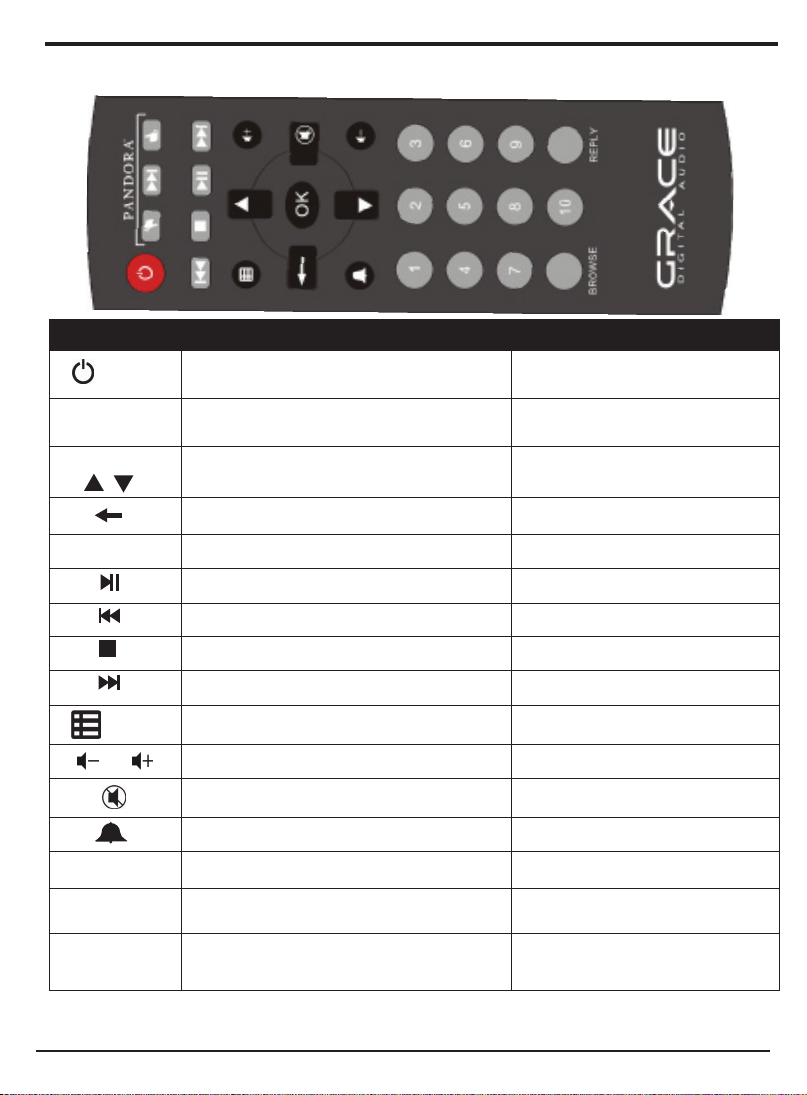
Remote Control
CONTROL INTERNET RADIO MODE MEDIA PLAYER MODE
POWER Press to turn o the Internet Radio Same
THUMBS UP
THUMBS DOWN
Press for Pandora Thumbs UP/DOWN selection no function
Arrow Keys Press to navigate throughout various
menus and selections
Same
Press to return to previous menu page Same
OK Push OK to select menu items, stations etc. Same
NA Play/Pause
NA Previous Track
NA Stop
NA Next Track
MENU To the main menu NA
Press + to increase and - decrease volume Same
Press MUTE button to turn o/on the volume Same
Set Alarms NA
BROWSE NA NA
REPLY Access Pandora interactive menu NA
Keypad
1-10
Selects Preset Stations (Up to 10) Same
9BRAVADO-X Internet Radio and Network Media Player
Steps For Connecting Your Radio To Your Wireless
Network
First, connect to the AC Power. The radio can be switched on or o with the STANDBY/ON
button.
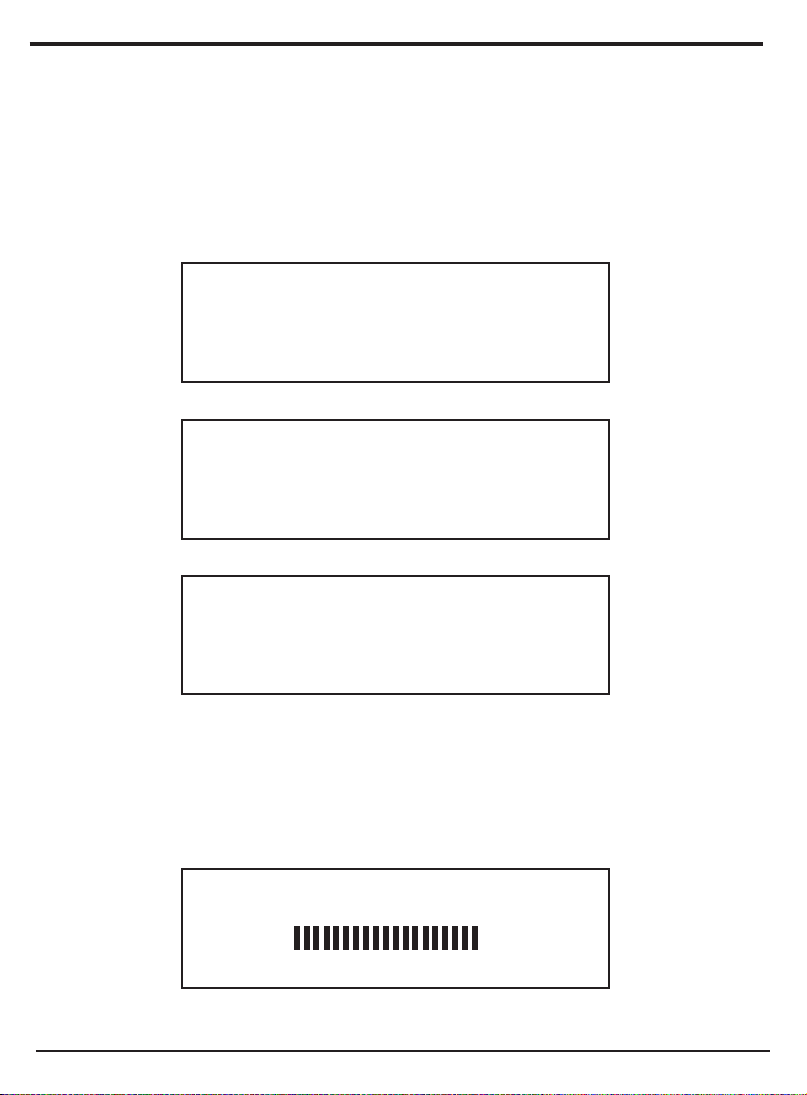
The display on the front of the radio will light up and indicate:
Step 1 - Power up the radio
Grace Digital Radio
After a few seconds, this will change to show:
Initializing
Network
After a few seconds, this will change to show:
< Scan for networks >
Enter network
View Cong
Edit Cong
When the display shows < Scan for networks >, press the ‘Select’ button.
(Note: if you make a mistake at any point, press the ‘Back’button to go back to the
previous screen.)
The radio will now scan for all available wireless networks and will display:
Step 2 - Scan for a wireless network connection
Scanning

10 BRAVADO-X Internet Radio and Network Media Player
If it can’t nd one then the display will show:
Steps For Connecting Your Radio To Your Wireless
Network (Continued)
No networks
Found
If this happens then you will have to setup your wireless access point - see the instructions
supplied with your wireless router / access point.
When the radio nds your wireless network, it displays the ESSID for the access point on the
screen - this is a name that is allocated to the access point by the person who set up your
network - for example:
< My Home Network >
It is possible, and in some locations highly likely, that your radio will nd more than one wireless
access point, in which case you can choose which one you want to connect to. Turn the knob on
the radio to see the ESSID for each access point the radio has found.
For optimal performance you may want to check your home network settings to make sure your
radio is on a deferent channel than your neighbors. To do this please consult your Wi-Fi router
owners manual.
When the ESSID for the access point you want to connect to is displayed on the screen,
press the ‘Select’ button.
If your network is not congured to need an encryption code, the screen should say:
Step 3 - Connect to the wireless network
Connecting to
Network
Table des matières
Autres manuels Grace Radio

Grace
Grace GDI-IRP600 Manuel utilisateur

Grace
Grace GDI-IR3020 Manuel utilisateur

Grace
Grace ITC-IR1000B Manuel utilisateur

Grace
Grace ITC-IR1000B Manuel utilisateur

Grace
Grace GDI-IRBM20 Manuel utilisateur

Grace
Grace GDI-IR2000 Manuel utilisateur

Grace
Grace GDI-IR3020 Manuel utilisateur

Grace
Grace GDI-IR1000 Manuel utilisateur

Grace
Grace GDI-IR3000 Manuel utilisateur

Grace
Grace GDI-IRP600 Manuel utilisateur


