GPD WIN MAX 2 Manuel utilisateur

www.softwincn.com
使用说明书
GPD WIN MAX 2
GPD微信公众号 GPD微博公众号

显示屏.8
Display screen.8
ディスプレイ.8
左摇杆.24
Left joy stick
.24
左レバー.24
D-Pad键.26
D-Pad button.26
D-Padキー.26
手柄/鼠标切换键.11
Gamepad/mouse toggle key.11
コントローラ/マウス切替キー.11
摄像头.14
Camera .14
カメラ.14
大小写指示灯.12
Caps lock indicator light.12
大文字・小文字インジケーター.12
风扇开关指示灯.13
Fan switch indicator light.13
ファン オ ン・オ フ イ ン ジ ケ ー タ ー . 1 3
触控板.19
Touchpad .19
タッチパネル.19
25.右摇杆
25.Right joy stick
25.右レバー
27.ABXY键
27.ABXY button
27.ABXYキー
31.键盘区
31.Keyboard area
31.キーボードエリア
28.SELECT键
28.SELECT button
28.SELECTキー
29.MENU键
29.MENU button
29.MENUキー
30.START键
30.START button
30.STARTキー
6.运行指示灯
6.Running indicator light
6.動作インジケーター
21.麦克风口
21.Microphone interface
21.送話口
2

32.背键
32.Back buttons
32.バックキー
22.进风口
22.Air inlet
22.吸気口
33.SSD插槽
33.SSD slot
33.SSD挿入スロット
背键.32
Back buttons.32
バックキー.32
4G LTE 插槽.34
4G LTE slot.34
4GLTE挿入スロット.34
5.充电指示灯
5.Charging indicator light
5.充電インジケーター
23.出风口
23.Air outlet
24.排気口
9.L1/L2 10.R1/R2
电源键/指纹解锁.18
Power button/finger scanner.18
電源ボタン/指紋認証によるロック解除.18
17.复位键
17.Reset key
17.リセットボタン
4.扬声器
4.Loudspeaker
4.スピーカー
4.扬声器
4.Loudspeaker
4.スピーカー
3.USB4 接口
3.USB4 interface
3.USB4ポート
7.HDMI
7.HDMI interface
7.HDMIポート
1.USB A 接口
1.USB A interface
1.USBAポート
20.耳机/麦克风接口
20.Earphone/microphone interface
20.イヤホン/マイクポート
16.SD卡槽
16.SD card slot
16.SDカードスロット
15.microSD卡槽
15.microSD card sot
15.microSDカードスロット
扬声器.4
Loudspeaker .4
スピーカー.4
扬声器.4
Loudspeaker .4
スピーカー.4
USB C接口.2
USB C interface.2
USBCポート.2
USB A 接口.1
USB A interface.1
USBAポート.1
3 4

接口说明
手柄/鼠标
切换键
11
大小写
指示灯
12
用于在手柄和鼠标两种状态切换。
当切换手柄状态时,机身手柄被激活,此时只能用触控板控制鼠标,键盘可以输
入。当切换鼠标状态时,手柄失效,鼠标被激活,此时,手柄右摇杆模拟鼠标移动,
L1键模拟鼠标左键,R1键模拟鼠标右键,R2键为鼠标加速键。
白色指示灯
默认熄灭为小写状态,按下白灯亮,表示进入大写状态。
风扇开关
指示灯
13 白色指示灯
默认熄灭,Fn+左Shift键白灯亮,风扇开启。
摄像头14 内置超广角摄像头
200万像素,最大分辨率:1612×1212,支持30Hz刷新率。
microSD卡槽15
支持microSD卡。
总线接口:UHS-I,视频速度等级:V30,I/O 性能:A2,最大理论速度: 160MB/s
兼容:microSDHC / microSDXC / microSDUC。
SD卡槽16
支持SD卡。
总线接口:UHS-II,视频速度等级:V90,最大理论速度: 312MB/s,兼容:SDHC
/ SDXC / SDUC。
R1/R210 右扳机键。
在游戏时,右手食指勾住,实现某些动作,有时要配合其它按键组合使用。
复位键
电源键/
指纹解锁
17
18
用于BIOS恢复默认设置。
在关机状态,用手机取卡针或曲别针,插入BIOS复位孔按下一次,即可将BIOS恢复
为出厂设置。
用于开机、关机、休眠、唤醒。
触摸一键解锁系统,当桌面锁定,通过已录入的指纹信息,解锁Windows桌面。
按2~3秒开机,开机状态下,快速按下则使机器休眠,再次快速按下唤醒机器,长
按10秒关机。
接口说明
USB A 接口
USB C 接口
USB4 接口
1
2
3
全功能接口,USB 3.2 Gen 2规范,10Gbps传输速率,可直连或通过拓展坞连接显示器
或其它外设,输出影音或数据。
连接外置随身Wi-Fi或USB网卡,可用于上网。
该接口支持100W PD协议电源适配器,支持20V、15V电压输入。
该接口视频信号输出,需采用双USB Type-C公对公口全功能电缆。
USB 3.2 Gen 2规范,10Gbps传输速率,可直连或通过拓展坞连接外设,可传输数据或
给其它设备充电。
连接外置随身Wi-Fi或USB网卡,可用于上网。
开机状态下,该接口支持给外部设备充电,但不支持反向给本机充电。
扬声器4内置的超线性扬声器,用于声音输出。
4扬声器,环绕立体声效果。
充电指示灯5
红灯 / 绿灯两种显示状态。
插上电源适配器亮红灯,充满亮绿灯,断开电源适配器灯灭,没有检测到电池时
红、绿色交替闪烁。
运行指示灯6 蓝灯状态。
正常使用蓝灯长亮,睡眠模式呼吸灯状态。
HDMI 接口
显示屏
L1/L2
7
8
9
画面显示,支持10点触控。
为高清晰多媒体接口,用于视频、音频信号传输。
需HDMI 2.1 版Type A连接线,输出设备一般为电视,显示器或投影仪。
左扳机键。
在游戏时,左手食指勾住,实现某些动作,有时要配合其它按键组合使用。
全功能接口,USB4规范,40Gbps传输速率,可直连或通过拓展坞连接显示器或其它外
设,输出影音或数据。
连接笔记本、手机、平板等用于充电。
连接eGFX设备,借助外接显卡,提升游戏体验。
该接口支持100W PD协议电源适配器,支持20V、15V电压输入。
该接口要达到最佳信号输出,需采用双USB Type-C公对公口,且有 标识的雷电
4电缆,或采用 标识的USB4电缆。
40
5 6

接口说明 接口说明
START键30
键盘区31
开始键。
常用于游戏“开始”确认。
输入设备,单独的按键或组合键输入字符或指令。
背键32
自定义按键。
在玩PC游戏时,可通过系统自带的WinControls工具,将需键盘操作的快捷键映射
到背键上,使在手柄状态下操作更便捷。
支持M.2 2230 SSD。
此插槽基于Socket 3 接口,支持PCIe 4.0 规范M.2 SSD,兼容PCIe 3.0 规范M.2 SSD,
仅支持单面器件布局,无容量大小限制。您在购买此产品时,如未选择搭配M.2 2230
SSD的版本,亦可以自行购买SSD并安装。
SSD插槽33
4G LTE 插槽34
支持Nano-SIM卡
4G LTE模块非标配,支持插Nano-SIM卡,支持单卡。4G网络支持TD-LTE,FDD-
LTE;3G网络支持WCDMA、TD-SCDMA、CDMA;2G网络支持GSM。
触摸板19
耳机/麦克风
接口
20
精确式触控板(PTP模式)
支持最多3指动作,支持Microsoft Precision TouchPad (PTP),包括:1、开启/关闭
触摸板;2、更改光标速度;3、灵敏度设置;4、双指滚动、缩放功能;5、三指
轻扫和点击功能;6、重置设置等。
3.5mm耳机麦克风二合一接口。
麦克风口21 独立的麦克风口
进风口22 冷风进入。
出风口23 热风排出。
左摇杆24 手柄左摇杆。
摇杆下压实现L3功能,当切换鼠标模式,左摇杆无效。
右摇杆25 手柄右摇杆。
摇杆下压实现R3功能,当切换鼠标模式,右摇杆为鼠标键。
D-Pad键26
手柄方向键,连体式。
当切换为鼠标模式时,方向键的上下键为键盘的↑↓键,方向键的左键为键盘的
PgDn。
ABXY键27
手柄功能键。
采用双字符丝印,用于辨识PS手柄和Xbox手柄。当切换鼠标模式,功能键被识别
为键盘的←↑→↓键。
SELECT键
MENU键
28
29
选择键。
常用于游戏控制设置时做选择。一般游戏快捷登陆操作与金手指激活的时候需要用
到SELECT键。
Xbox键。
在串流Xbox游戏时,Xbox键除作为手柄开关,还起到“回到主页”、“长按关机”、“截
屏录像”、“贴靠切换”等功能。
7 8

设备内置聚合物锂电池。使用随附赠电源适配器和充电线缆连接到电源插座,充电指示灯亮
红灯表示电池正在充电,充满灯变绿色。设备关机或处于睡眠状态时,电池充电速度更快。
使用电源适配器为设备充电
给设备充电
充电注意事项
请使用设备随附的电源适配器和线缆充电。
使用第三方配件可能导致设备性能下降,且有可能存在安全隐患。
请在适宜的温度范围内和通风良好的阴凉区域为设备充电。
在高温环境下充电可能会损坏设备。
设备充电时间会随温度条件和电池使用状况而变化。
设备长时间工作和充电时,可能会表面发热,这属于正常现象。感觉发烫时,请关闭
部分功能并停止充电。
了解电池状态
您可以通过屏幕上的电量图标判断当前的电池状态。
当设备接入电源时, 电池图标会显示已连接状态。
当设备使用时,移动光标至 电池图标上,可查看电池的剩余电量和剩余使用时间。
电池属于易损耗品,如发现待机时间大幅度减少,请勿自行更换,请联系购买店铺客服
更换原装电池。
首次开机时,请先连接电源适配器和充电线缆为设备充电。
设备关机或睡眠时,短按电源键至屏幕亮起,即可开启或唤醒设备。
设备正常使用时,点击 < 使设备进入睡眠、关机或重启的状态。
长按电源键10秒,可强制关闭设备。强制关机时,未保存的数据可能会丢失。
开启和关闭设备
9 10

设备键盘的蓝色字符默认为热键模式,需结合Fn键使用,可用于轻松执行常见任务。
键盘功能键
降低屏幕亮度
增强屏幕亮度
减小音量
增大音量
关闭音量
播放影音时代表“后退、上一个”
播放影音时代表“播放、暂停”
播放影音时代表“前进、下一个”
插入键
屏幕打印
屏幕滚动显示锁定
风扇开关
开启或关闭键盘背光
设备键盘的蓝色字符默认为热键模式,需结合Fn键使用,可用于轻松执行常见任务。
键盘功能键
Home键
PgUp键
End键
PgDn键
右键单击弹出选单
用于小键盘数字0~9输出
1211

GPD WIN MAX 2
输入电压:AC 11~220V 50/60Hz
输出功率:100W
28W
4W
227 × 160 × 23 mm
注意:请尽量使用原装电源适配器,或基于 PD 协议的电源适配器,
过低会造成耗电量大于供电量。
温馨提示:配件规格以实物为准。
1
2
3
4
序号 品名
GPD WIN MAX 2
Type-C 数据线
电源适配器
产品说明书
数量
1
1
1
1
单位
台
根
个
本
1413
环境要求
音频
电源
整机功耗:
待机功耗:
尺寸
3.5mm
工作温度:0℃~70℃
工作湿度:20~80(%RH)

GPD WIN MAX 2
www.gpd.hk
USER MANUAL
TwitterFacebook

Interface Description
11
12
13
14
15
16
10
9
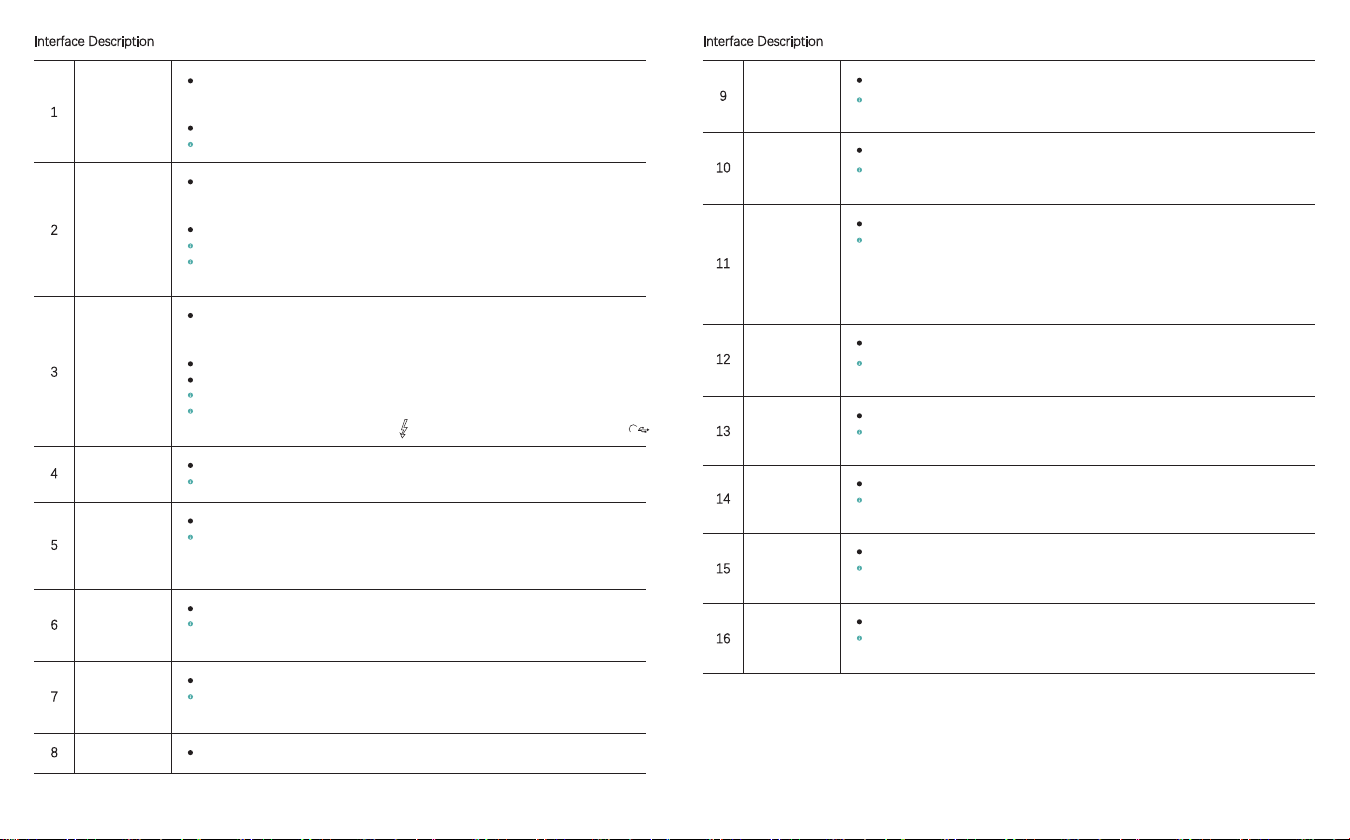
Interface Description
1
2
3
4
5
6
7
8
USB A interface
USB C interface
USB4 interface
Loudspeaker
Charging indicator
light
Running indicator
light
HDMI interface
Display screen
The interface conforms to the standard of USB 3.2 Gen 2 and has a transmission rate of 10Gbps;
it may be directly connected to peripherals or via the MateDock and is also available for data
transmission or charging other devices.
The interface can be connected to external portable WiFi or USB network cards for Internet access.
When it is turned on, the interface can be used to charge peripheral equipment, but not charge itself.
L1/L2
R1/R2
Gamepad/mouse
toggle key
Caps lock indicator
light
Fan switch
indicator light
Camera
microSD card sot
SD card slot
The left trigger button
During a game, you may hook it with you left index finger to implement some actions; and
occasionally, this button needs to be combined with other buttons.
The right trigger button
During a game, you may hook it with you right index finger to implement some actions; and
occasionally, this button needs to be combined with other buttons.
To switch between gamepad and the mouse
When it switches to gamepad status, the gamepad can be enabled, in which case, you need to
control the mouse by virtue of a touchpad and the keyboard is still available for input. At the mouse
status, the gamepad becomes invalid, while the mouse is enabled; and in this context, the right joy
stick of gamepad can be used to simulate mouse motions. More particularly, L1, R1 and R2
respectively serves as left, right and the accelerator key of the mouse.
White indicator light
By default, light off indicates the status of the lower case; and if you press down the key, the white
indicator light turns on, signifying that the status of upper case is enabled.
White indicator light
The light is off by default; and it turns on in the event of pressing down Fn+Left Shift key, where the
fan starts.
A built-in ultra wide camera
It is featured with 2000000× pixels and the maximum resolution of 1612×1212, and supports a
refresh rate of 30Hz.
It supports microSD cards.
Bus interface: UHS-I; video speed grade: V30; I/O performance: A2; maximum speed in theory:
160MB/s; and compatible with microSDHC / microSDXC / microSDUC.
It supports SD cards.
Bus interface: UHS-II; video speed grade: V90; maximum speed in theory: 312MB/s; and
compatible with SDHC / SDXC / SDUC.
It is a full-featured interface following the standard of USB 3.2 Gen 2 and possessing a transmission
rate of 10Gbps, can be connected directly, or via the MateDock, to displays or other peripherals for
audio and video and data output.
The interface can be connected to external portable WiFi or USB network cards for Internet access.
The interface supports the 100W PD power adaptor, and voltage input at 20V/15V.
Video signal output from this interface is executed by double USB Type-C male-to-male
full-featured cables.
As a full-featured interface, it observes the USB4 standard and has a transmission rate at 40Gbps, and
may be connected directly, or via the MateDock, to displays or other peripherals for audio and video and
data output.
It can be connected to laptops, mobiles and tablet PCs, etc. for charging.
It can be connected to an eFGX device to improve game experience by virtue of external graphics cards.
The interface supports the 100W PD power adaptor, and voltage input at 20V/15V.
To achieve optimum signal output, the interface requires double USB Type-C male-to-male ports
and 4-inch lightning cables marked with (alternatively, USB4 standard cables labeled with ).
Built-in ultra-linear loudspeakers for voice output
4 loudspeakers producing surround and stereophonic sounds
Red/green light indicating two types of status
The red light turns on when plugging in the power adapter; since fully charged, the light turns green;
in this case, you may disconnect the power adapter and the light turns off. If no batteries are detected,
the light flashes red and green alternately.
Blue light
The blue light is normally on when regularly used; and in the sleep mode, the status of breathing
light appears.
As a high-definition multi-media interface, it is used to transmit video and audio signals.
An HDMI 2.1 Type A connecting line is needed; and the corresponding output device is usually a TV
set, display or projector.
It is used for image display and supports 10-point touch control.
40
17 18
Table des matières
Autres manuels GPD Ordinateur portable