
Goclever Hybrid Manuel utilisateur

GOCLEVER HYBRID
OWNER’S MANUAL
GOCLEVER HYBRID
INSTRUKCJA OBSŁUGI
VISIT OUR WEBSITE
WWW.GOCLEVER.COM
TO SEE MORE PRODUCTS TAB, NAVIO, DVR, MEDIA
Please read this manual carefully before using the device and retain it for future
reference.
Przed skorzystaniem z urządzenia zapoznaj się z niniejszą instrukcją obsługi
oraz zachowaj ją na przyszłość
Charging HYBRID DOCK (keyboard) via PC USB port can damage your device. Always

2
use the original AC charger to charge the HYBRID DOCK.
Contents / Spis treści
English
3
Polski
15
Warunki gwarancji
28

3
Introduction
Dear User,
thank you for purchasing our product. Please read the instruction manual carefully. Do not
use the product, if you don’t understand instructions included in this manual.
Charging The Battery
Charging HYBRID DOCK (keyboard) via PC USB port can damage your device. Always
use the original AC charger to charge the HYBRID DOCK.
Please charge your battery up to 8 hours before using your GOCLEVER Hybrid. When
GOCLEVER Hybrid is in sleep state or it is turned off, it can be charged by connecting to
computer through USB cable. Charging via USB takes longer. If your computer is not able to
provide enough power for charging, please use the power adapter.
Safety
Attention!
Some airlines have special regulation on using electronic products on plane. And some even
do not allow passengers to use those electronic products while the plane takes off and lands
on.
In airport, safety inspection equipment includes three types: X-ray scanning instrument,
magnetic locator, hand-held metal detectors. It is safe for our GOCLEVER Hybrid to accept
the inspection of X-ray scanning instrument, but please avoid your product to accept the
inspection of magnetic locator, hand-held metal detectors. It can damage our product.

4
Accessories List
USB power charger
USB cable
User’s manual
Product warranty
Attention: any damage in your accessories or out of accessories - please contact your
supplier as soon as possible!
Quick Start
Power Button
Hold this button for about two seconds to start GOCLEVER Hybrid.
Press this button to enter sleep mode, press it again to return to work.
Hold this button for about 1 second, to bring up the shutdown menu.

5
Hold this button for about 8 seconds to reset your device.
Microphone
Built-in microphone can be used in video conference, talking, and record.
Sound Volume Button
Press this button to set the sound volume.
Press power button and volume down button at the same time to take a screen shot.
Micro HDMI Connecting Port
HDMI can be used by connecting micro HDMI cable through this slot.
Reset Button
If your device is not responding, you can press this button to reset your device.
Micro SD Memory Card Slot
This card slot is used to install Micro SD memory card.
SIM Card Slot (optional function)
Wireless network can be used by installing 3G SIM card in this slot.
Front Camera
You can capture static image and dynamic image, and hold a video conference through the
camera.
Touch Panel
You can operate the device through multi-touch panel.
USB Port
Both the GOCLEVER Hybrid and battery can be charged by connecting power adapter
through this port. Use only original GOCLEVER charger. Data transfer can be achieved
between GOCLEVER Hybrid and other equipments (notebook, PC) by connecting USB cable

6
through this port. Keyboard, touch panel and USB port can be used by connecting
GOCLEVER Hybrid and mobile docking through this port.
Earphone / microphone Jack
Sound signal in GOCLEVER Hybrid can be transmitted to external speakers or headphones
through the stereo earphone jack. Once connecting loudspeaker or headphones, built-in
audio loudspeaker will turn off automatically.
Back Camera
You can capture image, video, and hold a video conference through the camera.
Loudspeaker
Sound can be heard without connecting external equipment. Sound can be controlled by
software.
Keyboard
Charging light indicator
Charging HYBRID DOCK (keyboard) via PC USB port can damage your device. Always
use the original AC charger to charge the HYBRID DOCK.
Power off: removable keyboard is not connected to power source.
Green light: battery is almost fully charged (about 95%).
Orange light: battery is charging.
All in One Memory Card Slot
You can easily take and store data from your memory card with the high speed memory card
reader.
USB 2.0/1.1 Connecting Port
USB port can support USB mouse, keyboard, U disk and mobile HDD.
Touchpad

7
You can control the cursor on the tablet by using the keyboard build-in touchpad. You can
turn off this function.
Using The Touchpad
Touch the touchpad slightly with one of your finger, and move your finger slowly. If you hold
the left button at the same time, you can drag the elements. Please click the touchpad if you
want to choose the object, to open the object, please double click the touchpad. You can
choose and drag the object by holding the touchpad with two fingers.
Function Key on the Keyboard
The keyboard in the mobile docking of GOCLEVER Hybrid has several function keys. Hold
<Fn> key on your keyboard and press the other key at the same time to activate key
combination function. Follow the button icons to discover various key combinations.
Connecting the Device to Mobile Docking
Align your device at mobile docking. Push down your device to connect it. Please avoid lifting
up the device by holding the pad only.
Remove Mobile Docking
Push the buckle to the left side and hold the mobile docking, then remove the pad from the
mobile docking.

8
Keyboard Buttons
1. Back
2. Wi - Fi
3. Bluetooth
4. Touchpad
5. Screen brightness (+)
6. Screen brightness (-)
7. Auto screen brightness
8. Camera
9. Internet
10. Settings
11. Previous
12. Play/pause
13. Next
14. Lock screen
15. Back to menu
16. Search
17. Unlock screen

9
System Main Interface Functions
Icon
Definition
Icon
Definition
Google search
Setting
Back
Applications list
Back to main interface
from any interface
Camera
System current time
Battery
Wi-Fi signal
Menu
Mass storage status
Setting menu
Application Installation
Download and copy your application into memory card
Insert memory card into the device
Open “Settings/application program”
Select “Unknown sources”
Find your application file and install it on the device
If you want to uninstall the application, select “Apk installer”, then select “Manager”
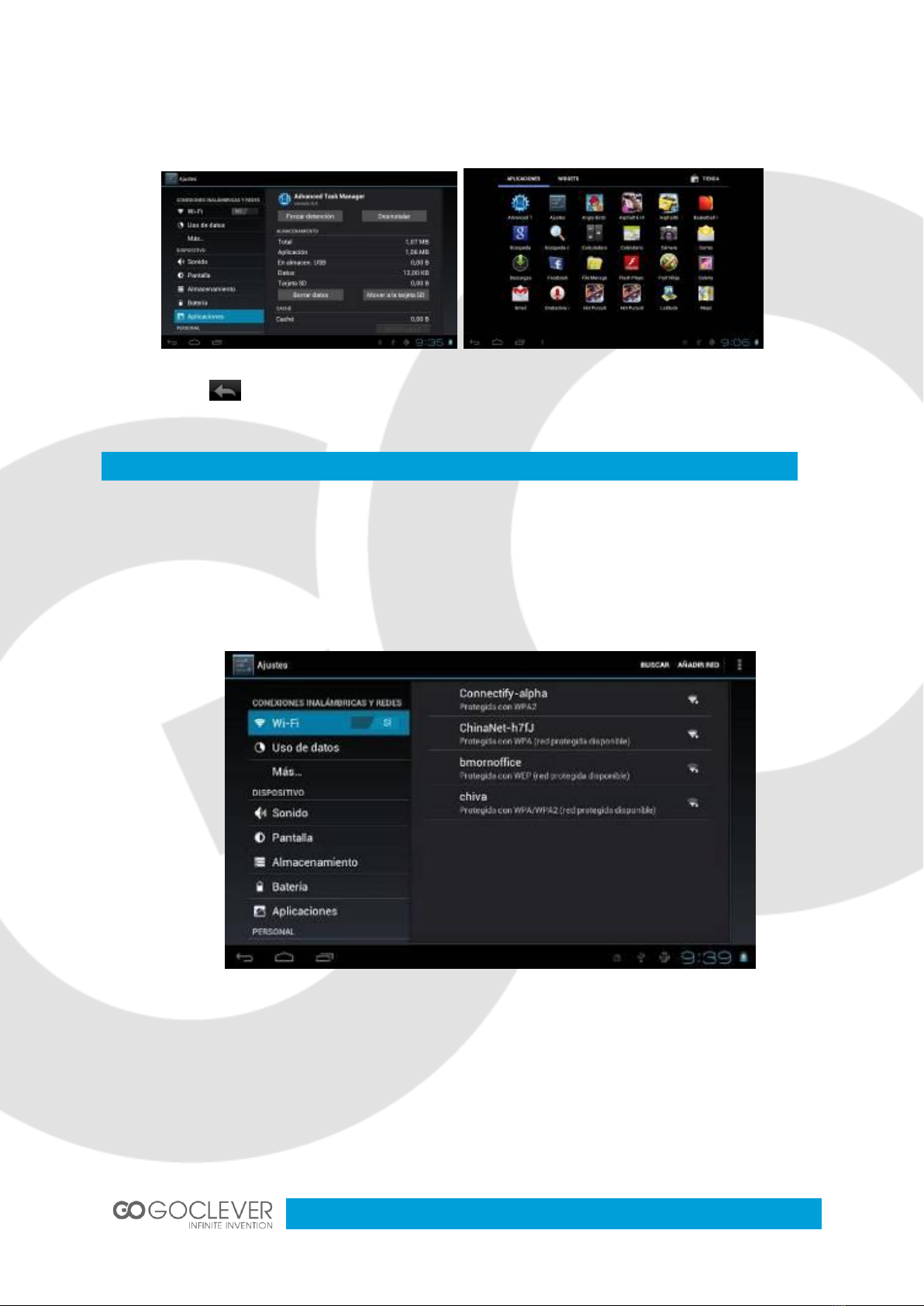
10
to enter applications list and select the application you want to delete
Click to go back to previous interface
Internet
Wi-Fi connection.
Click the main interface shortcut, select “Internet connection manager”, click “Wi-Fi
settings”, enter Wi-Fi setting interface and turn on the Wi-Fi switch (see the picture
below)
The device will automatically scan for wireless networks
Select your network
Enter the password when prompted and connect to the network to get access to the
Internet
Table des matières
Langues :
Autres manuels Goclever Clavier


