
Gener8 Technology GS60716 Manuel utilisateur

G一
TECHNOLOGY
GS 60716
USER GUIDE
Please read this instruction throughly bere using
this product and keep it for future rerence.
Have questions or comments?

FUNCTION OVERVIEW
❶ ❷ ❸❹
❺
1.Volume+ 2.Volume- 3.Power On/Off
4.Reset 5.Front-facing Camera 6.Earphone
7.MicroSD Card Slot 8.Micro USB 9.Microphone
10.Speaker 11.Back Camera
Google, Android, Google Play and other marks are trademarks of Google LLC.

GETTING STARTED
Power On/Off
* Press and hold the power button for 2~3s to turn on your tablet. Select your language and
set up your tablet following the start guide.
* Press and hold the power button for 2s, then release it. It will show Power off ,Restart
and Screenshot on the screen. Tap Power off to turn off the tablet.
* Press and hold the power button for 10s to do a forced reboot when it's frozen.
Battery
* A rechargeable Li-ion battery is installed in the tablet.
* We suggest you drain the battery completely once a month if only use your tablet
occasionally.
*DO NOT dispose of tablet in a fire.
Sleep Mode
Simply press the power button once to switch the tablet to the Sleep Mode when the tablet
is ON; press again to wake it up.
Tip:
Go to Settings > Display > Screen timeout to set the time of entering the Sleep Mode.
Screenshot
* Press the Volume- button and the Power On/Off button together to capture a picture.
* Press and hold the power button for 2s, then release it. It will show Power off, Restart
and Screenshot on the screen. Tap Screenshot to capture a screenshot.
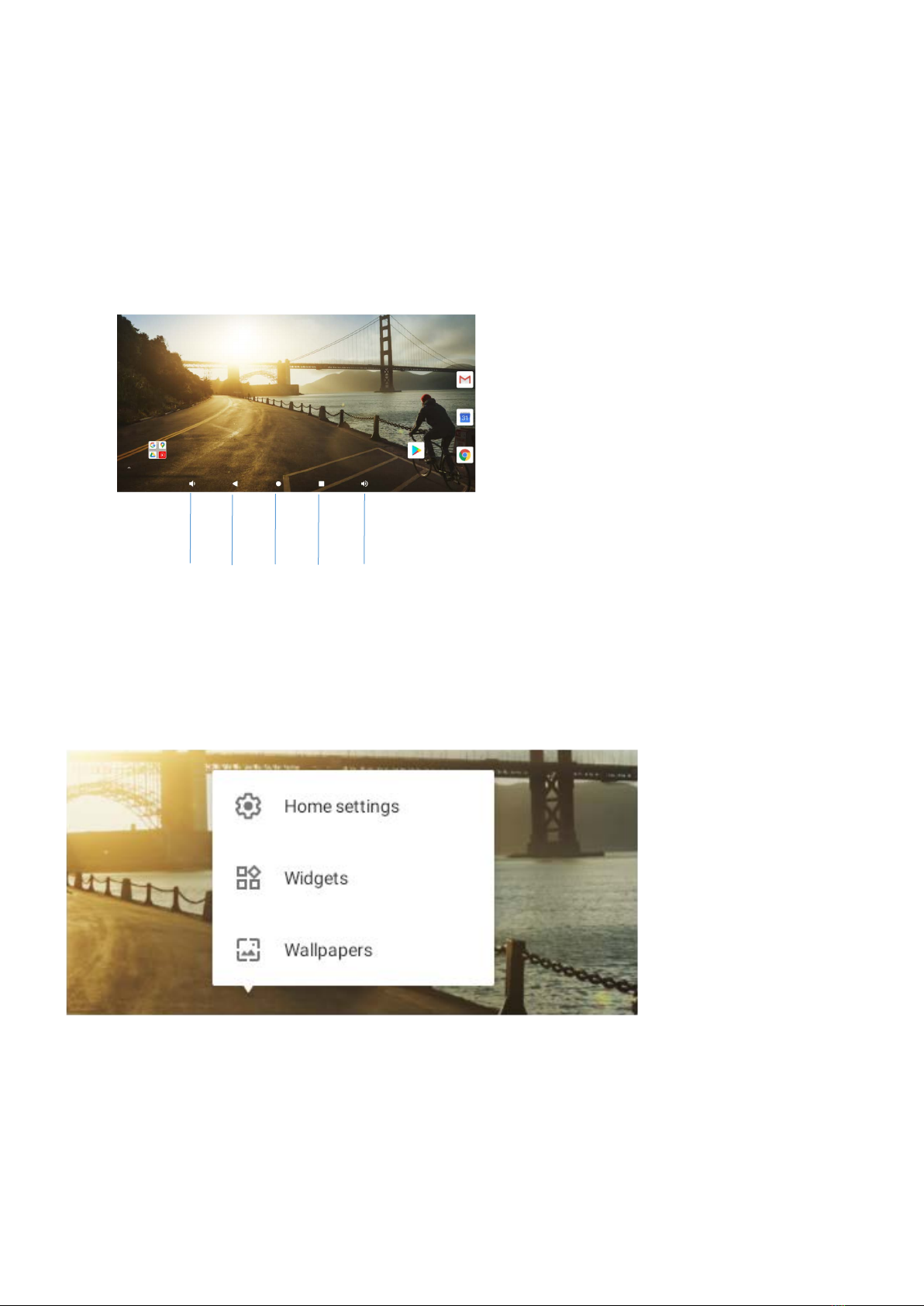
HOME SCREEN
Icons on the Bottom Menu
1.Volume-
2.Back
3.Home Screen
4.Recent Activities
5.Volume+
❶ ❷ ❸❹❺
Home Settings,Widgets and Wallpapers
* Tap and hold the empty section of a Home screen, Home settings, Widgets and Wallpapers
will be displayed.
* Tap Home Settings to enable/disable Add icon to Home screen. This is applicable to the
new Apps installed from Play Store. It also provides the shortcut to enable/disable the
notification dots.

* Tap Widgets, touch and hold any application (e.g. Clock), then slide and add it to a Home
screen. Remove it by sliding it to X Remove.
* Tap Wallpapers to change the current wallpaper of the tablet from the default wallpapers
or your photos.
SETTING BASICS
Quick Settings
Swipe down from the top of the screen to access Quick Settings.
:Wifi. Tap to connect/disconnect to a wireless
network
:Bluetooth. Enable/disable the Bluetooth of the
tablet
:Do not disturb. Block sound after enabling this
function
:Turn on/off the Auto rotate of the screen
:Tap to choose the power setting you prefer to save the
battery time
:Aiplane Mode. Turn on/off all the network
Connectivity
More Settings
Swipe down from the top of the screen, then tap the icon to enter the detailed setting
interface. Or, tap the Settings App on the Home screen to enter.

Network & internet
* Connect to any working Wifi
* Enable/disable the Airplane Mode
* Monitor the data usage
and more
Connected devices
* Turn on/off Bluetooth
* Pair with Bluetooth devices and check the paired devices
* Check the received files from other devices via bluetooth connection. Add and check printers
and more

Apps & notifications
* Check the Apps recently opened
* Check all the Apps on the tablet
* Set the App permissions
* Uninstall the third-party Apps
* Adjust App notification settings
* Clear the cache of the Apps
Battery
* Display the remaining battery power as a percentage
* Enable/disable Battery percentage and Battery Manager
* Set Power saving optimization
* Manage the battery optimization for apps
and more
Display
* Adjust the screen brightness
* Adjust the font size and display size
* Set a screen saver
* Change the wallpaper
* Adjust the time of entering the Sleep Mode
and more
Sound
* Select audio profiles from General, Silent and Outdoor
* Set the volumes for notification, media and alarm
Storage
* View and manage your storage space

Privacy
*Set tablet access permissions and privacy management
Location
* Turn on/off the location services for specific Apps
Security
* Set screen lock pattern, e g Password, PIN, Swipe etc
* Enable disable all the notifications while the screen is locked
* Set to show/hide the password when input a password.
and more
Accounts
* Add and manage the user accounts on your tablet
Accessibility
* For vision and hearing impaired users, manage settings for Screen readers, Display,
and more
Screenshot
* Set the screen capture delay time and screenshot button display
Digital Wellbeing & parental controls
* Check your app usage based on Screen time, Notifications received, or Times opened from
Dashboard
* Set a schedule for Wind Down and turn on the setting you prefer
* Manage the related notification settings to reduce interruptions
* Set up Parental controls to help your kids balance their screen time
and more
Google
* Set the preferences for
Google™
related services

System
* Set Language
Tap Languages & input> Languages +Add a language to add your language. adding, hold and
slide the to the top to change the language.
* Restore factory setting
Tap Advanced » Reset options > Erase all data (factory reset) to restore the factory setting
* Set the date and time
* Turn on/off the Back up to Google Drive
* Check and update the tablet's system
* Check the detailed information about the tablet
About tablet
* Check the model of the tablet, the version of the software, the MAC address, etc
NETWORK CONNECTION
Go to network settings from the Settings App or by long pressing the Wifi/Bluetooth icon in
Quick Settings.
Wifi Connection
1. Tap Network & internet and turn on the Wifi. All the Wifi connections available will be
listed.
1. Select your Wifi and input the correct password.

Bluetooth Pairing
Please turn on the Bluetooth on your tablet and your bluetooth device.
1. Tap Connected devices.
2. Tap +Pair new device to enter the scanning interface. Devices available will be displayed
after a few seconds.
3. Tap the desired device to get a paring code and click PAIR on both devices The automatic
connection is applied to some devices.
APP MANAGEMENT
App Download and Installation
1. Tap and open Play Store on the Home screen.
2. Log into your google account, search and download the App you need.
App Management
Move the App
Tap and hold the App, then slide it to a desired screen.
Remove the App from the Home screen
Touch and hold the App, then slide to X Remove to remove it from your Home screen.
Table des matières


