
Gefen GTV-HD-PVR Manuel utilisateur

High-Def Personal Video Recorder
User Manual
www.gefentv.com
GTV-HD-PVR
®


ASKING FOR ASSISTANCE
Technical Support:
Telephone (818) 772-9100
(800) 545-6900
Fax (818) 772-9120
Technical Support Hours:
8:00 AM to 5:00 PM Monday through Friday, Pacic Time
Write To:
Gefen, LLC
c/o Customer Service
20600 Nordhoff St
Chatsworth, CA 91311
www.gefentv.com
Notice
Gefen, LLC reserves the right to make changes in the hardware, packaging, and
any accompanying documentation without prior written notice.
Gefen TV High-Def Personal Video Recorder is a trademark of Gefen, LLC
HDMI™ is a trademark of HDMI.org.
© 2012 Gefen, LLC All rights reserved.
All trademarks are the property of their respective companies
Rev B6

TABLE OF CONTENTS
1 Introduction
2 Operation Notes
3 Features / Package Includes
4 Panel Layout
5 IR Remote Layout
6 Quick Start Guide
7 Home Menu And Navigation
9 Setting Up The HD-PVR
15 One-Touch Recording
19 Playing A Movie
23 Scheduling A Recording
28 Viewing Photos
31 Copying/Deleting Movies And Photos
32 Viewing Photos On The SD-Card
35 Learning and Resetting The Remote
36 Learning The Remote
38 Installing The Decoder Software
43 Updating The HD-PVR Firmware
44 IR Remote Key Positions
47 RS-232 Serial Communication
50 RS-232 Commands
72 Specications
73 Terminology
74 Warranty

INTRODUCTION
1
Congratulations on your purchase of the Gefen TV High-Denition Personal
Video Recorder (HD-PVR). Your complete satisfaction is very important to us.
Gefen TV
Gefen TV is a unique product line catering to the growing needs for innovative
home theater solutions. We specialize in total integration for your home theater,
while also focusing on going above and beyond customer expectations to ensure
you get the most from your hardware. We invite you to explore our distinct
product line and hope you nd your solutions.. Don’t see what you are looking for
here? Please call us so we can better assist you with your particular needs.
TheGefenTVHigh-DenitionPersonalVideoRecorder
The Gefen TV High-Denition Personal Video Recorder (HD-PVR) allows
consumers to implement the functions of a traditional video tape recorder or DVD
recorder using standard MPEG-4 compression and H.264 encoding technology
to store videos on removable SD ash cards or the built-in 80GB hard disk drive.
With the Gefen TV HD-PVR, consumers can enjoy instant recording and versatile
portability of digital video and music, as well as playback of music and digital
pictures, all within one compact tabletop unit.
How It Works
The HD-PVR is easy to use. You simply connect your video source(s) to one
or all of the HD-PVR’s 4 inputs, then connect your HDMI display on the HDMI
output. Once the source(s), the HD-PVR and the display are powered and
connected, you select the video source and feature that you want using the
Infrared (IR) remote. If you want to modify settings for instant recording and other
features, you can go into the friendly On-Screen Display and adjust the settings.

OPERATION NOTES
2
READ THESE NOTES BEFORE INSTALLING
OR OPERATING THE HD PERSONAL VIDEO RECORDER
• This product is not designed for continuous recording applications. See
page 13 for maximum recording times.
• Compatible with both HDMI and DVI* displays.
• Copy protected content cannot be recorded or copied in high-dention to
the HD-PVR or to SD ash media.
• For an input of 1080i, this device actually saves the recording at
1440x1080i but plays back the signal at 1080i. This is an encoding chip
limitation.
• When using a DVI source, the HD-PVR will take the audio from the S/
PDIF input (see page 4). When using an HDMI source, the audio is
always taken from the HDMI cable. The Gefen DVI Detective or HDMI
Detective can be used with a DVI EDID to force the HDMI source to output
DVI.
IMPORTANT: Do not remove the casing from the HD-PVR. Doing so will void
the warranty.
*When used with a DVI to HDMI Adapter

FEATURES
FEATURES
• Video recording and playback at resolutions of 480i to 1080i with Pause,
Mute, Fast Forward & Fast Backward playback modes. Fast Forward and
Fast Backward modes are capable of playback speeds from 1/2 to 16x speed.
• Instant Video Recording Feature immediately captures live action to SD
Flash Media or Internal Hard Disk Drive with the touch of a single button.
• Uses widely supported MPEG4 compression and H.264 encoding technology,
supported on most computers with an add-on driver.
• Capable of importing multi-channel digital audio from an external S/PDIF
source and merging it into the HDMI output signal when using sources that
have no HDMI audio (such as DVI being input on an HDMI input connector
with an adapter).
• Media Scanning Function to Locate and play back externally imported Videos,
Audio Files, and Pictures from SD cards. Pictures may be viewed at zoom
magnications of up to 2x-10x.
• Four user-selectable A/V quality settings. Each quality setting has a
corresponding data recording rate ranging from 3.5Mbps to 10Mbps for
Hi-Def content and from 1.5Mbps to 4Mbps for Standard Denition formats.
Recording time can be increased with lower data recording rates.
• A User-Friendly On-Screen Display (OSD), provided for easy and quick
access to all settings. International language support is included.
PACKAGE INCLUDES
(1) Gefen HD Personal Video Recorder
(1) 6 ft. HDMI cable (M-M)
(1) IR Extender
(1) IR Blaster
(1) IR Remote
(1) 5V DC Power Supply
(1) User Manual
3
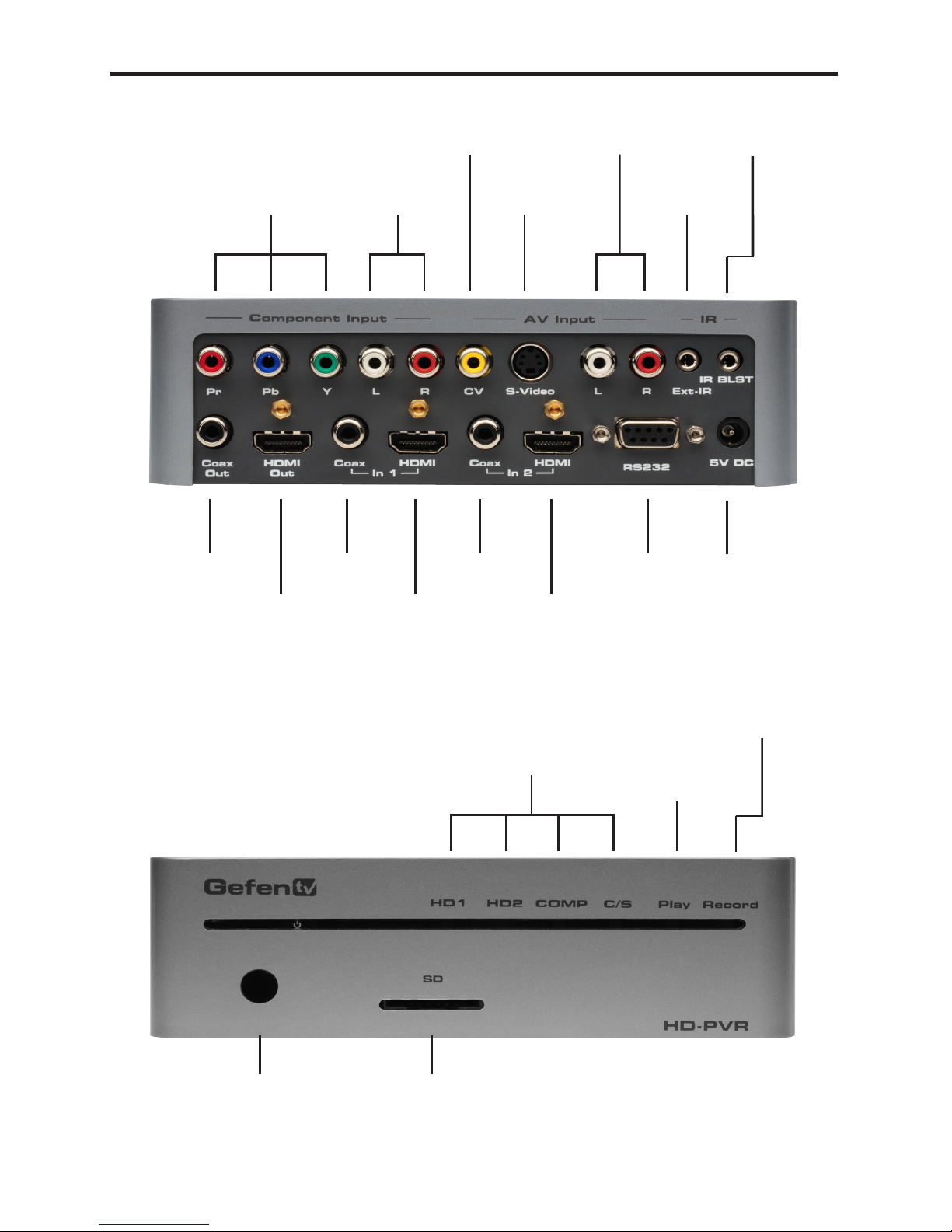
PANEL LAYOUT
4
INPUT LED
INDICATOR
SD (Secure Digital)
Card Slot
IR
RECEIVER
PLAY LED
INDICATOR
RECORD LED
INDICATOR
S/PDIF
OUT
COMPONENT
INPUT
ANALOG
INPUT
COMPOSITE
INPUT
S-Video
INPUT
ANALOG
INPUT
IR
EXTENDER
IR
BLASTER
HDMI
OUT
S/PDIF
IN 1
HDMI
IN 1
S/PDIF
IN 2
HDMI
IN 2
RS232
INPUT
DC 5V
INPUT

IR REMOTE LAYOUT
5
TV Power User programmable key
HDMI 1 Selects HDMI input 1
HDMI 2 Selects HDMI input 2
Component Selects the Component input
Repeat Cycles the repeat function
Info Displays info on selected movie
or photo
S-Video Selects the S-Video input
Zoom Cycles the zoom function
Snapshot Takes a snapshot of a movie
during playback
Composite Selects the composite input
Record Begins recording the selected
source
Play Begins playback of recorded
movie or begins slide show
when in View Photo.
Pause Pauses movie during playback
Stop Stops movie during playback or
returns to Photo Menu when
viewing slide shows or photos.
Home Takes you to the Home menu.
◄►▲▼ Directional keys for navigation
OK Press to accept the highlighted
selection
Fast FWD During playback of movie,
advances movie forward
Rewind During playback of movie
advances movie in reverse
Mute Mute sound
HDD/SD Switches between the internal
hard drive and the Secure
Digital ash card
Volume +/- Increase or decrease the
volume
Channel +/- User programmable key
0-9 User programmable keys
Step FWD While movie playback is
paused this will advance movie
one frame at a time
All remaining keys and all keys labeled above
as user programmable are for use with the IR
Blaster. Please refer to the Learn Remote section
for more details

QUICK SETUP GUIDE
6
How to connect the HD-PVR:
1. Connect the HDMI OUT of the HD-PVR to the HDMI IN of your HDMI
display. Connect the S/PDIF (Coaxial) OUT to your external digital audio
amplier/receiver, if separate digital audio output is desired.
2. Connect the HDMI, Component, Composite or S-Video input on the Gefen
HD-PVR to the output of the source device you wish to record from.
Note: If you are using DVI with a DVI-to-HDMI adapter, you may merge
external digital audio from the S/PDIF input into the HDMI signal. Simply
connect your digital audio source at the appropriate S/PDIF input jack.
Please note that this functionality is only available when using DVI. When
an HDMI input source is connected, the corresponding S/PDIF jack is
automatically deactivated since HDMI audio is present.
3. Plug the 5V power supply into the HD-PVR.
4. Turn on the display (TV), then turn on the HD-PVR by pressing the POWER
button on the supplied remote control.
The rst time you turn on the power, you will be asked to set the Date and Time
on the unit (see page 9 for instructions on how to do this). Once the Date and
Time have been set, the HOME menu should be displayed.
If you are not receiving a picture on your HD display:
• Check that the power supply is plugged in and connected to the HD-PVR.
• Check that the unit is turned on. If there are lights on the front panel, then
the HD-PVR is receiving power.
• If your display has more than one HDMI IN, make sure that your display is
set up to receive signals from that input.
When the HOME menu is displayed, you can press the HOME button on the
remote control, again, to view the input source.
If the HD-PVR is unable to nd a source signal, you will receive the message:
“No Signal”. If this is the case, check the following:
• Make sure that you select the correct input source on the remote control.
• Verify the connection from the input source to the HD-PVR is correct.
• Verify that your display can handle the input resolution. For example, some
displays do not support 480i. Try varying the resolution of the input source.
• The HD-PVR will not accept 1080p signals. The highest input resolution
supported by the HD-PVR is 1080i.
Autres manuels pour GTV-HD-PVR
1
Table des matières
Autres manuels Gefen DVR


