
GAOMON PD1320 Guide d'installation

1
PD1320
Pen Display
FAQ

2
PD1320 FAQ Contents
1. Warranty & Compatibility & Specification of PD1320 .................................. 错误!未定义书签。
1.1
Warranty Policy..................................................................................................................................3
1.2
Operation System & Art Program Compatibility. ............................................错误!未定义书签。
1.3
Specifications & Features. .................................................................................................................4
2. How to set up PD1320 on Windows/mac? .................................................................................. 5
2.1
How to set up on windows OS? ........................................................................................................ 5
2.2
How to set up on Mac OS ? ............................................................................................................... 7
2.3
How to set up with Android device? ...............................................................................................10
2.4
How to set up with game switch? ...................................................................................................11
2.5
Two ways to connect PD1320 with Windows/mac computer ........................................................13
2.6
OSD Setting & How to adjust Color? ...............................................................................................14
3. Warranty & Compatibility & Specification of PD1320 ................................................................ 15
3
.1
How to do when it's indicating '' No Signal--Saving Power''. ..........................................................15
3
.2
How to do when it's all black without displaying anything, and no indicator light.. ......................15
3
.3
How to do when the PD1320 only displays wallpaper of computer, without any applications?. ..16
4. Pen Issues & Solutions .............................................................................................................. 17
4
.1
How to do when GAOMON Driver indicating ''No Device Detected'' and Pen not Working?. .......17
4
.2
How to do when the cursor is moving on the computer monitor but not on PD1320?.. .............. 17
4
.3
How to do when the issue only happens in Clip Studio Paint?. ......................................................18
4
.4
How to do when the issue only happens in GMIP?. ....................................................................... 18
4
.5
How to do when the pen only lags in Photoshop CC?. ................................................................... 18
4
.6
How to calibrate pen cursor?. .........................................................................................................19
5. Warranty & Compatibility & Specification of PD1320 ................................................................ 20
5
.1
How to Custmize Express Key Functions in Difference Drawing Programs?. ................................. 20
5
.2
How to sign/write on Microsoft office files: Word/Excel/PowerPoint & OneNote?.. ....................20
5
.3
How to Comment, Highlight and Sign on PDF (Acrobat Reader DC)?. ............................................24
5
.4
How to use Duplicate Mode & Extend Mode?. ...............................................................................28
6. How to contact GAOMON service team? ...................................................................................31

3
1.Warranty & Compatibility & Specification of PD1320
1.1
Warranty Policy.
1 Year Warranty: We cover 1 year warranty for non-human made damages or accident damages . For
example, breaking screens accidentally or losing the accessories are not within the range.
Life spam Tech Support: We offer life spam tech supports to our customers. Welcome to contact usfor
tech support.
1.2
Operation System & Art Program Compatibility.
1.2.1 OS Compatibility
GAOMON PD1320 Pen Display is NOT a standalone product. It cannot work alone. It has to be connected
to a laptop or desktop computer which runs Windows 7 or above version OS, or Mac 10.12 or above
version OS. It doesn’t work with Chrome OS, or Linux Os.
If you are using Windows or Mac OS, please download driver here: https://gaomon.net/
1.2.2 Art Program Compatibility
Our tablets are compatible with most drawing software. Free software like Krita, gimp, fireplaca,
Meidibang, inscape,blender,etc. Or paid software like photoshop, adobe illustrator, clip studio paint,
sketchbook, Sai version2,etc.
For more details, please refer to the Compatibility file.

4
1.2.3 E-Learning Software Compatibility
GAOMON PD1320 is compatible well with distance learning software Blackboard Collaborate
Ultra ,Whiteboard in Zoom, Kaltura, Google etc.
1.3
Specifications & Features
PD1320 Product Information
Model
PD1320
Brand
GAOMON
Color
Keshizumi /Alice Blue
Digital Pen
Art-paint AP50
Pen technology
Battery-free Electromagnetic Resonance
Pressure Sensitivity
8192 Levels
Pen Resolution
5080 LPI
Gamut
86%NTSC
Brightness
220cd/m2
Display Color
16.7M(8bit)
Viewing Angle
89°/89°(H)/89°/89°(V) (Typ.) (CR>10)
Dimension
343*233*13.4mm/ 13.50*9.17*0.53inch
(The thinnest 4.5mm/ 0.18inch)
Working Area
293.8 * 165.2mm/ 11.57*6.50inch
Accuracy
±0.3mm
Sensing Height
10mm
Report Rate
≥220PPS
Signal Output
Mini HDMI Type-C
Weight
880g
OS Compatibility
Windows 7 and above,
macOS 10. 12 and above,
Android(USB3.0 DP1.2)
Art Program Compatibility
Free: krita,gimp,medibang, firealpaca, etc
Paid: Photoshop, Adobe illustrator, adode premiere,
adobe after effect, sai version 2, clip studio paint, etc
What’s in the box?
Pen Display PD1320, Digital Pen AP50, Pen Holder (8
Nibs), Leather Stander, HDMI to Mini HDMI Cord,
USB-A to TYPE-C Cord, AC Adapter, STD Adapter,
Quick Start Guide
Guaranty
We cover 1 year warranty basing on non human
made damage and non accident damage.
GAOMON Service
service@gaomon.net

5
2.How to set up PD1320 on Windows/Mac?
2.1
How to set up on Windows OS?
1). Please well connect all of the cables: USB , HDMI, Power Cord.
2). Close all art programs and anti-virus program first.
Make sure there is no anti-virus program running here.(You can still run anti-virus program while the
issue get confirmed and fixed)
3).Please uninstall the previous GAOMON driver clearly first.
Go to Control Panel---Programs and Features---uninstall current exist GAOMON Driver--also make
sure no other brands tablet driver. (VERY IMPORTANT).
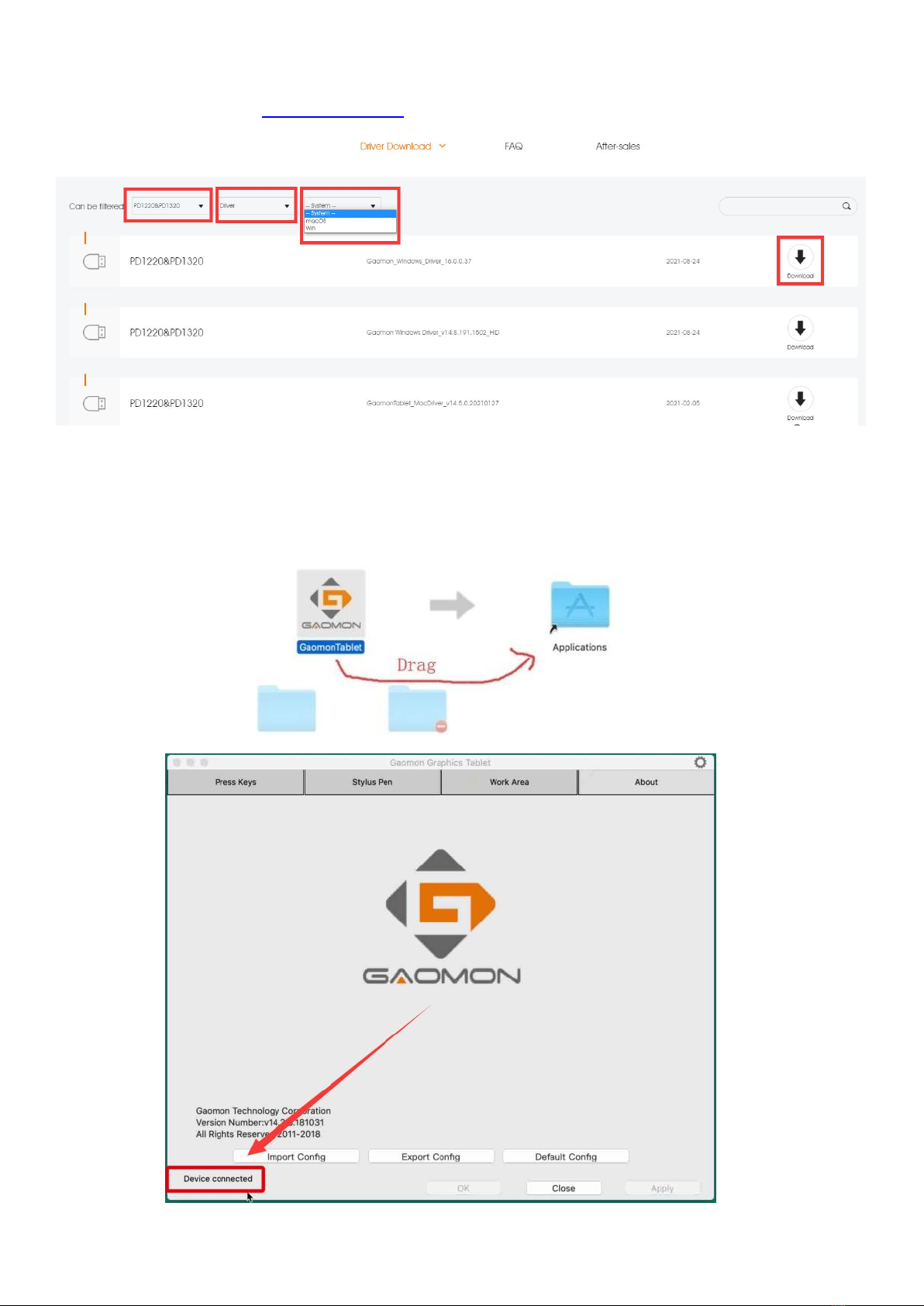
4).Download driver here: https://gaomon.net/ and install the driver.
Please right-click the driver setup icon, whose file extension is ‘.exe’, in the installation file and select
‘Run as administrator’ from the dropdown list.
(Run as an administrator before installation , not after installation.)

6
5).After installing GAOMON Driver, please test whether the pen can move cursor like a mouse normally.
If the pen can move cursor like mouse normally, you can customize express keys inside GAOMON Driver
now.
6)And please download drawing programs online to use with GAOMON PD1320.Our tablets are
compatible with most drawing software. Free software like Krita, gimp, fireplaca, Meidibang,
inscape,blender,etc. Or paid software like photoshop, adobe illustrator, clip studio paint, sketchbook, Sai
version2,etc.
Any suggestions and questions, please feel free to tell us. You can find us from ►【GAOMON SUPPORT
TEAM:https://www.gaomon.net/after-sales/】
7
2.2
How to set up on Mac OS ?
1).
Download driver here: https://gaomon.net/
-- Click the installation package ----Drag 'GAOMONTablet ' icon upon 'Applications' and hold on for a
while until it enters in 'Applications' folder---- Double click 'GAOMONTablet' and select 'Open' to run the
driver. Now the GAOMON Driver is installed.

8
If your Mac OS version are mac 10.14 , 10.15, Mac Big sur or above OS , please kindly remember to
give GAOMON Driver permission to normally function on yuor mac. If your Mac OS is lower than Mac
10.14, please skip following part.
1)After installation, press one of the tablet express key and it will pop out a box 'Accessibility Access' .
Then click 'Open System Preferences' to bring out 'Security & Privacy' box. Don’t click “Deny”!
2).
Click the lock icon and input your password-->Tick 'TabletDriverAgent'--> Click '+' and it will
bring out another box.

9
3).
Go Applications--> find out 'GAOMON Tablet' and click 'Open'
4).
Tick 'GAOMONTablet' circled in red and click the lock icon. Then we can draw freely on the tablet.
Now you get the permission to use GAOMON Tablet Driver on your Mac OS.
Any suggestions and questions, please feel free to tell us. You can find us from ►【GAOMON SUPPORT
TEAM:https://www.gaomon.net/after-sales/】.

10
2.3
How to set up with Android device?
Step 1: Buy a Type-C to Type-C cable (not included in the package);
Step 2: Connect the pen display to smart phone with the Type-C to Type-C cable.
Note: In case there is no response on the screen or a flashing screen occurs, it is suggested to reconnect the cable, and
buy a power adapter (gauge: 5V; not included in the package) for connection to the other type-C port on the device to
ensure the power sufficiency. For phone charging, charger that supports PD protocol is suggested.
Note:
Please make sure your Android phone supports'Dex','Desktop', or 'TNT' mode. Visit GAOMON website for compatible
phone models: https://GAOMON.net/Pen_Display/PD1220&PD1320.html
Table des matières


