
GAOMON PD1161 Manuel utilisateur


1/17 www.gaomon.net
Precautions
1. Please read this manual carefully before using, and keep it well for future reference.
2. Before cleaning the display please unplug the USB cable and wipe with a soft damp cloth, do
not use any kind of detergents.
3. Please don’t place the display near water sources such as bathtub, washbasin, sinks, washing
machine, damp basement, swimming pool, etc.
4. Do not place the display on where is unstable or a height for children reaching easily in order to
avoid danger.
5. Do not place the display and digital pen close to the magnetic field.
6. The grooves and holes on the back case is designed for ventilation to prevent the monitor from
overheating. Please don’t place the display on beds, sofas, carpets or in embedded device.
7. Only power supplies shown on the nameplate can be used for the display. If you have questions
about the power supply which you are using, please consult the distributor of your display.
8. To protect your display, please switch off the power when it is not in use. During blackouts or
not using for long time, please unplug the display from the socket.
9. Don’t overload the socket or lengthen the power wire, which may lead to electric shocks.
10. Make sure no foreign bodies get inside the monitor through grooves and prevent liquid from
splashing on the display as to prevent short-circuit or fire.
11. If the display has a breakdown, do not open the main case and try to repair it by yourself.
Please ask for a service for proper repair and maintenance.
12. When the following situations occur, please unplug the power adapter and you may need a
service for full repair and maintenance:
A. The power wire or plug is damaged or worn out;
B. There is liquid splashed inside of the display;
C. The display has fallen or the LCD is broken;
D. When obvious abnormalities occur to the display.
13. While getting the components replaced, you are supposed to guarantee that the repairman is
using the substitute components specified by the manufacturer. Unauthorized component
replacement might cause fire, electric shocks or other dangers.

2/17 www.gaomon.net
Contents
1. Product Overview....................................................................................................................3
1.1 Product Introduction......................................................................................................3
1.2 Product and Accessories...............................................................................................3
1.3 Display Connection........................................................................................................ 6
1.4 Driver Installation............................................................................................................6
1.5 Pen Nib Replacement.................................................................................................... 7
2. OSD Setting............................................................................................................................... 7
3. GAOMON Driver Setting...................................................................................................... 8
3.1 Device Connection Prompt.......................................................................................... 8
3.2 Working Area Setting.................................................................................................... 8
3.3 Press Keys Function Setting.......................................................................................10
3.4 Pen Button Setting....................................................................................................... 11
3.5 Pressure Sensitivity Setting........................................................................................11
3.6 Pen Pressure Testing.................................................................................................... 12
3.7 Enable the Windows Ink feature.............................................................................. 12
3.8 Calibration...................................................................................................................... 13
3.9 Data Export and Import..............................................................................................14
4. Specifications......................................................................................................................... 15
5. Trouble Shooting.................................................................................................................. 16

3/17 www.gaomon.net
1. Product Overview
1.1 Product Introduction
Thanks for choosing GAOMON®PD1161 graphics display. This is a new generation
of portable desktop-level professional drawing display, which can greatly improve
your work efficiency of painting and creation, and full of fun. You can freely painting
and writing, depicting different lines and colors, just as the pen writes on the paper,
which brings you a real shock experience.
To give you a better understanding and using of your display, please read this user
manual carefully. The user manual only shows the information under Windows,
unless otherwise specified, this information applies to both Windows and
Macintosh systems.
1.2 Product and Accessories
1.2.1 Display Overview
4/17 www.gaomon.net
1.2.2 Stylus Pen
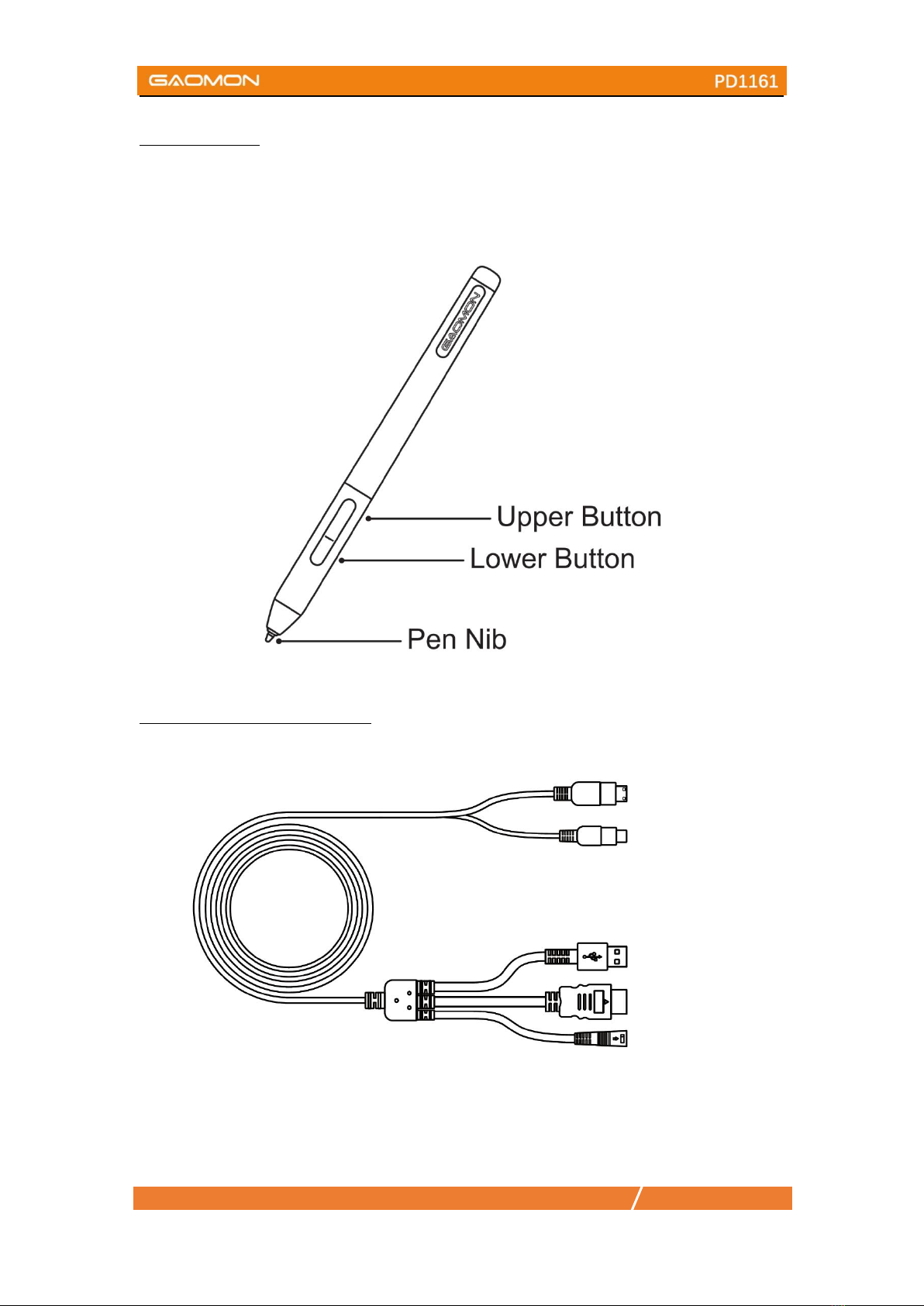
The stylus pen is a battery-free pen with 8192 levels pressure sensitivity and two
customizable button.
1.2.3 3-in-2 Connection Cable
①Video ②USB Type-C ③USB A ④HDMI ⑤Power
①
②
⑤
③
④

5/17 www.gaomon.net
1.2.4 Power Adapter
Please choose the right plug according to your country or region, and assemble it
to the power adapter.(It may not come with all the plugs)
1.2.6 Other Accessories

6/17 www.gaomon.net
1.3 Display Connection
1. Connect your PC and the display with integrated cable.
2. Plug the power adapter into the cable power connector and turn it 90 ° to
ensure that the plug does not come off and connect the power adapter to
the power source.
3. Turn on computer and switch on the display, the LED indicator will show
the current status:Green means working normal, Red means no signal.
1.4 Driver Installation
1.4.1 OS Support
Windows 7 or later,macOS 10.12 or later
1.4.2 Install via Download
Please download the driver from our website: www.gaomon.net/download
After finishing installation, you can find the driver icon in the system tray area,
which means the driver was installed successfully; When you connect the display to
computer, the icon will change to color , which means the driver has already
recognized the display and you can start using it now.
Notice:
1. Before installing, you need to uninstall other driver of similar products.
2. Before installing, please close all graphics software and anti-virus program to
avoid unnecessary mistake;

7/17 www.gaomon.net
1.5 Pen Nib Replacement
1. The nib will be worn out after using for long time, then you need to replace a new
nib.
2. Anticlockwise rotate the holder to open the cover, then take a new nib out.
3. Insert the pen nib into the bottom hole and tilt the pen to pull out the nib.
4. Insert the new nib into the pen and push it straight until it stops.
2. OSD Setting
AUTO : Before entering menu, it’s function is auto adjustment. After entering
menu,it’s function is back to previous menu.
: After entering menu, it’s function is to down/left/decrease.
: After entering menu, it’s function is to up/right/increase.
MENU : Press to call up the menu, after entering menu, it’s function is confirm.
POWER : Power on/off the display.
Remark:Through the OSD menu, you can adjust the screen brightness, contrast,
color and other parameters.
AUTO
MENU
POWER

8/17 www.gaomon.net
3. GAOMON Driver Setting
3.1 Device Connection Prompt
1.Device disconnected: The display has not been recognized by your computer
successfully yet.
2.Device connected: has been recognized by your computer successfully already.
3.2 Working Area Setting
3.2.1 Using Multiple Monitors
When the GAOMON Display and other monitors are used in the same system, the
movement of the screen cursor on the standard display depends on the system
configuration.
If the secondary display is a mirrored mode connection, this display and another
monitor will display exactly the same image and screen cursor movement.
If you are in the extended display mode, you need to set the display on the driver
that which portion of the display screen your display will map to.

9/17 www.gaomon.net
3.2.2 Working Area Setting
Define the display area that will be mapped to the screen area.
1. Full Area: the entire active area of the Display. This is the default setting.
2. Same Ratio with LCD.
3. Customized Area: 1.> Enter coordinate values. Or 2.> Drag the corners of the
foreground graphic to select the screen area.
3.2.3 Rotate Working Area
By changing the direction of the display to adapt to the left and right hand
operation. We provide four directions of choice.
Autres manuels pour PD1161
3
Table des matières
Autres manuels GAOMON Moniteur


