
Gainwise TH-601W Manuel de service

TH601W Setting guide
Gainwise Technology Co., Ltd.
886-6-3127675
10F- , No.12, Zhonghua Rd., Yongkang Dist., Tainan City 71069, Taiwan
1
Warning: Before you use the device, makesure device is worked in belowenvironment, or it can't work properly.
SupportDon’tsupportSolutionsNeed good smartphone
signal
A poor signal may cause long delays or
inability to view
1. User can connect device to 5
smartphones to in case 1-2 smartphones
are in poor signal area, other
smartphones can still ring and view.
2. User better to connect smartphone to
WiFi when there is WiFi available.
Router 2.4GHz WiFi. 5GHz WiFi. Change to use 2.4GHz WiFi.
Router Upload
bandwidth≥512KBit/s
<512KBit/s or too many computers /
smartphones in the same network.
Delay or
can't work.
1. Reduce the computers/smartphones
quantity connected in the same network.
2. Change to use a bigger bandwidth
network.
Introduction
Install the APP
Scan QR code or search the App ‘DIY Smart’from ‘Google Play
Store’ or ‘App Store’, and install on mobile phone.
Special Notice: When open the app, you will receive a tip. Please click ‘OK to allow the
notifications, otherwise, you cannot receive any notification.
喇叭

TH601W Setting guide
Gainwise Technology Co., Ltd.
886-6-3127675
10F- , No.12, Zhonghua Rd., Yongkang Dist., Tainan City 71069, Taiwan
2
Register Account (Register your phone number & Register via email)
Register your phone number
Region: Please select your region
Enter your phone number:Enter your mobile number
Enter verification code:Click "Get Verification Code", please go to SMS to view verification code and enter
Enter password:Enter the password you want to set (password is 8-30 characters containing letters &
numbers)
After registration is complete, please log in again. Enter “Account” for phone number, and
“Password” for the password you set to log in.
Notice: If two phones use the same account ID for simultaneous login, only one phone
will receive a push notification. Therefore, if two mobile phones are used to connect the
device, the user should register two different account IDs for the two mobile phones.

TH601W Setting guide
Gainwise Technology Co., Ltd.
886-6-3127675
10F- , No.12, Zhonghua Rd., Yongkang Dist., Tainan City 71069, Taiwan
3
Register via email
Enter verification code:Fill in the verification code received by Email (mail may be in spam)
Enter password:Enter the password you want to set (password is 8-30 characters containing letters &
numbers)
Enter again:Enter the password again Enter Email and press "Send Email Verification Code"

TH601W Setting guide
Gainwise Technology Co., Ltd.
886-6-3127675
10F- , No.12, Zhonghua Rd., Yongkang Dist., Tainan City 71069, Taiwan
There are 3 modes for adding devices: "fast networking", "Smartlink", "Wired Connection", the most commonly used
is "Smartlink", the following is the setting description
1)
Add device (
”fast networking” “Smartlink” “Wired Connection”
)
9 10
Special Notice
:
1. Do not connect the network cable, otherwise the
device will not be able to set up WiFi via
"Smartlink".
2. The device does not support 5GHz WiFi router,
users should use 2. GHz WiFi for connection.
3. Make sure your router has open DHCP function,
otherwise you will not be able to set up the
device.
12 3 4
567
8
Click “Add New
Device”
Turn up the
phone volume
Click “Smartlink”
After the device is
powered on, you
can hear the
sound of DU DU
Click
“
+
”
add
device
Confirm IFI name
Enter IFI password
Click to send
sound waves
Name your
new device
New device
completed
the device is
being set up
(
S
martlink
)

TH601W Setting guide
Gainwise Technology Co., Ltd.
886-6-3127675
10F- , No.12, Zhonghua Rd., Yongkang Dist., Tainan City 71069, Taiwan
5
(fast networking)
1
2
3
5
678
9
10
Special Notice
:
1. Do not connect the network cable, otherwise
the device will not be able to set up WiFi via
"Fast Networking (AP Connection)"
2. The device does not support 5GHz WiFi router,
users should use 2. GHz WiFi for connection.
3. Make sure your router has open DHCP function,
otherwise you will not be able to set up the
device.
Click “Add New
Device” Click”fast networking”
After the device is
powered on, you
can hear the sound
of DU DU
Confirm IFI name
Enter IFI password
Select device wifi
Hear the sound of
“king”, press the
bu
tton
Name your
new device
Click “+” add
device
Device is setting
up
New device
completed

TH601W Setting guide
Gainwise Technology Co., Ltd.
886-6-3127675
10F- , No.12, Zhonghua Rd., Yongkang Dist., Tainan City 71069, Taiwan
6
(Wired Connection)
1234
5 6 78
9
Special Notice
:
1. When using a wired connection, please note that the mobile phone
and the device must be in the same domain, so that the APP can find
it successfully when searching for connected devices
2.
Make sure your router has open DHCP function, otherwise you will
not be able to set up the device.
After the device hears
-DU-DU- sound,
connect the network
cable and press Next
Search and
select to find
connected
devices
Enter the preset
password "123"
and press Next
Click “+” add
device
Click “Add New
Device”
Click “ ired
Connection”
Device is
setting up
Name your new
device
New device
completed

TH601W Setting guide
Gainwise Technology Co., Ltd.
886-6-3127675
10F- , No.12, Zhonghua Rd., Yongkang Dist., Tainan City 71069, Taiwan
7
2) Share the device with others
123
4 5
Click "Share"
Confirm the information
is correct and press
Share againShare device is done, and invite others and press confirm within 24 hours
Select the permissions to
grant and press "OK"
The old device has no authorization
page, and the unlock authorization is
in
“
Settings
”
Enter the other person's DIY
SMART account or phone
number and press Share

TH601W Setting guide
Gainwise Technology Co., Ltd.
886-6-3127675
10F- , No.12, Zhonghua Rd., Yongkang Dist., Tainan City 71069, Taiwan
8
3)
APP home screen and TF card video playback view
4) Smartphone push notifications
When people press the device's call button or trigger an alarm, a notification is received on the phone
screen.
Notice: User must keep the Android app running at phone's background, user can't force stop the
Android app in phone's application manager, otherwise phone can't receive any push notification.
Notice: If user use iPhone, user should keep iPhone's 3G/4G signal always connected to received push
notification all the time. Otherwise iPhone can not receive push notification when WiFi is intermittently
disconnected or iPhone is low battery.
device status
Account
settings
Device name
Notification list
Device List
Device share
TF card video playback
Select "Playback" on the main
screen, and select the clip to be
played after entering
(This video is on a memory card
Alarm picture only displayed when a TF card is inserted
Device detailed settings
Swipe to enter
the app
Mobile
screenshots
and videos
Online icon
TH601W Setting guide
Gainwise Technology Co., Ltd.
886-6-3127675
10F- , No.12, Zhonghua Rd., Yongkang Dist., Tainan City 71069, Taiwan
9
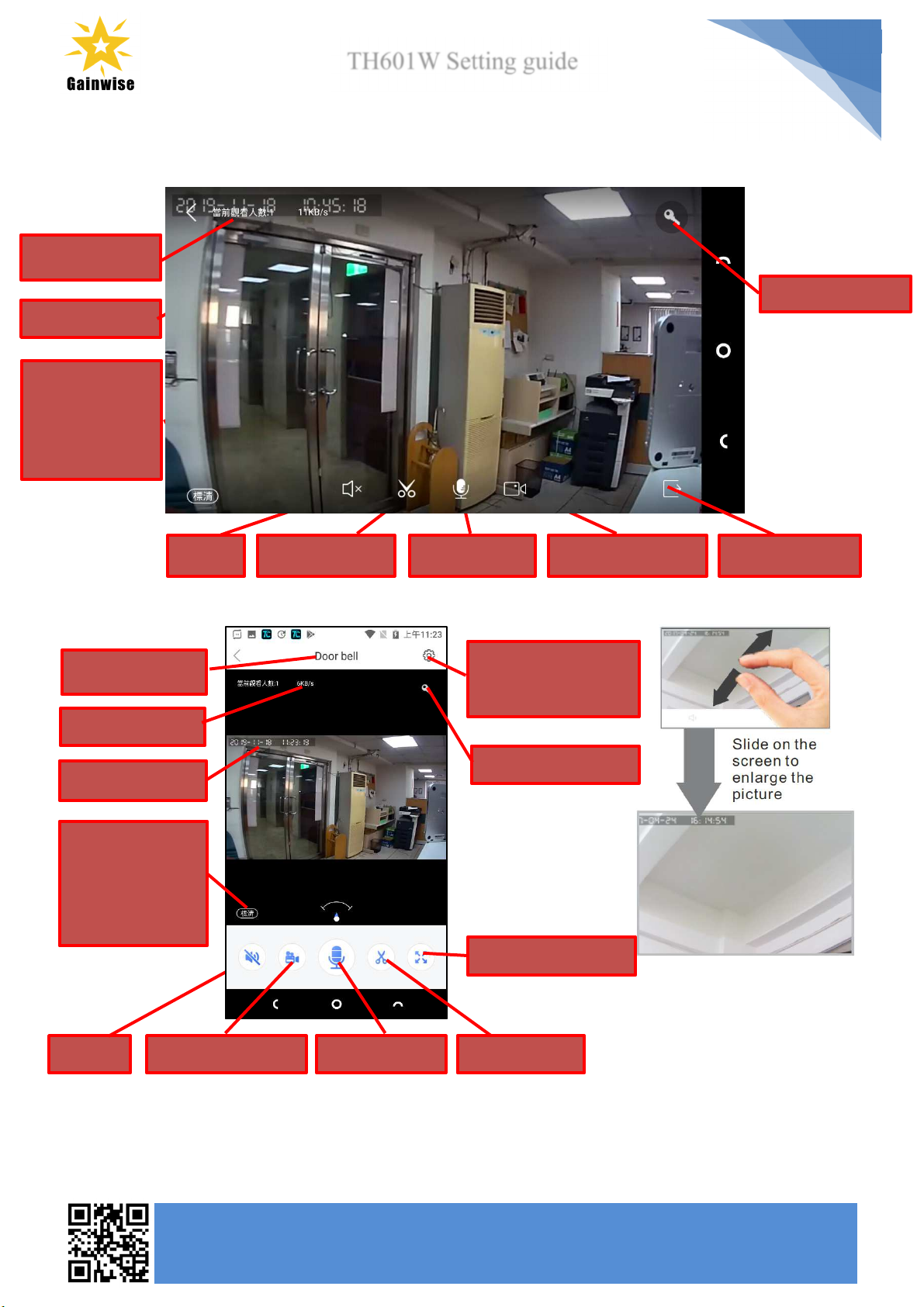
5) Video interface explanation
Horizontal
Straight
Internet speed
ResolutionHD 1080 * 720SD 640 * 480
LD
320 * 180
soundScreenshotmicrophone
sound
Screen recordingStraight modeDate and time
Unlock the door
Device name
Screenshot
Internet speed
Date and time
ResolutionHD 1080 * 720SD 640 * 480LD 320 * 180
Unlock the door
H
orizontal mode
Device detailed
settings
Screen recording
microphone

TH601W Setting guide
Gainwise Technology Co., Ltd.
886-6-3127675
10F- , No.12, Zhonghua Rd., Yongkang Dist., Tainan City 71069, Taiwan
10
6)
Device detailed settings
Time settings
Notice
:
The device actively captures network time. If the time is incorrect, please note that the time zone
is correct.
Picture and sound
Video format: select PAL or NTSC
Volume:Device speaker volume
Video quality:Sharpness of
image recording
Reverse:whether the image is
flipped
Autres manuels pour TH-601W
1
Table des matières
Autres manuels Gainwise Système d'interphone


