Fuho 16CH H.264 Manuel utilisateur

16CH H.264
Embedded Digital Video Recording systems
USER MANUAL
2012 NOV V1.0

ii
WARNING
Do not expose the DVR under the sunlight, heat or wet
environment while installation. As it could decrease the
performance of DVR and damage the machine.
Do not touch the power plug or case with wet hands as this
could result electric shock.
Do not forcedly bend or put heavy object on power cable as
this could result in injury to personal or equipment.
Do not operate with damaged power cord or loose electrical
outlet as this could result in electric shock or accident.
Please use individual power instead of share electrical
outlets with other electrical equipment as this could result in
damage or accident.
Do not attempt to service this DVR by yourself as it may
expose you to dangerous voltage or other hazards. Please
refer all service to the qualified servicing distributor.
Do not open the covers or insert any object into DVR.
CAUTION
Do not place the machine on an uneven surface or it would
decrease the DVR efficiency or malfunction.
Avoid any shock or bumping of the DVR while recording.
Improper handling could damage the system.
CAUTION
Make sure the voltage selector switch is set
to appropriate setting before plug in!

iii
CONTENTS
1. Specification ...................................................................................................................................... 1
2. Structure of Product .......................................................................................................................... 2
3. HDD Installation ................................................................................................................................ 4
4. System installation ............................................................................................................................ 5
5. Quick Set up Guide ........................................................................................................................... 6
6. System Operation ............................................................................................................................. 8
7. Display mode .................................................................................................................................. 11
7.1 Live Viewing Mod ......................................................................................................... 11
7.2 Live Monitor .................................................................................................................. 12
7.3 PTZ ............................................................................................................................... 12
7.4 Digital Zoom ................................................................................................................. 14
7.5 Quick Playback ............................................................................................................. 15
8. Menu Operation .............................................................................................................................. 17
8.1 User Login .................................................................................................................... 17
8.2 The Main Menu Instructions ......................................................................................... 18
8.2.1 Configuration Management ................................................................................. 18
( 1 ) Basic Setup ................................................................................................. 19
( 2 ) Live (Live image) ......................................................................................... 21
( 3 ) Recording .................................................................................................... 22
( 4 ) Schedule Recording .................................................................................... 25
( 5 ) Alarm ........................................................................................................... 27
( 6 ) Network ....................................................................................................... 32
( 7 ) User Management ...................................................................................... 35
( 8 ) PTZ ............................................................................................................. 36
( 9 ) Advance ...................................................................................................... 37
8.2.2 Data Search ......................................................................................................... 38
( 1 ) By Time (Data Search Playback) ................................................................ 38
( 2 ) By Type (Data Search Playback) ................................................................ 39
8.2.3 Backup ................................................................................................................. 39
8.2.4 Information Search .............................................................................................. 40
( 1 ) System ........................................................................................................ 41
( 2 ) System Information ..................................................................................... 41
( 3 ) Network ....................................................................................................... 42
8.2.5 Hard Disk ............................................................................................................. 43
8.2.6 Firmware Update ................................................................................................. 43
8.2.7 User Log-out ........................................................................................................ 44
8.2.8 Turn Off ................................................................................................................ 44
8.2.9 Restart ................................................................................................................. 44
9. DVR Player ..................................................................................................................................... 45
10. IE Operation Instruction .................................................................................................................. 48
10.1 IE Security setting: ........................................................................................................ 48
10.2 IE Connection ............................................................................................................... 50
10.2.1 The Main Screen Interface .................................................................................. 51
10.2.2 Remote Setting .................................................................................................... 52
10.2.3 Remote Playback ................................................................................................. 55
10.2.4 Remote Monitoring Features ............................................................................... 57
11. Mobile Phone Software Installation ................................................................................................ 58
12. USB Flash Drive Compatibility List ................................................................................................. 58

1
1. Specification
Video Format NTSC PAL
Video Input 16 CH Input / BNC
Audio Input 4 CH Input / RCA
Video Output 1 CH Output / BNC
Audio Output 1 CH Output / RCA
XGA Output 800x600、1024x768、1280x1024
Alarm Input 4CH Alarm In
Alarm Output Buzzer,1 x Relay Out (N.O、N.C)
Display Mode Full Screen, 4 / 9 / 16 CH Split Screen, Auto Switch
Display Resolution 720 x 480 720 x 576
Recording Resolution CIF 360 x 240 360 x 288
Recording Frame Max. 480 FPS Max. 400 FPS
Compression Algorithm H.264
Operating System Embedded Linux
Pentaplex Record / Playback / Network / Mobile Phone / Back up
Recording Mode Manual, Schedule, Event
Schedule Recording Full Recording, Motion, Alarm, Manual Recording
Status Indicator Power, HDD, Alarm, Network
Event Mode
Alarm Trigger, Motion Trigger, Video Loss
Pre-Record: < 5 sec.
Recording Duration: 5~120 sec.
System Log Up to 4000 recording list displayed
Playback Mode
Normal Speed: x1
Fast Forward: x2 / x4 / x8 multiple speed
Slow Forward: 1/2、1/4、1/8 multiple speed
Fast Rewind: x2 / x4 / x8 multiple speed
Frame by Frame Playback: Forward
Search Function: Time / Event
Network Protocol TCP/IP / PPPoE / DHCP / SMTP / DDNS
Inter-communication Yes
HDD Type SATA 3.5”HDD x 2 (No HDD Included)
PTZ Control Communication Protocol (PELCO P, PELCO D, MIKAMI) (RS-485)
Backup Device USB 2.0 Flash Memory Stick
Firmware Update Host USB / LAN / WAN
Multi-Language
English/ Traditional Chinese / Germany /Russian/ French / Spanish /
Italian / Portuguese / Turkish/ Japanese / Korean/ Simple Chinese
/
Czech Republic
/
Poland
Control Mode Front Panel / Remote Control / USB Mouse / Internet
Network Control IE Browser / DVR Client & CMS Remote Control
Network Function Live Display / Playback / PTZ Control / System Setup
Power Supply DC 12V / 4A(AC100V~240V 50/60HZ)
Unit Dimension 430mm (W) x 312mm (D) x 48mm (H)
Weight 3.6kg ( HDD Not Included)
Operating Temperature 0℃ ~ 46℃

2
2. Structure of Product
Front Panel
MENU Menu Under the live viewing mode, press MENU to enter the main menu.
Under the menu mode, press MENU to go to the upper menu.
Stop To stop the operation or go to the upper menu under the playback
mode.
Manual Record Press the Manual Record button to start recording under the live mode.
Pause To pause the playback under the playback mode.
Step Forward To playback frame by frame in each time under the pause mode during
the playback.
Play Under the live viewing mode, press the Play button to enter the
playback mode.
Slow Forward Slow forward speed: 1/2, 1/4, 1/8.
Up To move up of the selection setting in menu. Under the live mode of
Single/Quad/9 splits, use the button to control video display.
Down To move down of the selection setting in menu. Under the live mode of
Single/Quad/9 splits, use the button to control video display.
Left To move left of the selection setting in menu. Change to
Single/Quad/9/16 splits under the live viewing mode.
Right To move right of the selection setting in menu. Change to
Single/Quad/9/16 splits under the live viewing mode.
Enter Press the Enter button to confirm the setup or go into sub-menu.
LOCK Exit To exit the system.
AUTO Auto Switching Under the live viewing mode, press the button to start/stop the auto
switching function.
Multi Quad/9/16
Display
Quad/9/16 splits under the live viewing mode.
Select start / end time, when setting the MD area.
1-16 Channel 1~16 Under the live viewing mode or playback mode, press channel 1~16
button to display the individual channel screen.
POWER Power Indicator The LED will light on when power on.
HDD HDD Indicator LED on when data recording is in progress.
ALARM Alarm Indicator LED on when the alarm is triggered.
NETWORK Network
Indicator The LED will light on when network connected.
USB 2.0 Slot For USB 2.0 flash memory stick to backup and firmware update.

3
Installation
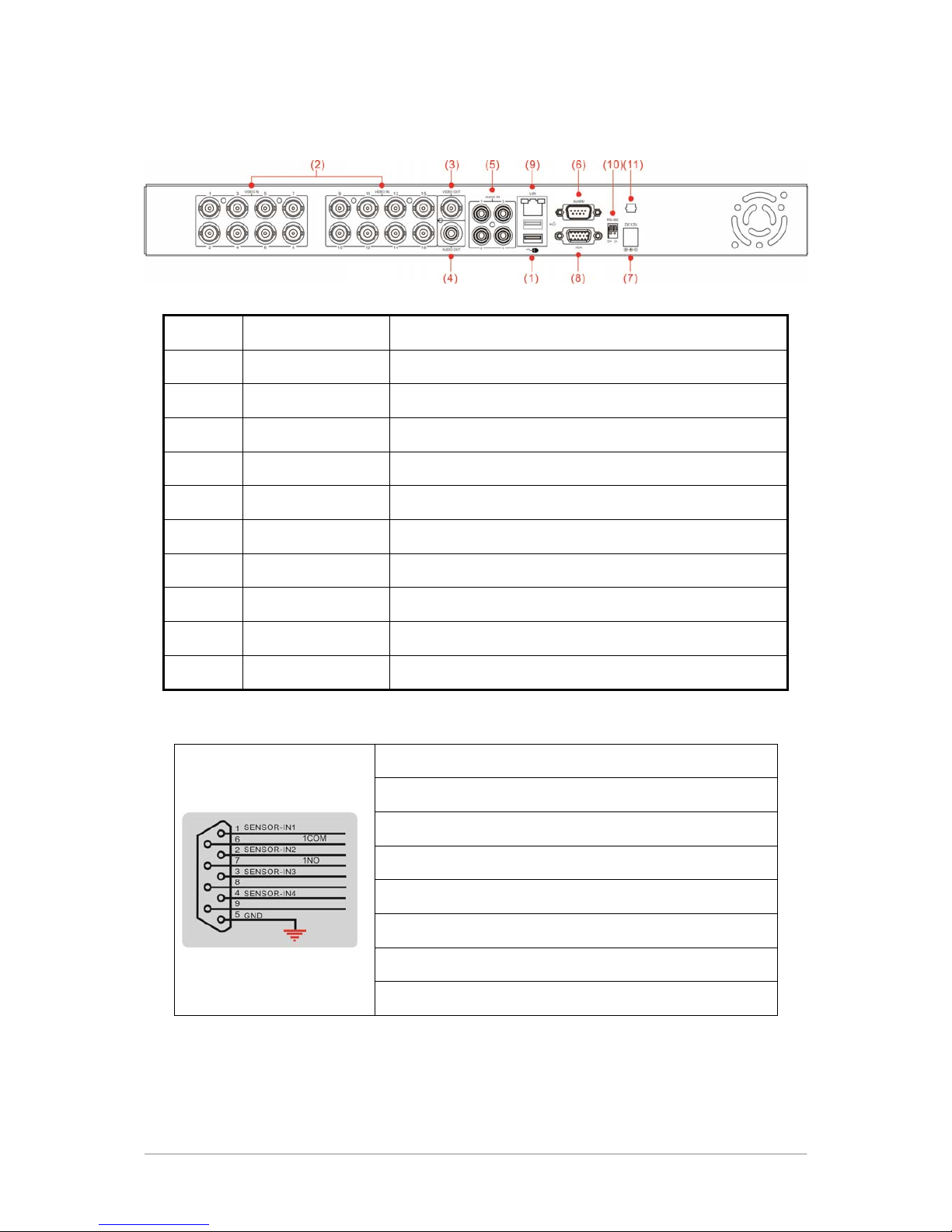
1 USB Mouse Port 2.0 USB Mouse
2 VIDEO IN 1~16 CH Video Input (BNC)
3 VIDEO OUT Video Output (BNC)
4 AUDIO OUT Audio Output (RCA)
5 AUDIO IN 1~4 CH Audio Input
6 ALARM Includes 4 DI AND 1 DO (Default N.O.)
7 DC12V Power Input
8 XGA LCD Monitor Output
9 LAN RJ45 Network Connection
10 RS-485 RS-485 Connection, For Speed Dome Use
11 HOOK Cable Hook
Alarm I/O Instruction
Instruction
Pin 1. CH 1 SENSOR INPUT
Pin 2. CH 2 SENSOR INPUT
Pin 3. CH 3 SENSOR INPUT
Pin 4. CH 4 SENSOR INPUT
Pin 5. Ground
Pin 6. 1ST RELAY : COM
Pin 7. 1ST RELAY : N.O ( Default )

4
3. HDD Installation
Please install the 3.5 inch SATA HDD in the device and connect the power
wire and transmission wire. If no install HDD, the system can’t recording.
When install 1pc HDD, the hard disk can be installed in any SATA HDD
position.
All in the list below has been tested and be recommended for functional
ensuring.
Brand Model Number Capacity
SEAGATE
ST3250310CS 250G
ST3320410SV 320G
ST3500418AS 500G
ST3500312CS 500G
ST3750528AS 750G
ST31000424CS 1T
ST31500541AS 1.5T
ST32000542AS 2T
HITACHI
HCT721025SLA380 250G
HCT721032SLA380 320G
HCP725050GLA380 500G
HCT721010SLA360 1T
HDHCT721010LAS360 1T
WD
WD3200AVVS 320G
WD3200AAKS 320G
WD5000AVVS 500G
WD5000AAKX 500G
WD10EURS 1T
WD10EVDS 1T
WD10EVVS 1T
WD15EARS 1.5T
WD20EARS 2T
WD2001FASS 2T

5
4. System installation
Connect the camera video output to the DVR video input port with BNC
connectors.
BNC connectors recommend to use RG-59 or above.
DVR Network installation
Please connect DVR to HUB or router by using RJ-45 network cable and
make sure the DVR network indicator LED in on(Please refer to Network
Setup for further network setting information of using static IP, PPPoE or
DHCP )
Alarm Installation
Please refer to Installation for external alarm I/O installation. Please refer to
Alarm Setup
Speed Dome Installation
This device can support 5 kinds of communication protocol ( Pelco D, Pelco
P, MIKAMI, LILIN, Samsung) for Speed Dome camera.
Power Installation
lease use the provided power cable and adaptor to connect the
DVR(AC100V~AC240V), Please refer to Installation for connecting position
【REAR PANEL】. The DVR system will enter into live viewing mode when
power is connected. Please refer to Live Display mode for more
information.

6
5. Quick Set up Guide
System power on, the system will automatically jump to quickly set up guided
wizard and allows the user can simply and quickly set up the DVR, the operation
as shown below:
Note: set Guidance after each reboot; go to the main menu ->Configuration
Management->Basic->System setting
Setup 1: Set the date and time / If next reboot to open Guide (as below), setup
finish and then click「Next」for next step setting.
Setup2: Setup the Network (as below) / finish setup and then click「Next」for next
step setting.

7
Setup3: Setup recording quality / resolution / frame (as below), finish setup and
then click「Next」for next step setting.
Setup4: HDD management & format(as below) , finish setup and then click
「Next」for next step setting.
Setup5: Display the last HDD information.
Table des matières
Autres manuels Fuho DVR