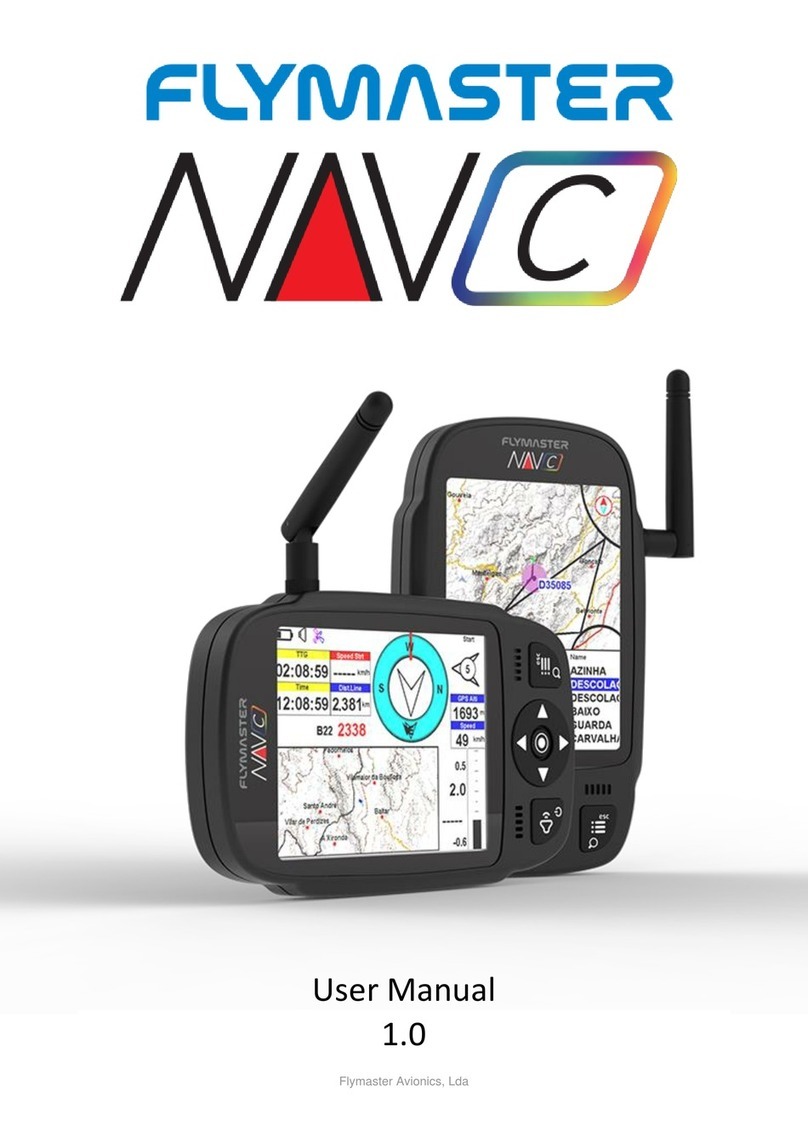
series
Getting started
Throughout this guide, we will use the term “Enter” to refer to the Enter/confirm
operation, which can be performed using the cursor center button.
Power ON - Press the Volume/Power button and confirm by pressing Enter/
Mark button.
Power OFF - Press the Power button. Select “yes” using the cursor keys in
the pop-up menu, and press Enter.
Navigate in the main menu - Use the cursor/pan keys to switch be-
tween menu icons. Press Enter to confirm. Use the Menu/esc button to go
back.
Navigate in a list-type menu - Use the cursor/pan keys to navigate up
and down the list. Press Enter to confirm. Use the Menu/esc button to go back.
Set volume - Long press the Volume/Power button, use the up and down
cursor keys to change between vario sound and speaker volume. Use the cur-
sor/pan keys (left and right) to adjust the setting, then press the scroll wheel
down to confirm.
Check GPS Status - Select “GPS Status” in the main menu, and press
Enter to confirm.
Calibrate compass - Use the cursor/pan keys to go to “Settings”. Press
Enter to enter the settings. Select “calibration” and press Enter to enter calibra-
tion mode. Follow the display instructions and rotate the instrument along all
four axes until calibration is complete.
Setting SOS and Report back messages (LIVE C only) -
After logging into your livetrack360.com user account, click on “devices” in
the left sidebar. Choose your instrument, click on “actions” -> “messages”.
Test Vario sound - Press Menu -> Settings -> Vario Acoustics -> Auto
Silent. Set Auto Silent to OFF. Press Enter to confirm.
Set altimeter - Press Menu -> Settings -> Set Altimeter. Use the cursor/
pan keys to edit the QNH or Altitude. Use the cursor/pan keys to change values.
Use the cursor keys to move to “save” or “cancel”. Press Enter to set the value.
Hardware reset - Press both the Volume/Power button and the Menu-
Esc/ button simultaneously and release. The instrument should turn off. Press
the power button to turn it on again.
ENG
6
Do not delete or manipulate any les in the SD card di-
rectly. All SD card management tasks should be done
through Flymaster Instrument Manager. Not doing so,
may cause the instrument to malfunction. To copy some
le from SD card to your computer, you should use your
computer’s le explorer using the USB connection with
the instrument.