
FlowLine EchoPod DL10 Series Manuel utilisateur
Flowline, Inc. | 10500 Humbolt Street, Los Alamitos, CA 90720 p562.598.3015 f562.431.8507 wflowline.com QS204210 Rev C
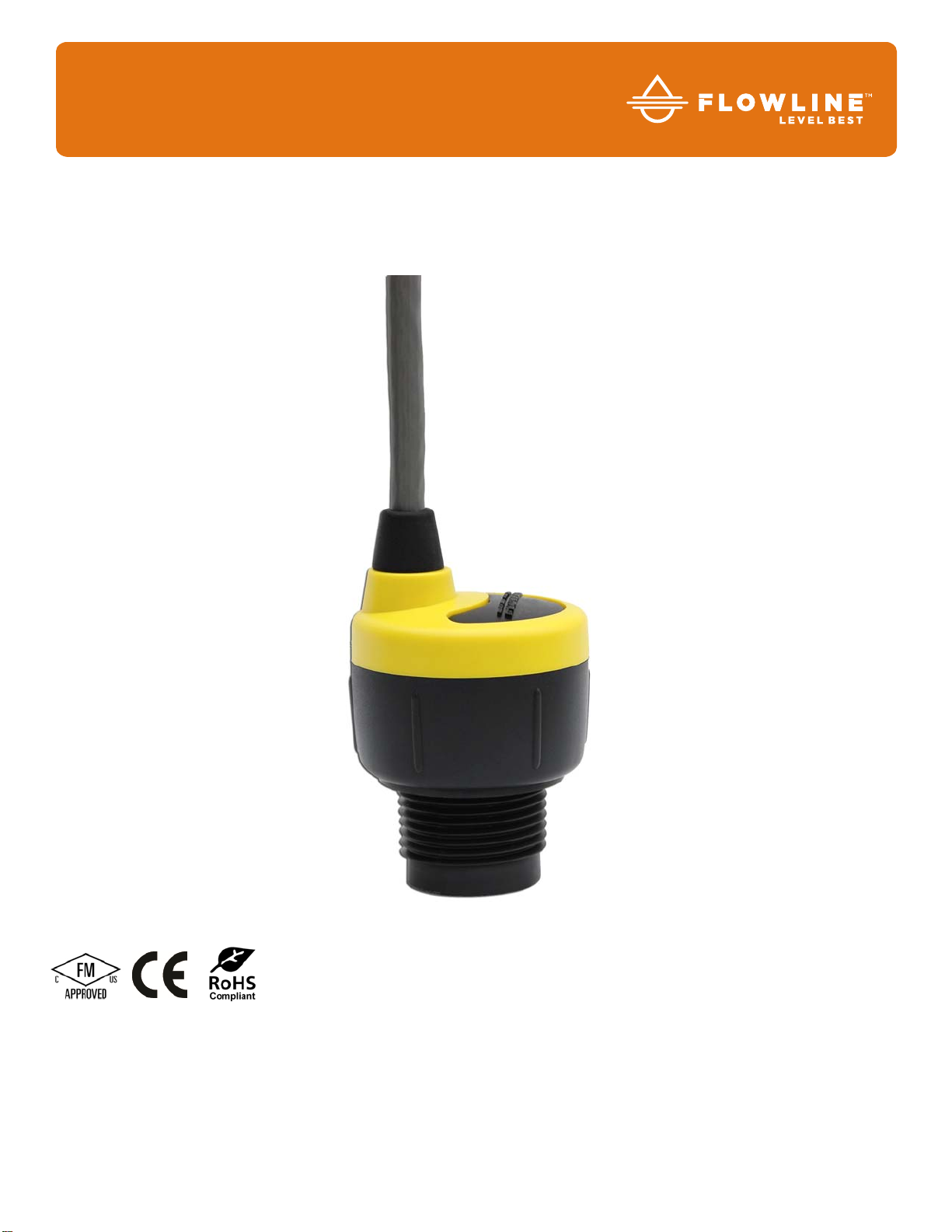
DL14-00 Shown
©2016 Flowline, Inc.
All Rights Reserved
Made in USA
DL10, DL14, DL24, DS14 & DX10 Series Quick Start
EchoPod
®
Ultrasonic Level Switch, Controller & Transmitter
|2 QS204210 Rev C
WELCOME TO THE ECHOPOD®DL10, DL14, DL24, DS14 & DX10 SERIES QUICK START
The EchoPod®Quick Start provides basic mounting, setup and use instructions for getting the EchoPod®
up and running quickly. If you have a non-standard installation or setup requirement that is not addressed
here, please refer to the EchoPod®Manual or other support documentation located at flowline.com.
WE DO YOUR LEVEL BEST
Thank you for purchasing EchoPod®. The sensor provides level measurement, switching and/or control for
your tank application. This Quick Start includes everything you’ll need to get the sensor up and running.
COMPONENTS
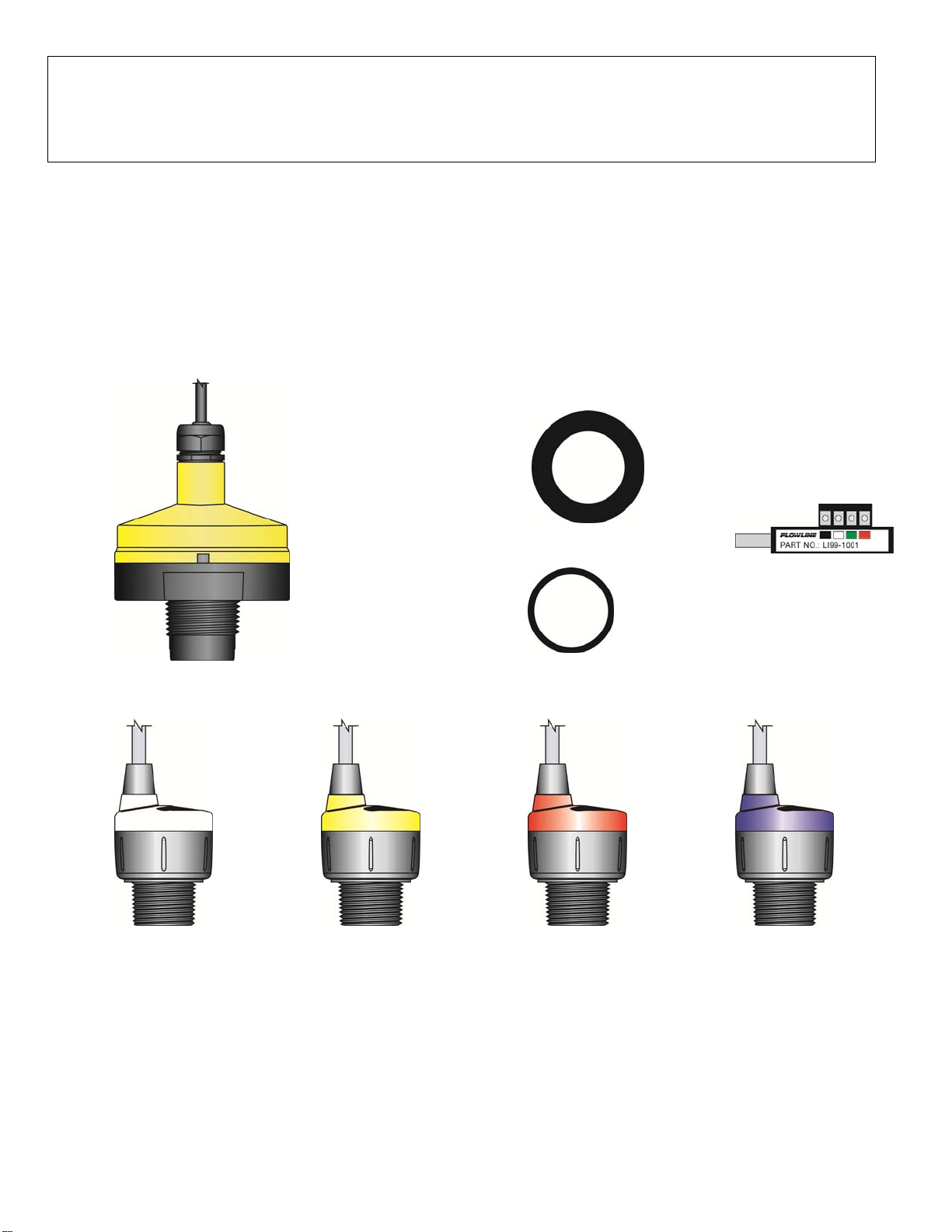
Depending on the sensor part number/configuration that was shipped, EchoPod®comes with a 4’ (1.2m) cable,
Viton®gasket for installation and the Quick Start. Some models have the USB®Key Fob (LI99-1001) included
with the EchoPod®and other’s do not. Fob’s can be purchased separately. A LI99-1001 Fob is required to
interface to WebCal® and configure the sensor.
Viton®gasket (1”)
P/N: 200128 or
Viton®gasket (1”)
P/N: 204038
USB®Key Fob
P/N: LI99-1001
EchoPod
®
DL24 Series
EchoPod
®
DL10 Series EchoPod
®
DS14 Series EchoPod
®
DS14 Series EchoPod
®
DX10 Series
QS204210 Rev C 3 |
CONFIGURING ECHOPOD®
EchoPod®is configured through WebCal®, a PC software program. Configuration of your sensor should be
performed prior to mounting, since it requires connection to your PC.
STEP 1: DOWNLOAD AND INSTALL WEBCAL®
Download WebCal® software from flowline.com onto a PC with the following minimum specifications:
Windows®2000/XP/Vista/7/8/10, 10 MB storage space, 256 MB RAM, 1 USB®2.0 port
Double-click the WebCal® icon to install before proceeding to Step 2. You must have an active Internet
connection to install WebCal®, as it will automatically install any required drivers.
STEP 2: CONNECT THE USB®FOB
NOTE: Do not connect the Fob until after you’ve installed WebCal®.
The sensor communicates to WebCal®through the USB®Fob. Prior to plugging the Fob into your computers
USB®port, ensure that all external power is disconnected from EchoPod®. The maximum distance between
the computer and EchoPod®is 15’.
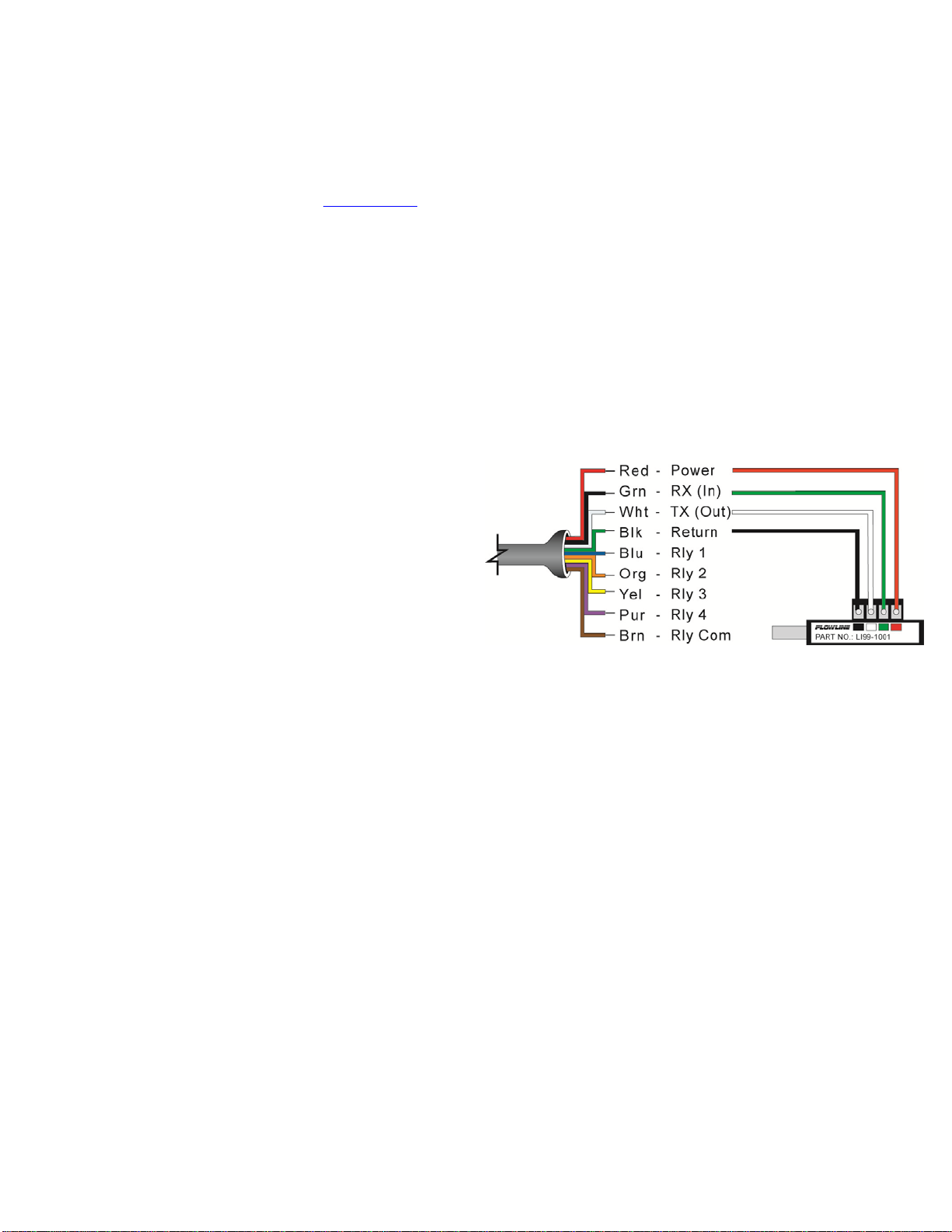
1. Connect the red, green, white, and black
wires from the EchoPod®to the
corresponding colored terminals on the
Fob.
2. Tighten the terminal screws with a slotted
screwdriver.
3. Plug the Fob into your PC’s USB®port.
Wiring identical for all series – Use only the Red,
Black, Green and White wires.
|4 QS204210 Rev C
With EchoPod®connected to your computer, open the WebCal®* software by clicking on the WebCal®icon.
Follow steps 1-4 to configure the transmitter. Click “Help” in the lower right hand corner and open the help
menu of WebCal®for instructions on WebCal®. If you need additional assistance using WebCal®, please
contact a Flowline applications engineer at (562) 598-3015. * For complete information on the WebCal®
software, please refer to the WebCal®manual located at flowline.com/webcal.
CONFIGURING ECHOPOD®WITH WEBCAL®
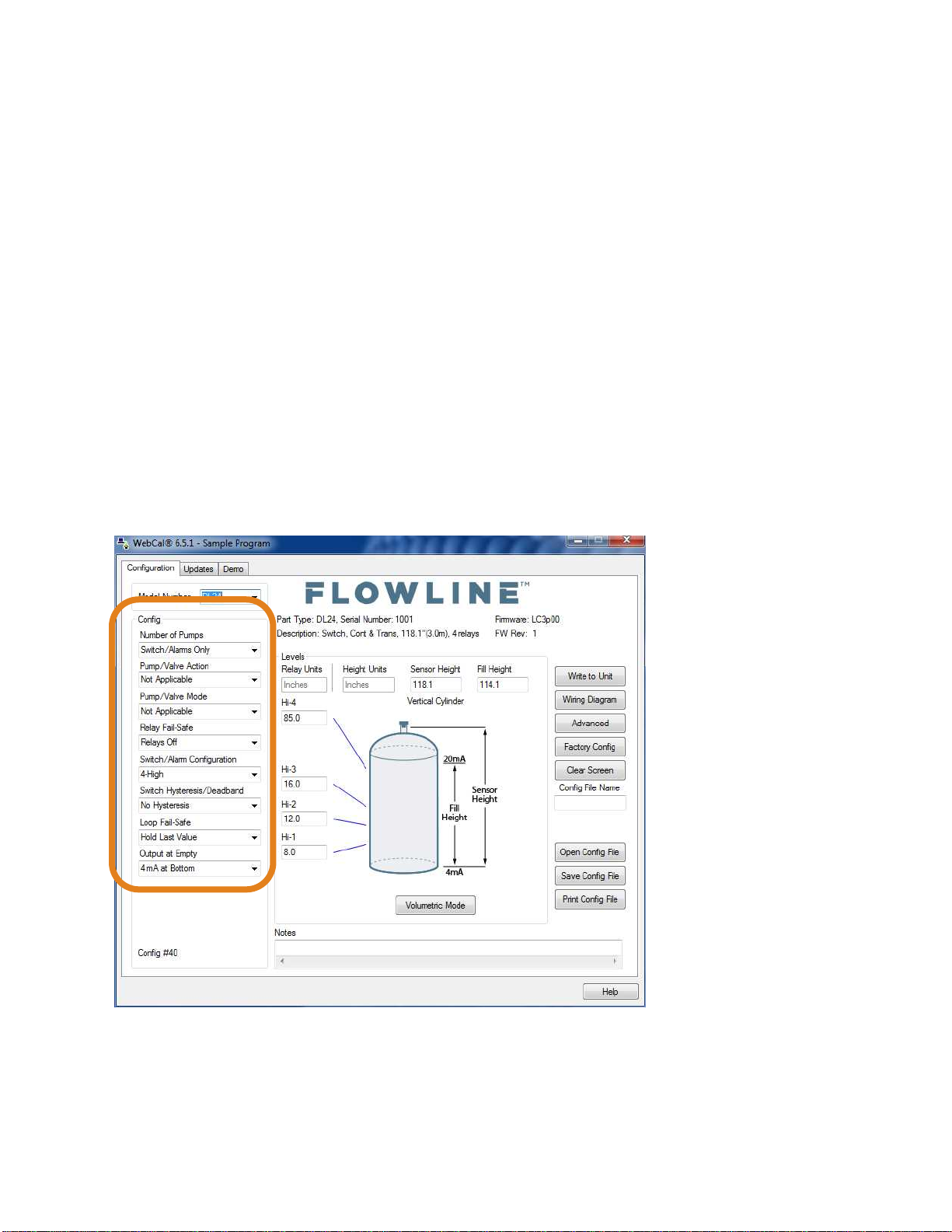
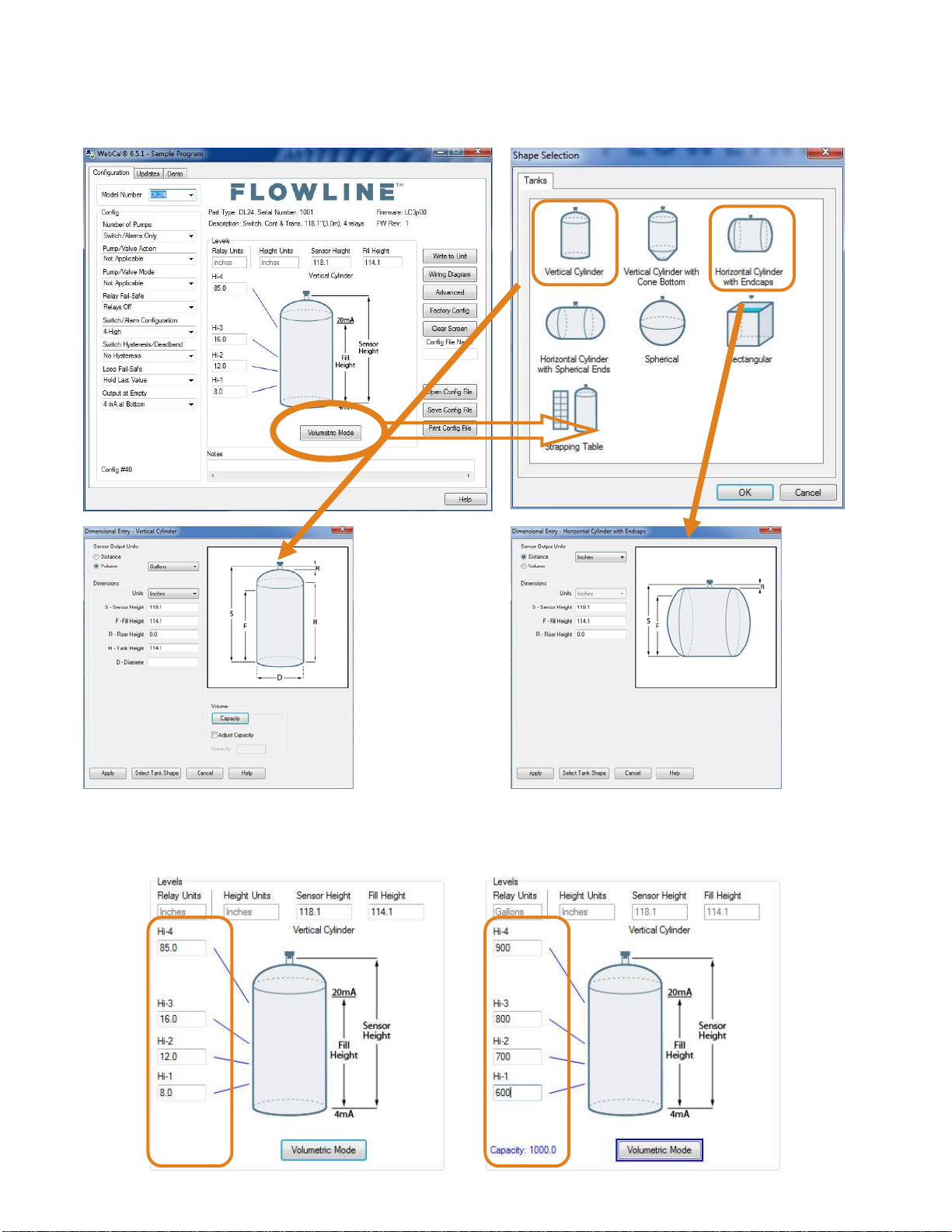
1. Output Configuration
a. Configures the relays in terms of pump/valve operations as well as high or low alarms.
b. Sets fail-safe for the relays and the sensor’s output (current, voltage or frequency).
2. Tank Shape Selection
a. Defines the shape of the tank as well as the dimensional information for the tank with
respect to the sensor’s location on the tank.
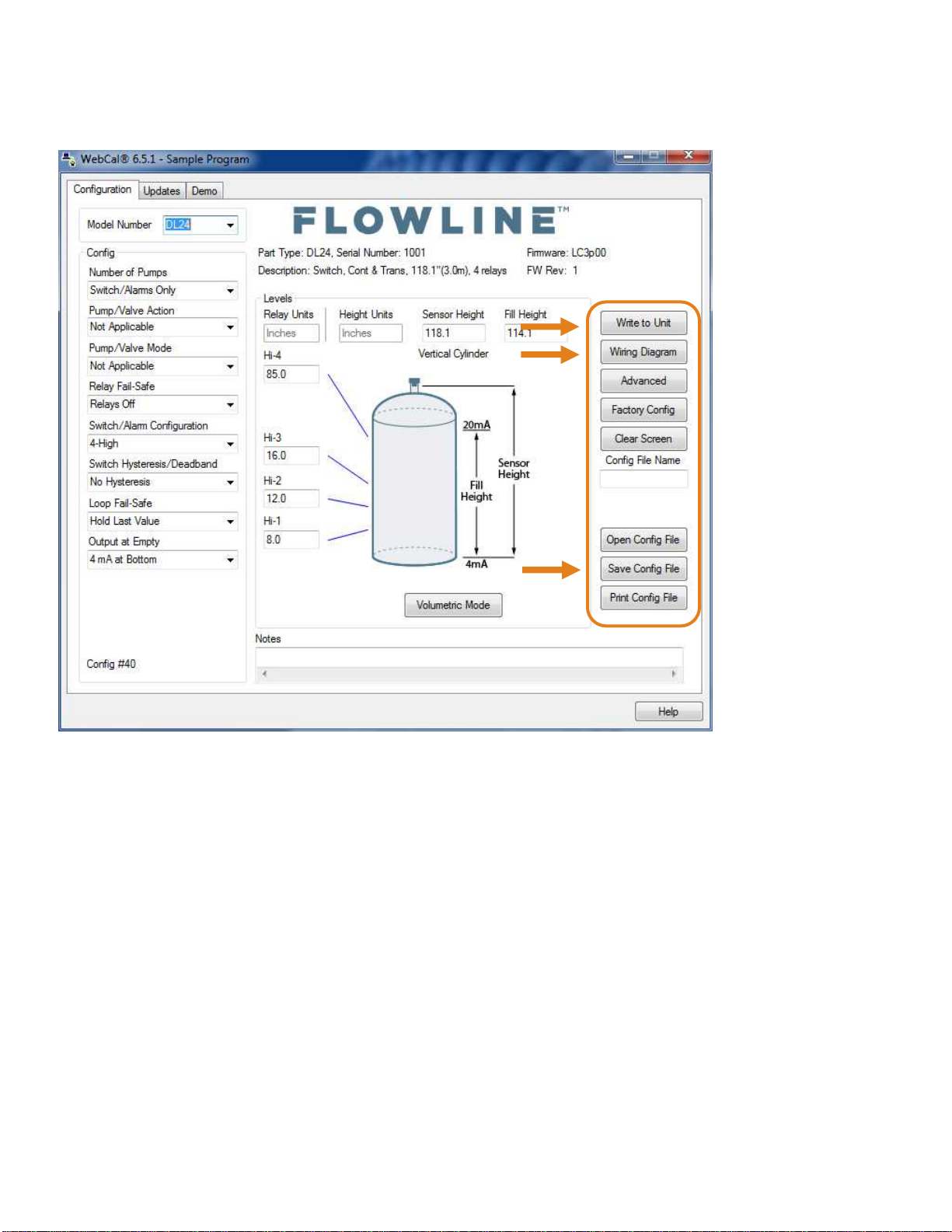
3. Tank Level Configuration
a. Enters the settings for the relay activation points as well as confirms the operational
range.
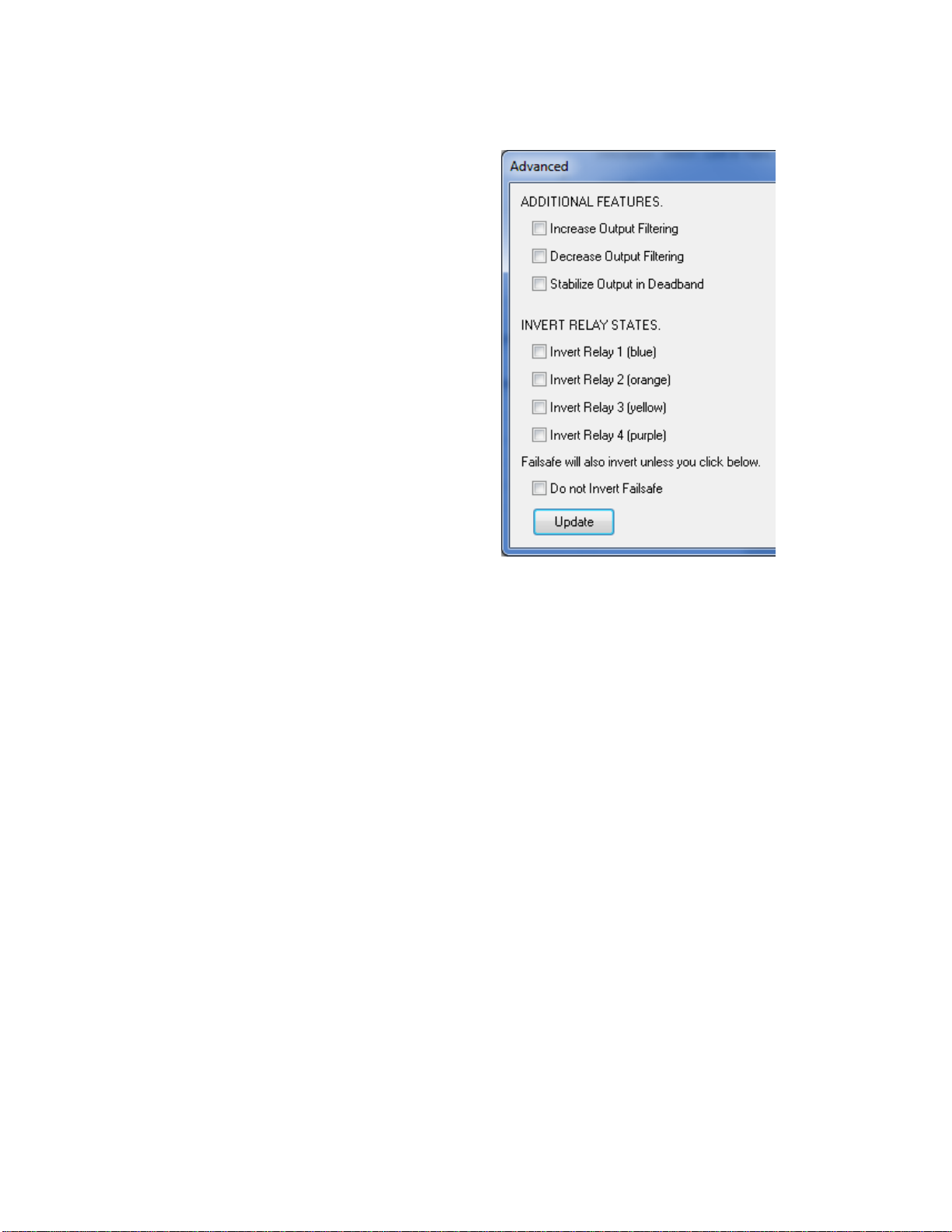
4. Write to Unit
a. Uploads the configuration into the sensor.
b. Provides a custom wiring diagram specific to the signal output and/or relay configuration.
OUTPUT CONFIGURATION:
Configures the relays in terms of pump/valve operations and level alarms as well as the setting fail-safe for
relays and signal output.
QS204210 Rev C 5 |
TANK SHAPE SELECTION:
Defines the shape of the tank as well as the dimensional information for the tank with respect to the sensor’s
location on the tank.
TANK LEVEL CONFIGURATION:
Enters the settings for the relay activation points as well as confirms the operational range.
|6 QS204210 Rev C
WRITE TO UNIT:
This WebCal®* operation uploads the configuration into the sensor, provides a custom wiring diagram specific
to the signal output and/or relay configuration, and saves the configuration file to your hard drive.
* For complete information on the WebCal®software, please refer to the WebCal®manual located at
flowline.com/webcal.
Before configuration can be completed
You must click the Write to Unit button to save the settings to the unit.
Then, click Wiring Diagram for a hard copy of the sensor’s settings.
Finally, enter the file name under which you wish to save the configuration file and click Save Config
File.
Configuration is now complete.
Disconnect the USB®Fob before continuing to the next step: Mounting the EchoPod®.
QS204210 Rev C 7 |
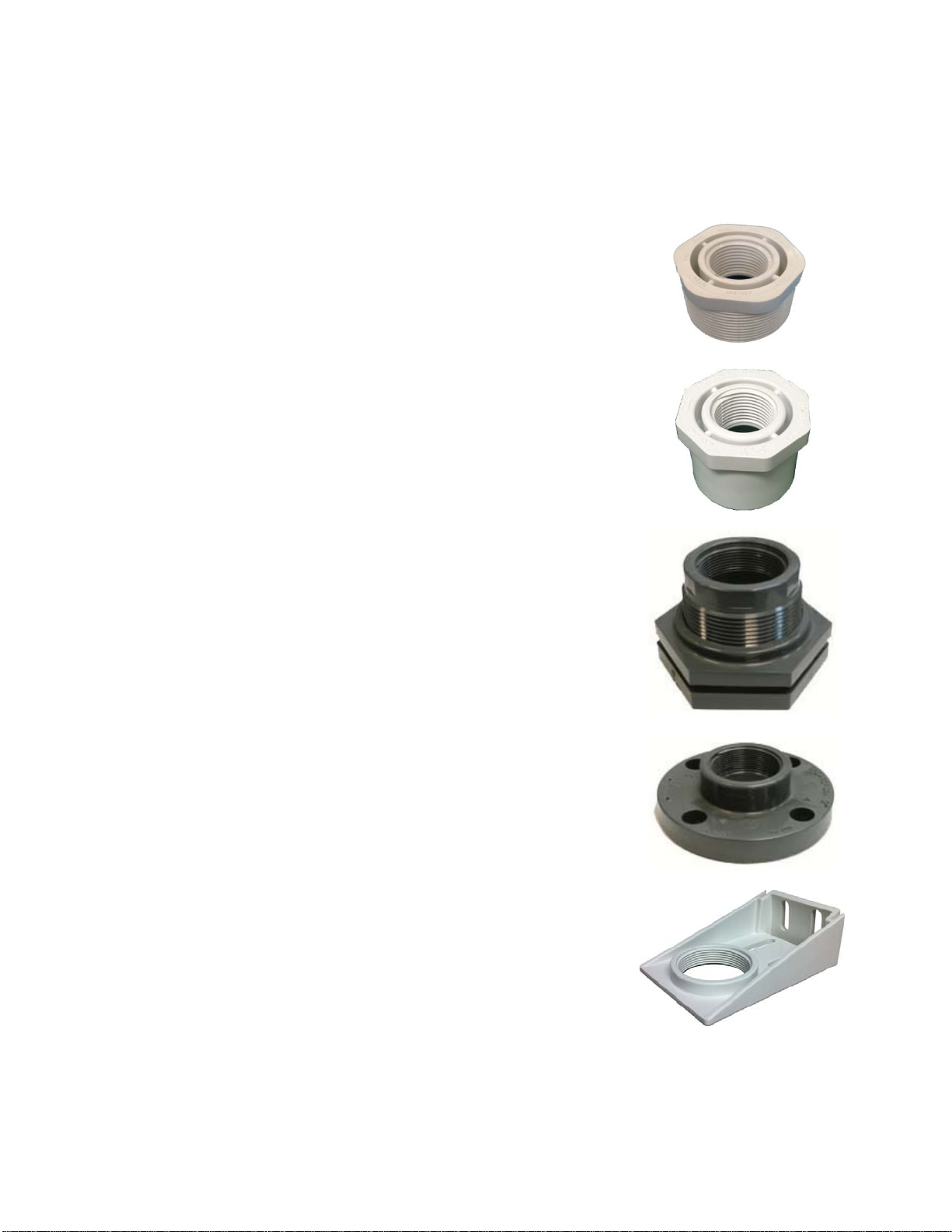
The advanced features settings are designed to help solve performance or operational issues for specific
applications. Changing these setting will alter the factory default performance or operation, of your sensor.
Please read through this HELP file to assist you in making adjustments or if you are still unclear about a
specific issue, please contact FLOWLINE applications engineering.
The more commonly used Advanced features are the
Invert Relay and Increase Output Filtering described
below.
Increase Output Filtering: Placing a check mark
in the box will additional filtering to the 4-20 mA
output.
Decrease Output Filtering: Placing a check mark
in the box will remove all output filtering on the 4-20
mA output.
Invert Relays: Placing a check mark in any of the
four boxes will invert the relay state from normally
open to normally closed.
Do not Invert Failsafe: Placing a check mark in
the box will not invert the fail-safe when a relay is
inverted.
Advanced Settings
|8 QS204210 Rev C
MOUNTING ECHOPOD®
The sensor should always be mounted perpendicular to the liquid surface using the provided Viton®mounting
gasket. Make sure that there are no restrictions or obstacles in the path of the acoustic signal. For further
mounting information, please refer to the EchoPod®manual and instruction video located at flowline.com.
EchoPod®has 1” NPT or G threads and requires care in fitting selection and mounting to reduce any coupling of the
ultrasonic signal to the mounting structure. The below fittings are recommended.
Installation in existing 2” fittings:
Use a LM52-1400 2” thread x 1” thread adapter or a LM52-1410 2”
slip x 1” thread adapter. Adapters with an air gap around the 1 inch
threads are recommended.
Installation in plastic tanks (use one of the following):
Use a 1” bulkhead fitting, such as the LM52-1890 bulkhead fitting.
Use a larger bulkhead fitting, such as the LM52-2890 with a
reducer bushing such as the LM52-1400.
Weld a plastic 1” half coupling to the tank top.
Installation in metal tanks (use one of the following):
Use the LM52-1890 bulkhead fittings.
Use a flange with a 1” riser, such as the LM52-1850 (where the
thread is above the plane of the flange). Do not use a blind
flange with a tapped 1” thread.
Use a larger flange with a 2” thread and add a reducer bushing
such as the LM52-1400.
Note: While installations directly into a 1”metal fitting are not
recommended, acceptable results may be obtained if the 1” fitting
is a half coupling in form and the outer diameter of the coupler is
tightly wrapped with vinyl tape.
Installation in open tanks and sumps:
1) Use Flowline's LM50-1001-1 side mount bracket.
Note: The Side Mount Bracket (LM50 series) is not
designed for use with stand pipes or as a method to secure
stand pipes. There are too few threads to properly hold the
sensor and the stand pipe.
LM52-1400
LM52-1410
LM52-2890
LM52-1850
LM50-1001
QS204210 Rev C 9 |
IMPORTANT MOUNTING GUIDELINES
1. Never mount the sensor at an angle.
2. Liquid should never enter the dead band.
3. Mount at least 2” from the side wall.
4. Never mount in a vacuum.
5. Do not obstruct the sensor’s beam width.
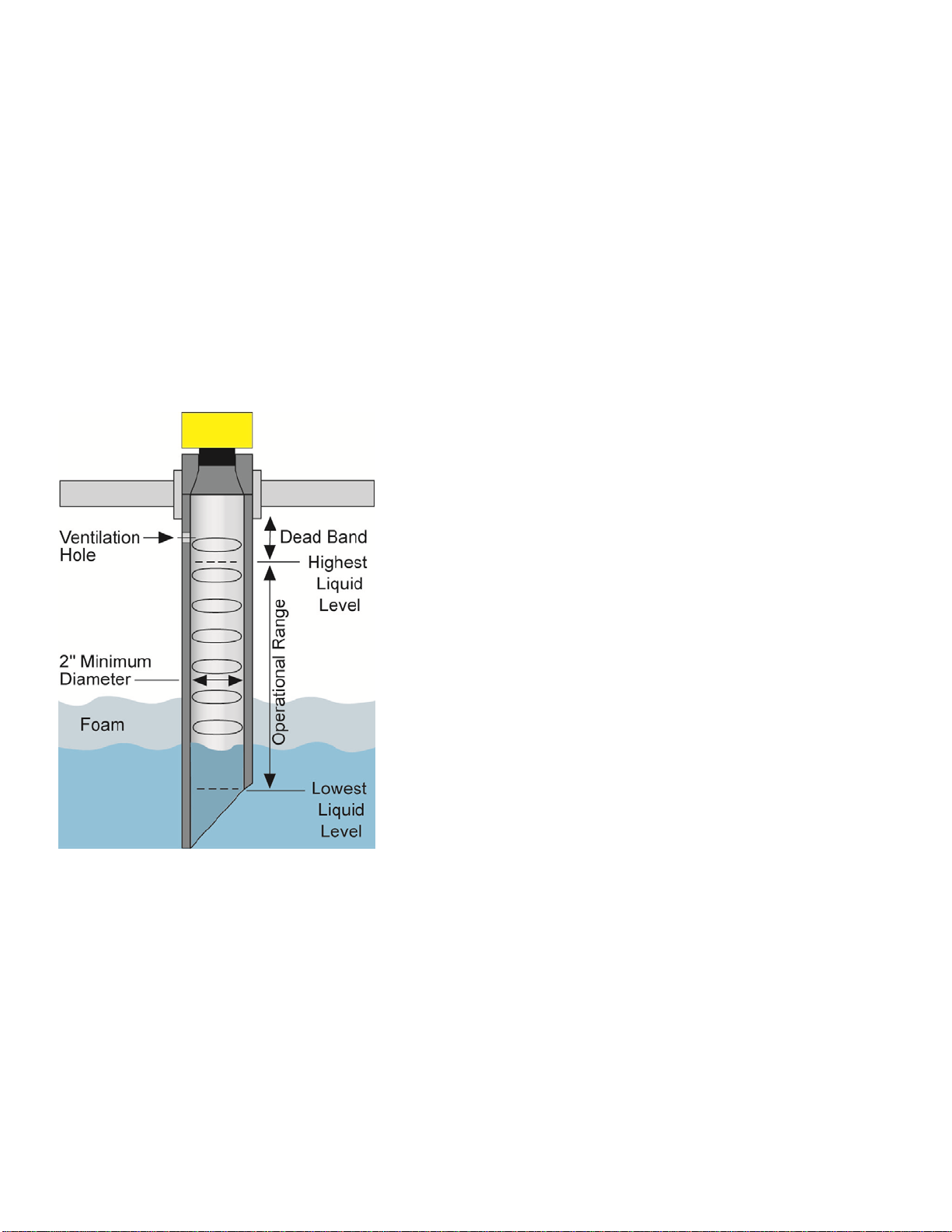
MOUNTING IN STAND-PIPE
A stand-pipe may be used to dampen turbulence, separate surface foam from the point of measurement or
increase performance in heavy vapor. When mounting the sensor in a stand-pipe, the minimum diameter of
the pipe is 2”. Larger diameter pipes can be used. The pipe should be attached with a coupling and reducer
bushing. The pipe length should run the measurement span and the bottom of the pipe should remain
submerged at all times to prevent foam from entering the pipe. Cut the bottom end of the pipe at 45° and drill
a 1/4”pressure equalization hole high in the sensor’s dead band. Locate the stand-pipe away from pump
outlets and/or other sources of substantial turbulence which might cause the liquid in the pipe to oscillate.
|10 QS204210 Rev C
WIRING ECHOPOD®
After mounting the sensor, make the necessary electrical connections. A wiring diagram with specific
recommendations for the sensor’s configuration can be printed from the WebCal®program. A typical wiring
diagram is shown on the next page.
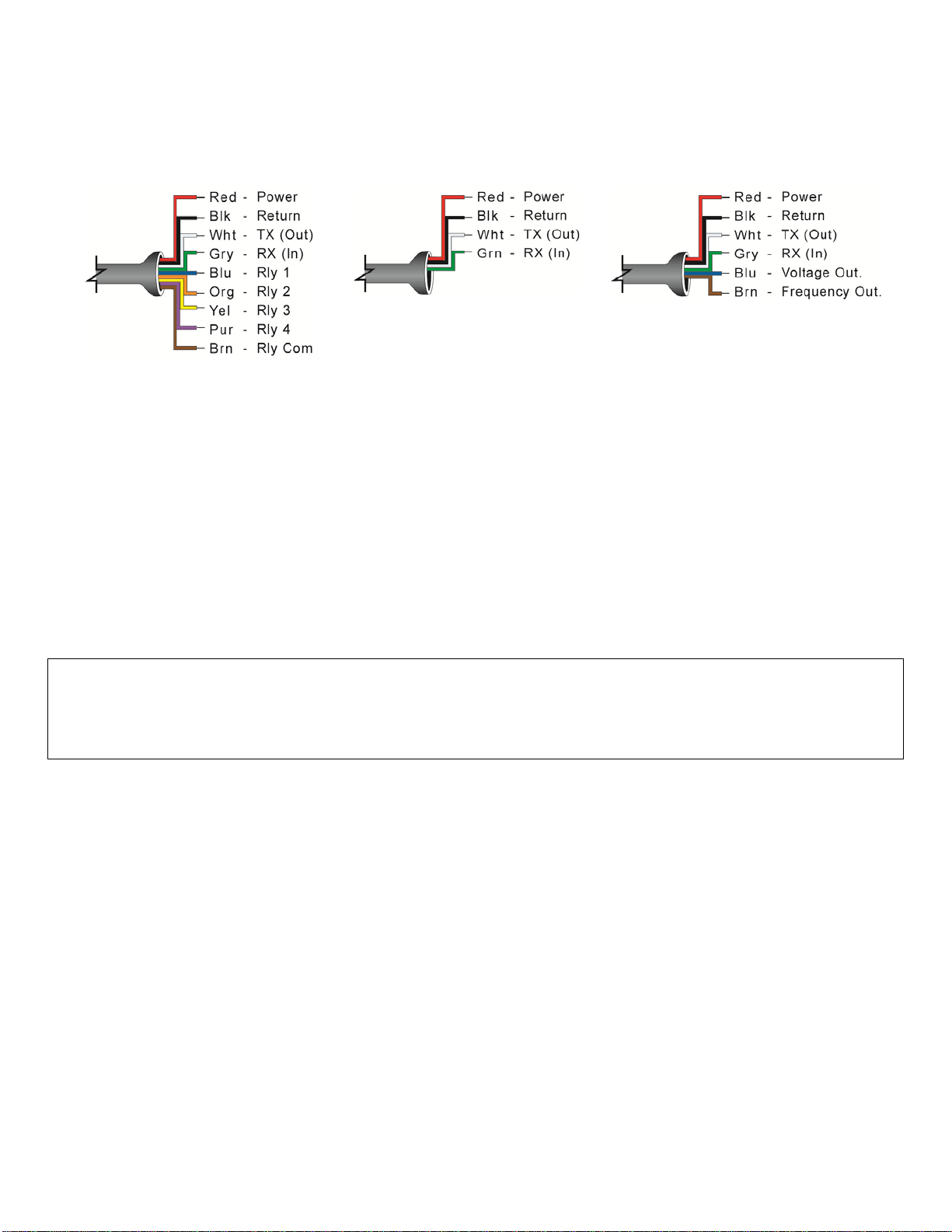
DL14, DL24 & DS14 Series DL10 Series DX10 Series
Red & Black: Red (Power) and Black (Return) leads are for connection to a 24 VDC power supply or to a 4-
20 mA loop power source (DL10, DL14 & DL24 series only). The Red and Black wires can be extended up to
1,000 feet using a 22-gauge or larger wire; however do not extend the green and white wires beyond 15’.
White & Green: White (TX) and Green (RX) leads are reserved for use with WebCal®and PodView®
communication and should not be connected during usage in the application. These wires should not be
connected to WebCal®while power is supplied from any source other than the LI99 series Fob. The maximum
cable distance between the computer and EchoPod®is 15’. Note: Never allow the white or green wires to
touch any power supply.
Blue, Orange, Yellow, Purple & Brown – (DL14, DL24 & DS14 Series only): Blue (Rly1), Orange (Rly2),
Yellow (Rly3) & Purple (Rly) wires are the relay contacts (normally open) from each of the relays respectively.
The Brown wire (RLY Common) is the common for all the relays. Relay selection is determined by the
configuration in WebCal®.
Note: EchoPod®uses latching relays. When power is removed to the sensor, the relays will remain in
their last state. Example: If the relay is energized, when power is removed, the relay will remain
in an energized state.
Blue & Brown – (DX10 Series only): Use the Brown wire for the Frequency output. Use the Blue wire for the
Voltage output.
Autres manuels pour EchoPod DL10 Series
1
Ce manuel convient aux modèles suivants
4
Table des matières
Autres manuels FlowLine Accessoires

FlowLine
FlowLine EchoPro LR36 Series Manuel utilisateur

FlowLine
FlowLine EchoPod DL34 Series Manuel utilisateur

FlowLine
FlowLine EchoSonic II Manuel utilisateur

FlowLine
FlowLine EchoPod DL24 Series Manuel utilisateur

FlowLine
FlowLine EchoSafe XP88 Manuel utilisateur

FlowLine
FlowLine EchoWave LG10 Series Manuel utilisateur

FlowLine
FlowLine EchoSonic II LU27 Series Manuel utilisateur

FlowLine
FlowLine EchoSwitch LU74 Series Manuel utilisateur

FlowLine
FlowLine EchoPro LR36 Series Manuel utilisateur

FlowLine
FlowLine EchoSonic LU27 Series Manuel utilisateur


