
Flexport BT-260-V2 Manuel utilisateur

- 1 -
Printer Combo Adapter
CONFIGURATION
UTILITY GUIDE
VERSION 1.0
© All rights reserved.
All trade names are registered trademarks of respective manufacturers listed.
The Bluetoothname and the Bluetoothtrademarks are owned by BluetoothSIG,Inc.
This manual may not be copied in any media or form without the written consent of original maker.
Bluetooth

- 2 -
PURPOSE ................................................................ 3
SYSTEM REQYIREMENTS .............................................. 3
PROCEDURES .......................................................... 3
INSTALL UTILITY PROGRAM .............................................. 4
CHANGE DEVICE DRIVER ................................................. 6
LOGIN CONFIGURATION UTILITY ....................................... 10
1. UPGRADE FIRMWARE ..................................... 11
2. SET/CLEAR PIN CODE .............................................. 13
3. CHANGE DEVICE NAME ............................................. 14
RESTORE DEVICE DRIVER .............................................. 15

- 3 -
Thank you for your purchase of the BT-260-V2 Printer Combo Adapter. The
Configuration Utility is a program which allows professional user to configure
the adapter or some special purposes, they are:
Upgrade your firmware if there is any.
Set/Clear PIN code for paired users.
Customize your device name.
SYSTEM REQUIREMENTS
PCs must have a Bluetooth device installed, such as a Bluetooth USB dongle. It
allows you to communicate with BT-260-V2 Printer Combo Adapter.
PCs must have a Bluetooth device driver installed, such as Widcomm driver. It is
always accompanied with your Bluetooth dongle device purchased. Furthermore,
make sure the driver is of the latest revision which supports Bluetooth print
service.
Utility CD – Which contains Utility program and a special driver which must be
installed before running Utility program, and removed after Utility program is
finished.
PROCEDURES
Run Setup.exe in Utility CD to explore Utility program and new Run_Utility
driver files.
Remove original Widcomm Bluetooth driver, update it to a new Run_Utility
driver.
Run Utility program. Customize your adapter freely.
Close Utility program.
Remove Run_Utility driver, restore original Widcomm Bluetooth driver.
Print your file by using new features of adapter
- 4 -
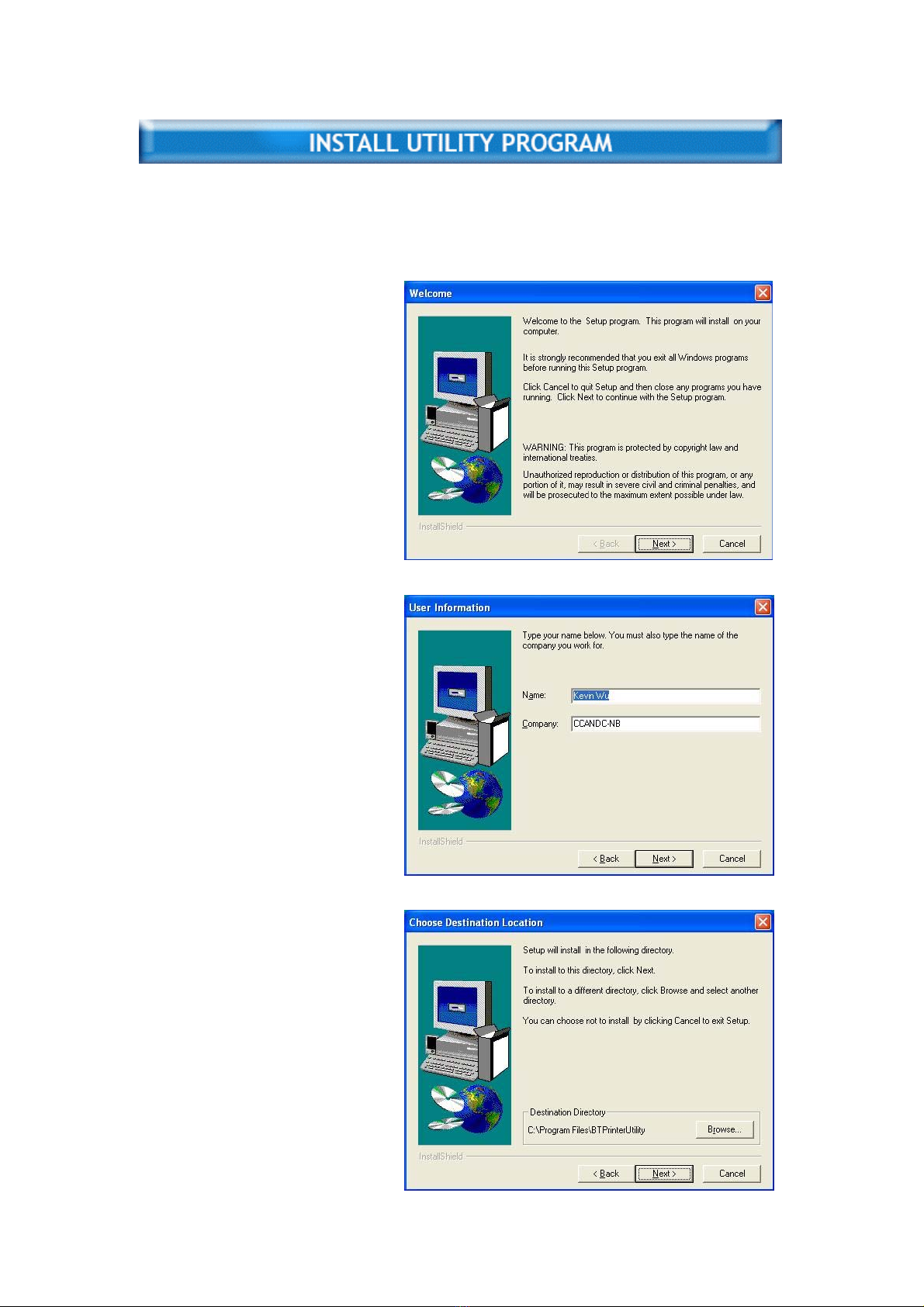
Find CD in your printer adapter package. Put it into CD driver of your PC.
Step 1:
Unpack the compressed package including this utility. Double click Setup.exe
to start the installation.
Copyright information, click
Next button
Step 2:
Fill in the text of your name and company, or left them blank.
Step 3:
Select destination position, the subfolder “Driver” contains the device driver for
Utility program.
- 5 -
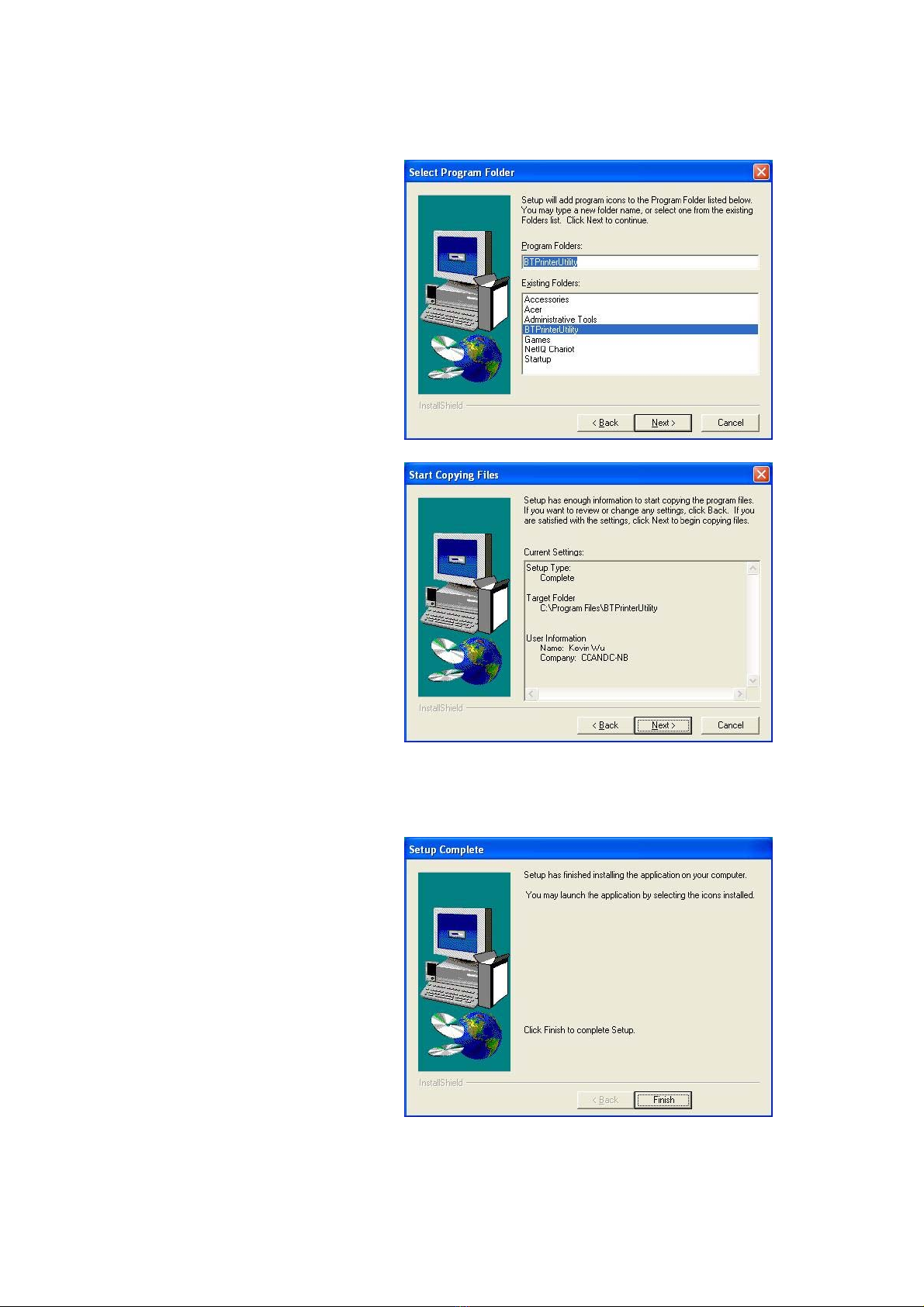
Step 4:
Specify Program name, here, we choose: BTPrinterUtility as program name.
Step 5:
Click Next button
Step 6:
Click Finish button.
It will copy all the necessary files to your PC for future operation.
- 6 -
After Utility program has been copied to your PC, you need to manually
change the Widcomm Bluetooth driver on your PC to a new one. The reason is
that Widcomm does not provide enough resources for us to manipulate
upgrading firmware, so we have to use another tool to reach the goal.
Check Current Driver
We assume you already plugged a Bluetooth Dongle into your PC, and a
correct Widcomm driver has been installed. If you are a Windows XP SP1 (or
later) user, you also have followed the steps mentioned in User’s Manual Page
6 - UPDATE BLUETOOTH DRIVER to install a right driver for your Bluetooth
Dongle.
Click Start on task bar.
Click Control Panel.
Double-click on System icon.
Select Hardware page.
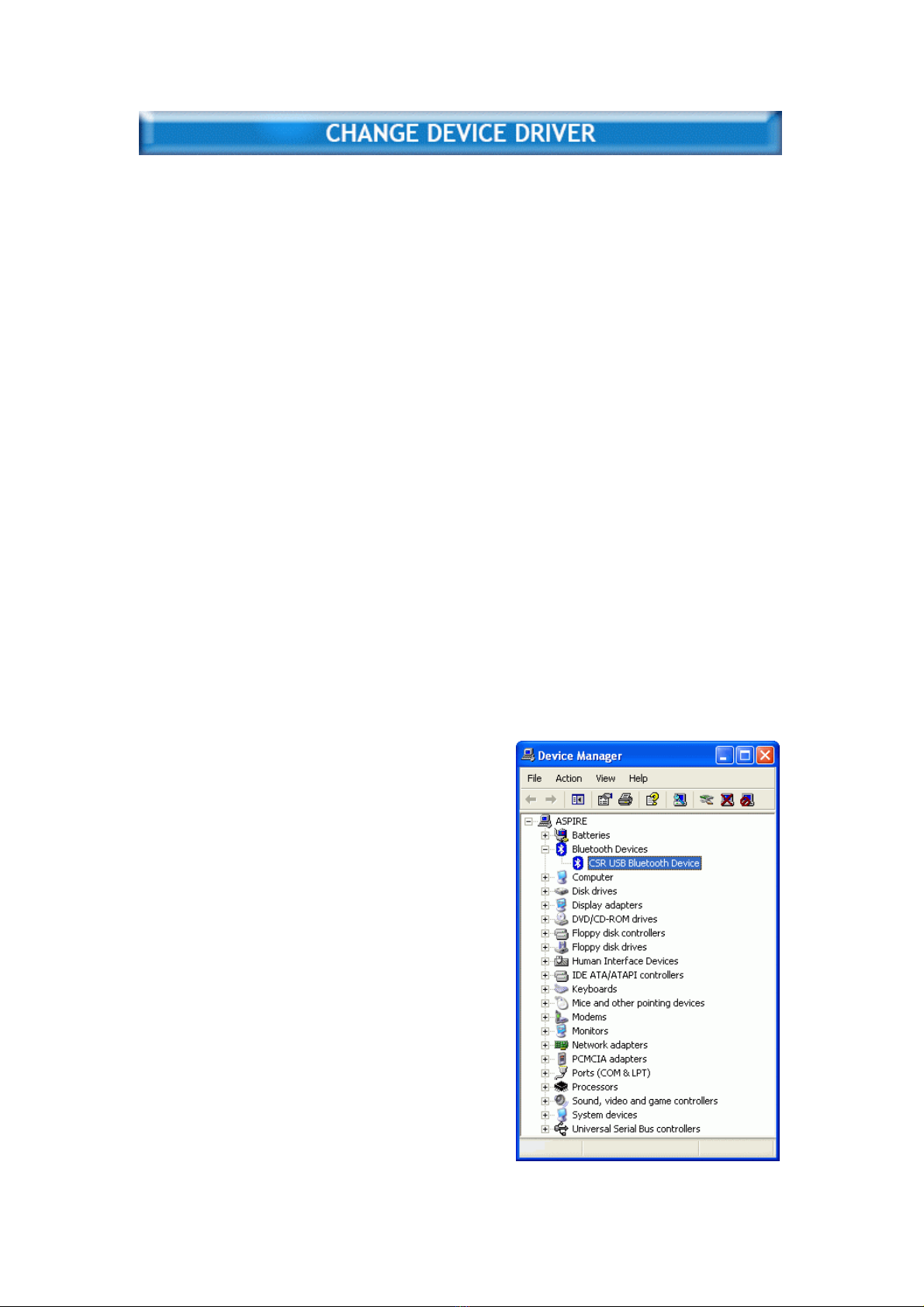
Click on Device Manager, the Device Manager window will pop up. Bluetooth
device is appearing in Universal Serial Bus controllers or Bluetooth Devices
branch.
In this example, expand Bluetooth Devices, you will see a Bluetooth device -
CSR USB Bluetooth Device is there.

- 7 -
This Widcomm driver accompanied with CSR USB Bluetooth Device is not
what we can use in running Utility program. Please update this driver
according to the method discussed in next section – Update Driver.
Update Driver
Here, we will tell you step by step to update the Bluetooth driver to a new one
which Utility program can recognize.
Step 1:
In “Device Manager”, from Bluetooth Devices, right click CSR USB Bluetooth
Device label, and then click Update Driver…
Step 2:
Select “Install from a list or specific location (Advanced)” option, click Next.
- 8 -
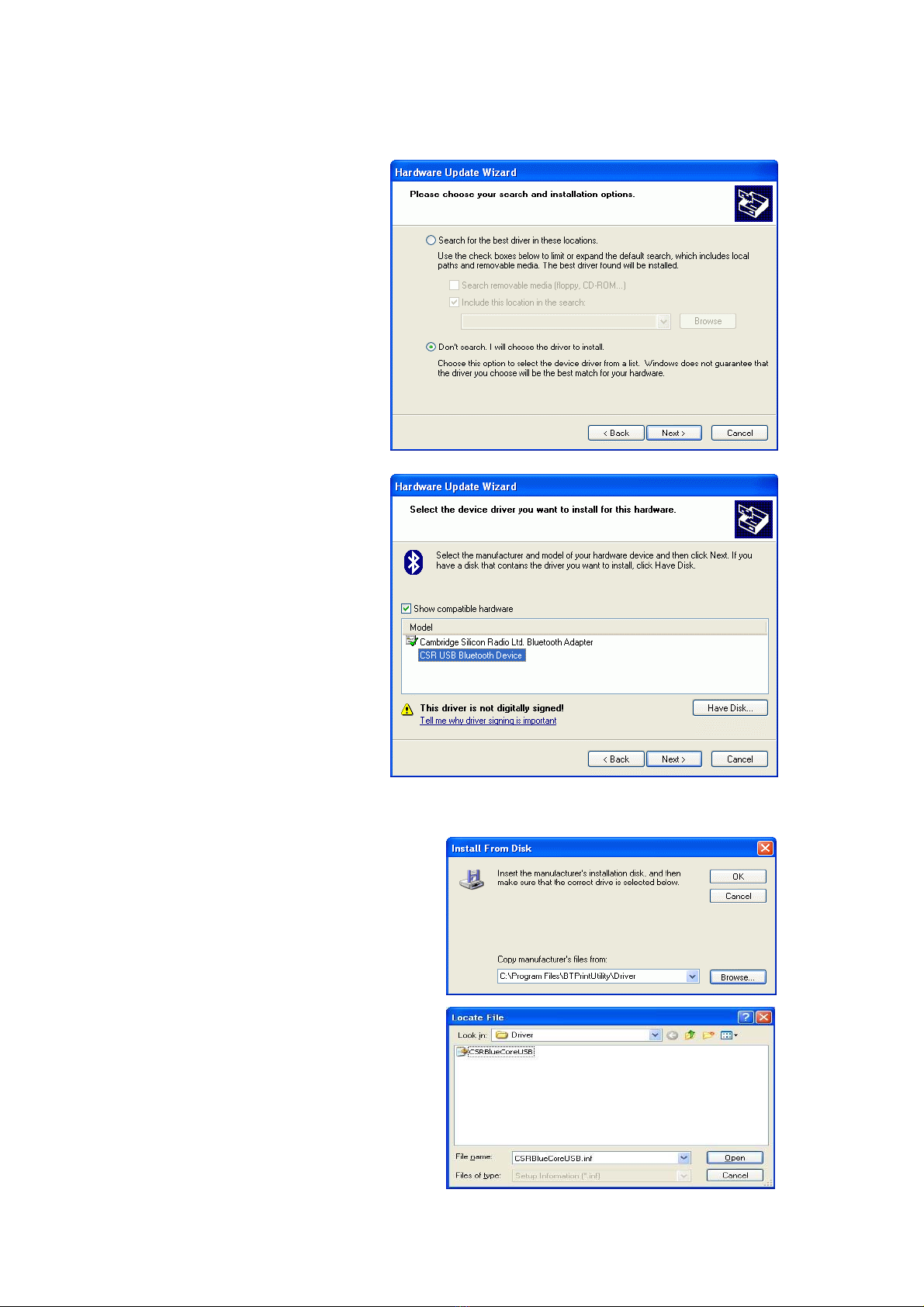
Step 3:
Select “Don’t search. I will choose the driver to install”, click Next button.
Step 4:
Click “Have Disk…” button
Step 5:
Click “Browse…” button and select a utility installation folder, such as
c:\Program Files\BTPrintUtility\Driver which contains a driver file
CSRBlueCoreUSB.INF.
Click OK.
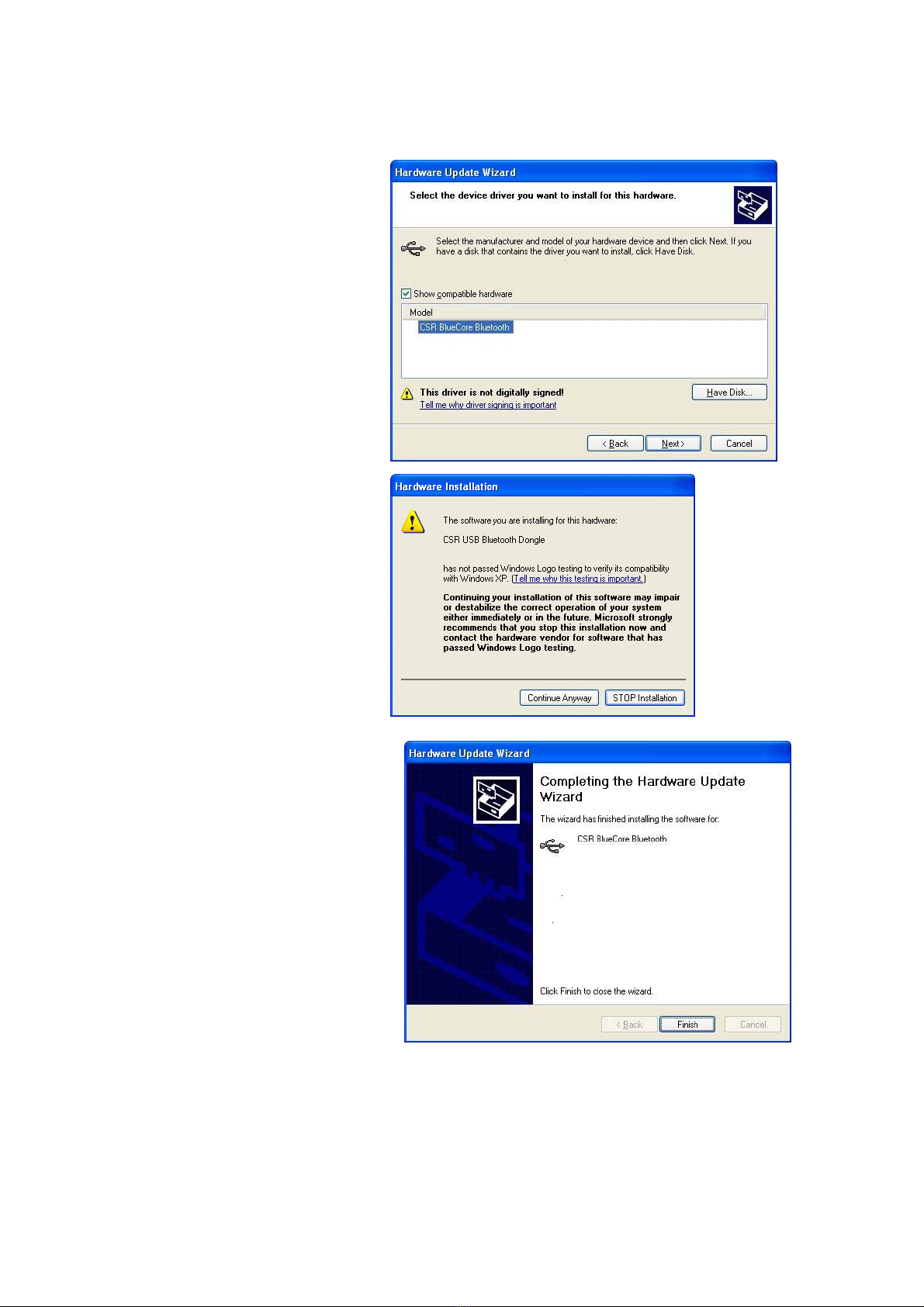
- 9 -
Step 6:
You will see the driver name, click Next button.
Click Continue Anyway.
Step 7:
Click Finish button to complete upgrading.
Step 8:
In “Device Manager”, you will see a new Universal Serial Bus controllers
equipped with driver “CSR USB Bluetooth Dongle”. This is the driver which we
need in running Configuration Utility program.

- 10 -
After new driver was installed, you can start running the utility program.
Click Start on toolbar,Select All Programs,Select BTPrinterUtility,Select
BTConfigue to run configuration utility.The Utility windows will pop up. Please
click Inquiry to discover any Bluetooth printer in range.
Note : If the driver is incorrect, you will see “Can’t find Bluetooth Dongle”, the
application will soon be terminated.
One printer adapter (with series # : Bluetooth BT-PTR-B0A229) is found.
Click Connect to connect Utility program with it.
In some cases, you have to try many times to connect destination device, if the
device can not be connected, the flowing message will pop up, you may
choose to reconnect or not.
Table des matières


