
Faurecia Clarion Electronics PP-4330 Manuel utilisateur

Owner's Manual
PP-4330

1
Table of contents
1. System Overview ����������������������������������������������������� 2
Control of This Unit ���������������������������������������������������� 2
Steering Remote Control �������������������������������������������������� 3
Silver box to supply power and simulate some signals ��������������������������������� 4
2. Common Operations ��������������������������������������������������� 5
Home Menu ��������������������������������������������������������� 5
Audio Source Switch ���������������������������������������������������� 5
Displays ����������������������������������������������������������� 6
Settings ���������������������������������������������������������� 6
Connections �������������������������������������������������������� 7
Informations ��������������������������������������������������������� 7
3. Bluetooth Operations ��������������������������������������������������� 8
Bluetooth Settings ����������������������������������������������������� 8
Phone Settings ������������������������������������������������������ 9
Bluetooth Phone Operations ����������������������������������������������� 11
Bluetooth Audio Operations ����������������������������������������������� 15
4. iPod Operations ���������������������������������������������������� 17
iPod Connection ����������������������������������������������������� 17
iPod Mode Selection ��������������������������������������������������� 17
5. Using Apple CarPlay ������������������������������������������������� 19
6. Using Siri ��������������������������������������������������������� 20
7. Using Android Auto ��������������������������������������������������� 20
8. Declaration of conformity ����������������������������������������������� 21
English

2
English
1. System Overview
Control of This Unit
5432
1
6
9
87
(Fig 1-1)
1
[POWER] button: press to turn audio playback on/off.
[VOLUME] knob: rotate to turn volume up/down.
2
[AUDIO] button: press to enter the audio source or
audio playback screen.
3
[x]: track / folder down;
[v] button: track / folder up.
4
[MENU] button: press to enter the home menu screen.
5
[CAMERA] button: open camera setting.
6
[Day/Night] button: (short) change night mode;
(long) display OFF
7
[TEL] button: press to switch to the Bluetooth phone
menu screen.
8
[BACK] button: press to return to the previous screen.
9
[TUNE]/[SCROLL] knob: rotate to tune up/down, track
up/down; press to switch sound.
[SETTING] button: press to enter the setting screen.

3
English
Steering Remote Control
1
2
3 4 5 7 8
6
1
[+] button: volume up.
2
[-] button: volume down.
3
[x]: track / folder down
4
[v] button: track / folder up.
5
[BACK] button: press to return to the previous screen.
6
[OK] button: press to enter the audio source or audio
playback screen.
7
[VR] button: start Siri.
8
[ ] button: press to switch to the Bluetooth phone
menu screen or press to hang up the calling.

4
English
Silver box to supply power and simulate some signals
NOT USE
the INPUT of +14V
NOT USE
NOT USE
Speed Knob
NOT USE
+B Switch, ACC Switch
and IGN Switch
These LEDS lights when each
switchs(+B, ACC, IGN) become
to turn on
PKB Switch and Navion Switch
NOT USE. Please make usre
to turn off these test switches.
Turning on+B and ACC switch is
as same as key position is ACC
Turning on+B and ACC and IGN switch
is as same as key position is on

5
English
2. Common Operations
Home Menu
1
Press the [MENU] button to enter
the main menu screen.
(Fig 2-1-1)
For the CarPlay Audio, Bluetooth
Audio and iPod touchkeys, you
shoud customize the home menu.
■Customize Home Menu
In the home munu screen ((Fig
2-1-1) page 5), please touch
Customize Home Menu to customize the
home menu.
1
(Fig 2-1-2)
(Next page)
1 2
(Fig 2-1-3)
1
widget icons
2
function icons
Drag an icon from the top area to the
bottom area.
Audio Source Switch
1
While in the audio playback
screen, press [AUDIO] button to
enter the audio source screen.
This unit supports AM/FM,
SiriusXM, USB/iPod, Bluetoot
Audio, Apple CarPlay and Android
Auto audio source plackback.
(Fig 2-2-1)

6
English
Displays
The audio source playback can be
displayed in the main display, home
menu widget display and the meter
display.
■Main display
(Fig 2-3-1)
■Home Menu Widget Display
For the widget display, please go to
the customized home menu ((Fig
2-1-2) page 5) to customize the
widget display.
(Fig 2-3-2)
(Fig 2-3-3)
■Meter Display
Some information is displayed in this
area.
Bluetooth audio playback, iPod ,
Apple CarPlay music or Bluetooth
phone call information is displayed,
too.
1
Please press the [X] or [V] button
of the steering remote control to
switch the menu item.
(Fig 2-3-4)
Settings
1
Press the [SETTING] button to
enter the settings screen.
(Fig 2-4-1)
(Fig 2-4-2)
■Sound Settings
1
In the settings screen((Fig 2-4-1)
page 6), please touch Sound to
enter the sound settings screen.

7
English
(Fig 2-4-3)
■Language Settings
1
In the settings screen((Fig 2-4-2)
page 6), touch Others and then
Language to enter the language set-
tings screen.
Connections
1
In the settings screen((Fig 2-4-
1) page 6), please touch
Connections to enter the connections
screen.
(Fig 2-5-1)
GBluetooth : touch to pair, connect or
delete Bluetooth device.
GWi-Fi : touch to connect Wi-Fi.
GUSB : touch to view the information
of connected USB.
GApps : touch to view the
information of connected Apps.
Informations
1
In the settings screen((Fig 2-4-1)
page 6), please touch Info to
enter the information screen.
(Fig 2-6-1)
2
Touch System Information to check the
system information.
(Fig 2-6-2)
8
English
3. Bluetooth Operations
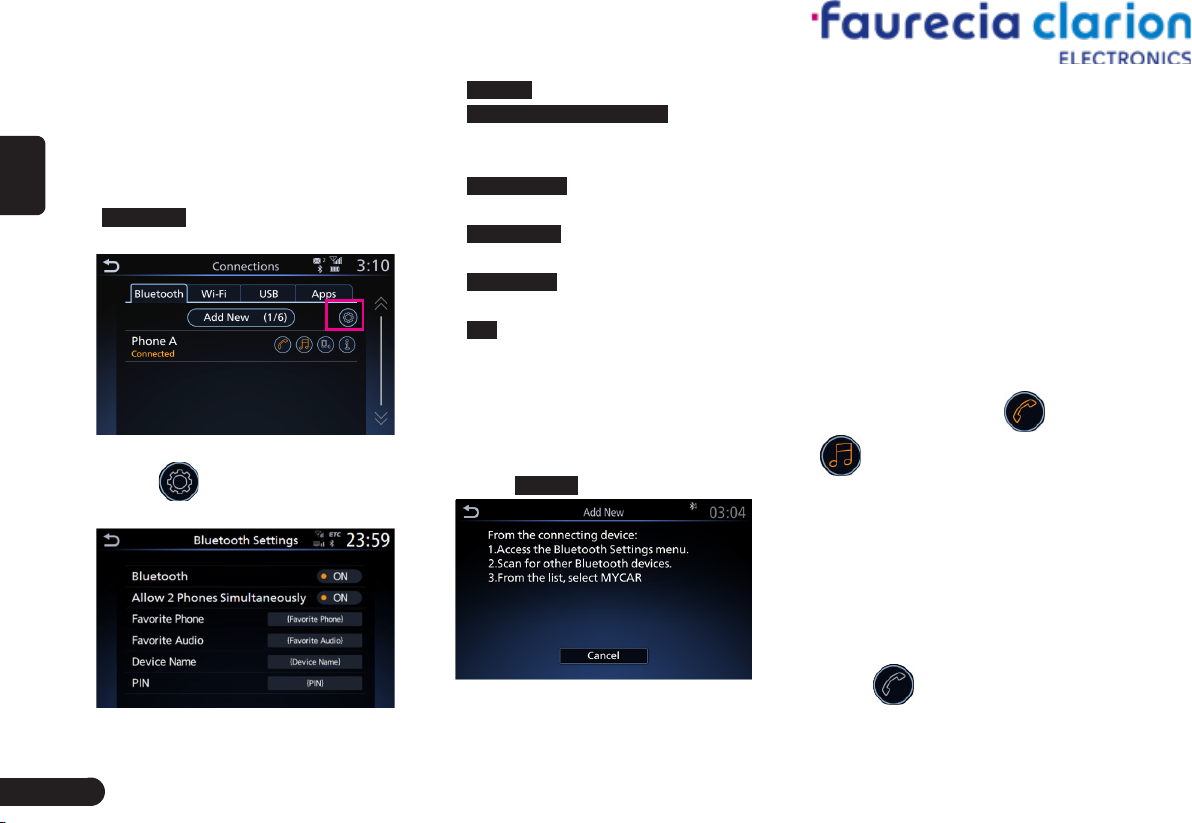
Bluetooth Settings
3
In the settings screen((Fig 2-4-
1) page 6), please touch
Connections to enter Bluetooth
connections screen.
(Fig 3-1-2)
4
Touch to enter the Bluetooth
settings screen.
(Fig 3-1-3)
GBluetooth : Bluetooth on or off.
GAllow 2 Phones Simultaneously : allow
connect 2 phones with this unit
simultaneously.
GFavorite Phone : give top priority to
connect to this phone.
GFavorite Audio : give top priority to
connect to this audio device.
GDevice Name : edit the device name
of this unit.
GPIN : edit the PIN code.
■Pairing Bluetooth Device
Please turn Bluetooth of this unit to
be on before pairing.
1
On the Bluetooth connections
screen ((Fig 3-1-2) page 8),
touch Add New .
(Fig 3-1-4)
2
Look for this unit’s device name
from your Bluetooth device.
(Default device name: MYCAR)
3
According the prompt message,
please enter or confirm PIN
to pairing from your Bluetooth
device.
4
After successful pairing, it
will return to the Bluetooth
connections screen ((Fig 3-1-2)
page 8) and your Bluetooth
device is displayed in the paired
list. “Connected” is displayed
below the device name. And the
corresponding icons and
are lit.
■Connect , Disconnect or Delete a
Paired Bluetooth Device
On the Bluetooth connections screen
((Fig 3-1-2) page 8):
zTouch a paired Bluetooth device
to connect or disconnect to the
device.
zTouch to connect or
disconnect as a phone object.

9
English
zTouch to connect or
disconnect as a audio object.
zTouch to enter the device
information screen.
(Fig 3-1-5)
You can check the available
features of the device, including
Call, Phonebook, Send Text,
Receive Text, Audio Streaming.
Touch Delete to delete the paired
device.
Phone Settings
1
In the settings screen ((Fig 2-4-1)
page 6), touch Phone to enter
the phone setting screen.
(Fig 3-2-1)
GConnections : enter the Bluetooth
connections screen ((Fig 3-1-3)
page 8).
GAutomatic Hold : when there is a
coming call whether put the call
on hold or not automatically.
■Adding or Editing Quick Dial
1
In the phone setting screen ((Fig
3-2-1) page 9), touch Quick Dial
to enter the quick dial screen.
(Fig 3-2-2)
GDelete All : delete all of the quick
dial list.
2
Touch Edit to enter the quick dial
list screen.
(Fig 3-2-3)
G{Quick Dial List} : touch to edit or
delete the quick dial list.
3
Touch Add New to enter the adding
new list screen.
Table des matières


