Ezviz LT70 Manuel utilisateur

COPYRIGHT © Hangzhou EZVIZ Software Co., Ltd.. ALL RIGHTS RESERVED.
Any and all information, including, among others, wordings, pictures, graphs are the properties of
Hangzhou EZVIZ Software Co., Ltd. (hereinafter referred to as “EZVIZ”). This user manual (hereinafter
referred to as “the Manual”) cannot be reproduced, changed, translated, or distributed, partially or
wholly, by any means, without the prior written permission of EZVIZ. Unless otherwise stipulated,
EZVIZ does not make any warranties, guarantees or representations, express or implied, regarding to
the Manual.
About this Manual
The Manual includes instructions for using and managing the product. Pictures, charts, images and
all other information hereinafter are for description and explanation only. The information contained
in the Manual is subject to change, without notice, due to rmware updates or other reasons. Please
nd the latest version in the ™ website (http://www.ezviz.com).
Revision Record
New release – January, 2023
Trademarks Acknowledgement
™, ™, and other EZVIZ’s trademarks and logos are the properties of EZVIZ in various
jurisdictions. Other trademarks and logos mentioned below are the properties of their respective
owners.
Legal Disclaimer
TO THE MAXIMUM EXTENT PERMITTED BY APPLICABLE LAW, THE PRODUCT DESCRIBED, WITH ITS
HARDWARE, SOFTWARE AND FIRMWARE, IS PROVIDED “AS IS”, WITH ALL FAULTS AND ERRORS,
AND EZVIZ MAKES NO WARRANTIES, EXPRESS OR IMPLIED, INCLUDING WITHOUT LIMITATION,
MERCHANTABILITY, SATISFACTORY QUALITY, FITNESS FOR A PARTICULAR PURPOSE, AND NON-
INFRINGEMENT OF THIRD PARTY. IN NO EVENT WILL EZVIZ, ITS DIRECTORS, OFFICERS, EMPLOYEES,
OR AGENTS BE LIABLE TO YOU FOR ANY SPECIAL, CONSEQUENTIAL, INCIDENTAL, OR INDIRECT
DAMAGES, INCLUDING, AMONG OTHERS, DAMAGES FOR LOSS OF BUSINESS PROFITS, BUSINESS
INTERRUPTION, OR LOSS OF DATA OR DOCUMENTATION, IN CONNECTION WITH THE USE OF THIS
PRODUCT, EVEN IF EZVIZ HAS BEEN ADVISED OF THE POSSIBILITY OF SUCH DAMAGES.
TO THE MAXIMUM EXTENT PERMITTED BY APPLICABLE LAW, IN NO EVENT SHALL EZVIZ’S TOTAL
LIABILITY FOR ALL DAMAGES EXCEED THE ORIGINAL PURCHASE PRICE OF THE PRODUCT.
EZVIZ DOES NOT UNDERTAKE ANY LIABILITY FOR PERSONAL INJURY OR PROPERTY DAMAGE AS
THE RESULT OF PRODUCT INTERRUPTION OR SERVICE TERMINATION CAUSED BY: A) IMPROPER
INSTALLATION OR USAGE OTHER THAN AS REQUESTED; B) THE PROTECTION OF NATIONAL OR
PUBLIC INTERESTS; C) FORCE MAJEURE; D) YOURSELF OR THE THIRD PARTY, INCLUDING WITHOUT
LIMITATION, USING ANY THIRD PARTY’S PRODUCTS, SOFTWARE, APPLICATIONS, AND AMONG
OTHERS.
REGARDING TO THE PRODUCT WITH INTERNET ACCESS, THE USE OF PRODUCT SHALL BE WHOLLY
AT YOUR OWN RISKS. EZVIZ SHALL NOT TAKE ANY RESPONSIBILITES FOR ABNORMAL OPERATION,
PRIVACY LEAKAGE OR OTHER DAMAGES RESULTING FROM CYBER ATTACK, HACKER ATTACK,
VIRUS INSPECTION, OR OTHER INTERNET SECURITY RISKS; HOWEVER, EZVIZ WILL PROVIDE TIMELY
TECHNICAL SUPPORT IF REQUIRED.SURVEILLANCE LAWS AND DATA PROTECTION LAWS VARY BY
JURISDICTION. PLEASE CHECK ALL RELEVANT LAWS IN YOUR JURISDICTION BEFORE USING THIS
PRODUCT IN ORDER TO ENSURE THAT YOUR USE CONFORMS TO THE APPLICABLE LAW. EZVIZ
SHALL NOT BE LIABLE IN THE EVENT THAT THIS PRODUCT IS USED WITH ILLEGITIMATE PURPOSES.
IN THE EVENT OF ANY CONFLICTS BETWEEN THE ABOVE AND THE APPLICABLE LAW, THE LATTER
PREVAILS.

Table of Contents
Instruction������������������������������������������������������������������������������������������������1
Packing List ���������������������������������������������������������������������������������������������2
Overview ��������������������������������������������������������������������������������������������������3
Installation �����������������������������������������������������������������������������������������������3
Get the EZVIZ App�������������������������������������������������������������������������������������4
Lock Settings �������������������������������������������������������������������������������������������5
1� Keypad ��������������������������������������������������������������������������������������������������������������������������������������������������������� 5
2� Enter Menu��������������������������������������������������������������������������������������������������������������������������������������������������� 5
3� Menu Index �������������������������������������������������������������������������������������������������������������������������������������������������� 6
4� Add Administrators/Users ���������������������������������������������������������������������������������������������������������������������������� 6
5� Delete Administrators/Users ������������������������������������������������������������������������������������������������������������������������ 7
6� Look Up to the System Information �������������������������������������������������������������������������������������������������������������� 7
7� Add Fingerprint��������������������������������������������������������������������������������������������������������������������������������������������� 7
8� Add Passcode ���������������������������������������������������������������������������������������������������������������������������������������������� 8
9� Add Card ������������������������������������������������������������������������������������������������������������������������������������������������������ 9
10�Finish the Wi-Fi Configuration ���������������������������������������������������������������������������������������������������������������������� 9
Lock Using ���������������������������������������������������������������������������������������������10
1� Fingerprint Unlock�������������������������������������������������������������������������������������������������������������������������������������� 10
2� Passcode Unlock���������������������������������������������������������������������������������������������������������������������������������������� 10
3� Card Unlock������������������������������������������������������������������������������������������������������������������������������������������������ 11
4� Mechanical key Unlock������������������������������������������������������������������������������������������������������������������������������� 11
Operation and Management��������������������������������������������������������������������12
1� Emergency Unlock�������������������������������������������������������������������������������������������������������������������������������������� 12
2� Install Battery��������������������������������������������������������������������������������������������������������������������������������������������� 12
3� Alarms ������������������������������������������������������������������������������������������������������������������������������������������������������� 12
4� Restore to Factory Settings ������������������������������������������������������������������������������������������������������������������������ 12
Operations on the EZVIZ App ������������������������������������������������������������������13
1� Homepage�������������������������������������������������������������������������������������������������������������������������������������������������� 13
2� Settings������������������������������������������������������������������������������������������������������������������������������������������������������ 14
Maintenance�������������������������������������������������������������������������������������������15
1� Daily Maintenance�������������������������������������������������������������������������������������������������������������������������������������� 15
2� FAQ ������������������������������������������������������������������������������������������������������������������������������������������������������������ 15

1
Instruction
• The installation of EZVIZ Smart Fingerprint Lock (hereinafter referred as to "lock") impacts its normal operation
and service life. It is recommended to let professionals install, and drill hole for lock set in accordance with hole
templet in appendix.
• It is recommended to remove the lock if your house is under decoration, and reinstall it after decoration in case
of lock damage and service life reduction.
• Please note that disinfectant may cause damage to the lock body.
• Once initialized completed, the lock will clear all user information. After lock installation and configuration,
please add fingerprint, passcode or card as needed.
• When battery voltage is low after using for a while, low voltage alarm alerts. Replace battery timely and pay
attention to positive and negative poles.
• If you leave home or do not use lock for a long time, keep mechanical key with you, and do not leave it indoors.
You should take battery out to ensure lock service life.
• Considering that the lock is put in an open environment, we suggest you pay attention to the safety in use,
including keep properly small parts like the mechanical key or the sensing card. You should check the surrounding
environment before unlocking and updating your passcode and sensing card settings on time as well in case of
any danger of illegal stealing or copying of your unlocking information.
• For users with flat or thin fingerprint, it is recommended to use thumb to register fingerprint for inceasing
success rate, and register more than one fingerprint with the same user. the same user supports a maximum of
5 fingerprints.
• The lock accommodates up to 100 fingerprints, 100 passcodes and 100 cards.

2
Packing List
Front Panel (×1) Rear Panel (×1)
Hole Templet (×1) Lock Body (×1) Standard Screw Bag (×1)
AA-sized Battery (×8) Key Bag (×1) Square Rod (×1)
Card (x2) Lock Body Screw Bag (×2) Regulatory Information
(×1) Quick Start Guide (×1)

4
Get the EZVIZ App
1. Connect your mobile phone to 2.4GHz Wi-Fi (suggested).
2. Download and install the EZVIZ app by searching for “EZVIZ” in the App Store or Google PlayTM.
3. Launch the app and register an EZVIZ user account.
EZVIZ App
If you have already used the app, please make sure that it is the latest version. To nd out if an update is
available, go to the app store and search for "EZVIZ".
Add the Lock to EZVIZ
The app interface may be different due to version update, and the interface of the app you installed on your
phone shall prevail.
Please add lock to EZVIZ by following steps:
1. Log in to your EZVIZ app account.
2. On the Home screen, tap “+” on the upper-right corner to go to the Scan QR Code interface.
3. Scan the QR code on the battery slot.
4. Follow the EZVIZ app wizard to add the lock to EZVIZ app account.

5
Lock Settings
After installation, remove back cover of battery slot and install 8*AA-sized batteries. Then you can set the lock
as needed.
• Please remove protective film from lock before the first use.
• Please note that disinfectant may cause damage to the lock body.
1� Keypad
~: number key
: cancel, return or exit
: doorbell, conrm, initialization setting
2� Enter Menu
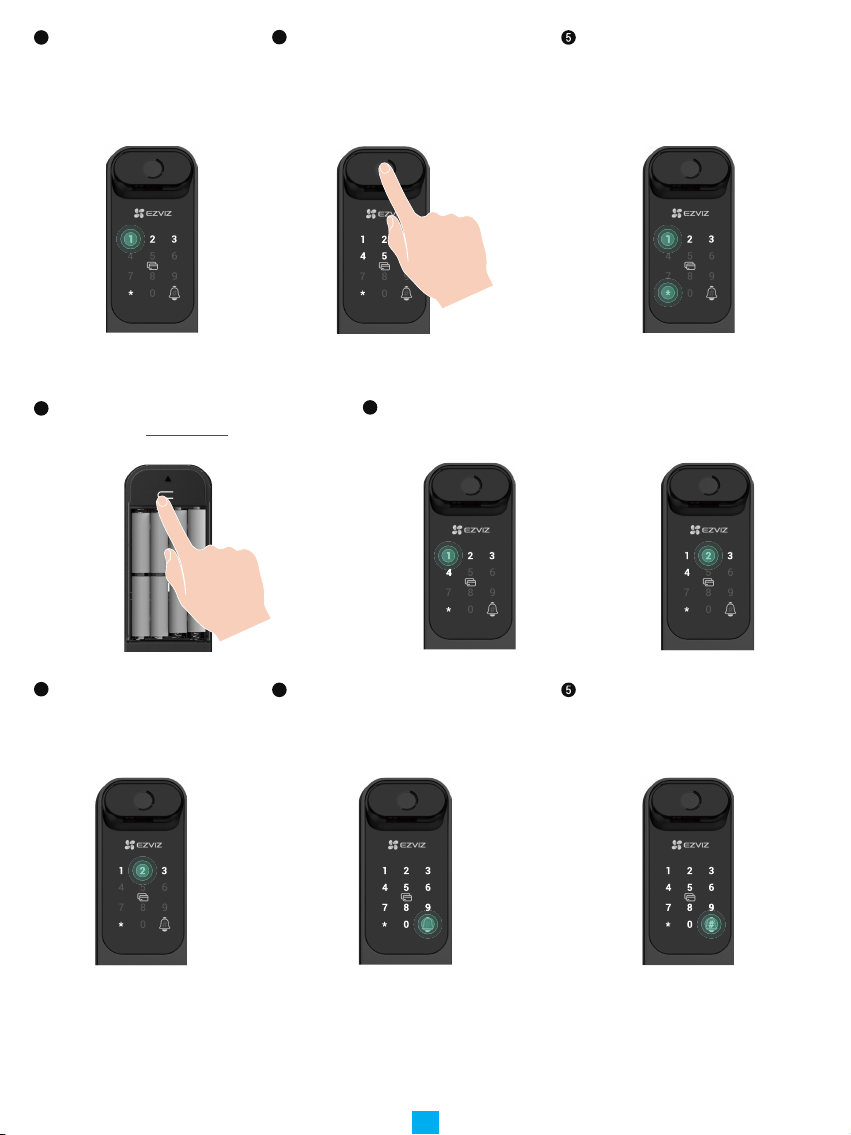
Please follow these steps for settings.
• In initial state, follow these steps for settings.
1 Press the SET button.
or touch the keypad area to activate the
lock.
2 "*" "#" on keypad light up.
• Press "*" to exit.
• Press "#" add an
administrator.
3 "1" "2" "3" "*" on keypad light up.
• Press "1" to add a fingerprint.
• Press "2" to add a passcode.
• Press "3" to add a card.
• Press "*" to exit/ return.
Method 1 Method 2
In non-initial state, follow these steps for settings.
1 Press the SET button. 2 Verify with administrator's ngerprint,
passcode or card.
3 "1" "2" "3" "4" "*" on keypad light
up.

6
3� Menu Index
The menu here is for reference only.
1 2
3
4
2
3
1
1
2
3
2
3
1
Menu
Add new administrator
Add new user
Delete administrator/user
System information
Add ngerprint
Add passcode
Add card
Add ngerprint
Add passcode
Add card
4� Add Administrators/Users
1 Enter the menu.(For detailed operations,
please refer to "Enter Menu")
2 Press "1" to add an administrator, or press "2" to add a user.
Role Unlock the door Enter the Menu, and set the lock
Administrator √ √
User √X
Ordinary users can only unlock the door after entering the opening method; the administrator can not only
unlock the door, but also log in to the menu to add and delete users and operate other settings.
When you add an administrator or a user, the gures corresponded to the user number will light up from
001 by default ( for example, to user number 001, the three numbers 001 will slow-flash once in sequence).

7
5� Delete Administrators/Users
1 Enter the menu.(For detailed operations,
please refer to "Enter Menu")
2 Press "3" to delete an
administrator/a user.
3 Enter the user number and
press #.
• If you pressed a wrong user number, the number “1, 3, 5, 7, 9” (seems like a X ) on the keypad will light up
and flash 2 times, accompanied by a failure beep. Press "*" to return to last step, or enter the user numbers
to delete again.
• When there is only one user left, and you operate to delete it, the number “1, 3, 5, 7, 9” (seems like a X ) on
the keypad will light up and flash 2 times, accompanied by a failure beep.
6� Look Up to the System Information
1 Enter the menu. (For detailed operations,
please refer to "Enter Menu")
2 Press "4" to look up to the
system information of the lock.
3 The lock broadcast the
system information.
The lock will broadcast the lock serial number, the current device version and verication code in English in
turn, press * to return to the previous level. Or the system will return to the previous level automatically after
the successful broadcast.
7� Add Fingerprint
1 Enter the menu.(For detailed operations,
please refer to "Enter Menu")
2 Press "1" to add an administrator, or press "2" to add a user.

8
3 Press "1" to add a ngerprint.4When "1" lights up, touch the
ngerprint reader and repeat the
operation 6 times, 1~6 light up one by
one, accompanied by a success beep,
the ngerprint is successfully added.
• Press "1" to add fingerprints
continuously.
• Press the * key to return to the
previous level.
• Press the SET button to exit.
8� Add Passcode
1 Enter the menu.(For detailed operations,
please refer to "Enter Menu")
2 Press "1" to add an administrator, or press "2" to add a user.
3 Press "2" to add a passcode. 4
Enter the corresponding 6-10 digit
valid passcode .when the passcode
input key ≥ 6 digits, "#" lights up at this
time, press "#" to conrm.
Repeat the passcode once again,
press "#" to conrm, accompanied
by a success beep, the passcode is
successfully added.
Autres manuels pour LT70
1
Table des matières
Autres manuels Ezviz Verrouillage