Ezviz HP7 Manuel utilisateur

Table of Contents
IMPORTANT SAFETY INSTRUCTIONS�������������������������������������������������������1
Overview ��������������������������������������������������������������������������������������������������2
1� Package Contents ���������������������������������������������������������������������������������������������������������������������������������������� 2
2� General��������������������������������������������������������������������������������������������������������������������������������������������������������� 2
3� Basics ���������������������������������������������������������������������������������������������������������������������������������������������������������� 3
About the Name Card��������������������������������������������������������������������������������4
Setup �������������������������������������������������������������������������������������������������������4
1� Get the EZVIZ App ���������������������������������������������������������������������������������������������������������������������������������������� 4
2� Wiring ���������������������������������������������������������������������������������������������������������������������������������������������������������� 4
3� Installation��������������������������������������������������������������������������������������������������������������������������������������������������� 6
4� Connect Your EZVIZ Video Doorphone To Your Smartphone�������������������������������������������������������������������������� 9
5� Configure the RFID Badge �������������������������������������������������������������������������������������������������������������������������� 10
6� Three Unlocking Methods��������������������������������������������������������������������������������������������������������������������������� 10
View Your Device on the EZVIZ App ��������������������������������������������������������11
1� Live View���������������������������������������������������������������������������������������������������������������������������������������������������� 11
2� Settings ����������������������������������������������������������������������������������������������������������������������������������������������������� 12
EZVIZ Connect����������������������������������������������������������������������������������������13
1� Use Amazon Alexa�������������������������������������������������������������������������������������������������������������������������������������� 13
2� Use Google Assistant ��������������������������������������������������������������������������������������������������������������������������������� 14
SAFETY PRECAUTIONS ��������������������������������������������������������������������������15
Initiatives on the Use of Video Products �������������������������������������������������16

1
IMPORTANT SAFETY INSTRUCTIONS
Important!
1. Please read the user manual carefully before installing or using this product.
2. If you are installing this product for a third party, please remember to leave the manual or a copy of it with the
end user.
Safety measures:
1. To operate this system in complete safety, it is essential that the installers, users, and technicians follow all
of the safety procedures described in this manual.
2. Specifc warnings and warning symbols are given for items if necessary.
3. The product must be set up according to the applicable standards in the country where it is installed.

2
Overview
1� Package Contents
Monitor (x1)
7’' touch screen Wall Bracket for Monitor (x1) Power Adapter for Monitor(x1)
Intercom Panel (Doorbell)
with a Weather-proof Shield (x1) Drill Template for Intercom Panel (x1) Drill Template for Monitor (x1)
Screwdriver (x1) Badges (x3) Screw Kit (x2)
Name card (x2) Wires and Wire Connectors (x1) Regulatory Information (x2) Quick Start Guide (x1)
2� General
This video doorphone consists of an indoor answering unit with a touch screen and an outdoor panel with an intercom
allowing you to see and communicate with the visitor who has pressed the doorbell button. It is easy to install as six wires are
needed for all functions: the doorbell, the video feed, the intercom, and the opening controls (strike plate and automated gate
opening).
The system can operate up to two monitors and two Intercom Panels.
To get the most out of your intercom, please read this instruction manual carefully.

3
3� Basics
Monitor
Power Port
Terminal Blocks
(for connecting the wires)
Touchscreen
Screen On/Off Button
Loudspeaker
Microphone
Micro SD Card Slot
Intercom Panel (Doorbell)
Lens
Name Holder Lighting
Badge Reading Zone
IR Light
Doorbell Button
Doorbell Lighting
Anti-theft Screw Hole
Loudspeaker
Microphone
Terminal Blocks
(for connecting the wires)
Name Holder
• When someone presses the doorbell button, the inside monitor rings and the video is displayed.
• To change the label in the name holder, pull the name holder tray from the left side of the device.
Name Description
Power Port For powering up the monitor.
Screen On/Off Button • Press to turn on/off the screen.
• Press and hold for 8s to restart the monitor.
Micro SD Card (sold
separately)
Initialize the card in the EZVIZ app before using it.
Recommended compatibility: Class 10, maximum space 512GB.

4
About the Name Card
• A name card has been pasted into the intercom panel included in the package, and you can write the name directly on it.
• There are 2 additional name cards included in the package, please keep them for further use.
• The name card can be teared off, and a new name card can be pasted over it.
• If you don't want to stick a name card, you can also use a marker to write the name directly on the name holder.
• The area of the name holder can be lit up, which can be managed through the EZVIZ App.
• We recommend you draw out the name holder and write the name, before installing the intercom panel on the weather-proof
shield.
Setup
Follow the steps to set your system:
1. Get the EZVIZ app, and log in to your EZVIZ app account.
2. Wiring your system.
3. Install the Intercom Panel and monitor.
4. Add the monitor to your EZVIZ account.
1� Get the EZVIZ App
1. Connect your mobile phone to Wi-Fi (suggested).
2. Download and install the EZVIZ app by searching “EZVIZ” in the App Store or Google PlayTM.
3. Launch the app and register an EZVIZ user account.
EZVIZ App
If you have already used the app, please make sure that it is the latest version. To find out if an update is available, go
to the app store and search for EZVIZ.
2� Wiring
In order to avoid the risks of interference and malfunction, do not pass the wires for your video doorphone through the same
sheath as the electrical wires.
Warning: Do not double up the wires to increase the cross-section under any circumstances�
LOCK
Intercom Panel(Doorbell)
Monitor
Power Adapter
AC 100- 240V
GATE
Warning: Please make sure that all the wires are well connected before you plug the power adapter into a wall outlet�

5
1-1 wiring diagram
Ø 2 x 0.75mm² Ø 2 x 1.5mm2Twisted Pair(TP)
0-50m 0-100m up to 120m
1-10m 1-10m 1-10m
The remaining 4 terminal blocks (DB-/+, LCD-/+) on the monitor can be left unwired, it will be used for extended in the
future
2�1� Connect the Video Doorphone (Monitor, Intercom Panel)
Properly connect the wires according to the wiring diagram (1-1). Terminals DB- and DB+ of the monitor to intercom panel DB-
and DB+ terminals.
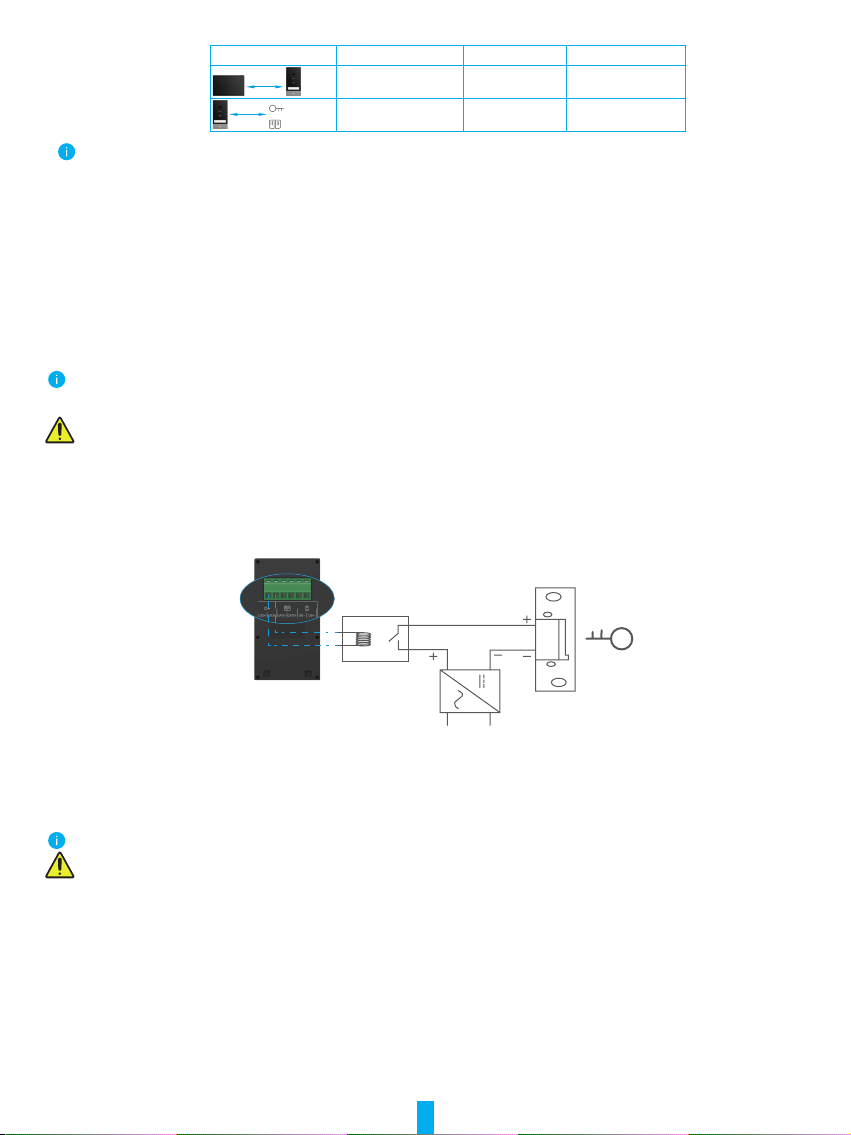
2�2� Connect an Electric Strike Plate or Lock
Connect it directly to terminals LOCK- and LOCK+ on the back of the intercom panel.
For wiring, refer to the label on the back of the intercom panel.
Note that this function is only valid if the screen is displaying the exterior video feed. An indicator will appear to
confirm.
Important: To ensure that the electric strike plate or lock can be unlocked by the video doorphone, you should meet the
following two conditions:
1. The electric strike plate or lock that you order must have a mechanical memory.
2. The power supply to the electric strike plate or lock must not exceed 12V/1.1A
If the power supply to the electric strike plate or lock exceeds 12V/1.1A, do as follows.
Relay with12V coil
and NO contact
230 VAC
12 VDC
2�3� Connect a Gate Motor
Directly connect the gate motor wires to terminals GATE- and GATE+ on the back of the intercom panel. The intercom panel
provides a ‘dry’-contact connection, without an electric current, to connect to the button for your automated gate.
Note that this function is only valid if the screen is displaying the exterior video feed. An indicator will appear to confirm.
Important: The gate control: Breaking Capacity:12V/2A.

6
2�4� Power on the Monitor
Connect the monitor to power outlet with the power adapter to power on.(AC 100- 240V).
When the monitor is connected to power, the screen turns on automatically.
Important: If the wires in your home cannot be well connected to the terminal blocks on the back of the device (Monitor
and Intercom Panel), for example:
Q: How to do with it, when your wires has too large cable diameter, and is a BVR cable , and it cannot be welded?
A: We recommend you try one of the following solutions as you needed.
•Option 1:Use wire stripper to adjust the thickness of the cable�
Before Operate After
Connect the wire end to the terminal block
•Option 2: Connect your wires to the terminal blocks by using the wires and wire connectors included in the package�
Before Operate After
Connect the wire end to the terminal block
3� Installation
Advice and important instructions:
• If you test your product before installing it, ensure that you do not test it with the Intercom Panel and the monitor in
the same room to avoid the video doorphone emitting a shrill noise.
• Donotexposetheintercompanellenstodirectsunlightorareflectivesurface.
Tip: we recommend that you use a protective sheath when doing the cabling in order to protect the cables against
breakage and bad weather�
• For the EZVIZ model, so as to get the most out of monitor’s Wi-Fi function, we recommend that you check that your
Wi-Fi network is accessible in your planned installation location

7
3�1� Install the intercom panel
Remove the screws under the intercom panel,
and tilt the intercom panel forwards.
Draw out the name holder and write the name
on the name card, take back the name holder.
The lens of the panel must be placed at a height
around 1.60m.
1.6m (5.25inch)
Connect the wires to the terminal blocks of the
intercom panel according to the wiring diagram
1-1.(Use the screwdriver included).
Place the drill template,take the wires through
the holes of the drill template and the weather-
proofshield,thenrmlyattachtheweather-proof
shield with anchors and screws to the wall.
Fit the intercom panel onto its weather-proof
shield.

8
Important: For a better image quality, please
removetheprotectivelmfromtheintercom
panel before using it�
Tip: It is recommended that the wires be passed
through a sheath to protect them from impacts
and weather.
Re-Install the attachment screws wtih the
screwdriver (included).
3�2� Install the monitor
Connect the wires coming from the intercom
panel, and connect the power adapter to the
power port in the back of the monitor (without
plugging it into the wall outlet).
Take the wires coming from the intercom
panel through the holes of the drill template
and the wall bracket, then x the wall
bracket with anchors and screws to the
wall.
Position the monitor on the wall bracket.
Place the drill template for monitor so that
the monitor screen is at a height of around
1.60 m above the ground.
1.6m (5.25inch)

9
Plug the adapter into the wall outlet. Warning: during this step, do not connect
the power supply to a wall outlet�
Tip: The remaining 4 terminal blocks (DB-/+,
LCD-/+) on the monitor can be left unwired, it
will be used for extended in the future.
3�3� Install Micro SD Card (Optional)
1. Insert a Micro SD card (sold separately) into the SD card slot as shown in the figure below.
After installing the Micro SD card, you should initialize the card in the EZVIZ app before using it.
2. In the EZVIZ app, tap the Record List in the Device Settings interface to check the SD card status.
3. If the memory card status displays as Uninitialized, tap to initialize it.
The status will then change to Normal and it can store videos.
4� Connect Your EZVIZ Video Doorphone To Your Smartphone
1. Press the "Screen On/Off Button" to turn on the screen.
2. Follow the screen wizard to connect the monitor to Wi-Fi (recommended).
3. On your smartphone, log in to your EZVIZ app account, on the Home screen, tap “+” on the upper-right corner
to go to the Scan QR Code interface.
Autres manuels pour HP7
1
Table des matières
Autres manuels Ezviz Système d'interphone