Excelsecu Data Technology eSecu FIDO2 Pro Security Key Manuel utilisateur

www.excelsecu.com
eSecu FIDO2 Pro Security Key
User Manual
(V2.2)
Excelsecu Data Technology Co., Ltd.

www.excelsecu.com
CONFIDENTIAL information of Excelsecu Data Technology Co., Ltd.
NO WARRANTIES OF ANY NATURE ARE EXTENDED BY THIS DOCUMENT. Any product and related material
disclosed herein are only furnished pursuant and subject to the terms and conditions of a duly executed
Program Product Licence or Agreement to purchase or lease equipment. The only warranties made by
Excelsecu Technology, if any, with respect to the products described in this document are set forth in such
Licence or Agreement. Excelsecu Technology cannot accept any financial or other responsibility that may be
the result of your use of the information or software material, including direct, indirect, special or
consequential damages.
You should be careful to ensure that the use of this information and/or software material complies with the
laws, rules, and regulations of the jurisdictions with respect to which it is used. All rights reserved.
Copyright © 2020 Excelsecu Data Technology Co., Ltd.

www.excelsecu.com
Table of Content
1. Product Overview .................................................................................................................................4
2. Product Picture.....................................................................................................................................4
3. The Basic Operation..............................................................................................................................5
3.1. Register (First Time Only).........................................................................................................5
3.2. Signing-In (After Completing Registration)..............................................................................5
3.2.1. Bluetooth Pairing Mode (First Time Only)...................................................................5
3.2.2. Bluetooth Mode (Paired Before).................................................................................6
3.2.3. USB Mode....................................................................................................................6
3.2.4. NFC Mode....................................................................................................................6
4. How to use FIDO2 Pro Security Key for 2-Step Verification..................................................................7
4.1. Register ....................................................................................................................................7
4.2. Sign in (USB Mode) ................................................................................................................11
4.3. Sign in (Bluetooth + Android Mobile Device).........................................................................12
4.4. Sign in (NFC + Android Mobile Device) ..................................................................................15
4.5. Sign in (Bluetooth + iPhone) ..................................................................................................17
4.6. Sign in (NFC Mode + iOS 13.3 and Above).............................................................................20
5. Usage of FIDO Manager and OTP .......................................................................................................22
6. FAQ .....................................................................................................................................................22
Question 1: I have two Gmail accounts, how many FIDO2 Pro Security Keys do I need to protect two
gmail account. Do I need two FIDO2 Pro Security Keys?....................................................................22
Question 2: What should I do if I lost my FIDO2 Pro Security Key?....................................................22
Question 3: Can I use FIDO2 Pro Security Key on PC over Bluetooth?...............................................22
Question 4: Why does GitHub say “this browse doesn't support security key” on my iPhone?........23
Question 5: What applications support FIDO2 Pro Security Key? ......................................................23
Question 6: Can I register a FIDO2 Pro Security Key over my smart phone? .....................................23
Question 7: How can I know when to charge my FIDO2 Pro Security Key?........................................23
7. Product Spec.......................................................................................................................................23


www.excelsecu.com
Thank You for Using eSecu FIDO2 Pro Security Key
IMPORTANT INSTRUCTIONS
Please read this manual before operating your eSecu FIDO2 Pro Security Key and keep it for future
reference.
1. Product Overview
eSecu FIDO2 Pro Security Key is a hardware authenticator supporting FIDO2 standard and FIDO U2F
standard, as well as Bluetooth, NFC and USB communication interfaces. It can be used on FIDO2-enabled
or U2F-enabled services and applications’ two-factor authentication, multi-factor authentication or
passwordless authentication. And multiple interfaces make it easier for you to complete authentication
on PCs and mobile devices.
2. Product Picture
eSecu FIDO2 Pro Security Key
The button has the following lighting states:
Steady blue light: long press the button for 5 seconds to enter the Bluetooth pairing mode for the first

www.excelsecu.com
time. After paired successfully, the steady blue light turns to flashing blue light.
Flashing blue light: short press the button to enter the Bluetooth mode.
Steady white light:
1. When the eSecu FIDO2 Pro Security Key is plugged into a computer’s USB port.
2. When the eSecu FIDO2 Pro Security Key is placing on an NFC card reader or on the NFC sensor of a
mobile device.
Flashing white light: the eSecu FIDO2 Pro Security Key is receiving an authentication request when it’s
on USB or Bluetooth mode.
Flashing red light: low power state. Blinking red light every 5 seconds. Please charge it in time.
3. The Basic Operation
3.1. Register (First Time Only)
1. Enter the user name and password to log in to any web service that supports U2F/FIDO2.
2. Insert the eSecu FIDO2 Pro Security Key in your computer over USB connection.
3. Add the eSecu FIDO2 Pro Security Key to your account(s).
3.2. Signing-In (After Completing Registration)
1. Open the website you want to log in.
2. Enter your usual username and password (for U2F-enabled services).
3. Connect the registered eSecu FIDO2 Pro Security Key to a mobile device (Bluetooth/NFC mode) or
PC (USB mode).
4. When prompted, press the button on eSecu FIDO2 Pro Security Key to sign in or tap the eSecu FIDO2
Pro Security Key on an NFC sensor.
3.2.1. Bluetooth Pairing Mode (First Time Only)
1. Long press the button for 5 seconds to enter the Bluetooth pairing mode for the first time. The
indicator light is steady blue. If there is no pairing request received in 60 seconds, the indicator light
goes out and the eSecu FIDO2 Pro security key exits Bluetooth pairing mode.
2. Scan Bluetooth devices on your client side (e.g. a smart phone). Connect to the device which has the
same SN as printed on the back of the eSecu FIDO2 Pro Security Key.

www.excelsecu.com
3. Input 6-digits PIN as printed on the back of the eSecu FIDO2 Pro Security Key. When paired
successfully, the blue light should start blinking.
4. When an authentication request is received, the light blinks white, simply press the button on your
eSecu FIDO2 Pro Security Key to complete the authentication.
3.2.2. Bluetooth Mode (Paired Before)
1. Short press the button to enter the Bluetooth mode. The indicator light blinks blue.
2. When an authentication request is received, the light blinks white, simply press the button on your
eSecu FIDO2 Pro Security Key to complete the authentication.
3.2.3. USB Mode
1. Insert the registered eSecu FIDO2 Pro Security Key to the computer’s USB port. The indicator light is
white on.
2. When an authentication request is received, the white light blinks. Press the button to confirm this
authentication.
3.2.4. NFC Mode
1. Please make sure NFC of the mobile device is turned on.
2. Tap your registered eSecu FIDO2 Pro Security Key on the NFC sensor of mobile device when it’s
asking for a security key.
3. The indicator light is white on and the authentication will complete in a moment.
For security purpose, the FIDO2 Pro Security Key will be forced to shut down after 30 seconds.

www.excelsecu.com
4. How to use FIDO2 Pro Security Key for 2-Step
Verification
4.1. Register
Register FIDO2 Security Key with your Google account to make it become the second authentication
factor.
1. Log in to the website: https://www.google.com and click Sign In on the top right corner. Enter your
account name and password.
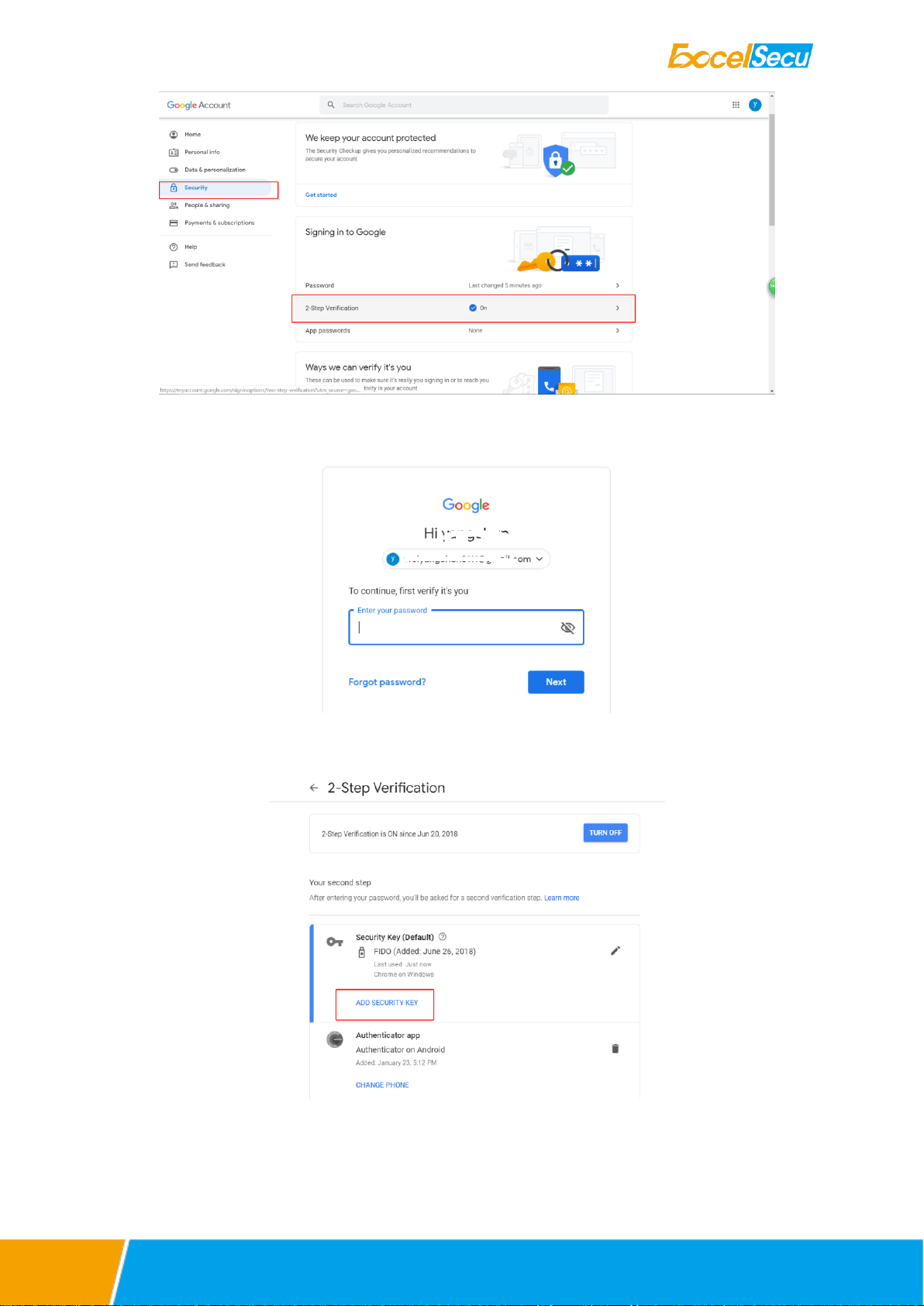
2. Once you have successfully logged in, click on your Google Account.
3. Select Security, and go to 2-Step Verification.
The registration can only be done from a non-mobile device.

www.excelsecu.com
4. You will be asked to log in again.
4. Click ADD SECURITY KEY.
5. You will be prompted to insert your FIDO2 security key into a USB port. Click NEXT to continue.

www.excelsecu.com
6. When the white light of the key is flashing, short press the button on the eSecu FIDO2 Pro Security
Key.
7. Rename the your security key, click DONE to finish.

www.excelsecu.com
8. The eSecu FIDO2 Pro Security Key becomes the default second authentication factor of your
account. You will be asked to use it to complete 2-Step Verification when sign in to Google in the
future.
Ce manuel convient aux modèles suivants
1
Table des matières
Autres manuels Excelsecu Data Technology Adaptateur