Evolution Technologies EV64AMX Manuel utilisateur

Back to Index
Portable MP3 player
EV64AMX
Operating Instructions
Dear Customer
Thank you for purchasing this product.
For optimum performance and safety, please read these
instructions carefully.
Before connecting, operating or adjusting this product,
please read these instructions completely. Please keep this
manual for future reference.

Back to Index

Back to Index
Table of Contents
1Introduction
Package……………………………..……..4
Location of Controls ………………………5
HOLD Function……………………………6
2Setting Up the player
Install software…………………………….7
Connectto Your PC………..………………9
Download MP3 files to the unit……………11
3Using the player
LCD and Menus………………….…... 12
Play MP3 Music (Basic Play)……………..13
Play Settings…….………………………... 14
Record Voice………………………….….. 15
Erase Music and Record File(s)…………. 16
Information Submenu………………... ….. 17
Appendixes
AWhat is MP3?…………………………….. 18
BCautions……………………………… …..19
CSoftware Utility…………………….…….. 20
DTechnical Specifications &
Troubleshooting…………………….…….. 21
Using the battery B
Install battery procedure
1Press and Pull to open battery door .A
2Insert the AA alkaline type battery.
3 Cover and Push to close battery door.

Back to Index
Please check the box contents before you start to use the unit.
Package
Box Contents : A
[1] MP3 player
[2] 1 installation CD
[3] USB cable
[4] High-quality stereo earphones
Item may be different, depending on the
countryorperiodthatyoupurchasedyour
player in.

Back to Index
Locations of
Controls
Portable MP3 playerA
[A] Microphone (MIC)
[B] Display
[C] Skip to Next (SKIP)
[D] Skip to Previous (SKIP)
[E] Mode button (MODE)
[F] Play/pause/Power button
[G] Belt hole
[H] Earphone Volume control buttons
(VOLUME + / -)
[I] USB port (USB)
[J] Earphone jack (PHONE)
[K] Smart Media Card Slot
[L] Stop/power off button (STOP/OFF)
[M] Record button (REC)
[N] Hold button (HOLD)
[O] Smart Media Card Eject (EJECT)
[P] Battery door open (OPEN)
[Play]: Press this button to turn on the unit, play music
and/or voice file;
[SKIP]:Press the two buttons to skip to next/previous
music or move to next menu.
[STOP/OFF] : Press to stop a music or recording; Press and
hold for 4 seconds to turn the unit off.
[MODE]: Press the button to enter menu, or confirm the
selected options.
Stereo earphonesB
(A) Plug

Back to Index
This function causes the unit to ignore short, accidental
button presses.
The HOLD function prevents the following :
lThe unit is powered on accidentally when not in use,
causing the batteries to run down.
lA button is accidentally pressed during play, interrupting
the operation.
To use the HOLD function
Set [HOLD] to the HOLD position.
(A) HOLD mode
(B) Release
When the unit is in hold mode:
Pressing the unit is in hold mode:
The indicator “hold” always displays on the LCD display.
Pressing any button causes no any change to the unit.
If turn on the unit in hold mode:
The unit will displays ‘Locked’ on LCD screen and power off.
HOLD Function

Back to Index
Before using the unit, MP3 music shall be download ed from
computer to the unit. Data files such as pictures, documents or
applications can also download and be stored in the unit for a
fast, safe and high speed mobile data storage use.
Minimum System Requirement
Windows : Microsoft Windows 98, Windows 98SE,
Windows Me!, Windows 2000
Professional and Windows XP or above
Hardware : Pentium MMX 200 or above
30MB free hard diskspace
One available USB port
4x CD-ROM or higher
Macintosh OS : MAC OS 9.2
Mac Hardware : 30MB free hard disk space
One available USB port
4x CD-ROM or higher
Install Software
1. Insert the Installation CD into the CD-ROM driver.
If the Setup program does not run automatically, do
steps 2 through 3.
Otherwise, skip to step 4.
2. Click Start -> Run
3. In the Rundialog, type D:\SETUP.EXE (where D:\
is your CD-ROM drive) and click OK.
4. Setup main screen will display.
To install the driver and application for the unit,
Click Next.
5. Follow the instructions on the screen.
Click on the Right Arrow button to startInstallation.
Keep on clicking on the Right Arrow or Yes button if
wantto installbydefault (recommended).Otherwise
please change the options to install manually.
6. When prompted to restart your system, take the
Installation CDout from the CD-ROMandkeep itin
a security place. Then select the Yes, I want to
restart my computer now option and then click the
Finish button. (Continued on next page)
For Windows

Back to Index
Install Software
For Macintosh
1. Insert the Installation CD into the CD-ROM drive.
2. Double-Click on the icon of the CD-ROM drive on
desktop.
3. Open the Mac_OS folder in CD-ROM drive and
open the packed file.
4. In the dialogue window, create a new folder on hard
disc and continue
5. Open the new folder and double-click on ‘ Install
and Setup’ icon.
6. Follow the instructions on the scre en.
7. When prompted to restart your system, take the
Installation CD out from the CD-ROM and keep it
in a securityplace. Then click the Restartbutton.
Musicmatch Setup screen--
1. Open directory D:\musicmatch\(where D:\is
your CD-ROM drive) in explore.
2. Double click on the musicmatch icon.
3. Setup program starts to run. Follow the
instructions on the screen.
Install musicmatch (Windows version)

Back to Index
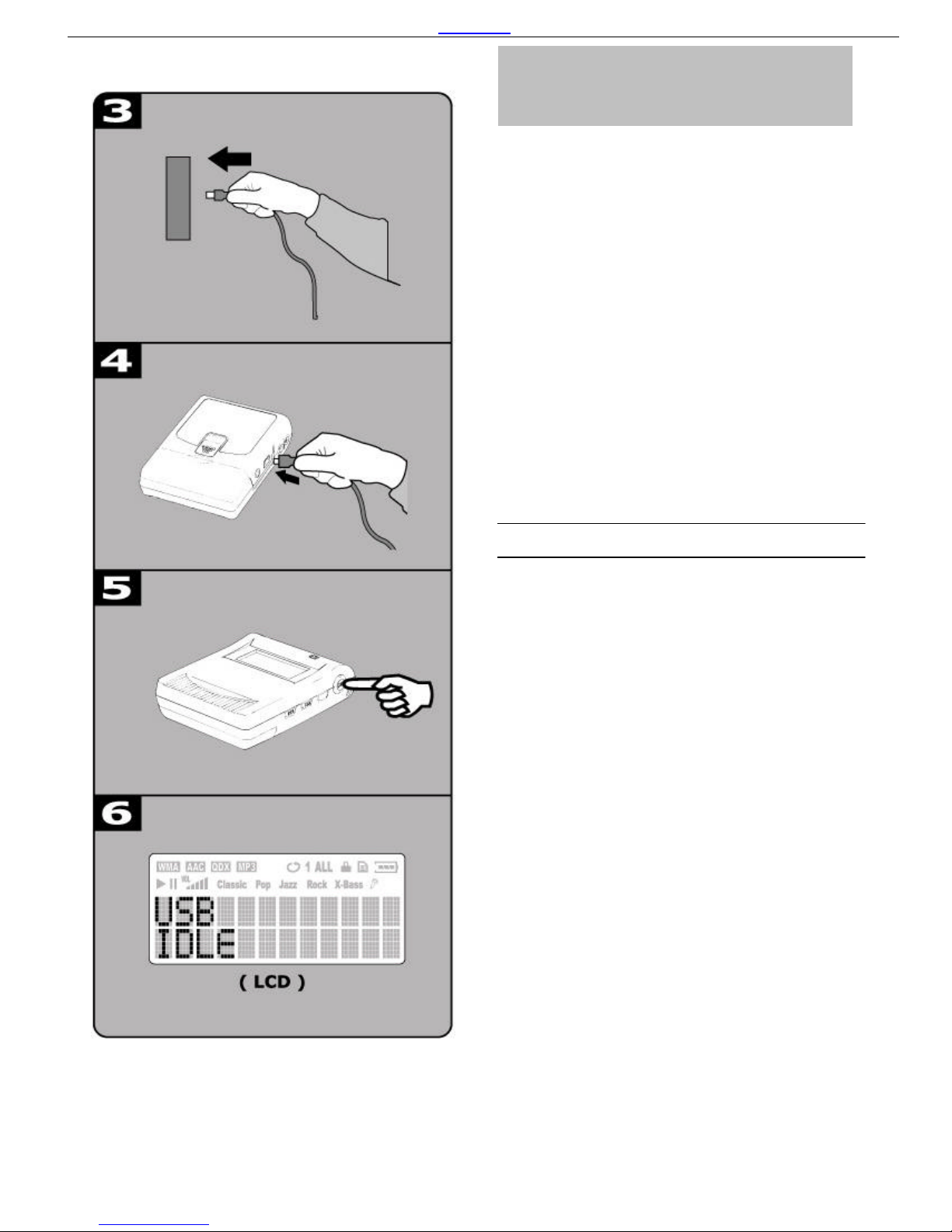
You need not switch off your computer when you connect
the unit to the PC since USB is Plug-and-Play.
Connection
(1) The battery must be in the player.
(2)
Position the PC so that its USB ports can be easily
accessed.
(Note : The USB port(s) may be found on the front
panel or elsewhere instead of the back panel. Refer to
your PC dealer for support if necessary. )
(3)
Plug the flat USB connector of the bundled USB cable
to the PC.
(4) Plug the square connector of the USB cable to the unit.
(5) Press Playbutton to turn the unit on.
(6) USB IDLEwill appear on LCD of the unit.
Install and Update
(7) System will detect the new hard
ware exists in your
system and install each of them automatically.
(8) Upon the driver installation is completed, run the
Play
Update
utility that is now available in the start menu
of your Windows system.
Verify Correct Installation of the unit
(9) When the Player Update
is completed, the player is
ready to use. If you wish to check that whether MP3
Flash Player has properly installed on your system,
double-click on My Computer
icon on the desktop of
your Windows.
(10)You will observe your MP3 Flash Player shows up a
s
Removable Disk (F:)and (G:)drives in Windows.
(11)Removable Disk (F:) implies the built-
in flash
memory of the MP3 Flash Player.
Removable Disk (G:) drive implies the
Smart Media
Card
(if any) inserted into the MP3 Flash Player. In
case if Smart Media Ca
rd is not present in the player,
Removable Disk (G:) will not be accessible.
Connect to PC
For Windows Users
Back to Index
10
(7) Computer will detect new hardware and install them
automatically. Untitled Disc(F:) and (G:) will appear on
desktop.
Untitled Disc (F:) implies thebuilt-inflashmemoryofthe MP3
Flash Player.
Untitled Disk (G:) drive implies the Smart Media Card
inserted into the MP3 Flash Player. In case if Smart Media
Card is not present in the player, Untitled Disk (G:) will not be
accessible.
For MacintoshUsers
Connect to PC
It is forbidden to unplug
the USB cable while the unit is
accessing with computer (the LCD displays [USB
READING] or [USB WRITING] ), because
it may cause
serious damage to the unit or computer system.
It is strongly recommended to unplug the cable ONLY
while the LCD displays [USB IDLE].
Notice
Table des matières
Manuels Lecteur MP3 populaires d'autres marques

Blaupunkt
Blaupunkt Compact Drive MP3 Manuel utilisateur

Memorex
Memorex MMP9008 - 8GB USB 2.0 Manuel utilisateur

Meizu Electronic Technology
Meizu Electronic Technology E5 Manuel utilisateur

Naxa
Naxa NMV-173NX Manuel utilisateur

Philips
Philips PSA250 Manuel utilisateur

Zipy
Zipy go! Waving Manuel utilisateur


