
EVOCONNECT HDCVT-HDP-MXB44P Manuel utilisateur

4x4 HDMI 4K 18Gbps Matrix
VER 1.1

Thank you for purchasing this product
For optimum performance and safety, please read these instructions carefully
before connecting, operating or adjusting this product. Please keep this
manual for future reference.
Surge protection device recommended
This product contains sensitive electrical components that may be damaged
by electrical spikes, surges, electric shock, lighting strikes, etc. Use of surge
protection systems is highly recommended in order to protect and extend the
life of your equipment.
Table of Contents
1. Introduction...........................................................................................
2. Features.................................................................................................
3. Package Contents...............................................................................
4. Specifications.......................................................................................
5. Operation Controls and Functions......................................................
5.1. Front Panel...................................................................................
5.2. Rear Panel....................................................................................
5.3. Connecting to the Matrix............................................................
5.4. Using the Matrix............................................................................
6. IR Remote..............................................................................................
7. Web GUI Operation Guide..................................................................
8. RS-232 Control Command...................................................................
9. Application Example...........................................................................
1
1
1
2
3
3
4
5
5
6
6
16
21

1. Introduction
2. Features
☆HDMI 2.0, HDCP 2.2 / HDCP 1.4 and DVI 1.0 compliant
☆Video resolution is up to 4K2K@60Hz (YUV 4:4:4)
☆Support 18Gbps video bandwidth
☆ Four outputs can be individually scaled (4K→1080p)
☆De-embedded audio to analog L/R and Coaxial ports output
☆ARC audio return to the coaxial ports output only
☆Built-in Web GUI for TCP/IP control
☆Advanced EDID management supported
☆Four methods of control: Front panel, RS-232, IR remote and TCP/IP
☆Compact design for easy and flexible installation
3. Package Contents
This high performance 4×4 HDMI 4K 18Gbps Matrix can switch any of four
HDMI 2.0 sources to four HDMI 2.0 displays. Each input and output supports
up to 4K60 444 resolution and HDCP 2.2. The outputs can be individually
scaled (4K→1080p). De-embedded audio can be output through analog L/R
and coaxial audio output ports. The ARC function can return display device
audio to coaxial port output only. Advanced EDID management is supported.
This Matrix supports 18Gbps bandwidth and the additional features with latest
HDMI standards. It can be controlled from the front panel, RS-232, IR remote,
or TCP/IP.
1 / 21
Qty Item
4×4 HDMI 4K 18Gbps Matrix
12V/2.5A Locking Power Adapter
IR Remote
Mounting Ears
38KHz IR Receiver Cable (1.5 meters)
3pin-3.81mm Phoenix Connector
Machine Screws (KM3*4)
1
1
1
2
1
1
4
User Manual1

4. Specifications
Technical
HDMI Compliance HDMI 2.0
HDCP Compliance HDCP 2.2 and HDCP 1.4
Video Resolution
4K2K 50/60Hz 4:4:4
4K2K 50/60Hz 4:2:0
4K2K 30Hz 4:4:4
1080p, 1080i, 720p, 720i, 480p, 480i
All HDMI 3D TV formats
All PC resolutions including 1920 x 1200
Color Space RGB, YCbCr4:4:4, YCbCr4:2:2, YCbCr 4:2:0
Color Depth 8-bit, 10-bit, 12-bit [1080P, 4K30Hz, 4K60Hz (YCbCr 4:2:0)]
8-bit [4K60Hz (YCbCr 4:4:4)]
HDMI Audio Formats
PCM2.0/5.1/7.1CH, Dolby Digital/Plus/EX, Dolby True HD,
DTS, DTS-EX,DTS-96/24, DTS High Res, DTS-HD Master
Audio, DSD
Coaxial Audio Formats PCM2.0, Dolby Digital / Plus, DTS 2.0/5.1
L/R Audio Formats PCM2.0CH
Connections
Input Ports 4
x
HDMI Type A [19-pin female]
Output Ports
4
x
HDMI Type A [19-pin female]
4
x
L/R audio out [3.5mm Stereo Mini-jack]
4
x
COAX audio out [RCA]
ESD Protection Human-body Model: ±8kV (Air-gap discharge),
±4kV (Contact discharge)
Video Bandwidth
18Gbps
Control ports
1 x TCP/IP [RJ45]
1 x RS-232 [3-pin phoenix connector]
1 x IR EXT [3.5mm Stereo Mini-jack]
Output Scaling 4K→1080p
3D Support Yes
HDR Support HDR10, HDR10+. Dolby Vision, HLG
2 / 21
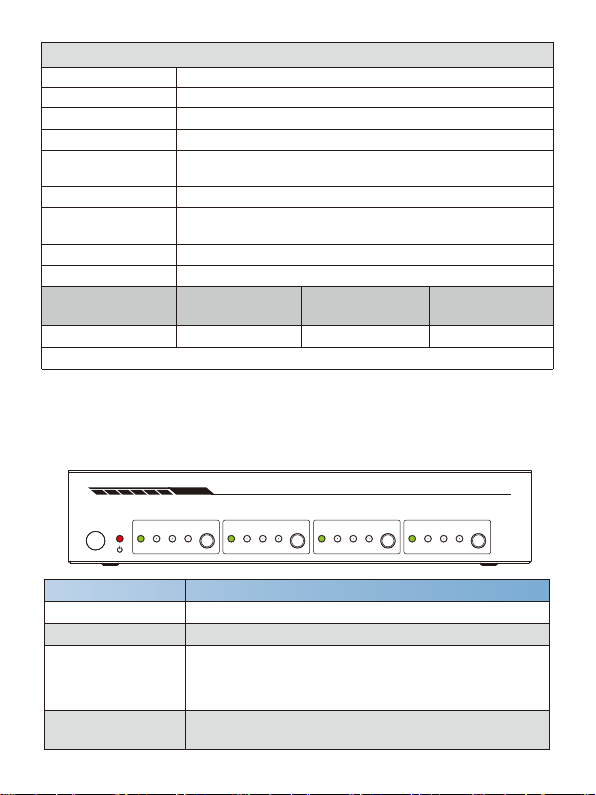
5. Operation Controls and Functions
5.1 Front Panel
0°C ~ 40°C / 32°F ~ 104°F
-20°C ~ 60°C / -4°F ~ 140°F
Operating
Temperature
Storage Temperature
Relative Humidity 20~90% RH (non-condensing)
IN 1IN 2 IN 3 IN 4
OUT 1
IN 1IN 2 IN 3IN 4
OUT 2
IN 1IN 2IN 3 IN 4
OUT 3
18Gbps 4x4HDMI MATRIX
IN 1 IN 2 IN 3IN 4
OUT 4
Function Description
Name
IR Receiver Window
OUT 1/2/3/4 button
Resolution /
Cable Length
4K60 -
Feet / Meters
4K30 -
Feet / Meters
HDMI IN / OUT 30ft / 10M10ft / 3M
The use of “Premium High Speed HDMI” cable is highly recommended.
1080P60 -
Feet / Meters
42ft / 15M
Mechanical
792g
Input: AC100~240V 50/60Hz
Output: DC12V/2.5A (Locking connector)
10W (Max), 1.56W (Standby mode)
Power Supply
Dimensions
Weight
Metal Enclosure
Power Consumption
Color Black
220mm (W)×105mm (D)×44mm (H)
Housing
IR input for remote control of the Matrix.
POWER LED Red LED indicates that the unit is powered on.
▪ Short press to circularly select the desired input source
IN 1/2/3/4 for OUT 1/2/3/4 port output.
▪ Press OUT 1/2/3/4 button for 3 seconds to switch Scaler
mode for the OUT 1/2/3/4 port.
IN 1/2/3/4 LED When IN 1/2/3/4 port is selected as the input channel for
OUT 1/2/3/4 port, the corresponding green LED will be on.
3 / 21

5.2 Rear Panel
RXTX
CONTROL
IR EXTRS-232TCP/IP
OUT 1 OUT 2 OUT 3OUT 4
DC 12V
IN 1 IN 2 IN 3 IN 4OUT 1OUT 2 OUT 3 OUT 4
Screw terminal for earthing the Matrix.
Function DescriptionName
TCP/IP Control port for TCP/IP control or accessing the built-in
Web GUI.
RS-232 3-pin pluggable connector for RS-232 control of the
Matrix.
IR EXT
If the IR receiver window of the unit is blocked or the unit
is installed in a closed area out of infrared line of sight, the
IR receiver cable can be inserted to the “IR EXT” port to
receive the IR remote signal.
Coaxial Audio OUT 1
/ OUT 2 / OUT 3 /
OUT 4
RCA connector for coaxial audio output from HDMI OUT 1
/ OUT 2 / OUT 3 / OUT 4.
L/R Audio OUT 1 /
OUT 2 / OUT 3 /
OUT 4
3.5mm Mini-jack connector for stereo audio output from
HDMI OUT 1 / OUT 2 / OUT 3 / OUT 4.
GND
IN 1/2/3/4 port HDMI signal input port, connected to HDMI source device
such as DVD or PS4 with an HDMI cable.
OUT 1/2/3/4 port HDMI signal output port, connected to HDMI display
device such as TV or monitor with HDMI cable.
DC 12V DC 12V input for 12V 2.5A PSU.
4 / 21

5.3 Connecting to the Matrix
1. Connect the desired HDMI input sources.
2. Connect the desired HDMI display devices.
3. Connect the desired control devices: TCP/IP, RS-232 or IR IN.
4. Connect audio devices to either the Coaxial or L/R audio output ports.
5. Connect the 12V DC power supply.
5.4 Using the Matrix
5.4.1 Power LED and Standby Mode
The Power LED provides the following indications:
Color Description
Red The Matrix is active and fully controllable.
Off
The Matrix is in standby mode, this state can be
changed by using API commands, IR Remote or
Web GUI.
5.4.2 Selecting Inputs
Select the signal source for the output port by pressing the OUT 1 / OUT 2 /
OUT 3 / OUT 4 button on the front panel (cyclic selection mode) until the
corresponding input source LED lights up.
5 / 21

6. IR Remote
Select the last or next the desired input source
to OUT 1/2/3/4 port output, the corresponding
green LED on the front panel will be on.
HDMI Matrix Remote
1 2 3 4
SD
SD
1 2 3 4
SD
1 2 3 4
1 2 3 4
SD
Output1
Output2
Output3
Output4
Power on the Matrix or set it to standby mode.
Select the desired input source IN 1/2/3/4 for the
OUT 1/2/3/4 port output, the corresponding green
LED on the front panel will be on.
Output 1/2/3/4
1/2/3/4
SD
7. Web GUI Operation Guide
Switch downscale or bypass mode for the OUT
1/2/3/4 port output.
The Matrix comes with built-in Web interfaces to provide a way to control or
configure various Settings. There are seven pages, each of which is detailed
in the following sections.
To access the Web interface, please enter the IP address of the Matrix into
the web browser on PC. The default IP address is 192.168.1.100. You can
get the current Matrix IP address via RS-232 control. Send the ASCII
command “ r ipconfig!” through a Serial Command tool, then you’ll get the
feedback information as shown below.
1. Status – Display information about the firmware and IP setting.
2. Video – Switch the desired input source to output and set the preset.
3. Input – Display information about the input signal and EDID setting.
4. Output – Display information about the output signal and scaler option.
5. CEC – Perform CEC management.
6. Network – Basic network settings management and Web login settings.
7. System – Panel lock, beep, serial baud rate setting and firmware update.
Note: All the above seven pages can be accessed in Admin mode.
Meanwhile, only the Status and Video pages are accessible in User mode.
6 / 21

Step 2: Set the IP address of the PC to be in the same network segment
with Matrix, for instance, set PC IP address to 192.168.1.200 and Subnet
mask to 255.255.255.0.
10
192 168 1 200
Step 3: Enter the Matrix’s IP address into your browser on the PC to enter
Web GUI page.
Follow the steps below to access the Web GUI:
Step 1: Connect the TCP/IP port of the Matrix to a PC with an UTP cable.
7 / 21
IP:192.168.61.103 in the above figure is the current Matrix IP address (this
IP address is variable, depending on what the specific machine returns).
For the details of RS-232 control, please refer to “8. RS-232 Control
Command”.

■Status page
After entering the Web GUI page, there will be a Login page, as shown below:
Select the username and language from the drop-down list and enter the
password. The default passwords are:
Username User Admin
Password user admin
After entering the login details, click the LOGIN button and the following
Status page will appear.
The Status page provides basic information about the product, such as
Model name, the installed firmware version and the network setting. This
page is visible in both User and Admin modes.
8 / 21
Ce manuel convient aux modèles suivants
1
Table des matières
Autres manuels EVOCONNECT Commutateur matriciel


