
ESICAM EC07 Manuel utilisateur

EsiCam EC07 Robot Wifi Camera
Frequently Asked Questions
Operation Instruction
1. Where to store record files ........................................................................................................... 2
1.1) Record on TF card .............................................................................................................. 2
1.2) Record on PC ...................................................................................................................... 2
1.2.1) Connect the camera with Laptop computer/Note book: ........................................ 2
1.2.2) Set recording path on PC: ....................................................................................... 4
1.3) Record on FTP server ......................................................................................................... 5
2. How to record? .............................................................................................................................. 8
2.1) Continuous record.............................................................................................................. 8
2.2) Scheduled recording .......................................................................................................... 8
2.3) Alarm recording ................................................................................................................. 9
2.3.1) Set alarm recording on Smart Phone: ..................................................................... 9
2.3.2) Set Alarm Recording by IE search tool: ................................................................. 10
2.4 ) Alarm photo taking setting on PC client software .......................................................... 11
2.5) Record Manually .............................................................................................................. 12
3. How to find record file ................................................................................................................ 12
3.1 ) Find the record files recorded on PC ............................................................................... 12
3.2) Find record files in SD card ............................................................................................... 13
3.2.1) find SD card files by PC: ......................................................................................... 13
3.2.2) find record files in SD card by App on mobile phone: ........................................... 13
3.3) Find alarm picture on Mobile phone: .............................................................................. 14
4. How to set alarm ......................................................................................................................... 14
4.1) Motion detection alarm ................................................................................................... 14
4.2.1) Set alarm on PC client software ......................................................................... 14
4.2.2) Set alarm on APP NetCam on mobile phone ........................................................ 15
4.2.3) Set Alarm by IE search tool: .................................................................................. 16
5. How to adjust image direction .................................................................................................... 17
5.1) On PC client software ....................................................................................................... 17
5.2) On Mobile phone App ...................................................................................................... 18
6. How to set wifi ............................................................................................................................ 19
6.1)Set wifi on PC client software Device Client ................................................................... 19
6.2) Set Wifi on App NetCam on mobile phone ...................................................................... 21
7. What is the use of search tool software? .................................................................................... 22
8. How to set E-mail alarm? ............................................................................................................ 23
8.1 Set E-mail by smart phone: ............................................................................................... 23
8.2 set E-mail on PC:................................................................................................................ 24
........................................................................................................................................................ 24
9. What is the typical work mode for this multi-function camera ? ............................................... 24
9.1) Car mode ( AP mode) ....................................................................................................... 24
9.2) Home mode( STA mode) .................................................................................................. 25
10. How to set the time on camera ................................................................................................. 25
11.How to see multi-video on one screen of Mobil phone? ........................................................... 26
12.Why the camera can’t find my SD card? .................................................................................... 27
13.Why I can’t see the recorded video in sd card? ......................................................................... 28
14. Why I can’t search wifi from camera? ....................................................................................... 28
15.Specification ............................................................................................................................... 28

1. Where to store record files
There are 3 ways to store the recording files:
1.1) Record on TF card
If you have installed TF card ( storage card) on your camera, you can record on card, it is
24hours continuously, loop recording ( new files will overwrite the old files when it is full), the
files length is 64M every file, the file is with extension .264 . you can take out the card and play it
on PC. Or you can download it to PC by Device Client software to paly it. For HD video, 1 hr have
160M byte size, 32G SD card can record 8.3 days. Alarm recording files also store in the card.
You can use this function as Car DVR or driving recorder. You can view driving record on your
phone.
Note: SD card is not included in camera when sell, you have to install it by yourself.
1.2) Record on PC
In order to save more recording files, You
can record the video on the specified path
on your PC: run “device client” software on
Laptop computer.
1.2.1) Connect the camera with Laptop
computer/Note book:
Connect the camera by choose same wifi
name “XLTxxxxxx “from camera
Input wifi password “ 0123456789”. So the
camera will be in the same network with
Lattop computer.
You also can connect the camera to wireless
router by wifi setting menu on camera, then
set your computer to connect to router ,so the camera will be in the same network with
computer.
Add camera by Device Set->
*Please click “Open search tools”.
*Please Click “Search” and you will get camera list under same lan.
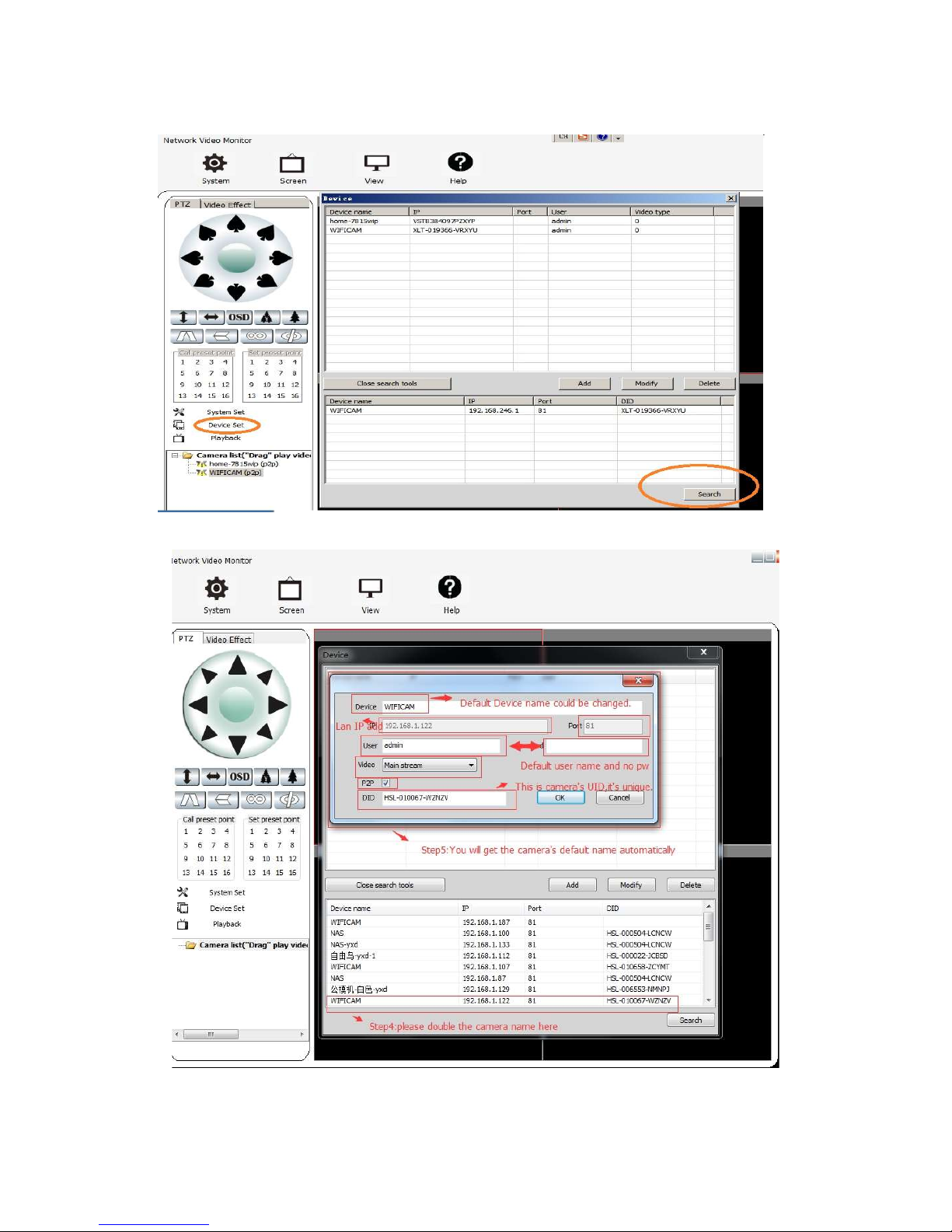
Click the camera which you found in the list, user name: admin, no paasord.

*You could add another or more cameras by click “add”
*If the camera’s icon is yellow,that means it’s disconnect with pc .
*Please drag the icon to right window,after connect,the icon will become green. The
camera now is online .
1.2.2) Set recording path on PC:
Go to menu: system set--> , set the path on your computer to store the record files, you also
can specify the path to store picture, video. You can define the length of files, recording time
length, reserved disk space. If you have a mirror of cloud disk on local disk, you can set path to
this mirror disk path so you will have a cloud back up disk and recording files.

1.3) Record on FTP server
You have a option to record it on FTP server if you ever set up FTP server, this setting aviable
both on smart phone and PC client ,
1.3.1) FTP set on smartphone:
Pls Run APP “NetCam” , connect the camera,go to the camera setting

menu , click“ FTP setting”,

Fill the related info : ip address of server and its port, passowrd.
1.3.2) FTP set on Pc client:
Double click on line camera which you want to set, enter setting menu.
Setting--->FTP:

2. How to record?
They are some ways to record:
2.1) Continuous record
the record will go on continuously
Run smart phone App “Netcam”, go to setting-->SD setting
choose enable “timer recording”, choose ” record coverage”. it will recording with non stop
all days until the Max limit size, then overwrite the old files. You can utlize this function to use
camera as Car DVR, then check the video files on your phone. (When the camera is on line on
your smart phone , check “ message” menu, you will find recorded files with time stamp, it
indicating “ from TF card”, click it to play the video)
2.2) Scheduled recording
On PC client software, you can set recording on specified week date and time,
*After the camera is online,please double click the green camera’s name. It will pop up a
menu, choose “ sd recording schedual”, choose” timer recording”, define the time you
want to record.

2.3) Alarm recording
This recording will start when alarm ( motion detection alarm, sound detection alarm) is
triggered.
2.3.1) Set alarm recording on Smart Phone:
Go to setting gear, enable “motion detection armed” ,“ alarmed record”. You also can enable
“ upload image on alarm” to take picture when alarm is triggered. You can check this video and
picture in the “Message” center on smart phone. Go to 3.3.2) for How to do this in details.

2.3.2) Set Alarm Recording by IE search tool:
2.3.2.1) install the IE brower search tool software “ search tool”
Install the camera “search tool” software on PC ( could download from www. Netcam360.com),
clcik “ refresh” to find the camera in LAN with computer. Double click the camera you find,
login the camera with:
User name: admin
No Password
Choose “firefox “ to enter camera:
2.3.2.2 ) alarm setting
Go to setting gear, click and choose “ alarm service setting:
Table des matières
Autres manuels ESICAM Caméra de sécurité


