5
2. Installation
Once you have purchased a license, you can download
the ESET NOD32 Antivirus installation package from
ESET’s website.
Launch the installer and the installation wizard will guide
you through the basic setup. After agreeing with the
End User License Agreement, you can choose the type
of installation. There are two installation types available,
with different configurations and editing options:
Typical Installation
Custom Installation
2.1 Typical installation
Typical installation includes the configuration options
that are appropriate for most users. The settings provide
excellent security combined with ease of use and high
system performance. Typical installation is the default
option and is recommended if you do not have particular
requirements for specific settings.
After selecting your preferred installation mode and
clicking Next, you will be prompted to enter your
username and password for automatic updates of the
program. This plays a significant role in providing
constant protection of your system.
Enter your Username and Password (the authentication
data you received after purchase or registration of your
product) into the corresponding fields. If you do not
currently have your username and password available,
you can select the Set update parameters later option
to continue your installation without it and insert your
authentication data at any time later directly from the
program.
The next step is configuration of the ThreatSense.Net
Early Warning System. The ThreatSense.Net Early
Warning System helps ensure that ESET is immediately
and continuously informed of new infiltrations in order
to quickly protect our customers. The system allows for
submission of new threats to ESET‘s Threat Lab, where
they are analyzed, processed and added to the virus
signature database.
By default, the Enable ThreatSense.Net Early Warning
System option is selected, which will activate this
feature. Click Advanced setup... to modify detailed
settings for the submission of suspicious files. (For more
information see ThreatSense.Net ).
The next step in the installation process is to configure
Detection of potentially unwanted applications.
Potentially unwanted applications are not necessarily
malicious, but can often negatively affect the behavior of
your operating system. These applications are often
bundled with other programs and may be difficult to
notice during the installation process. Although these
applications usually display a notification during
installation, they can easily be installed without your
consent. Select the Enable detection of potentially
unwanted applications option to allow ESET NOD32
Antivirus to detect this type of threat (recommended). If
you do not wish to Enable this feature, select the
Disable detection of potentially unwanted
applications option.
The final step in Typical installation mode is to confirm
installation by clicking the Install button.
2.2 Custom installation
After selecting the Custom installation method and
clicking Continue, you will need to enter your Username
and Password. After entering your username and
password, click Continue to configure your Internet
connection.
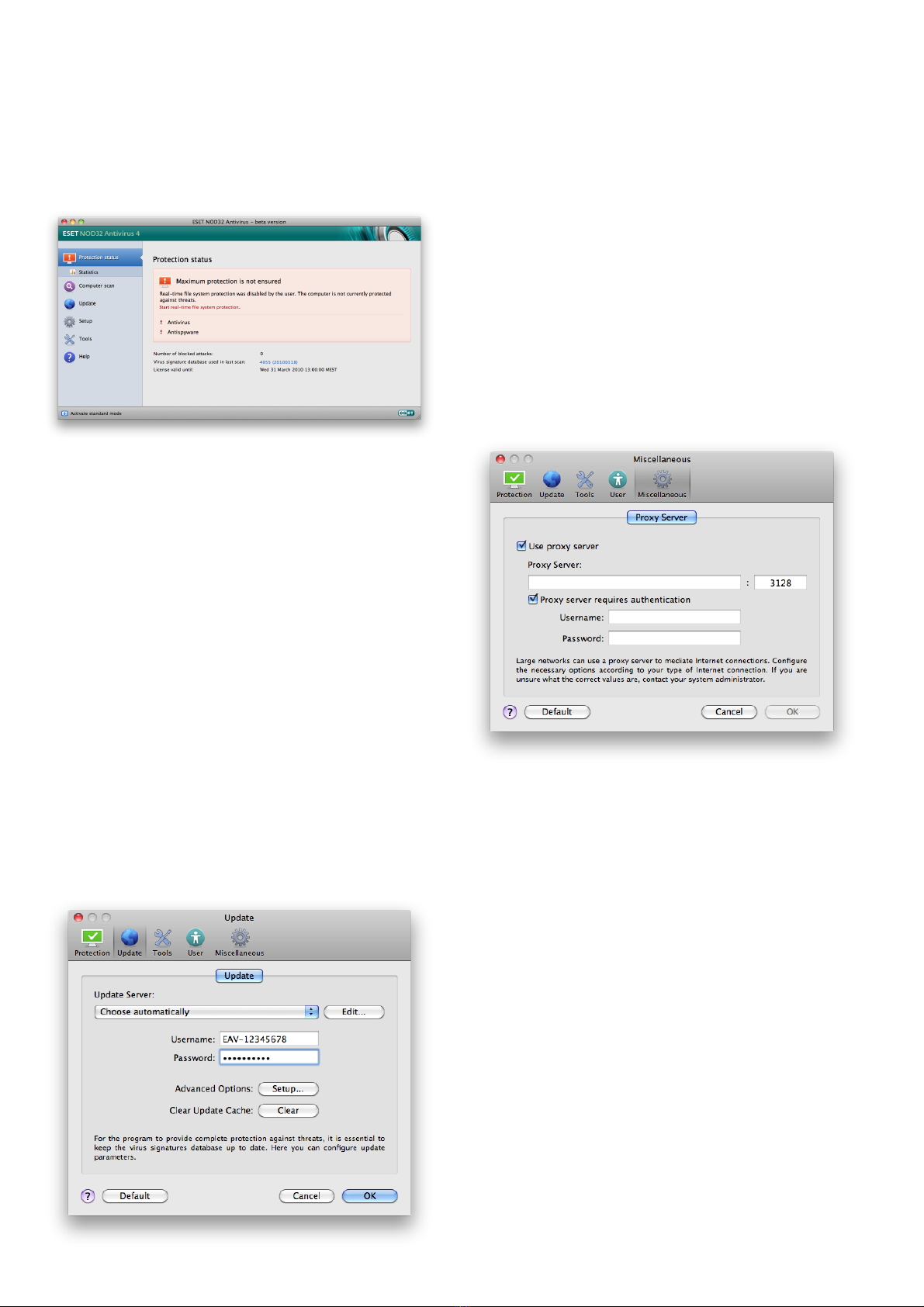
If you are using a proxy server you can define its
parameters now by selecting the I use a proxy server
option. After clicking Continue, enter the IP address or
URL of your proxy server in the Address field. In the Port
field, specify the port where the proxy server accepts
connections (3128 by default). In the event that the proxy
server requires authentication, enter a valid Username
and Password to grant access to the proxy server.
If you are sure that no proxy server is used, you can
choose the I do not use a proxy server option.If you are
not sure, you can let the program Use the same
settings as system.
In the next step you can define privileged users that will
be able to edit the program configuration by selecting
the Define privileged users option.
From the list of users on the left side, you can select
which users will have permission to edit the program
configuration, and then simply Add them to the
Privileged users list on the right side of the window. To
display all system users, select the Show all option.
The next step is configuration of the ThreatSense.Net
Early Warning System. The ThreatSense.Net Early
Warning System helps ensure that ESET is immediately
and continuously informed about new infiltrations in
order to quickly protect its customers. The system allows
for submission of new threats to ESET‘s Threat Lab,
where they are analyzed, processed and added to the
virus signature database.
By default, the Enable ThreatSense.Net Early Warning
System option is selected, which will activate this
feature. Click Advanced setup... to modify detailed
settings for the submission of suspicious files (For more
information, see ThreatSense.Net )
The next step in the installation process is to configure
Detection of potentially unwanted applications.
Potentially unwanted applications are not necessarily
malicious, but can often negatively affect the behavior of
your operating system.
These applications are often bundled with other
programs and may be difficult to notice during the
5
5
17
17