
EPOX BT-PM01B Manuel utilisateur

EPoX Presenter
BT-PM01B
~ User’s Guide ~
DISCLAIMER OF WARRANTIES
There are no warranties which extend beyond the
description on the face of the EPoX limited warranty. EPoX
expressly excludes all other warranties, express or implied,
regarding its products; including any implied warranties of
merchantability, fitness for a particular purpose or
non-infringement. This disclaimer of warranties shall apply to
the extend allowed by state laws in the states of United States
in which state laws do not allow or limit the exclusion of the
implied warranties.
Document No: PM01BA0 REV 1.0

PM01BA0 REV 1.0 602A002BPT100
~2~
USER’S GUIDE
Thank you for purchasing an EPoX Bluetooth Presenter
(BT-PM01B)! Your Presenter will soon be Bluetooth enabled,
allowing you to do presentation remotely from desktop PCs,
notebooks, and let you can walk every where when you in the
conference room.
A. ITEMS INCLUDED IN THIS PACKAGE
EPoX Bluetooth Presenter (BT-PM01B)
User Guide
2 * AAA Battery
CD of EPoX Bluetooth Presenter Application Software.
B.FEATURES & SPECIFICATION
Chipset:CSR BlueCore 02
Power Consumption :~90mW @ 3 Vdc
power source:2 * AAA Battery
Frequency Range:2.4-2.4835 GHz
Antenna:Build-In
Antenna Load: 50 Ohm
Laser Module: Class II
i. Power: Less than 1mW
ii. Wavelength: 645~665nm
iii. Color:Red light
Receive Sensitivity:–70dBm (typical)
TX Power:4dBm maximum ( class 2)
Range:>10 meters(line of sight)
Radio:Compliant with Bluetooth specification version 1.1
Operating Channels:79 channels of 1MHz BW
Security:Full support of Bluetooth security provisions
including hardware support for full length 128 bit
encryption keys
Operation System Supported Windows 98SE/ME/2000/XP

PM01BA0 REV 1.0 602A002BPT100
~3~
C. PRESENTER HARDWARE INSTALLATION
Before you using EPoX Presenter (BT-PM01B), please put in
battery and turn on the power.
Put Battery inside. Turn on power
on
Right button
(Mouse right button)
Left button
(Mouse left button)
Directional switch / Click
(Mouse left button)
Scroll downScroll up
Window change
Power Switch

PM01BA0 REV 1.0 602A002BPT100
~4~
Laser Button Laser
Definition of the function keys:
1. Right button:
Be the same as mouse right button.
2. Left button:
Same as mouse left button.
3. Directional switch:
Similar to mouse track-ball, you can move the cursor through this
switch. The function of clicking the switch is same as mouse left
key.
4. Scroll up/down:
When you doing the presentation with PowerPoint file, those keys
are same as page up/down. You can change the page up or down
for the PowerPoint file through those two keys.
5. Window change:
This key is used to change the pop-out window of the file.
Sometimes, several files might be required for the presentation.
For the case, you can open those files in advance. During the
presentation, you can choose which file to be displayed on the
window through this key.
6. Laser Button:
Laser beam is on by holding the laser button that is beneath the
presenter.

PM01BA0 REV 1.0 602A002BPT100
~5~
D. ESTABLISHING A CONNECTION
To establish the Bluetooth connection, you have to configure
the serial port setting on the Bluetooth device. If your Bluetooth
device is an EPoX BT-MB02 or BT-DG02 or BT-DG03, after the
Widcomm protocol stack is installed, please follow the steps below. If
your Bluetooth device is other than EPoX, please contact your
manufacturer to obtain more information.
D.1: Checking the COM port used by BT-PM01B Bluetooth
Presenter:
1 Please turn on your Bluetooth Presenter (BT-PM01B) power.
2 Double click the Bluetooth icon to enter the “My Bluetooth”
window.
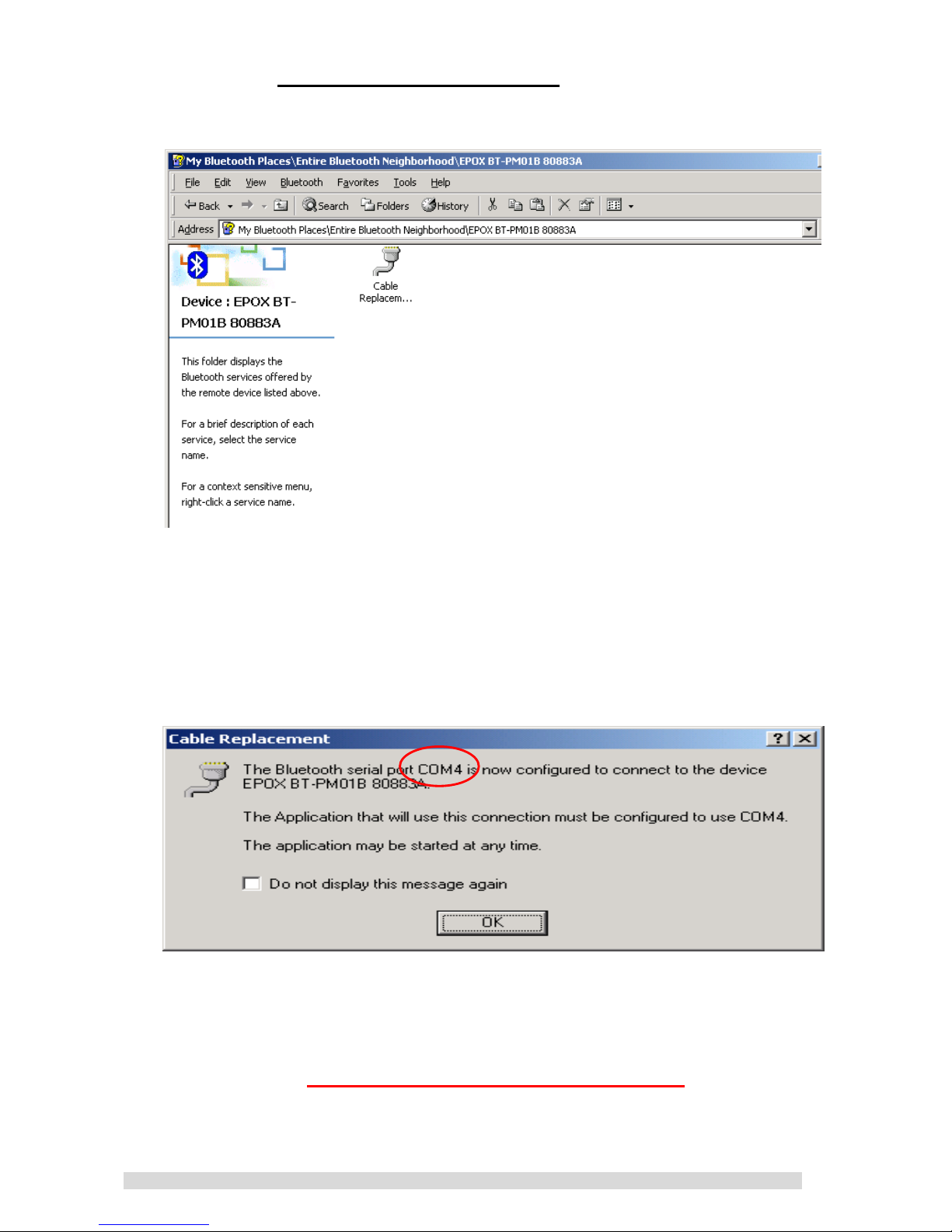
3 By double-clicking on the “Entire Bluetooth Neighborhood”
icon, you will find all the local Bluetooth enabled devices
nearby.
PM01BA0 REV 1.0 602A002BPT100
~6~
4 Find the EPoX BT-PM01B XXXXXX and double-click on it, the
“Cable Replacement” icon be shown along with all the
services offered by the Presenter.
5 By double-clicking on the “Cable Replacement” icon, the
“Cable Replacement” prompt window appears. It will show the
COM port the EPoX Bluetooth Presenter will be using. Please
make note of it and remember it.
"Note: The COM port is automatic assigned. If your COM
port is occupied by another Bluetooth enabled device (For
example: EPoX BT-PA01), you have to change COM port to
connect with your Bluetooth Presenter (BT-PM01B).
Please check F. TROUBLESHOOTING section 5 to setup
other COM port.

PM01BA0 REV 1.0 602A002BPT100
~7~
D.2. Install Presenter (BT-PM01B) AP:
Please find out CD from EPoX Bluetooth Presenter (BT-PM01B)
package.
1. Please put CD into your computer CD-ROM.
2. Run setup.exe for install EPoX Bluetooth Presenter
(BT-PM01B) AP program.
3. Click next in Welcome dialog.
4. Click YES accept this agreement.

PM01BA0 REV 1.0 602A002BPT100
~8~
5. After that, there will be an icon on your computers
desktop area. Please click it.
6. You can find out another icon on system tray. Please
move to there and click your mouse right button.

PM01BA0 REV 1.0 602A002BPT100
~9~
7. Choose and click the “Setup Presenter”.
8. Setup your Presenter speed and COM port.
9. The default speed is set to 4. Which is also recommend.
10. Click OK to finish your Bluetooth Presenter (BT-PM01B)
setup.
Congratulations!! You have finished the setting for
BT-PM01B
&
Note1: If your Bluetooth device is set to high security, the
default PIN code is “0000”.
&
Note2: For power saving consideration, the BT-PM01B
power will be automatically turned off for the following
cases:
1. Once the power switch of BT-PM01B is turned-on, you
have to establish the link to PC host within 5 minutes.
Otherwise, the power of BT-PM01B will be automatically
turned off.
2. If you do not use the BT-PM01B more than 2 hours, the
BT-PM01B will be powered off.

PM01BA0 REV 1.0 602A002BPT100
~10~
Of course, you can re-establish the link by turning the power
switch off and on again and then following the steps of
section D.
&
Note3: The lever of directional switch is not designed
to handle the strong rotated force. Please use the lever
moderately. (P.S. Rotational: No damage with an application
of 0.15N.m.)
&
Note4: In the case where the applied turn strength is too
strong, the lever will be fix. Please move lever any direction.
It will operate again.
&
Note5: Please change your battery if the "Low Battery"
message is shown on your system try or the laser beam is
getting dark.
E. CAUTION TO USE THE LASER BUTTON
Since the laser beam is harmful to human eyes, please be
careful to use the laser pointer.
Warning
Don’t point to the eyes.
Don’t disassemble it.
Table des matières
Langues :
Manuels Télécommande populaires d'autres marques

Panasonic
Panasonic EUR7622KB0 Manuel utilisateur

Bang & Olufsen
Bang & Olufsen Beo4 Manuel utilisateur

Sunwave Tech.
Sunwave Tech. RemoteComm SRC-7000 Manuel utilisateur

Multiplex
Multiplex PROFI TX 9 Manuel utilisateur

One Remote
One Remote RMB4 Manuel utilisateur

FUTABA
FUTABA 9ZAP - PART2 Manuel utilisateur


