
ENER-J SHA5298 Manuel utilisateur
1
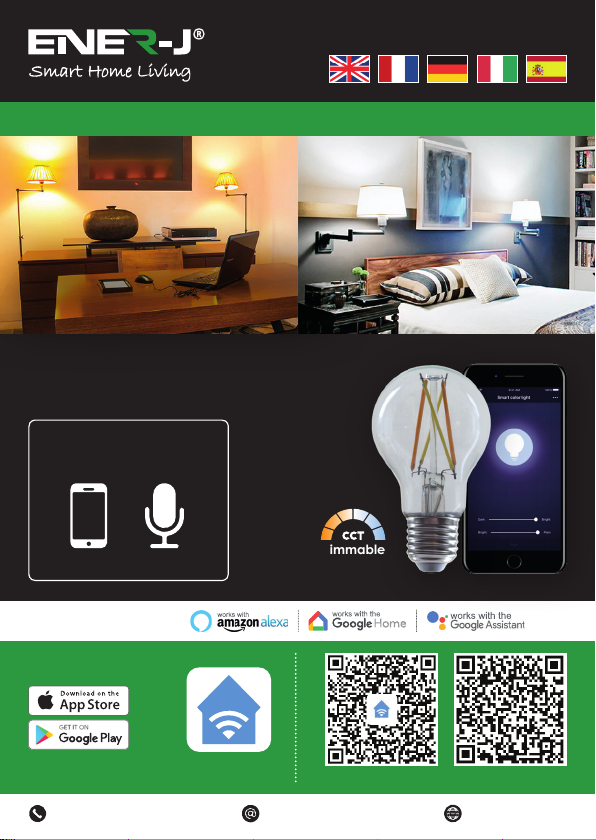
Take Control of Your
Lighting from Anywhere
Installation Guide
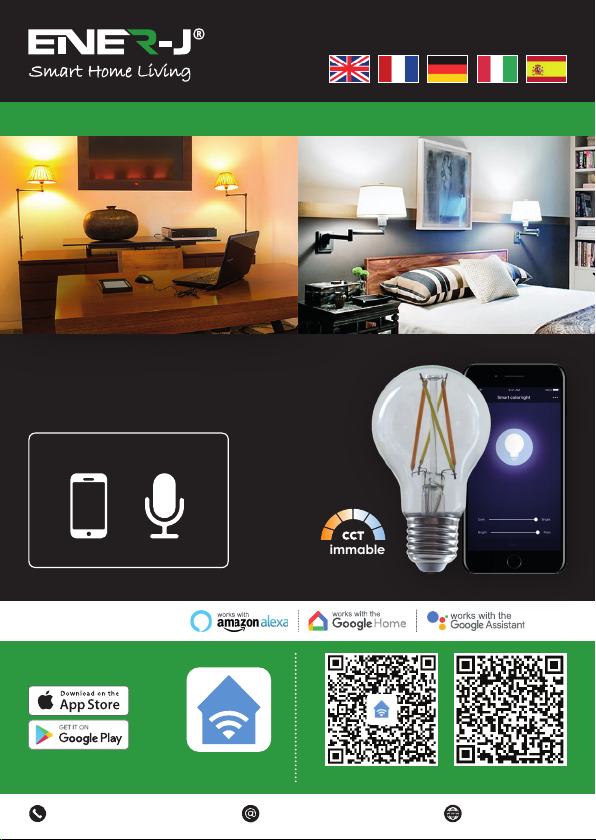
Make your home smart & connected in simple steps with ENER-J
Compatible with:
ENERJSMART ANDROID iOS
Control your power by:
VoiceMobile
Download our
app from
To download,
scan the QR code
Languages
Dimmable
2
WARNING: RISK OF ELECTRIC SHOCK
Always disconnect the mains power supply before Inspection/installation or
replacement. It is advised that a qualified person/engineer or electrician to do the
physical Installation.
Proceed in accordance with local safety regulations.
Instructions for proper grounding
Grounding must be performed in accordance with local regulations. Improper
grounding poses serious hazards to personnel and equipment.
Electrical Requirements
The Lamp has to be connected to main power supply. Special care shall be taken
during installation of this Ediscon Screw (E27) Bulb.
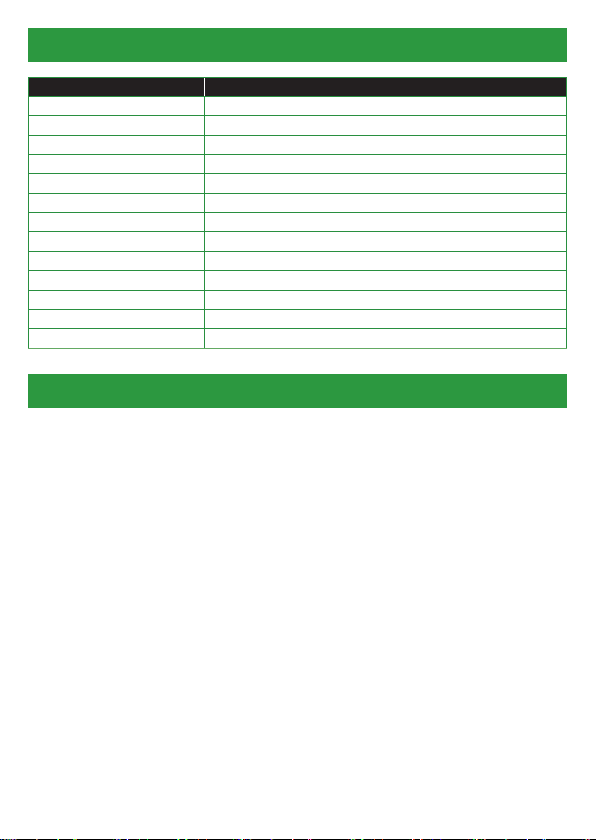
Specifications
Part A: Physical Installation:
SKU SHA5298
Model 6.5W-A60
Power 6.5W
Input Voltage AC 200-240V 50/60Hz
Lumen 700lm
Base / Cap E27
Wireless Type Wi-Fi 2.4GHz (5G not supported)
LED beads 4
Colour Temp 6000k to 2200k - CCT Colour Changing
Dimmable Yes
Ra 80
Service Life ≥15000 hours
Works with Amazon Alexa, Google Home and Google Assistant
Dimensions 60mm x 106mm
Important Notice for Warranty:
The ENERJSMART lamp has 2 years warranty. Please Note that the device needs
cooling time and recommended usage is 10-12 hours/day. If used more than 12 hours
a day then warranty will be void.
3
1. DOWNLOAD AND INSTALL OUR APP
Install ‘ENERJSMART’ in your Smartphone or Tablet devices through Google Play
or iOS Play Store. Alternatively, please scan below QR code’s.
Part B: Pairing with our APP on your Smartphone:
2. REGISTER OR SIGN IN APP
Select Location.
Enter Email Address or Mobile Number.
Verify Mobile Number or Email Address through Text Message or our Email.
Follow the screen instructions to login in APP.
3. ADD DEVICE
Before Adding Device, please Switch on/ Switch off the light 3 times (time interval
should not exceed 5 seconds). Once you have lights blinking rapidly it means the
device is in Pairing Mode.Also make sure that your WiFi router is switched on and
working fine. Your WiFi Router frequency needs to be set to 2.4GHz to pair this
device (5G is not supported).
If you have a WiFi Hub please go in settings of your providers Hub APP and grant
2.4GHz Access.
● Tap “+” located on Top Right corner.
● Select ‘Lighting Device’ from the devices in the list.
● Confirm light blinks rapidly.
● Select your WiFi and put your WiFi password.
● Confirm.
● WiFi lamp will be added under your Devices.
ENERJSMART ANDROID iOS
4
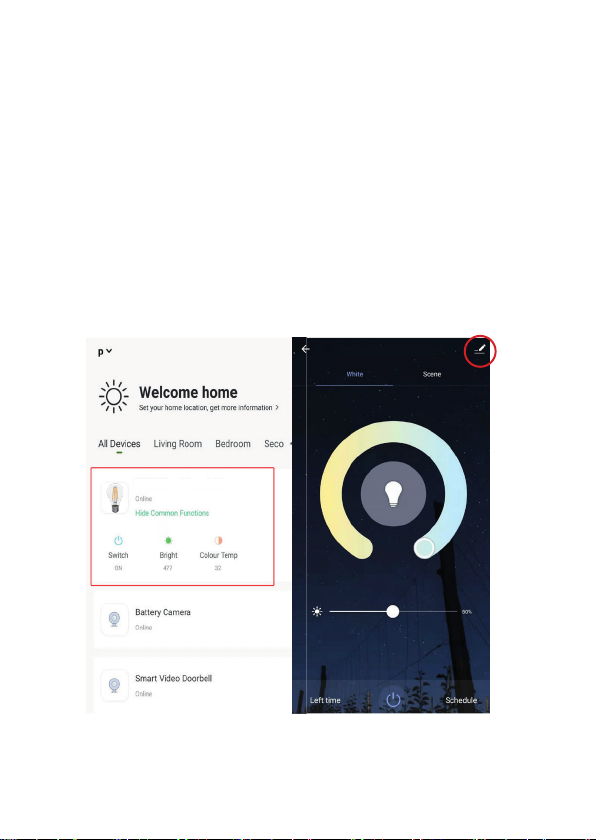
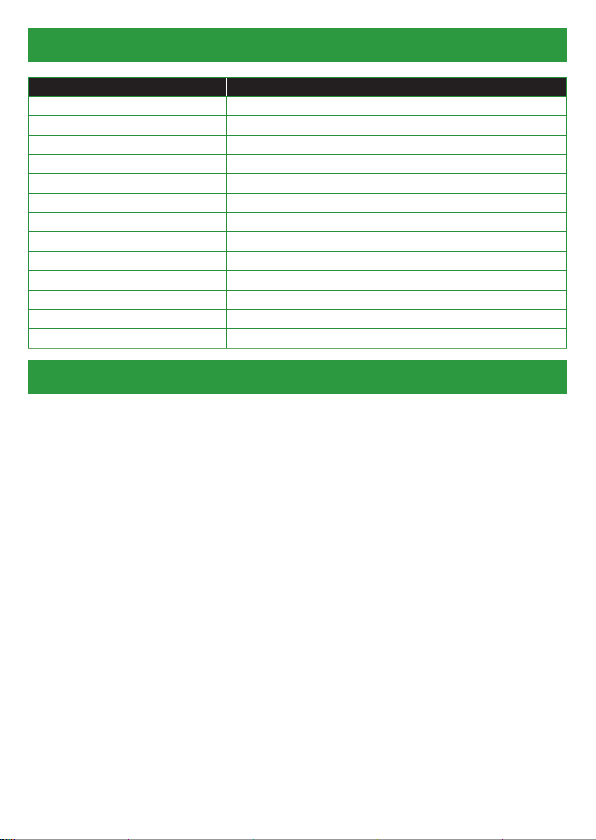
A: You can have a quick control of our ENERJSMART Lamp from the Device
screen where you could Switch on/off, Adjust the Brightness and Change the
Colour temperature from White to Warm White.
B: If you select ENERJSMART Lamp then you can access full Control Panel
where there are more functions.
White Mode: Touch and get to your desired Colour you want of your lamp.
There is Brightness levels from 1% to 100%.
Left Time: This acts like a countdown. If your lamp is switched on and you
want it to get switched off after particular time then this option is perfect.
Schedule: You can add multiple schedules in APP for the lamp to get
switched on or Switched off a particular time of that day or every day.
4. CONTROL DEVICE
C: Scene Mode: You can select Pre-Saved Scenes or Create new.
Please click on top right corner (Pen sign) to check more functions listed
below:
ENERJSMART Lamp
ENERJSMART LAMP
5
5. Note:
1. Only Supports WLAN in 2.4 GHz, Android 4.1 and above, iOS 8.0 and above.
5GHz WiFi not supported.
2. When you connect multiple WiFi Lamps, please try and keep enough space
(Advisable 15 cms) in between the lamps as it may cause signal interference.
3. If WiFi signal is weak then WiFi Extender or Repeaters will be required.
D: Create Group:
If you have 2 or more such devices (Same model) then select this option to
synchronize and control all devices together. The Group will be created in
your Home Screen to control all devices together.
E: Share Device:
You can share the device with your friends and family. Simply click on Add
and enter their ENERJSMART APP login mobile number or email address.
They will get notification and the device will be shared with them once they
confirm it from their ENERJSMART Account.
Third Party Control Overview:
If you’re new to Echo, it’s a super smart speaker from Amazon that responds to your
voice.
Once you’ve bought Amazon Echo and downloaded the ENERJSMART App, you’ll
need to enable...
1. Enable the ENERJSMART App
In your Alexa app, tap Skills in the menu and search for ENERJSMART. Tap Enable.
2. Link Account
Enter your ENERJSMART App username and password and follow the onscreen
instruction.
3. Talk to Alexa
Now the fun part Ask Alexa to control your ENERJSMART device. Check a full list of
things you can control by clicking here.
6
Now you can use Google’s voice-activated speaker to control your Smart Home
Sockets and adaptors. With the Google Assistant, you can turn on lights without
pressing a button.
1. Setup
Start by getting the Google Home app and setting up your Google Home if you have
not done this already.
2. Add ENERJSMART Action
In the Google Home app, tap the menu icon and select Home Control. Then tap the +
button to see a list of Action tapping ENERJSMART to select the Action.
3. Link you ENERJSMART Account
Now follow the in-app instructions to link you ENERJSMART App account. Once
complete you’ll be able to say “Okey Google, turn my lamp on” or “Okay Google, set
hallway to ON/OFF”.

7
Thank you for choosing ENER-J!
Customer satisfaction is our TOP priority, please let us know how you felt about your experience.
Happy? We are so happy that you are pleased with our product. Feel free to express your newfound
joy! Share your experience by writing a review.
Not Happy? If you are not fully satisfied with the item you received, have any problems like damages,
or questions, please contact us. We typically respond within 24-48 hours.
Products should be installed as per the instructions mentioned in this manual and also as per current
electrical codes National Electric Code (NEC).To avoid the risk of fire, electrical shock or injury, it is
advisable that the installation is done by a trained Electrician. Also it is important that mains power
supply is switched off before the product is installed or repaired.It is advisable to keep the manual for
future reference.
Wi-Fi frequency is 2.4GHz and not 5GHz (5GHz not supported). You can do this by contacting your
broadband service provider and requesting to either switch to 2.4GHz entirely or split it between
2.4GHz and 5GHz.
If despite following the process as instructed above, you still fail to add the device, then possibly
there is a firewall on your Wi-Fi router blocking this device to be connected to your Wi-Fi Router. In
such a case you would need to disable the firewall, add this device following above process and once
the device is added, enable the firewalls back again.
Caution
Please Note
Stuck? Confused?
Contact our Technical Support team on:
T: +44 (0)2921 252 473 | E: [email protected]
Lines are open Mon - Fri (8am to 4pm)
7
8
Prenez le contrôle de votre
éclairage de tous les côtés
Guide d’installation
Rendez votre maison intelligente & connectée dans les pas simples avec ENER-J
Compatible avec :
ENERJSMART ANDROID iOS
Contrôlez votre
pouvoir par :
VoixMobile
Téléchargez notre
application à partir de
Pour télécharger,
scannez le code QR
Langues
Dimmable
9
AVERTISSEMENT : RISQUE DE CHOC ÉLECTRIQUE
Débranchez toujours l’alimentation électrique avant l’inspection/l’installation ou le
remplacement. Il est conseillé de faire appel à une personne/un ingénieur ou un
électricien qualifié pour effectuer l’installation physique.
Procédez conformément aux règlements de sécurité locaux.
Instructions pour une bonne mise à terre
La mise à la terre doit être effectuée conformément aux réglementations locales. Une
mise à la terre incorrecte présente de graves dangers pour le personnel et le matériel.
Exigences en matière d’électricité
La lampe doit être connectée à l’alimentation électrique principale. Un soin particulier
doit être apporté lors de l’installation de cette ampoule à vis Ediscon (E27).
Spécifications
Partie A : Installation physique :
SKU SHA5298
Modèle 6.5W-A60
Puissance 6.5W
Tension d’entrée AC 200-240V 50/60Hz
Lumen 700lm
Base / Cap E27
Type de connexion sans fil Wi-Fi 2.4GHz (5G non supporté)
Perles LED 4
Température de couleur 6000k à 2200k - CCT Couleur changeante
Dimmable Oui
Ra 80
Durée de vie ≥15000 heures
Fonctionne avec Amazon Alexa, Google Home et Google Assistant
Dimensions 60mm x 106mm
Avis important pour la garantie :
La lampe ENERJSMART est garantie 2 ans. Veuillez noter que l’appareil a besoin d’un
temps de refroidissement et que l’utilisation recommandée est de 10 à 12 heures/jour.
Si elle est utilisée plus de 12 heures par jour, la garantie sera nulle.
10
1. TÉLÉCHARGER ET INSTALLER NOTRE APPLICATION
Installez “ENERJSMART” sur votre Smartphone ou votre tablette via Google Play
ou iOS Play Store. Sinon, veuillez scanner sous les codes QR.
Partie B : Couplage avec notre APP sur votre Smartphone :
2. S’INSCRIRE OU SE CONNECTER À L’APPLICATION
Sélectionnez un lieu.
Entrez votre adresse électronique ou votre numéro de téléphone portable.
Vérifiez le numéro de téléphone portable ou l’adresse électronique par SMS ou
par notre courrier électronique.
Suivez les instructions à l’écran pour vous connecter à l’APP.
3. DISPOSITIF D’AJOUT
Avant d’ajouter un appareil, veuillez allumer/éteindre la lumière 3 fois (l’intervalle
de temps ne doit pas dépasser 5 secondes). Lorsque les voyants clignotent
rapidement, cela signifie que l’appareil est en mode de couplage. Assurez-vous
également que votre routeur WiFi est allumé et qu’il fonctionne correctement. Il
faut un accès WiFi à 2,4GHz pour coupler cet appareil. Le 5G n’est pas soutenu.
Si vous avez un Hub WiFi, veuillez vous rendre dans les paramètres de votre
fournisseur Hub APP et accordez un accès à 2,4GHz.
● Appuyez sur le “+” situé dans le coin supérieur droit.
● Sélectionnez “Dispositif d’éclairage” dans la liste des dispositifs.
● La lumière de confirmation clignote rapidement.
● Sélectionnez votre WiFi et mettez votre mot de passe WiFi.
● Confirmer.
● Une lampe WiFi sera ajoutée sous vos appareils.
ENERJSMART ANDROID iOS
Table des matières
Langues :
Autres manuels ENER-J Équipement d'éclairage

Manuels Équipement d'éclairage populaires d'autres marques


Qazqa
Qazqa Suplux SL 3 Black 103062 Manuel utilisateur

Commercial Electric
Commercial Electric 54568141 Manuel utilisateur

CREE LIGHTING
CREE LIGHTING 304 Series Manuel utilisateur

Goobay
Goobay 49867 Manuel utilisateur

ECOMAN ITALIA
ECOMAN ITALIA LED T8 Manuel utilisateur

Alkalite
Alkalite Krypton KT-81 Manuel utilisateur


