
Encore ENPSWI-G Manuel utilisateur

Wireless 802.11g & USB 2.0
Print Server
User’s Manual
Rev. 01 (Nov, 2005)
Made In Taiwan

TABLE OF CONTENTS
ABOUT THIS GUIDE..................................................................................4
INTRODUCTION.........................................................................................5
PACKAGE CONTENTS ....................................................................................6
SYSTEM REQUIREMENTS...............................................................................6
GENERAL FEATURES.....................................................................................7
PRODUCT VIEW.............................................................................................8
HARDWARE INSTALLATION...............................................................10
NETWORKING APPLICATION .......................................................................10
INSTALLING THE PRINT SERVER..................................................................11
USING THE UTILITIES ...........................................................................12
AUTO-RUN INSTALLATION .........................................................................12
PS-UTILITY.................................................................................................13
Installing PS-Utility................................................................................13
Using PS-Utility......................................................................................14
PS WIZARD.................................................................................................17
PSM SETUP UTILITY INSTALLATION GUIDE................................................19
INSTALLATION PROCESS OF HP LASERJET 1000.........................................25
Installation Process of HP LaserJet 1000 in Win 2000..........................25
Installation Process of HP LaserJet 1000 in Win 98..............................33
Installation Process of HP LaserJet 1000 in Win XP.............................39
PRINTING IN MAC OS ............................................................................48
RENDEZVOUS USES IN MAC OS 10.2.........................................................48
SETTING UP APPLE TALK/LPR PRINTING ...................................................51
For MAC OS X User...............................................................................51
For MAC OS 9 User ...............................................................................53
For MAC OS 9 User ...............................................................................54
- 2 -

WEB CONFIGURATION..........................................................................57
WEB CONFIGURATION UTILITY ..................................................................57
MANAGEMENT............................................................................................58
Management
J
System...........................................................................59
Management
J
Wireless ........................................................................60
Management
J
Network ........................................................................61
Management
J
User..............................................................................63
CONFIGURATION.........................................................................................64
Configuration
J
System.........................................................................64
Configuration
J
Wireless ......................................................................66
Configuration
J
Network.......................................................................68
Configuration
J
User ............................................................................70
Configuration
J
E-mail .........................................................................71
Configuration
J
SNMP..........................................................................73
TOOLS.........................................................................................................74
Tool
J
Print Test....................................................................................74
Tool
J
E-mail.........................................................................................75
Tool
J
Reset...........................................................................................76
Tool
J
Factory Reset.............................................................................77
Tool
J
Firmware Upgrade ....................................................................78
Tool
J
Backup .......................................................................................79
HELP...........................................................................................................80
PRODUCT SPECIFICATIONS................................................................81
Printer Connection .................................................................................81
Network Connection ...............................................................................81
Network Protocol Support ......................................................................82
Hardware................................................................................................82
Operating System Support......................................................................82
Management ...........................................................................................82
LEDs.......................................................................................................83
Environmental and Physical...................................................................83
EMI Compliance.....................................................................................83
- 3 -

ABOUT THIS GUIDE
This manual provides instructions and illustrations on how to use your
Wireless USB Print Server, including:
zChapter 1, Introduction, provides the general information on
the product.
zChapter 2, Hardware Installation, describes the hardware
installation procedure for the product.
zChapter 3, Using the Utilities, helps you to install and use the
software.
zChapter 4, Printing in MAC OS, lets you complete printing task
through your print server in MAC OS environment.
zChapter 5, Web Configuration, completes the configuration
using the web browser.
zChapter 6, Product Specification.
Please note that the illustrations or setting values in this manual are
FOR YOUR REFERENCE ONLY. The actual settings and values
depend on your system and network. If you are not sure about the
respective information, please ask your network administrator or MIS
staff for help.
- 4 -

1
INTRODUCTION
Congratulations on purchasing your Wireless USB Print Server, the
easiest and fastest way to deploy printers on your network.
This compact print server can connect your network through an
Access Point under the infrastructure mode, or can be used in ad-hoc
mode for direct communication between PC/Notebook and print
server anywhere you wish to locate wireless printer services. It
manages the flow of print files from your workstation or file server to
its connected printers, delivering print jobs to high-performance
printers much faster than a file server or a PC acting as a print server
can.
The Wireless USB Print Server features a Web-based Configuration
Utility, which allows you to set up the print server through the web
browser easily and quickly. It also includes a powerful software
utility PS-Utility, a user-friendly program that allows you to complete
further settings for the print server.
- 5 -

Package Contents
Unpack the package and check all the items carefully, and be certain
that you have:
♦One Wireless USB Print Server.
♦One AC Power Adapter suitable for your country’s electric power
service.
♦One Quick Installation Guide.
♦One Installation CD-ROM containing the PS-Utility program and
the User’s Guide.
If any item contained is damaged or missing, please contact your local
dealer immediately. Also, keep the box and packing materials in
case you need to ship the unit in the future.
System Requirements
♦Operating System:
Microsoft Windows 95/98/ME/NT/2000/XP/2003.
Apple Mac OS (with Apple Talk support).
♦For Web Configuration:
Java-enabled web browser, such as Microsoft® Internet
Explorer 5.0 and Netscape Navigator 6.0.
- 6 -

General Features
♦Compact pocket size.
♦Compliant with USB 2.0 high-speed printing.
♦Fast 54Mbps WLAN connectivity based on IEEE 802.11g wireless
high-speed standard.
♦Multi protocol support is ideal for shared printing in mixed-LAN
environments.
♦Windows-based administrative program makes it possible to set up
in a few steps.
♦Latest MIB-II (RFC 1213) for SNMP standard management.
♦Offer LPR program for TCP/IP printing in Windows 95/98/ME.
♦IP assignment support for DHCP, BOOTP and RARP.
♦Support Web configuration.
♦Provide Flash memory for easy firmware upgrade.
♦Auto fallback data rate under noisy environment or longer range
distance.
♦Printing Access control and display.
♦E-mail notification for printer error messages; Support E-Mail
printing and FTP printing.
♦Ability to save print server configuration into hard drive for easy
access and backup without the hassle to reconfigure if setting
is altered.
♦Support IPP printing for Windows 2000/XP.
♦Support second http port for remote web configuration and IPP
printing.
♦Support UPnP (Universal Plug and Play) for Windows XP/2003.
♦Support Mac OS 10.2 “Rendezvous” – Zero-configuration feature.
- 7 -

Product View
This section describes the externally visible features of the print
server.
LEDs*
A
ntenna
USB Port – connect the print
server to a USB
pr
inter.
DC Power Input –
plug the AC Power
Adapter to this jack.
Reset Button**
LAN Connector –
plug your LAN cable
to this connector.
Rear View
Front View
- 8 -

* There are four green LED indicators on the front panel:
LEDs Description
Power Steady light confirms that the Print Server is
powered on.
USB When it blinks, the printer connected is printing.
LAN Steady light confirms that the print server has a
good connection to your network.
When it blinks (briefly dark), the print server is
receiving/ transmitting data from/to the network.
WLAN Steady light confirms that the print server has a
good connection to your wireless network.
When it blinks (briefly dark), the print server is
receiving/ transmitting data from/to the wireless
network.
** 1) Press and release this button to reset the print server; or 2) Press
and hold this button for three seconds (the USB LED on the front
panel lights up) and then release it, the print server will resume the
factory default settings.
- 9 -

2
HARDWARE
INSTALLATION
Networking Application
The following diagram explains the application of your print server.
Wireless USB Print Server
- 10 -
Autres manuels pour ENPSWI-G
1
Ce manuel convient aux modèles suivants
2
Table des matières
Autres manuels Encore Serveur d'impression
Encore
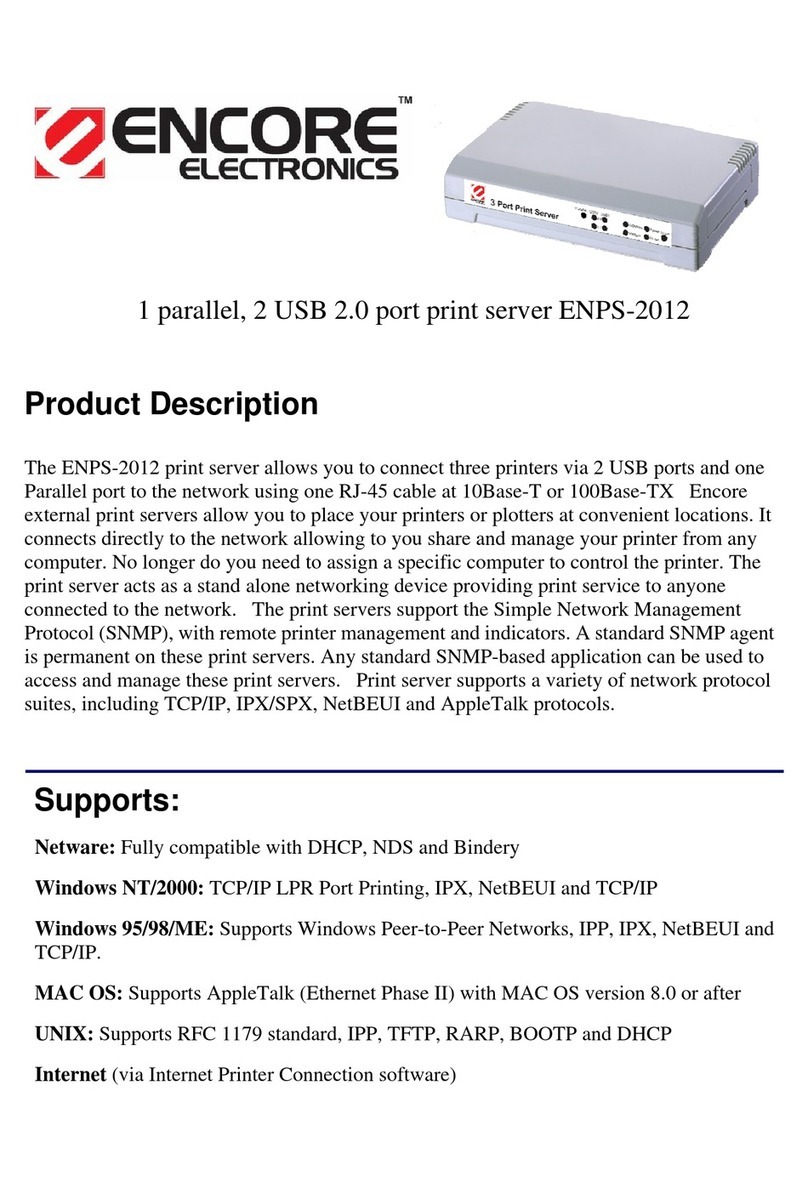
Encore ENPS-2012 Manuel utilisateur
Encore
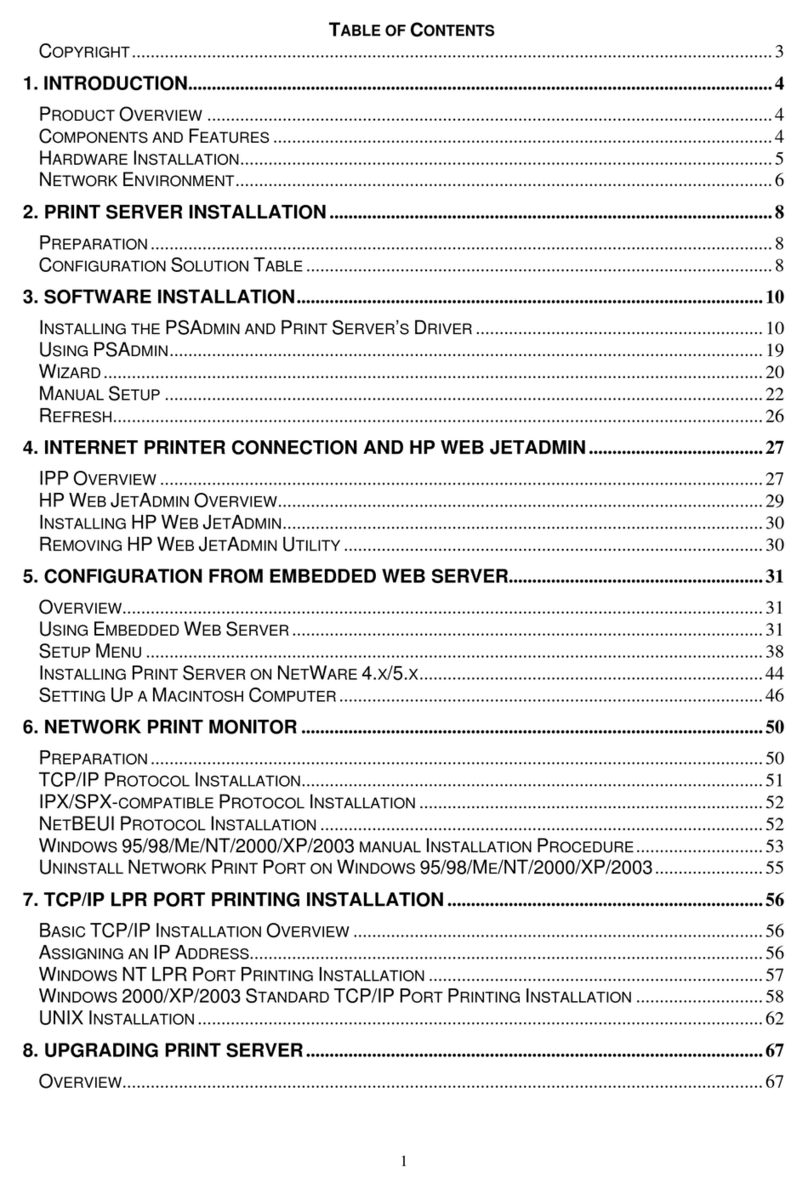
Encore ENPSWI-2012 - QUICK INSTALLATION GUIDE V1.2 Manuel utilisateur

Encore
Encore ENPSWI-G Manuel utilisateur

Encore
Encore ENPS-2001 Manuel utilisateur

Encore
Encore ENPSWI-2012 - QUICK INSTALLATION GUIDE V1.2 Manuel utilisateur

Encore
Encore ENPS-2012 Manuel utilisateur

Encore
Encore ENPS-2001 Manuel utilisateur

Encore
Encore ENPS-MF2 Manuel utilisateur

Encore
Encore ENPS-MF2 Manuel utilisateur

Encore
Encore ENPSWI-2012 - QUICK INSTALLATION GUIDE V1.2 Manuel utilisateur


