
Enchanced Vision Acrobat LCD Manuel utilisateur

TM

3
Congratulations on your purchase of the Acrobat LCD. Enhanced
Vision products are designed to give you the highest quality and
convenience available.
The Acrobat LCD product can enable people with low vision to
read, write and to see objects at any distance. The unique design of
this product provides the ultimate in flexibility and offers a large
range of magnification with multiple viewing options that make
reading easier than ever. The Acrobat LCD is a fully integrated solu-
tion, offering the advantage of a built-in LCD screen.
Prior to using this system, please carefully read and follow the
instructions provided within this booklet. A thorough understanding
of the functionality will allow you to fully benefit from the flexibili-
ty and great features of this device.
If you have any questions, please contact the eyecare professional
or the supplier from whom you have acquired the unit.
FCC ComplianCe notiCe
This device complies with Part 15 of the FCC Rules. Operation is subject
to the following two conditions: (1) This device may not cause harmful
interference, and (2) this device must accept any interference received,
including interference that may cause undesired operation.
This equipment has been tested and found to comply with the limits
for a Class B digital device, pursuant to Part 15 of the FCC Rules. These
limits are designed to provide reasonable protection against harmful
interference in a residential installation. This equipment generates, uses,
and can radiate radio frequency energy and, if not installed and used in
accordance with the instructions, may cause harmful interference to radio
communications. However, there is no guarantee that interference will
not occur in a particular installation. If this equipment does cause harmful
interference to radio or television reception, which can be determined by
turning the equipment off and on, the user is encouraged to try to correct
the interference by one or more of the following measures:
– Reorient or relocate the receiving antenna.
– Increase the separation between the equipment and receiver.
– Connect the equipment into an outlet on a circuit different from
that to which the receiver is connected.
– Consult the dealer or an experienced radio/TV technician for help.
Unauthorized changes or modification to this system can void the user’s
authority to operate this equipment.
If your Low Vision device has an option to connect to a TV, it must be used
with shielded interface cables in order to meet FCC emissions limits for
Class B digital devices. It is the responsibility of the user to use the shielded
interface cables supplied with the equipment.

5
table oF Contents
Important Safety Precautions ............................................... 4-7
Acrobat LCD
Acrobat LCD Package Contents ................................... 8-9
Acrobat LCD Setup ....................................................... 10
Using Acrobat LCD ....................................................... 11-25
Advanced Programming ....................................................... 26-27
Troubleshooting ................................................................... 28
Specifications ....................................................................... 29
Warranty Statement ............................................................. 30
Other Enhanced Vision Products ......................................... 31-34
Contact Information ............................................................ 34
important saFety preCautions
For your safety and to obtain the most benefit and life from the
Acrobat LCD, please read these safety precautions very carefully.
The Acrobat LCD is designed to enlarge and enhance images in
order to improve the quality of life for people who are visually
impaired. The extent to which this product can improve the ability
to see images depends on a person’s individual condition and level
of visual impairment.
The Acrobat LCD is not designed to restore vision, correct eye
conditions or halt degenerative vision loss. An eyecare professional
can determine the usefulness and suitability of the Acrobat LCD for
a patient’s individual condition. Please follow these safety precau-
tions:
• Use the Acrobat LCD on a stable, level surface such as a solid
desk or table, according to its intended design specifications.
• Avoid placing the Acrobat LCD on an unstable table, cart or
stand. It may fall causing serious damage to the unit or bodily
injury to the user.
• Use the Acrobat LCD indoors only – it should NOT be exposed to
extreme or rapid changes in temperature or humidity. Do not
place the Acrobat LCD near a radiator, heater or areas exposed to
long hours of direct sunlight.
• Always place the power cord away from traffic areas to avoid
damage of power supply.
• Prevent the risk of electrical shock by NOT attempting to
disassemble the unit. Please refer all service to an authorized
repair facility.

67
important saFety preCautions
To Move the Acrobat LCD to Another Location
• Use caution if you are repositioning the Acrobat LCD a short
distance across a desk or table. Make sure you do not pull on any
power cords or connector cables.
Caring for the Acrobat LCD
• Always turn the power OFF on the Acrobat LCD when the system
is not in use.
• Always turn the power OFF before cleaning the Acrobat LCD.
• Clean the Acrobat LCD with a soft dry cloth or an electrostatic
dusting wipe. DO NOT use liquid cleaners on its plastic surfaces.
• Clean the lens glass as needed with the lens cloth provided
within the Acrobat LCD’s packaging (See figure 1).
Figure 1
important saFety preCautions
• Follow all warnings, cautions, and instructions marked on the
product.
• The attached power cord is a disconnect device for electrical
equipment. The socket-outlet should be installed near the
equipment and be easily accessible.
• This product is equipped with a 3-wire grounding type plug as a
safety feature. This plug has a third (grounding) pin and can only
be plugged into a grounding-type power outlet. If necessary,
contact an electrician to replace your power outlet with a
grounding-type power outlet.
• Do not use the Acrobat LCD in, near or around water. The
Acrobat LCD is not designed to offer protection against contact
with liquids of any kind.
• Do not use the Acrobat LCD near flammable liquids.
• At least once per week, clean the Acrobat LCD with a soft dry
cloth or an electrostatic dusting wipe. DO NOT use liquid
cleaners on its plastic surfaces. No additional methods of
sterilization or cleaning are recommended or required.

89
important saFety preCautions
• This product contains moving
parts. Please use caution when
moving the adjustable slide
arm or when transporting the
Acrobat LCD to avoid possible
injury to hands and fingers.
• To avoid personal injury or damage to the Acrobat LCD, do not
make any other type of connections to the camera input jacks other
than those indicated in the photos below.
Susceptibility to Interference
There may be temporary degradation of the image when the Acrobat
LCD is subjected to a strong radio frequency field, electro-static dis-
charge or transient electrical noise. An electro-static discharge (caused
by static electricity) may cause the screen to go blank. If this happens,
switch the unit off and on again.
Medical Compliance Warnings
• Electromagnetic compatibility: The use of accessories and cables
other than those specified by Enhanced Vision may result in
increased emissions or decreased immunity of the Acrobat LCD.
• Placement of equipment: The Acrobat LCD should not be used
adjacent to or stacked with other equipment.
aCrobat lCD paCkage Contents
All required accessories for operation are included in your Acrobat LCD
package.
Acrobat LCD is comprised of the following items and features:
1.
19” or 22"
LCD Screen: displays high quality image
2. Camera: rotates 340 degrees to capture and enlarge the image
3. Carrying Handle: used for lifting the Acrobat LCD
4. Zoom Lens: used up close high magnification
5. Arm: rotating arm that holds the camera
6. Lock: used to lock arm from sliding horizontally
Accessories included:
7. Remote Control: (batteries included): allows the user to control
the Acrobat LCD functions from a distance
8. Lens Cloth: permits cleaning of the LCD display
Accessories NOT included:
9. Rolling Case (optional): Provides protection for the Acrobat LCD
and makes transportation even easier
10. VGA toggle box (optional): Allows the display of the Acrobat LCD
to be shared along with a standard VGA output of a computer and
permits switching between either source
11. X-Y Table:
X-Y table and Mini X-Y table are available for your
Acrobat, place underneath your acrobat camera and make
reading even easier!

10 11
aCrobat lCD paCkage Contents
7
4
8
9
aCrobat lCD setup
1. Unpacking and transporting the
Acrobat LCD
During unpacking and transporting, be sure
to lift the Acrobat LCD by the built-in carry-
ing handle. Do not attempt to lift or carry
the LCD by the base. (See Figure 1)
2. Setup the Acrobat LCD
Place the Acrobat LCD on a flat, level sur-
face such as a table or desk.
3. Connect the AC power
Connect the attached power cord to an
available wall outlet. (See Figure 2) To offer
additional protection during an electrical
storm, a surge protector may also be used
and is recommended.
4. Turn the power on
On the rear, right side of the Acrobat LCD,
flip the switch from the 0 to l position (See
Figure 3). The LCD screen and Acrobat
Camera will automatically turn ON in a few
seconds. An image of what the Camera is
pointing at should appear on the LCD
screen.
Turn the power OFF by flipping the same
switch back to the 0 position. However,
leave the power ON for this training
section.
Figure 1
Figure 2
Figure 3
1
2
35
6
10
11

12 13
using aCrobat lCD
Adjust the camera position
The Acrobat LCD camera is attached to a specially designed arm that
allows the camera to slide left or right, or to pivot in multiple directions.
(See Figure 1, 2, 3 and 4)
Figure 1 Figure 2
Figure 3
Figure 4
90°
using aCrobat lCD
Adjusting the Viewing Angle
The Acrobat LCD Camera rotates 340 degrees, providing unsurpassed
flexibility for the visually impaired. Do NOT force the camera beyond
its 340-degree angular range as this may damage the unit.
The Acrobat LCD may be used to see objects in the distance, viewing
oneself and reading or writing. To change the viewing mode, simply
turn the position of the Camera by rotating it on the arm.
Distance Viewing Mode
The camera can rotate forward to capture people, objects and scenery.
“Distance Viewing” is displayed in the upper-left corner of the screen
when changing to this viewing angle. Be sure to open the Reading Lens
for Distance Viewing (See Figure 1).
This Distance mode enables up to 25X magnification for objects 3 feet
away. In this mode, although the camera can view objects at an infinite
distance, the recommended distance from camera to the distant object
is within 3-30 feet to achieve maximum magnification benefit
(See Figure 2).
Figure 1 Figure 2
3’ - 30’ (Recommended)
14 15
using aCrobat lCD
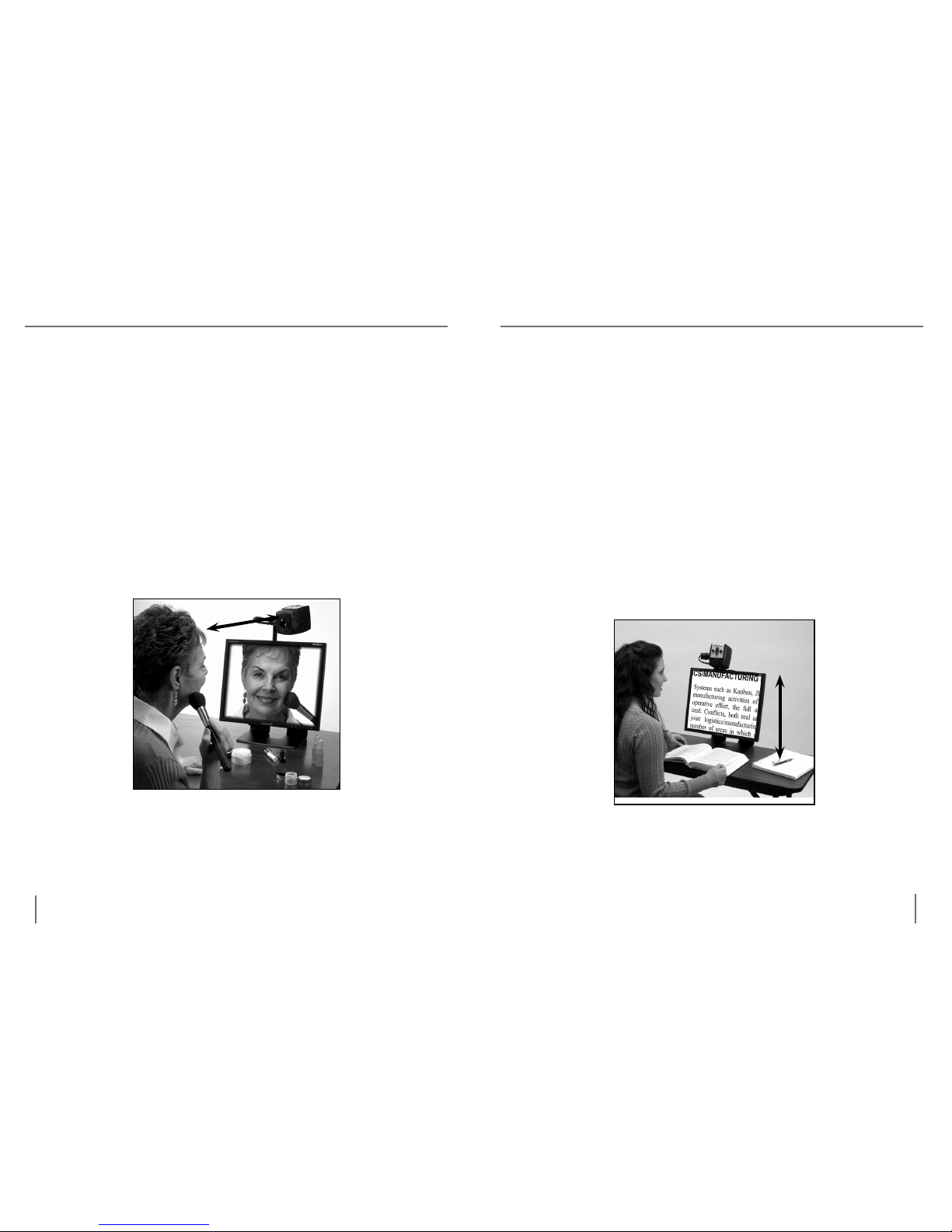
Self Viewing Mode
The Camera can be rotated backwards to provide you with the
equivalent of a full-length mirror. “Self Viewing” is displayed in the
upper-left corner of the screen when changing to this viewing angle.
In this position, you can use the Acrobat LCD to help you put on
make-up, shave or perform other personal hygiene (See Figure 1).
For optimum clarity, use the Zoom Lens and position yourself
between 7.5”-22” away from the Camera.
Figure 1
7.5” - 22” (Recommended)
using aCrobat lCD
Reading and Writing Mode
The Camera can be adjusted downward for reading, writing and
enjoying crafts or other hobbies (See Figure 1). This makes it ideal
for classroom use. When the camera is rotated downward,
“Reading-Mode” is displayed in the upper-left corner of the screen.
The Acrobat LCD can slide freely, left or right, along the specially
designed bracket mechanism.
It is best to close the Zoom Lens when objects are placed 12”-19”
away from the Camera for optimal viewing clarity.
Figure 1
12” - 19” (Recommended)

16 17
using aCrobat lCD
Adjusting Magnification
The Acrobat LCD offers a large range of magnification capabilities. The
following directions can be used with the Remote or Camera
(See Figure 1 & 2).
1. To adjust the magnification press and hold the + or - buttons located
on the Remote or Camera until you reach your desired magnification.
2. “Zoom In” will appear in the upper left corner of your monitor
when you are increasing magnification. ”Max Zoom,” will appear
at the maximum magnification.
3. “Zoom Out” will appear in the upper left corner of your monitor
when you are decreasing magnification. “Min Zoom,” will appear
at the minimum magnification.
NOTE: The extent of the magnification is dependent upon the distance
of the Camera to the object.
Figure 1 Figure 2
using aCrobat lCD
Changing the Viewing Mode
The Acrobat LCD was designed to provide optimum viewing for people
with certain visual conditions by offering a range of choices in both text
and background colors. In addition, it will remember the viewing mode
selected for each viewing angle. The following directions can be used
with the Remote or Camera.
Adjusting Viewing Modes
1. You can choose a viewing mode by pressing the "Mode" button on
the Remote or Camera (See figure 1 & 2).
2. Each push will allow you to cycle through all seven viewing modes
(See next page).
Figure 1 Figure 2

18 19
using aCrobat lCD
Viewing Modes
Full Color Image
This mode gives a true color representation of the image being magni-
fied.
Black-and-White Image
This mode gives a black and white representation of the image being
magnified.
Enhanced-Positive Image
This mode provides a white background with
black text. It increases the contrast to offer
crisp text images for reading.
Enhanced-Negative Image
This mode provides a black background with
white text. It increases the contrast to offer
crisp text images for reading.
Color Select 1
This mode provides a blue background with yellow text. This is one of
the most commonly used color combinations.
Color Select 2
This mode provides a black background with green text.
Color Select 3
This mode provides a black background with yellow text.
Crisp, Clear
Text Images!
Crisp, Clear
Text Images!
Enhanced Positive
Enhanced Negative
using aCrobat lCD
Adjusting the White Balance with the Remote Control
The color white is often affected by the lighting used in a room. The
Acrobat LCD White Balance control allows you to achieve optimum
clarity.
The following directions can be used to adjust the White Balance with
the Remote:
1. Press the White Balance “WB” button (See figure 1) on the Remote,
and wait 2 seconds for the key to become active.
2. Repeat Step 1 to scroll through all four settings.
a. W.B. Auto automatically adjusts to the lighting in the room
b. W.B. Warm casts a red tone
c. W.B. Normal casts a balanced tone
d. W.B. Cool casts a blue tone
Figure 1
Table des matières


