Operating receiver
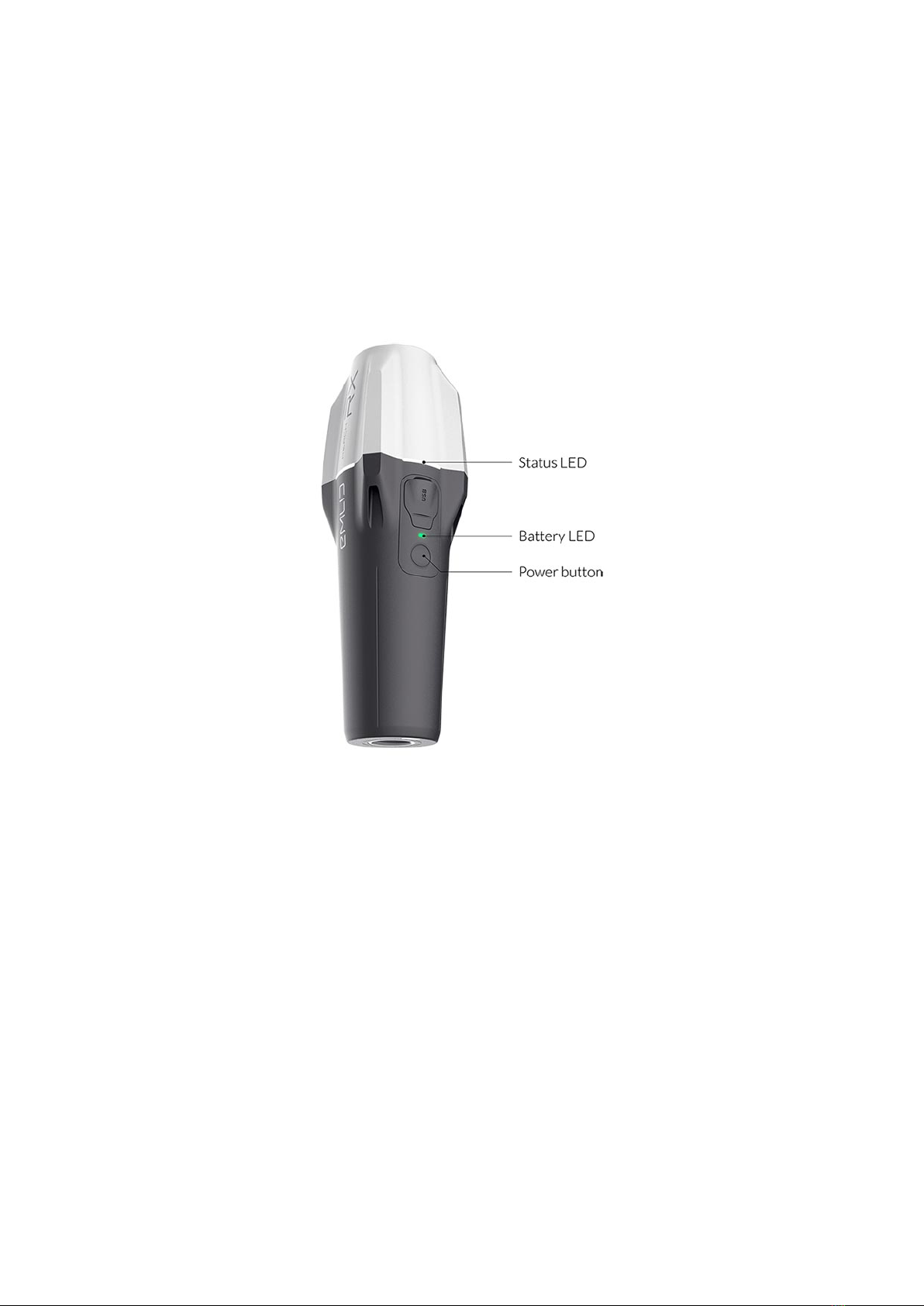
You can check the operating state of the receiver by watching its Status LED. Possible statuses
of the Status LED are the following:
Off Reach RX is turned off.
“Breathing” white Reach RX is loading.
Solid light Reach RX is operating. This state can be represented by 3 different
colors: white, yellow, and green.
1.2 Connecting to Reach RX
Downloading Emlid Flow
To manage Reach RX, download the Emlid Flow app on your iOS or Android mobile device.
Powering on Reach RX
To power up your Reach RX, follow the steps below:
1. Press the Power button once to display the current charge level. If it’s low, charge the
receiver from a USB wall charger or a power bank using the supplied USB Type–C cable.
2. Hold the power button for a couple of seconds to turn the unit on.
3. Wait until the loading is over, and the Status LED becomes solid white. Learn more
about the Reach RX operating states in the Power supply and operation guide.
Now you can connect to your Reach RX using Emlid Flow.
Connecting to Reach RX
To connect to your Reach using Emlid Flow, follow the steps
below:
1. Enable Bluetooth on your mobile device.
2. Open Emlid Flow and find your Reach from the list of
available devices. Once you connect to the receiver, the
Status LED will blink 2 times.
The app will automatically connect to your Reach if no
other receivers are available in the list of devices.
Troubleshooting:
•If your Reach RX has not been detected, make sure that
Bluetooth is turned on and all the permissions are enabled
on your device.
•Some Android devices have the Battery optimization setting
enabled by default. Make sure you disabled it for Emlid
Flow to avoid disconnection.
4