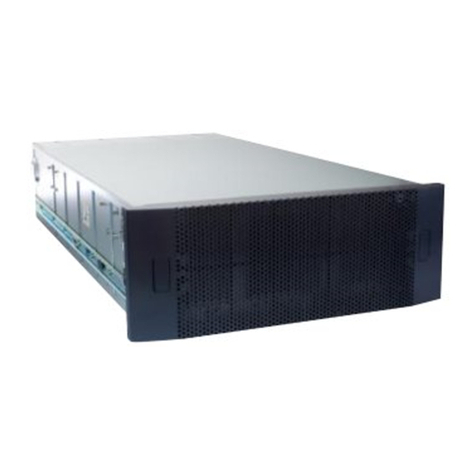
EMC VPLEX with GeoSynchrony 4.2 Instructions de montage

EMC Corporation
Corporate Headquarters:
Hopkinton, MA 01748-9103
1
-508-435-1000
www.EMC.com
EMC®VPLEX™
with GeoSynchrony™ 4.2
Installation and Setup Guide
P/N 300-012-080
REV A01

EMC VPLEX with GeoSynchrony 4.2 Installation and Setup Guide
2
Copyright © 2011 EMC Corporation. All rights reserved.
Published January 2011
EMC believes the information in this publication is accurate as of its publication date. The information is subject to change
without notice.
THE INFORMATION IN THIS PUBLICATION IS PROVIDED “AS IS.” EMC CORPORATION MAKES NO
REPRESENTATIONS OR WARRANTIES OF ANY KIND WITH RESPECT TO THE INFORMATION IN THIS PUBLICATION,
AND SPECIFICALLY DISCLAIMS IMPLIED WARRANTIES OF MERCHANTABILITY OR FITNESS FOR A PARTICULAR
PURPOSE.
Use, copying, and distribution of any EMC software described in this publication requires an applicable software license.
For the most up-to-date listing of EMC product names, see EMC Corporation Trademarks on EMC.com.
All other trademarks used herein are the property of their respective owners.
For the most up-to-date regulatory document for your product line, go to the Document/Whitepaper Library on EMC
Powerlink.

EMC VPLEX with GeoSynchrony 4.2 Installation and Setup Guide 3
Preface.................................................................................................................................................... 11
Chapter 1 Introduction
VPLEX overview..................................................................................................... 14
Major components............................................................................................ 16
Preparing for a new installation ........................................................................... 18
Required planning and preparation .............................................................. 18
Required hardware........................................................................................... 19
Required software ............................................................................................ 19
Required tools ................................................................................................... 19
Chapter 2 Installing the Hardware
Installing a cluster................................................................................................... 22
Task 1: Unpack and set up the cabinet ..........................................................22
Task 2: Check the components ....................................................................... 22
Task 3: Stabilize the equipment ......................................................................23
Task 4: Connect the front-end and back-end cables ....................................23
Task 5: Connect to the customer network .....................................................26
Task 6: VPLEX Metro only: Connect the clusters ........................................26
Task 7: Power the components ON ................................................................27
Chapter 3 Setting up a VPLEX Local implementation
Overview.................................................................................................................. 32
VPLEX Local setup procedure.............................................................................. 33
Task 1: Verify preliminary tasks .....................................................................33
Task 2: Configure your laptop for direct connection ..................................33
Task 3: Set the public IP address on management server ...........................35
Task 4: Launch the EZ-Setup Wizard ............................................................38
Task 5: Verify the product version ................................................................. 38
Task 6: Expose back-end storage ....................................................................38
Task 7: Resume EZ-Setup ................................................................................39
Task 8: Restart the web server if necessary ...................................................39
Task 9: Create a meta-volume .........................................................................39
Task 10: Back up the meta-volume ................................................................40
Task 11: Enable the front-end ports ............................................................... 41
Task 12: Register the cluster ............................................................................41
Task 13: Set up ESRS if necessary ...................................................................41
Contents

EMC VPLEX with GeoSynchrony 4.2 Installation and Setup Guide
4
Task 14: Check the cluster health ................................................................... 41
Task 15: Expose storage to hosts .................................................................... 41
Task 16: Perform a rescan ............................................................................... 44
Reference: Reverting the setup............................................................................. 45
Chapter 4 Setting up a VPLEX Metro implementation
Overview ................................................................................................................. 48
VPLEX Metro setup procedure ............................................................................ 49
Task 1: Verify preliminary tasks .................................................................... 49
Task 2: Set the public IP address .................................................................... 49
Task 3: Launch the EZ-Setup Wizard on cluster 1 ...................................... 55
Task 4: Verify the product version ................................................................ 55
Task 5: Expose back-end storage ................................................................... 55
Task 6: Resume EZ-Setup ............................................................................... 56
Task 7: Create a meta-volume ........................................................................ 56
Task 8: Back up the meta-volume .................................................................. 57
Task 9: Enable the front-end ports ................................................................. 58
Task 10: Register cluster 1 ............................................................................... 58
Task 11: Connect to cluster 2 .......................................................................... 58
Task 12: Synchronize the clusters .................................................................. 58
Task 13: Launch the EZ-Setup Wizard on cluster 2 .................................... 59
Task 14: Verify the product version .............................................................. 59
Task 15: Expose back-end storage on cluster 2 ............................................ 59
Task 16: Resume EZ-Setup on cluster 2 ........................................................ 59
Task 17: Create a meta-volume on cluster 2 ................................................. 60
Task 18: Back up the meta-volume ................................................................ 61
Task 19: Set up ESRS on each cluster if necessary ....................................... 61
Task 20: Open a VPlexcli session to cluster 1 ............................................... 61
Task 21: Complete the EZ-Setup on cluster 1 .............................................. 62
Task 22: Restart the web server on cluster 1 if necessary ........................... 62
Task 23: Complete the EZ-Setup on cluster 2 .............................................. 62
Task 24: Zone the WAN ports on both clusters ........................................... 62
Task 25: Restart the web server on cluster 2 if necessary ........................... 62
Task 26: Register cluster 2 ............................................................................... 63
Task 27: Join the clusters ................................................................................. 63
Task 28: Create logging volumes ................................................................... 63
Task 29: Check the cluster health ................................................................... 64
Task 30: Expose storage to hosts .................................................................... 65
Task 31: Perform a rescan ............................................................................... 68
Reference: Reverting the setup............................................................................. 69
Appendix A Reference
IP addresses and component IDs......................................................................... 72
Internal cabling....................................................................................................... 74
Quad-engine configuration ............................................................................ 75
Dual-engine configuration.............................................................................. 79
Single-engine configuration ........................................................................... 83
Cabinet power connections................................................................................... 85
SNMP Statistics....................................................................................................... 86
Index ....................................................................................................................................................... 87

EMC VPLEX with GeoSynchrony 4.2 Installation and Setup Guide 5
Title Page
1 VPLEX hardware example: Single-engine configuration................................................ 14
2 VPLEX hardware example: Dual-engine configuration.................................................. 15
3 VPLEX hardware example: Quad-engine configuration ................................................ 16
4 Engine components...............................................................................................................17
5 Directors and I/O module carrier ...................................................................................... 22
6 Power cable wire bails.......................................................................................................... 22
7 Engine components: Front view ......................................................................................... 23
8 VPLEX I/O ports................................................................................................................... 24
9 I/O port cabling: Example for bottom entry..................................................................... 25
10 Management server connection to customer IP network................................................ 26
11 Intercluster cabling................................................................................................................ 26
12 WAN cable routing on cable holders ................................................................................. 27
13 Cabinet power switches and circuit breakers ................................................................... 28
14 SPS power switches ..............................................................................................................28
15 SPS and director LEDs.......................................................................................................... 29
16 UPS, front view...................................................................................................................... 29
17 UPS, rear view ....................................................................................................................... 29
18 Fibre Channel switch, rear (port side) view...................................................................... 30
19 Management server power button and LEDs................................................................... 30
20 Overview of VPLEX Local setup tasks............................................................................... 32
21 Laptop connection to management server ........................................................................ 33
22 PuTTY settings for VPLEX_service session....................................................................... 34
23 PuTTY configuration: SSH protocol ................................................................................... 35
24 PuTTY settings for login over network.............................................................................. 37
25 PuTTY configuration: SSH protocol ................................................................................... 37
26 VPLEX Management Console: Provision Storage button ............................................... 42
27 Overview of VPLEX Metro setup tasks ............................................................................. 48
28 Laptop connection to management server ........................................................................ 49
29 PuTTY settings for VPLEX_service session....................................................................... 50
30 PuTTY configuration: SSH protocol ................................................................................... 51
31 PuTTY settings for logging in to cluster 1 over the customer network ........................ 53
32 PuTTY configuration: SSH protocol ................................................................................... 54
33 PuTTY settings for logging in to cluster 2 over the customer network ........................ 54
34 VPLEX Management Console: Provision Storage button ............................................... 65
35 Component IP addresses in cluster 1 ................................................................................. 72
36 Component IP addresses in cluster 2 (VPLEX Metro only)............................................ 73
37 Ethernet cabling in a quad-engine configuration............................................................. 75
38 Serial cabling in a quad-engine configuration .................................................................. 76
39 Fibre Channel cabling in a quad-engine configuration ................................................... 77
40 AC power cabling in a quad-engine configuration.......................................................... 78
Figures

EMC VPLEX with GeoSynchrony 4.2 Installation and Setup Guide
6
Figures
41 Ethernet cabling in a dual-engine configuration ............................................................. 79
42 Serial cabling in a dual-engine configuration................................................................... 80
43 Fibre Channel cabling in a dual-engine configuration.................................................... 81
44 AC power cabling in a dual-engine configuration .......................................................... 82
45 Ethernet cabling in a single-engine configuration........................................................... 83
46 Serial cabling in a single-engine configuration ................................................................ 83
47 Fibre Channel cabling in a single-engine configuration ................................................. 83
48 AC power cabling in a single-engine configuration........................................................ 84
49 Power connectors in a VPLEX cabinet............................................................................... 85

EMC VPLEX with GeoSynchrony 4.2 Installation and Setup Guide 7
Title Page
1 Major VPLEX hardware components................................................................................. 16
2 Data center acclimation times ............................................................................................. 23
Tables


EMC VPLEX with GeoSynchrony 4.2 Installation and Setup Guide 9
The following warnings and cautions pertain throughout this guide.
Warning Trained service personnel only.
This EMC product has more than one power supply cord. To reduce the risk of electric
shock, disconnect all power supply cords before servicing.
Ground-circuit continuity is vital for safe operation of the machine. Never operate
the machine with grounding conductors disconnected. Remember to reconnect any
grounding conductors removed for or during any installation procedure.
Attention Resérvé au personnel autorisé.
Cet appareil EMC comporte plus d'un cordon d'alimentation. Afin de prévenir les
chocs électriques, débranchez tous les cordons d'alimentation avant de faire le
dépannage.
Un circuit de terre continu est essentiel en vue du fonctionnement sécurisé de
l'appareil. Ne mettez jamais l'appareil en marche lorsque le conducteur de mise à la
terre est débranché.
Warnung Nur für Fachpersonal.
Dieses EMC Produkt verfügt über mehrere elektrische Netzanschlüsse. Zur
Vermeidung eines elektrischen Schlages sind vor Servicearbeiten an der
Stromversorgung alle Netzanschlüsse zu trennen.
Kontinuierliche Erdung ist notwendig während der gesamten Betriebsdauer des
Gerätes. Es ist unzulässig das Gerät ohne Erdung zu betreiben. Gerät muss geerdet
werden, bevor es am Stromnetz angeschlossen wird.
Additional warnings
and cautions
Before attempting to service the EMC hardware described in this document, observe
the following additional warnings and cautions:
WARNING
The hardware enclosure contains no user-serviceable parts, so it should not be moved
or opened for any reason by untrained persons. If the hardware needs to be relocated
or repaired, only qualified personnel familiar with safety procedures for electrical
equipment and EMC hardware should access components inside the unit or move the
unit.
Warnings and Cautions

EMC VPLEX with GeoSynchrony 4.2 Installation and Setup Guide
10
Warnings and Cautions
WARNING
This product operates at high voltages. To protect against physical harm, power off
the system whenever possible while servicing.
WARNING
In case of fire or other emergency, isolate the system's power involved and alert
appropriate personnel.
CAUTION
!
Trained personnel are advised to exercise great care at all times when working on
the EMC hardware.
Remember to:
◆Remove rings, watches, or other jewelry and neckties before you begin any
procedures.
◆Use caution near any moving part and any part that may start unexpectedly
such as fans, motors, solenoids, etc.
◆Always use the correct tools for the job.
◆Always use the correct replacement parts.
◆Keep all paperwork, including incident reports, up to date, complete, and
accurate.
Static precautions EMC incorporates state-of-the-art technology in its designs, including the use of LSI
and VLSI components. These chips are very susceptible to damage caused by static
discharge and need to be handled accordingly.
CAUTION
!
Before handling printed circuit boards or other parts containing LSI and/or VLSI
components, observe the following precautions:
◆Store all printed circuit boards in antistatic bags.
◆Use a ground strap whenever you handle a printed circuit board.
◆Unless specifically designed for nondisruptive replacement, never plug or
unplug printed circuit boards with the power on. Severe component damage
may result.
Table des matières
Autres manuels EMC Serveur

EMC
EMC CLARiiON Manuel utilisateur

EMC
EMC Connectrix B Series Guide rapide de l'utilisateur

EMC
EMC VNXe3100 Manuel utilisateur

EMC
EMC SVR-I1U-1208 Manuel du produit

EMC
EMC SVR-I1U-1304 Manuel du produit

EMC
EMC IS1200 Manuel utilisateur

EMC
EMC SVR-I2U-H2316 Manuel du produit

EMC
EMC CLARiiON 300002039 Manuel utilisateur

EMC
EMC Data Domain DD670 Manuel d'utilisation et d'entretien

EMC
EMC Celerra Manuel d'installation