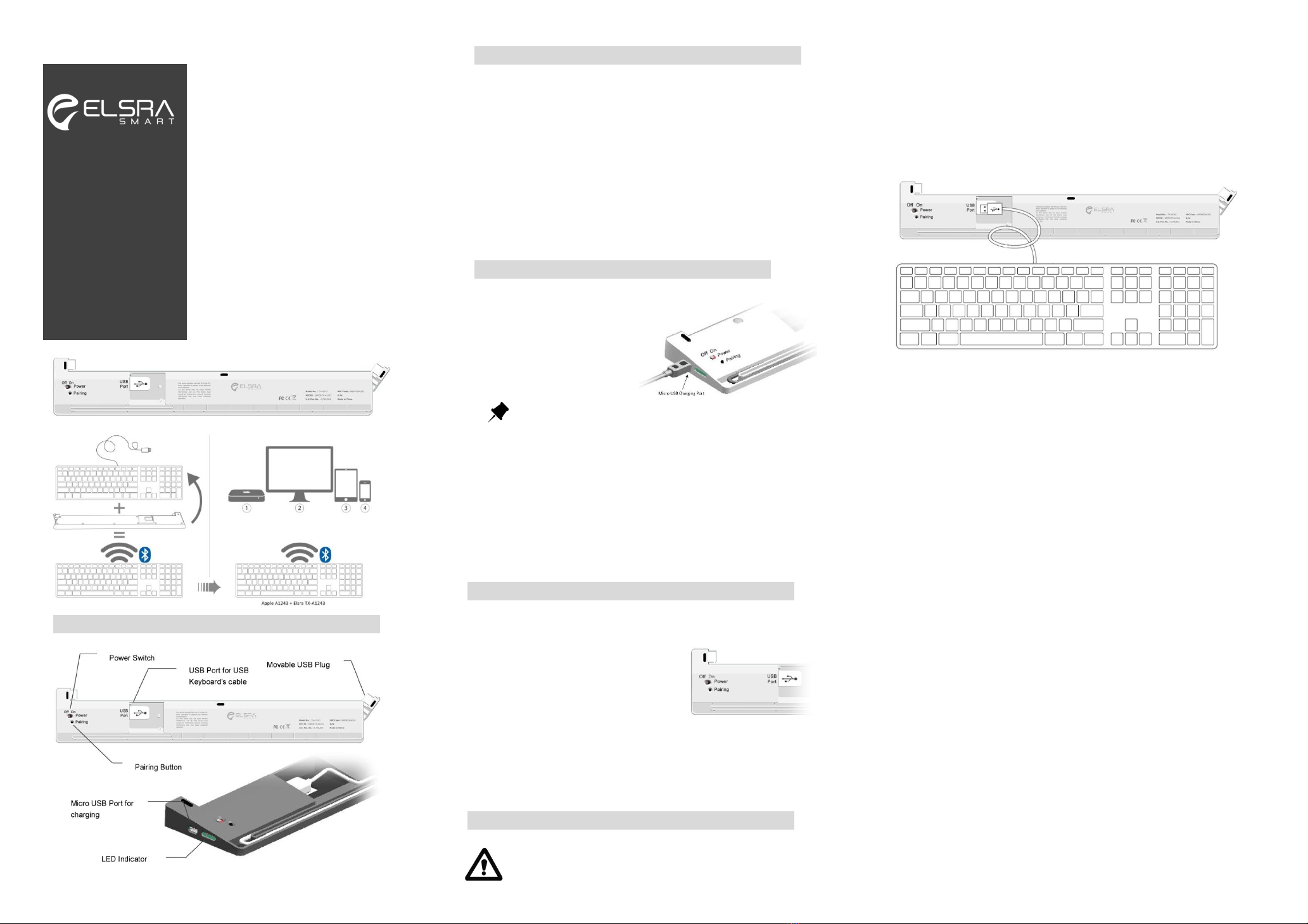
Register another Bluetooth host, iPad for example
1. Hold the fn key and press 2 key, located on numeric keypad.
2. Follow above step 2 of “The connecting to host Mac”.
Switch Bluetooth host back and forth between Mac and iPad
1. Hold the fn key and press 1 key. The TX-A1243 now is linked back to Mac.
LED Indication
Description Behavior
LED (Green)
Power On Flash 3 times or more until
connecting to Bluetooth host
Pairing Flash LED until connecting to
Bluetooth host
Bluetooth Host
Swap
Flash 3 times or more until
connection to pre-set
Bluetooth host
LED (Red) Battery Low LED begins to flash slowly
Charging Status LED in solid while in charging
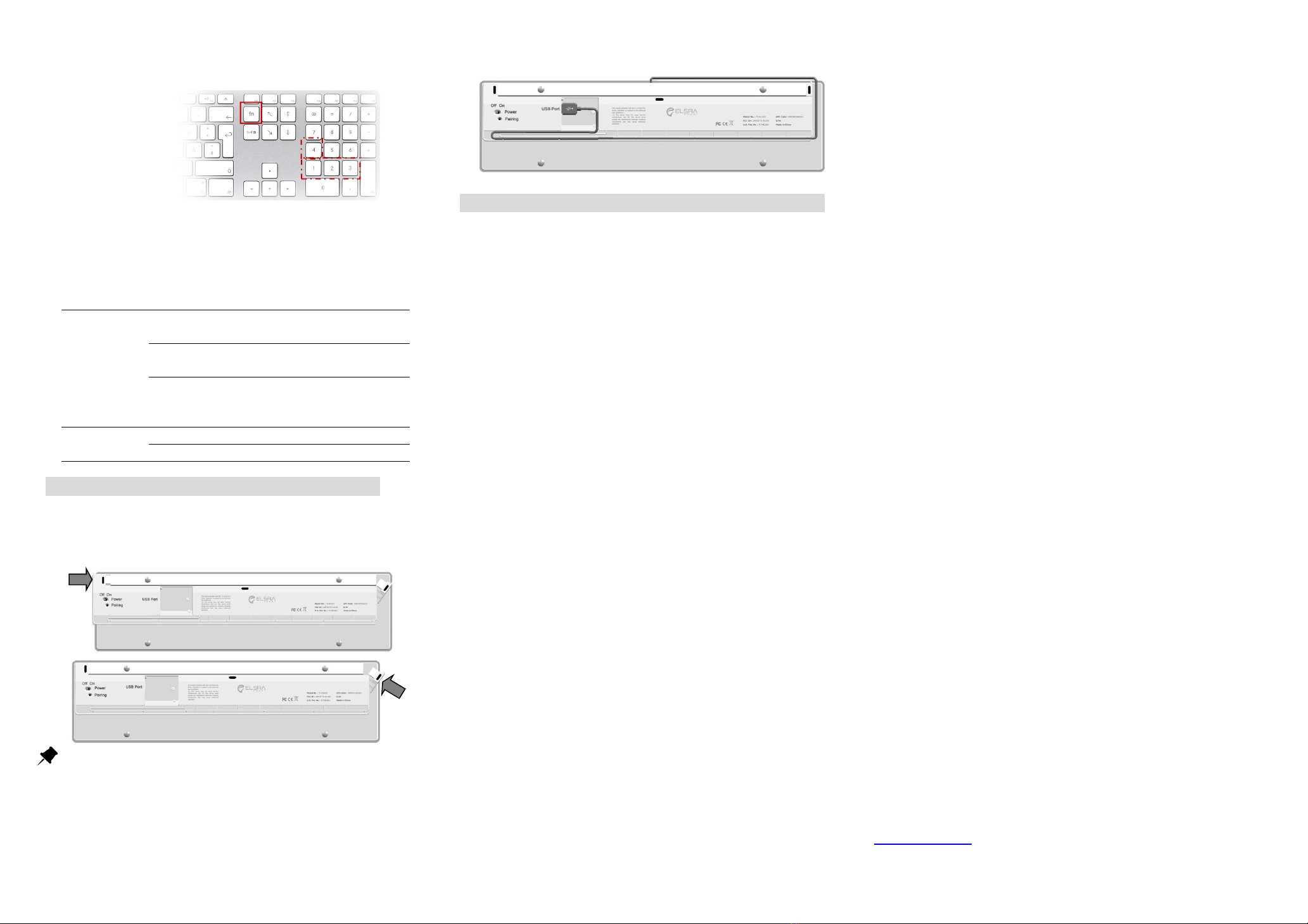
Install TX Kit on Apple Keyboard
1. Turn power off and unplug USB cable from TX-A1243
2. Turn the Apple keyboard over and plug fix-USB plug of the TX-A1243 in
right USB Hub first.
Tips: To firmly clinch the TX-A1243 on the back of Apple Keyboard, please
make sure USB plugs are well in USB Hubs.
3. Then plug movable USB plug of the TX-A1243 in left USB Hub.
4. Plug USB cable of Apple Keyboard to USB port of TX-A1243.
5. Wind the USB cable in the cable compartment as following illustration.
6. Turn the power of TX-A1243 on and now you can use your Bluetooth
full-size Apple Keyboard.
FAQ
1. The Apple Keyboard shows an erratic behavior such as a sudden loss of
connection, sleep mode after a short time (i.e. only a few seconds), no
connection possible when trying to pair, etc.
Erratic behavior of the TX-A1243 can be a result of (too) low battery power.
You should re-charge the batteries now.
2. Connection Problem – no longer connect to the Mac
OS updates (seven small version updates) can cause damage to the Bluetooth
thread os that the connection from Mac to the TX-A1243 is no longer possible.
Process as follows:
1). Remove all entries in the device list of the Bluetooth Assistant.
2). Turn off the Mac and the TX-A1243
3). Restart the Mac and then shut it down again (the Mac should start up at
least once without being connected to the TX-A1243
4). Reconnect the TX1243
3. The function of F1 ~F12 keys under Mac are different and sometimes
strange functions.
The function keys of Apple Keyboard with TX-A1243 are sometimes strange if
you also use original Apple keyboard like Wireless Magic Keyboard.
4. Can the Apple Keyboard with TX-A1243 be connected with various
Computers, i.e. Macintosh™ computers, MacBook and switch back and
forth?
Yes, your Apple Keyboard with TX-A1243 now can be connected with
Macintosh™ computer, iPod, iPhone and etc. up to 4 Bluetooth enabled hosts,
please refer to pairing procedure. When switching to another Macintosh™,
holding Fn key and press pre-register host number from 1 ~ 4 keys.
5. Can the battery power status be read in the Apple™ System Preferences
like with the Apple™ wireless keyboard?
No, there is no battery level indication for the current battery power status.
Once the battery power is low, the TX-A1243 will display an erratic behavior
like loosing the connection all the time, having difficulty to do the pairing, etc.
6. During the process of pairing the TX-A1243 with the Macintosh™, there is
a window displayed called “Keyboard identification”. I am supposed to
press the key next to the shift key.
The message can be ignored. Simply press the red button in the upper left
corner to close this window. Your Macintosh™ will recognize your Apple
Keyboard with TX-A1243.
7. When power dead, I plug micro USB cable for charging but keyboard
doesn’t work.
Please turn power off and wait for 5 ~ 10 seconds, then Turn power on again.
It is because the battery is totally dead and not enough power to active the
Bluetooth TX-A1243. Therefore, please power Off and On again.
_______________________________________________________________________________
All rights reserved. All trade names are registered trademarks of the respective manufacturers listed.
All specifications are subject to change without prior notice.
This device complies with Part 15 of the FCC Rules. Operation is subject to the
following two conditions:
(1) This device may not cause harmful interference, and (2) This device must
accept any interference received, including interference that may cause
undesired operation.
Federal Communication Commission Interference Statement
This equipment has been tested and found to comply with the limits for a Class B
digital device, pursuant to Part 15 of the FCC Rules. These limits are designed to
provide reasonable protection against harmful interference in a residential
installation.
This equipment generates, uses and can radiate radio frequency energy and, if not
installed and used in accordance with the instructions, may cause harmful
interference to radio communications. However, there is no guarantee that
interference will not occur in a particular installation. If this equipment does cause
harmful interference to radio or television reception, which can be determined by
turning the equipment off and on, the user is encouraged to try to correct the
interference by one of the following measures:
. Reorient or relocate the receiving antenna.
. Increase the separation between the equipment and receiver.
. Connect the equipment into an outlet on a circuit different from that to which the
receiver is connected.
. Consult the dealer or an experienced radio/TV technician for help.
FCC Caution: To assure continued compliance, any changes or modifications not
expressly approved by the party responsible for compliance could void the user's
authority to operate this equipment. (Example - use only shielded interface cables
when connecting to computer or peripheral devices).
FCC Radiation Exposure Statement
This equipment complies with FCC RF radiation exposure limits set forth for an
uncontrolled environment.
www.elsra.com
info@elsra.com