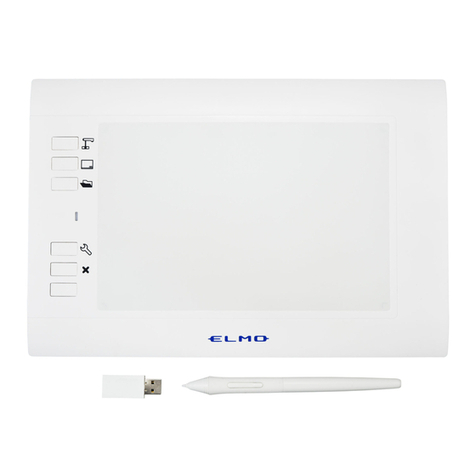
Elmo CRA-1 Manuel utilisateur

User's Guide (Operation)
ELMO Wireless Slate / Tablet (CRA-1)
Read this User's Guide carefully before using the CRA-1.
Store this User's Guide in a safe place in case you need it again.

2
oving the
IMPORTANT SAFETY INSTRUCTIONS
1) Read these instructions.
2) Keep these instructions.
3) Heed all warnings.
4) Follow all instructions.
5) Do not use this apparatus near water.
6) Clean only with dry cloth.
7) Do not block any ventilation openings,
Install in accordance with the
manufacturer’s instructions.
8) Do not install near any heat sources
such as radiators, heat registers, stoves,
or other apparatus (including amplifiers)
that produce heat.
9) Do not defeat the safety purpose of the
polarized or grounding-type plug. A
polarized plug has two blades with one
wider than the other. A grounding type
plug has two blades and a third grounding
prong. The wide blade or the third prong
are provided for your safety.
If the provided plug does not fit into your
outlet, consult an electrician for
replacement of the obsolete outlet.
10) Protect the power cord from being
walked on or pinched particularly at
plugs, convenience receptacles, and the
point where they exit from the apparatus.
11) Only use attachments/accessories
specified by the manufacturer.
12) Use only with the cart, stand, tripod,
bracket, or table
specified by the
manufacturer, or sold
with the apparatus.
When a cart is used,
use caution when m
cart/apparatus combination to avoid
injury from tip-over.
13) Unplug this apparatus during lighting
storms or when unused for long periods
of time.
14) Refer all servicing to qualified service
personnel. Servicing is required when
the apparatus has been damaged in any
way, such as power-supply cord or plug
is damaged, liquid has been spilled or
objects have fallen into the apparatus,
the apparatus has been exposed to rain
or moisture, does not operate normally,
or has been dropped.
The lightning flash with arrowhead symbol,
within an equilateral triangle, is intended to
alert the user to the presence of uninsulated
"dangerous voltage" within the product's
enclosure that may be of sufficient magnitude
to constitute a risk of electric shock to persons.
This marking is located at the bottom of
product.
The exclamation point within an equilateral
triangle is intended to alert the user to the
presence of important operating and
maintenance (servicing) instructions in the
literature accompanying the product.

WARNING:
TO REDUCE THE RISK OF FIRE OR ELECTRIC SHOCK, DO NOT EXPOSE THIS
PRODUCT TO RAIN OR MOISTURE.
WARNING: Handling the cord on this product or cords associated with accessories sold with this product, will
expose you to lead, a chemical known to the State of California to cause birth defects or other reproductive harm.
Wash hands after handling.
NOTICE:
This device complies with Part 15 of the FCC Rules and with RSS-210 of Industry Canada. Operation
is subject to the following two conditions:
(1) this device may not cause harmful interference, and
(2) this device must accept any interference received, including interference that may cause undesired
operation.
Changes or modifications made to this equipment not expressly approved by (manufacturer name)
may void the FCC authorization to operate this equipment.
This equipment has been tested and found to comply with the limits for a Class B digital device,
pursuant to Part 15 of the FCC Rules. These limits are designed to provide reasonable protection
against harmful interference in a residential installation. This equipment generates, uses and can
radiate radio frequency energy and, if not installed and used in accordance with the instructions, may
cause harmful interference to radio communications. However, there is no guarantee that
interference will not occur in a particular installation. If this equipment does cause harmful
interference to radio or television reception, which can be determined by turning the equipment off and
on, the user is encouraged to try to correct the interference by one or more of the following measures:
• Reorient or relocate the receiving antenna.
• Increase the separation between the equipment and receiver.
• Connect the equipment into an outlet on a circuit different from that to which the receiver is connected.
• Consult the dealer or an experienced radio/TV technician for help.
Radiofrequency radiation exposure Information:
The radiated output power of the device is far below the FCC radio frequency exposure limits.
Nevertheless, the device shall be used in such a manner that the potential for human contact
during normal operation is minimized.
Indonesia: DGPT
CRA-1 :17873/SDPPI/2011; PLG.ID 3512
CRA-1R:17874/SDPPI/2011; PLG.ID 3512
Malaysia: SIRIM
CRA-1 :RAHY/23F/1210/S(10-2149) CRA-1,ELMO COMPANY LTD.
CRA-1R:RAVG/31N/1210/S(10-2150) CRA-1R,ELMO COMPANY LTD.
Singapore: IDA
CRA-1 :Approved by IDA for use in Singapore. N2558-10
CRA-1R:Approved by IDA for use in Singapore. N2559-10
South Africa: ICASA
CRA-1 :TA-2010/1494
CRA-1R:TA-2010/1493
Thailand: NTC
This telecommunication equipment conforms to NTC technical requirement.
3

Contents
Before Use ...........................................................................................................................6
Main Functions ..................................................................................................................7
Supplied Items.................................................................................................................10
Part Names .....................................................................................................................11
Preparations ....................................................................................................................12
Inserting and Charging the Battery Pack.......................................................................12
Inserting the Battery into the Pen ..................................................................................13
Installing the Tablet Software (Image Mate Accent).......................................................14
Basic Tablet Operations...................................................................................................16
Basic Pen Operations ...................................................................................................16
Basic Screen Configuration...........................................................................................17
Connections.......................................................................................................................18
Using in a Lesson..............................................................................................................19
Basic Operations in Document Camera Mode ................................................................22
Operation ......................................................................................................................22
Operating the Document Camera .................................................................................24
Drawing .........................................................................................................................25
Drawing Straight Lines ..................................................................................................26
Deleting .........................................................................................................................27
Recording a Lesson ......................................................................................................28
Quitting..........................................................................................................................29
Advanced Operations in Document Camera Mode .........................................................30
Using the Mask .............................................................................................................30
Using the Highlight ........................................................................................................31
Using the Scroll .............................................................................................................32
Using Compare Pictures ...............................................................................................33
Whiteboard Mode ............................................................................................................34
Operation ......................................................................................................................34
Changing the Background.............................................................................................34
Setting the Computer Images as the Background.........................................................37
Teaching Material Import Mode .......................................................................................39
Operation ......................................................................................................................39
Selecting a Teaching Material .......................................................................................39
Selecting a Video ..........................................................................................................40
Deleting a Teaching Material .........................................................................................41
Menu List.........................................................................................................................44
Document Camera Mode ..............................................................................................44
4

Whiteboard Mode..........................................................................................................47
Teaching Material Import Mode .....................................................................................49
Function List ....................................................................................................................51
Creating Teaching Materials.............................................................................................52
Teaching Material Creation Mode....................................................................................53
Operation ......................................................................................................................53
Creating a Teaching Material with the Document Camera ............................................54
Creating a Teaching Material with a Method Other Than the Document Camera..........57
File Operations..............................................................................................................64
Menu List.........................................................................................................................67
Teaching Material Creation Mode..................................................................................67
Function List ....................................................................................................................69
Various Settings ................................................................................................................70
Setting Mode ...................................................................................................................71
Tablet Status Display.....................................................................................................72
Setting the Pen..............................................................................................................73
Other Functions.................................................................................................................74
Replacing the Pen Tip .....................................................................................................74
Storing the Wireless Adapter and Pen.............................................................................74
About the LEDs ...............................................................................................................75
Setting the Pen Writing Style ...........................................................................................76
Adding a Stamp ...............................................................................................................78
Wireless Communication Settings for the Tablet .............................................................79
Troubleshooting ................................................................................................................80
Product Specifications .....................................................................................................83
System Requirements .....................................................................................................84
About the Separately Sold Accessories...........................................................................85
Usage Precautions ..........................................................................................................85
Disclaimer........................................................................................................................87
About Trademarks ...........................................................................................................87
About the Warranty..........................................................................................................88
5

Before Use
Thank you very much for purchasing this product.
Please read this manual carefully to make suitable use of the Tablet. Also,
please be sure to refer to any supplemental information included with this
product.
Caution
Please note that screens and figures used in this manual may differ from the actual
views.
6

Main Functions
This product (Tablet) is an educational tool that makes lessons using ELMO's Document
Camera more enjoyable and easier to understand.
The Tablet has several key features for teaching more effective lessons.
■Drawing on the Document Camera image
By drawing directly onto the Document Camera image, you can easily get important points
hat were difficult to explain just by image across to students.t
■Operating the Document Camera
Operations such as zooming with the Document Camera are simple to perform with the menu
uttons on the screen.b
■Free to operate from a distance
A wireless system is used to enable you to draw from wherever you want in the classroom.
7

■Using as a whiteboard
You can select an image to use as the background in your lesson, such as graph paper or
musical score.
You can draw graphs or press an item stamp to position illustrations such as human figures or
fruit, helping you to create teaching materials.
It is simple to retrieve created teaching materials to use in class.
■Recording a lesson
Several recording methods are available for different objectives.
Lesson recording :Record both the text written on the Document Camera
image and audio.
Intermittent recording :Records changes over a long time at constant intervals.
Frame recording :Records only the scenes that you select for recording.
Easy, one-touch playback can be performed on recorded images. In lesson recording, both
the examples that you want to show to the students and any written text are recorded
together, so you can show them to the students again to help with their learning.
8

■Drawing on a computer screen
You can operate a computer with the Tablet.
You can use the Tablet instead of a mouse to operate a computer, or to draw directly on the
computer screen.
■Drawing straight lines
The straight line pen and marker have a straight line correction function.
It automatically converts a handwritten straight line into a precise straight line.
This function is useful for drawing graphs and figures, and for underlining.
9

Supplied Items
The package of this product contains the following items. Contact your dealer if any of the
following items are not included in the package you purchased.
10
Before use
Tablet
Tweezers for
replacing a core
Wireless
adapter
Pen
Battery pack
for the tablet
(Lithium-ion battery)
Extra core ×3 Dry cell AAA
battery
(For the pen)
USB cable
for charging
(CD-ROM)
Application software
(For connecting Document Camera
to computer)
RGB / USB composite cable
Autres manuels pour CRA-1
2
Table des matières
Autres manuels Elmo Comprimé