
Elko EKO07248 Manuel utilisateur
Smart IP Camera Indoor
Device User Guide
Information about features and functionality of the devices
05/2023
www.elko.no

Legal Information
The ELKO brand and any trademarks of ELKO AS and its subsidiaries referred to in
this guide are the property of ELKO AS or its subsidiaries. All other brands may be
trademarks of their respective owners.
This guide and its content are protected under applicable copyright laws and
furnished for informational use only. No part of this guide may be reproduced or
transmitted in any form or by any means (electronic, mechanical, photocopying,
recording, or otherwise), for any purpose, without the prior written permission of
ELKO.
ELKO does not grant any right or license for commercial use of the guide or its
content, except for a non-exclusive and personal license to consult it on an "as
is" basis. ELKO products and equipment should be installed, operated,
serviced, and maintained only by qualified personnel.
As standards, specifications, and designs change from time to time, information
contained in this guide may be subject to change without notice.
To the extent permitted by applicable law, no responsibility or liability is assumed by
ELKO and its subsidiaries for any errors or omissions in the informational content of
this material or consequences arising out of or resulting from the use of the
information contained herein.

Table of Contents
Safety information.......................................................................................4
Smart IP Camera Indoor ............................................................................5
For your safety ..........................................................................................5
About the device.........................................................................................5
Installing the device ....................................................................................5
Pairing the device .......................................................................................6
Configuring the device ................................................................................8
Changing the device icon ......................................................................8
Renaming the device ............................................................................8
Changing the device location .................................................................9
Configuring basic function settings .......................................................10
Configuring IR Night Vision.................................................................. 11
Setting offline notification..................................................................... 11
Removing the device ................................................................................12
Using the device.......................................................................................12
Using private mode .............................................................................13
Using patrol mode...............................................................................13
Detection Alarm Setting.......................................................................14
Playback ............................................................................................17
Storage settings..................................................................................19
Creating a moment .............................................................................20
Creating an automation .......................................................................21
LED Indication..........................................................................................25
Troubleshooting .......................................................................................26
Technical Data .........................................................................................27
DUG_Smart IPC Indoor_ELKO-01 3

Safety information
Safety information
Important information
Read these instructions carefully and look at the equipment to become familiar
with the device before trying to install, operate, service, or maintain it. The
following special messages may appear throughout this manual or on the
equipment to warn of potential hazards or to call attention to information that
clarifies or simplifies a procedure.
The addition of either symbol to a “Danger” or “Warning” safety label indicates
that an electrical hazard exists which will result in personal injury if the
instructions are not followed.
This is the safety alert symbol. It is used to alert you to potential personal injury
hazards. Obey all safety messages that accompany this symbol to avoid possible
injury or death.
DANGER
DANGER indicates a hazardous situation which, if not avoided, will result in
death or serious injury.
Failure to follow these instructions will result in death or serious injury.
WARNING
WARNING indicates a hazardous situation which, if not avoided, could result
in death or serious injury.
CAUTION
CAUTION indicates a hazardous situation which, if not avoided, could result in
minor or moderate injury.
NOTICE
NOTICE is used to address practices not related to physical injury.
4 DUG_Smart IPC Indoor_ELKO-01

Smart IP Camera Indoor
Smart IP Camera Indoor
EKO07248
For your safety
NOTICE
RISK OF DAMAGE TO DEVICE
Always operate the product in compliance with the specified technical data.
Failure to follow these instructions can result in equipment damage.
About the device
The Smart IP Camera Indoor (hereinafter referred to as IP Camera) is a Wi-Fi®
operated device that is used to monitor sensitive areas of your home. You can
install the IP camera in all directions, e.g. at the ceiling or just put it on a table. The
IP camera can be triggered by other devices.
NOTE: Users are solely responsible for adhering to applicable privacy laws, e.
g. the GDPR, Article 5. Users must ensure that guarantees are taken to avoid
any misuse of equipment for surveillance or entirely different and unexpected
purposes than intended.
Installing the device
Refer to the installation instruction supplied with this product.
See Smart IP Camera Indoor.
DUG_Smart IPC Indoor_ELKO-01 5

Smart IP Camera Indoor
Pairing the device
Using the ELKO Smart app, pair IP camera with the local Wi-Fi network to register
on cloud to access and control the device.
To pair the device:
1. On the Home page, tap +and tap .
2. Plug-in the power cable to power on the device.
Make sure that the LED blinks red.
3. Select Confirm that the LED is blinking red (A) and tap Start
Configuration.
Cancel
How to pair device
1. Plug-in the power cable to power on the
device and observe that the LED is ON for a
few seconds.
EZ Mode
A
6 DUG_Smart IPC Indoor_ELKO-01

Smart IP Camera Indoor
4. Select the Wi-Fi network, enter the Password (B) and tap Next.
NOTE: Make sure to first connect your mobile phone to the home Wi-Fi
and select 2.4 GHz network.
Cancel
Select 2.4GHz Wi-Fi Network and
enter Password.
Next
If your Wi-Fi is 5GHz, please set it to be 2.4GHz.
Password
B
5. Wait for a few seconds until the LED blinks green.
The green LED on the IP camera shows that it is successfully connected to
the Wi-Fi network and ready to use.
6. Once the device is connected, tap Done.
DUG_Smart IPC Indoor_ELKO-01 7
Smart IP Camera Indoor
Configuring the device
Changing the device icon
You can change the device icon using the ELKO Smart app.
1. On the Home page, select the device for which you wish to change the icon.
2. At the top-right corner of the screen, tap .
3. Tap edit next to the device name.
4. Tap Icon to view the menu.
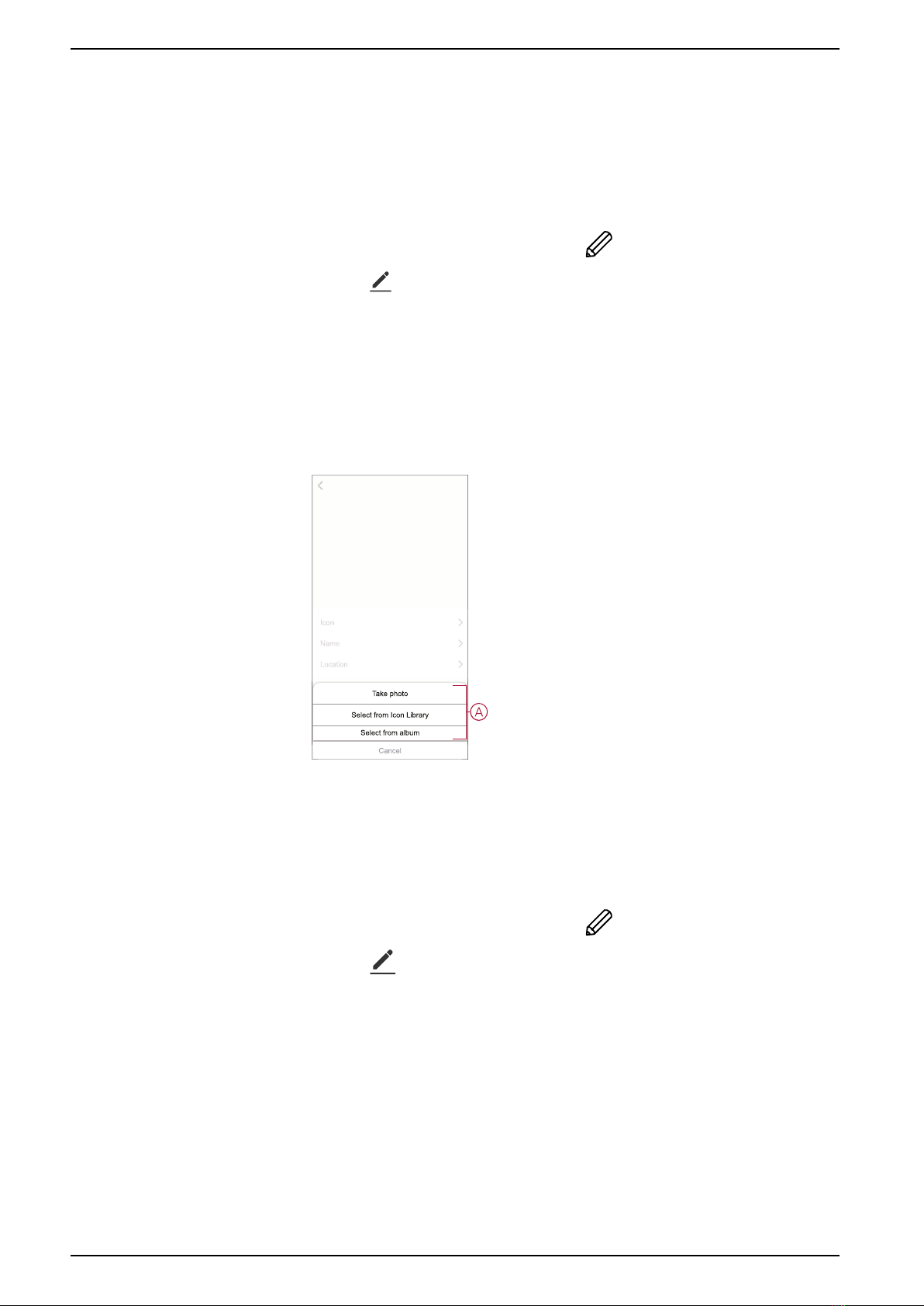
5. In the slide-up menu, select any one of the following (A) to change the device
icon:
–Take photo - allows you to click a photo from the mobile camera.
–Select from Icon Library - allows you to select an icon from the app
library.
–Select from Album - allows you to select a photo from the mobile gallery.
Renaming the device
You can rename the device using the ELKO Smart app.
1. On the Home page, select the device for which you wish to rename.
2. At the top-right corner of the screen, tap .
3. Tap edit next to the device name.
8 DUG_Smart IPC Indoor_ELKO-01

Smart IP Camera Indoor
4. Tap Name, enter the new name (A) and then tap Save.
Name
Name
Save
Rename
A
Changing the device location
You can change the device location using the ELKO Smart app.
1. On the Home page, select the device for which you wish to change the
location.
2. At the top-right corner of the screen, tap .
3. Tap edit next to the device name.
4. Tap Location.
5. Select the desired location from the list (A) and then tap Save.
Device location Save
Living Room
Dining Room
Kids Room
Study Room
Master Bedroom
A
DUG_Smart IPC Indoor_ELKO-01 9

Smart IP Camera Indoor
Configuring basic function settings
Using the ELKO Smart app, you can configure the following features:
Basic Function Settings
Flip Screen
B
A
C
D
Flip screen
Enabling the Flip Screen will turn the screen upside down on the live view on
control panel.
To enable the flip screen:
1. On the Home page, tap All devices >IP Camera Indoor.
2. Tap and tap Settings >Basic Function Settings.
3. Tap the toggle switch (A) to enable the Flip screen.
Time watermark
Enabling the Time Watermark displays the date and time on the live view on
control panel.
To enable the time watermark:
1. On the Home page, tap All devices >IP Camera Indoor.
2. Tap and tap Settings >Basic Function Settings.
3. Tap the toggle switch (B) to enable the Time Watermark.
Talk mode
Using the Talk mode, you can make one-way or two-way communication with the
receiver.
Tap Talk Mode (C) and select one of the options:
–One-Way Communication: tap and hold to send a voice message, the other
party can receive it and then reply to you with a voice message.
–Two-Way Intercom: you and the other party can talk at the same time.
Camera calibration
You can use Camera calibration feature to check if the camera is covering wider
angle of the view.
Tap Camera Calibration (D) and confirm the calibration process.
10 DUG_Smart IPC Indoor_ELKO-01
Autres manuels pour EKO07248
1
Table des matières
Autres manuels Elko Caméra de sécurité


