
Elements esca Manuel utilisateur
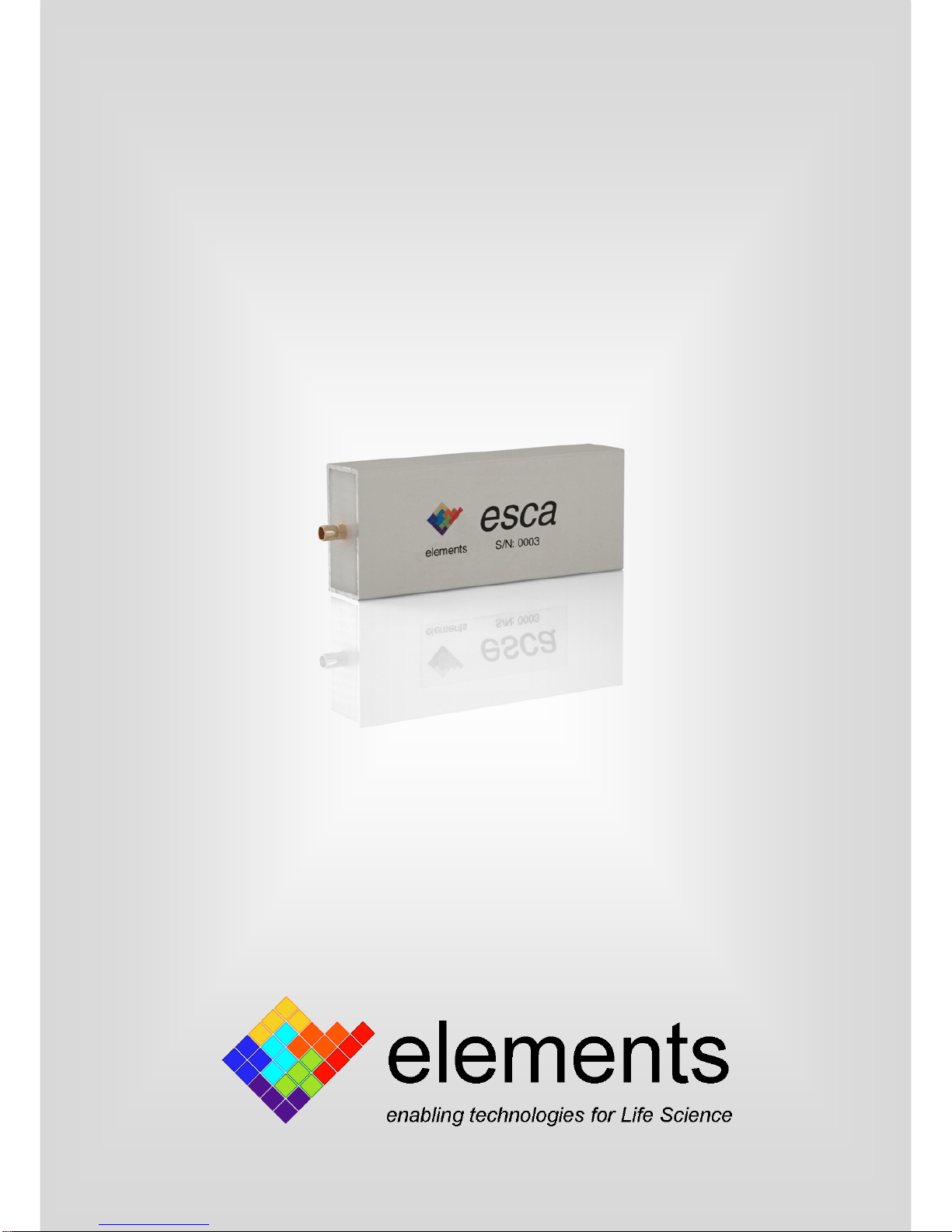
esca
Elements Single Channel Amplifier
User’s Manual v1.2
February 2014

esca User’s Manual v1.2
CONTACTS
Elements s.r.l.
via Montalti, 42
47521 Cesena
ITALY
web: www.elements-ic.com

esca User’s Manual v1.2
CONTENTS
INTRODUCTION ................................................................................................................4
Introduction to ESCA..................................................................................................................................4
HARDWARE SETUP .............................................................................................................4
Front Connections ......................................................................................................................................5
Rear Connections.......................................................................................................................................5
Tipical Experimental Setup........................................................................................................................5
SOFTWARE GUIDE .............................................................................................................6
Requirements .............................................................................................................................................7
Installation..................................................................................................................................................7
Software Operating Procedure ..................................................................................................................9
Graphical User Interface..........................................................................................................................10
ESCA Setup ..............................................................................................................................................11
Digital Offset Compensation....................................................................................................................12
Statistic Data.............................................................................................................................................13
Trace Visualization...................................................................................................................................14
Save Data .................................................................................................................................................16

esca User’s Manual v1.2
INTRODUCTION
INTRODUCTION TO ESCA
ESCA (Elements Single Channel Amplifier) is a current measurement system entirely
contained in a USB stick designed for voltage clamp experiments.
Thanks to a custom-made microchip for low-noise current signal acquisitions, ESCA
achieves high performances in a very small size package.
The main features of ESCA are:
-two input current ranges: ±200 pA and ±20 nA;
-4 selectable signal filters: 625 Hz, 1.25 kHz, 5 kHz and 10 kHz;
-very low noise: 80 fA rms at 625 Hz & < 400 fA rms at 10 kHz (open input);
-integrated voltage stimulus in the range of ±355 mV with 1mV resolution;
-SMB input coaxial connector. Several adapters available;
-small size (30x15x74mm);
-software included;
HARDWARE SETUP
ESCA is designed to be as simple as possible to connect to your various different
setups.
In order to obtain the best performance, the main things to be careful are parasitic
capacitances on the input and correct shielding of the overall hardware setup to avoid
the 50/60Hz line interferences and other electromagnetic interferences.
An adequate faraday cage must be used. The faraday cage should be large enough to
contain all your sensitive equipment and must be connected to the common ground.
Be careful to avoid ground loops by using a “star ground”connection.
Be careful to keep the input sensitive line as far as possible from the faraday cage walls
to limit the parasitic capacitances on the input as much as possible.
The following paragraphs describe all the connections and how to connect them in the
right way.

esca User’s Manual v1.2
FRONT CONNECTIONS
On the front of ESCA there is the connection for your Device Under Test (DUT).
This connector is a coaxial SMB male gold plated connector where the center contact is
the current measurement input and the outer contact is the reference voltage.
IMPORTANT: Do NOT short the reference to the ground.
REAR CONNECTIONS
On the rear of ESCA there are two connectors:
-mini-B female USB connector to connect to the PC through the included USB
cable;
-2mm gold plated ground female connector for connecting the ESCA ground
to a Faraday cage;
TIPICAL EXPERIMENTAL SETUP
This picture shows how to correctly connect ESCA in a typical electrophysiology setup:
USB
Ground
LED
Reference
Input

esca User’s Manual v1.2
To obtain the best noise performances a particular care must be given to the shielding
with a metallic cage (Faraday cage) all around the experimental setup. In particular, it
is important to connect the Faraday cage to the ground connector placed on the rear of
ESCA.
In order to minimize the noise it is also important to minimize parasitic capacitances
between the input and the shielding by keeping the wires as short as possible and as
far as possible from the Faraday cage, including your Device Under Test (DUT).
With certain PC, there can be some issues with USB power supply that can introduce
noise and peaks on the acquired signal. In these cases we recommend to use a
powered USB 2.0 hub.
This is an example of a real setup for artificial lipid bilayer experiments:
SOFTWARE GUIDE
Elements Data Reader (EDR) is the control software for ESCA devices. It enables the
total control of ESCA devices features (such as set the data acquisition properties and
the control voltage) and enables the real time data visualization and data saving. Data
acquired by means of this custom software are handily readable by Matlab® and can

esca User’s Manual v1.2
be saved to be compatible with standard commercial software such as pClamp® from
Molecular Devices®.
IMPORTANT: The software must be installed BEFORE connecting the ESCA device
to the PC.
REQUIREMENTS
The minimum system requirements are:
Dual core processor 1GHz or better
1GB of RAM
A free USB 2.0 port
Windows XP / Vista / Seven / 8
INSTALLATION
To start the installation procedure, double click on the installation executable
EDR_setup_X.XX.exe (time limited evaluation version) or EDR_setup_X.XXu.exe
(unlimited version) and follow the instructions.
During the installation process you will be asked to install the FTDI driver needed to
communicate through USB to the ESCA devices.

esca User’s Manual v1.2
Click on Extract to prepare the installation of these drivers.
Then, start the FTDI installation by clicking on Next button and wait until installation
finishes.

esca User’s Manual v1.2
Now the Elements Data Reader software is correctly installed and ready to start.
After the software installation, you can connect the ESCA device to a free USB port. The
first time you connect the ESCA to your PC, you must wait for the new USB device
complete recognition.
NOTE: If the blue LED in the rear of ESCA doesn't light up or if you receive an installation
error, unplug ESCA from the USB and plug in again.
SOFTWARE OPERATING PROCEDURE
When started, the Elements Data Reader (EDR) software appears as in the following
picture:

esca User’s Manual v1.2
The first operation is to load a configuration file to initialize the software for the ESCA
devices.
This file contains all the necessary setups to communicate with the ESCA hardware.
The configuration file is loaded by clicking on the “Open Config” button. The
configuration file is ESCA_xxx.cfg where xxx is the firmware version of your ESCA
device. The configuration file is located in the EDR installation folder (usually
C:\Program Files (x86)\Elements Data Reader).
GRAPHICAL USER INTERFACE
After loading the config file, the GUI appears as follows:
Table des matières
Autres manuels Elements Amplificateur


