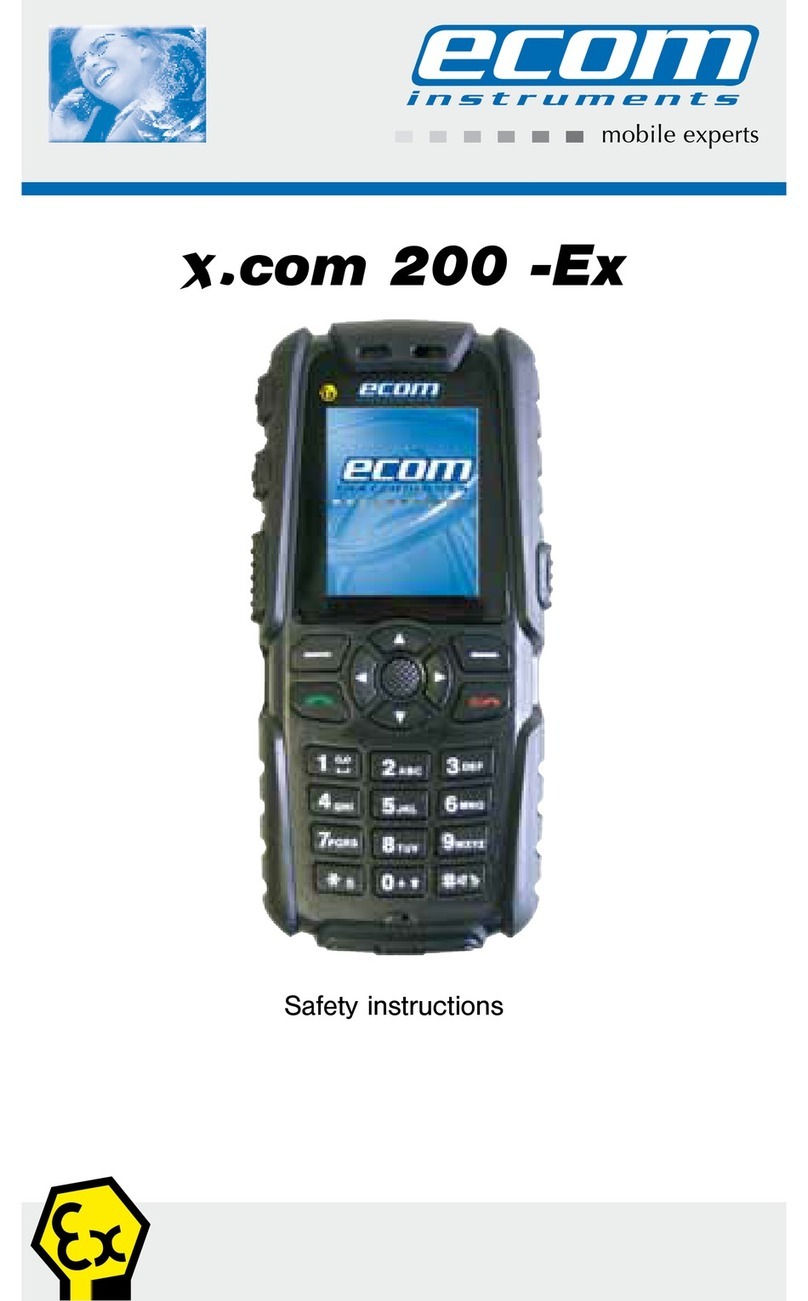
Ecom Ex-Handy 05 Manuel utilisateur

Ex-Handy 05 / Ex-GSM 02
Operating Instructions

35
Contents
1. Functional description/operating instructions 36
1.1 Your phone package - Accessories 36
1.2 Description 37
1.3 Navigation principles 38
1.4 Initial screen 39
1.5 Activating your phone 40
1.6 Getting started 41
1.6.1 Setting time and date 42
1.6.2 First call 43
1.7 Using your phone 44
1.8 Phonebook 44
1.9 Messages 46
1.10 Multimedia 50
1.11 WAP 51
1.12 Applications 53
1.13 Organizer 55
1.14 Settings 55
1.14.1 Sounds 55
1.14.2 Display 56
1.14.3 Languages 57
1.14.4 Contacts 57
1.14.5 Calls 57
1.14.6 Security 59
1.14.7 Networks 60
1.14.8 Shortcuts 60
1.14.9 Date / Time 60
1.14.10 WAP settings 61
1.14.11 Help 61
1.15 Connectivity 61

36
1. Functional description/operating instructions
Please read the instruction manual and this addendum carefully before use
so that you are familiar with, and are able to use, all of the functions of your
Ex-Handy 05 / Ex-GSM 02. For your own safety and information please read
through the instructions on the following pages.
1.1 Your phone package - Accessories
When you open the box, check that all items listed below are present:
1. Mobile phone Ex-Handy 05 / Ex-GSM 02
2. Battery Ex-AMH 05 / Battery Ex-AM GSM 02
3. Charger LGH 05
4. Screwdriver
5. User guide
6. Software (ecom instruments GmbH reserves the right to supply a CD;
alternatively the software can be downloaded at www.wellphone.com
<http://www.wellphone.com>. The license key is provided.)
Only use accessories that are approved by ecom instruments GmbH in order to
guarantee optimal operating conditions and the safety of your phone and acces-
sories.
The following (optional) accessories can be used or ordered:
- Spare battery Ex-AMH 05 for Ex-Handy 05 / Ex-AM GSM 02 for Ex-GSM 02
- Spare charger LGH 05
- Car charger ALH 05
- Hands free device, Car-Kit CKH 05
- PCH 05 USB cable (with associated drivers) to connect your phone to a PC

37
- Leather case in yellow
- Various fixtures for the leather case
- Bluetooth hands free kit CK1
- Various vehicle mounts
- Screwdriver Torx T6
1.2 Description
General view
1. Metall knob
2. Charging socket
3. SIM card
4. IrDA
5. Voice recording
(press and hold in the welcome screen to
directly access the voice recording mode)
Right/left programmable button:
On the start screen: press once briefly: access to the quick menu,
select the functions using the navigation stick.
Hold down: Switch on/off.
In a call context: Reject a call - hang up
In menus: Return to initial screen
Long press: Activate/Deactivate hands-free mode (Warning:
In this mode do not bring the phone up to your ear.) (This could
cause damage to your hearing). In a call context: Call - receiving a call
Right programmable key:
In initial screen: two short presses: access to Inbox;
long press: access to network settings
In menus: access to the selection shown on screen in the tab(*)
Left programmable key:
In initial screen: two short presses: access to Phonebook, access to Bluetooth,
long press: activate/deactivate the alarm
In menus: Access to the selection shown on screen in the tab(*)

38
The four-directional navigation stick allows you to:
- Move the cursor on the screen by pushing the stick toward the
corresponding direction
- Confirm your selection by pressing the stick
- In initial screen: Pressing and holding the button to the left
(depending on model):
access to tasks in the form of speech; pressing and holding the button to the
right: access to calendar.
(*) In this manual, when a function is chosen by pressing on this key, square
brackets are used (e.g.: [Save]).
Note: When the and icons appear on the screen, access to the corresponding
option is initiated via the navigation stick
Press briefly and [OK]: activate or deactivate keypad locking
When composing a message: Short press: switches from one input mode to
another (T9, ABC, 123); Long press: upper case/lower case
Hold down: In initial screen: Silent mode
In call reception mode: Short press stops ring tone In ring tone setting mode:
Activate/deactivate ring tone Zoom mode (see Multimedia and WAP menus)
2 to 9
A long press on the keys 2 to 9 directly displays the phonebook.
1.3 Navigation principles
These basic principles bring a great intuitiveness to your phone.
Validate by pressing the key or the navigation stick.
Pressing will take you to the previous level.
The thumbnails at the bottom of the screen refer to the and keys.
In the menus, a title bar reminds you of the previous level.
From the initial screen, pressing the navigation stick displays the icons of the main
menus.
When pressing the navigation stick followed by a figure, you can display a menu
directly. For instance, pressing the navigation stick and then 5 displays the Pho-
nebook.

39
The key is used to go from a menu to a sub-menu.
The key is used to go a sub-menu to a menu.
The key (press briefly) is used to go back to the initial screen (current
function is abandoned).
In some menus there is a Help menu ( ), which informs you on the various
functions of the sub-menus.
1.4 Initial screen
The initial screen may contain the following information:
1 - The title bar icons:
Batterie
Calls forwarded
Call (establishing the call)
Call (hands free)
Message (reception of a message, message memory full)
FAX communication
DATA communication
Silent mode
Message in answering machine
WAP (@) communication
GPRS
Home zone
Roaming
Only emergency call is possible
Keypad locking
Protected WAP logon
Protected WAP logon icon with certificate
Signal strength level (5 bars)
2 - Date and time, in digital or analog mode
3 - Network provider
4 - Thumbnail centred on bottom line:
The main menu thumbnail shows that the menu can be accessed by pressing the
navigation stick. The following information may also be displayed: „1 message
received“ or „1 call“. It can be deleted by pressing the key briefly.

40
1.5 Activating your phone
Information on the SIM card
To use your phone, you need a card called SIM card. It contains personal informa-
tion that you can modify:
- Secret codes (PINs, Personal Identification Numbers):
these codes allow you to protect access to your SIM card and phone
- Phonebook
- Messages
- How special services work.
- Your phone is compatible with the SIM 3V-cards.
WARNING
This card must be handled and stored with care in order not to be damaged. If
you should lose your SIM-card, contact your network provider or your SMC (Ser-
vices Marketing Company) immediately.
Please keep your SIM-card out of reach of young children.
First use: Installing the SIM-card
1. Open the lower cover carefully on the Ex-Handy 05 / Ex-GSM 02 to insert the
SIM card.
2. Slide the SIM-card into the card holder until it locks in place. When doing
this make sure that the tapered side of the card is facing the same way as
illustrated in the diagram (or the type plate on the rear).
3. Replace the lower cover again carefully.
- Always switch off your phone when inserting or removing the SIM card!
The display should go blank!
- Your phone is compatible with 3V SIM cards. Make sure you use a 3V type SIM
card. If you use other SIM cards problems may occur.

41
- Charge your phone for at least 4 hours outside the Ex-area before using it for
the first time.
- Your phone is identified via its IMEI number. Make a note of this number and
keep it separate from your phone. If your phone is stolen, you may be requested
to specify this number. You can also use this number on the ecom instruments
GmbH website under Service > Device information to find out your phone‘s
serial number without removing the battery.
After the start-up animation or the welcome screen has appeared enter the follow-
ing string to display the phone‘s IMEI number: *#06#
1.6 Getting started
You are now ready to use your phone for the rst time.
Switch on the phone by pressing the key. A short display appears.
When you switch on your phone for the first time, you must configure it with vari-
ous settings that will remain by default until you choose to modify them.
After entering your PIN code and the date and time, make your choice for the
following settings: time zone, daylight savings, skin, wallpaper, screensaver, ring
tone, volume, vibrate and voicemail number.
If there are contacts saved in your SIM-card, you are invited, if you wish, to copy
them in the phone contacts memory.
When accessing menu items a short introductory text message is displayed. If
you no longer require this information when next accessing the menu item, press
[Hide] to deactivate the help option for this menu item. To adjust the volume of
the earpiece during a call push the navigation stick up to increase the volume or
down to decrease the volume.
This setting is automatically reset to the middle value after the call.
PIN number
This is your SIM‘s secret code.
If access to the SIM card is protected, the device prompts you to enter the PIN
number.
Enter the code between 4 and 8 digits given to you when the SIM card was
issued. These digits do not appear on the screen for security reasons.
Press [OK] or the navigation stick to validate.
If your phone indicates that the SIM is missing, press the key, to switch off
your phone and check that the SIM-card is correctly installed.

42
WARNING
If a wrong PIN number is entered three times in succession, your SIM-card is
blocked. You must then:
- Enter „**05*“.
- Enter the PUK (Personal Unblocking Key) code provided by your operator
and validate.
- Enter your PIN number and validate.
- Enter your PIN number again and validate.
After 5 or 10 failed attempts (depending on the type of SIM-card), the SIM-card
is definitely locked. You must then contact your operator or your SMC to obtain a
new card.
1.6.1 Setting time and date
When you use your phone for the first time, you need to set the date and time.
In due course, when the battery is completely discharged, or if it has been remo-
ved, you will be prompted systematically to confirm date and time.
Setting the date:
Set the date by entering it directly in numerical form or by using the navigation
stick to increase or decrease the default values.
Use the navigation stick to access the next (or last) data input field. Once the date
is correct, press the key to validate.
(Setting the time: Same procedure as for setting the date.)
Network
From now on the phone hunts for a network on which it can make calls. If it finds
one, it displays the name of the network on the screen. You are then ready to
send or receive a call.
• If the network icon appears, calls are possible on your operator‘s network.
• If the letter R and a network name are displayed, calls are possible on the
network of a different operator. If the letter E is displayed without any network
name, only the emergency services are accessible (ambulance, police, fire
brigade).
• If the network icon flashes, the phone is in permanent search mode. There is
no network available. The signal strength indicator received allows you to
display the quality of reception. If it indicates less than three bars, search for
better reception in order to call in good conditions.

43
1.6.2 First call
Dial the number of your correspondent. Press the key. During the call, the
call in progress icon flashes on screen and tones may indicate the establish-
ment of the call. Once communication has been established, the call icon stops
flashing. You can adjust the sound level (volume) using the navigation stick. At the
end of the conversation press the key to hang up.
Calling voicemail
In the initial screen, press and hold down the 1 key.
Receiving a call
When you receive a call, the number of your correspondent is displayed when it
is presented by the network. Press the key or the key to answer and
speak. To refuse the call, press the key or the key.
Emergency services
Depending on the operators you can obtain the emergency service with or without
SIM-card or when the keypad is locked. It is enough to be in an area served by
the corresponding network. To obtain the international emergency service, dial
112 and then press the key.
Switching off
Press the key (long press). The end message is displayed. The phone
switches off.
Hands-free mode
During a call, press and hold the key to switch into hands-free mode.
WARNING
In this mode do not bring the phone up to your ear. This could cause damage to
your hearing.
Ce manuel convient aux modèles suivants
1
Table des matières
Autres manuels Ecom Téléphone portable