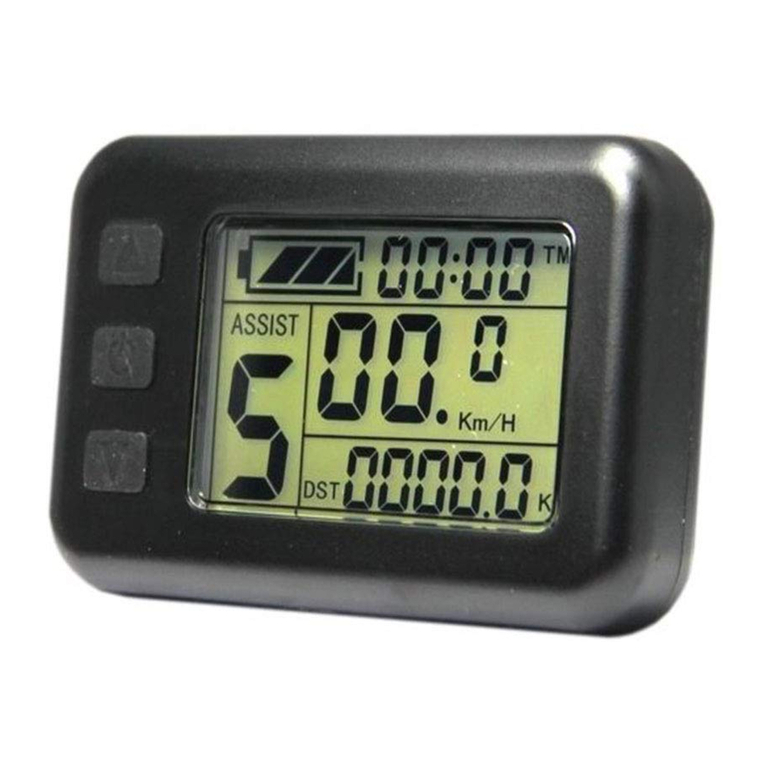
eBike B02NU Manuel utilisateur

B02NU-AKSM Displayer Manual
1/20

Directory
B02NU-AKSM DISPLAYER MANUAL...............................................................................................1
DIRECTORY.............................................................................................................................................2
I. PRODUCT INTRODUCTION..................................................................................................................3
1. Name...............................................................3
2. Product model......................................................3
3. Product appearance.................................................3
4. Product Specifications.............................................3
5. Lordinterface......................................................4
6. Button definition..................................................5
7. General Operations.................................................6
II. INFORMATION VIEWING AND SETTING..............................................................................................8
1. Display settings...................................................8
2. Information viewing...............................................10
3. Language selection................................................12
4. Theme menu........................................................12
5. Password settings.................................................13
6. Bluetooth connection..............................................15
7. Factory reset.....................................................19
ERROR CODE COMPARISON TABLE........................................................................................................20
Note: Due to the upgrade of the company's products, the product display
content you get may be different from the manual, but it will not affect
your normal use.
2/20

I. Product introduction
1. Name
Smart Displayer instrument.
2. Product model
B02NU-AKSM
3. Product appearance
3/20

4. Product Specifications
4/20

5. Lordinterface
①Headlight indicator: The headlight indicator graphic will
light up when the headlight is on.
②Navigation indicator: If the BIKEGO app is connected to the
instrument, the symbol will light up when navigation begins. (Live
navigation requires payment).
③Maintenance tip: Electronic systems have some ability to self-
diagnose and report limited faults. The failure is reported as an
error code displayed on the screen.
④Brake indicator: This icon lights up when the vehicle performs
a brake operation.
⑤ Bluetooth indicator: After the APP is successfully connected
to the instrument, the symbol will light up.
⑥ Battery Level graphic: The Battery Level graph is a graphical
representation of the remaining charge in the battery. After the
battery is charged, more bars will appear in the graph. When the
battery runs out, fewer bars appear.
⑦ Real-time speed: Displays the current speed at which the e-
bike is traveling.
⑧Gear indicator: Displays the current assist gear of the
electric bike.
⑨Single mileage: The number of miles in a single trip.
⑩Total Mileage: The total number of miles traveled by the
vehicle.
5/20
Headlight
indicator
Maintenance
tips
Real-time
speed
d
i
s
p
l
a
y
Total
m
i
l
e
a
g
e
Battery
level
g
r
a
p
h
i
c
Gear
indicator
Single
m
i
l
e
a
g
e
Average
Bluetooth
indicator
Brake
indicator
Navigation
indicator

⑪Average: The average speed of the trip.
6. Button definition
The B02NU-AKSM has 3 buttons. Includes Power key, plus key +, minus
key -. The key definition is shown in the following figure:
7. General Operations
B02NU-AKSM provides 4 themes and 3 languages for users to set up,
this manual uses Theme 1 (English version) as an example.
"Press and hold the key >2.5 seconds" is replaced with "long
press", "long key <0.5 seconds" is replaced with "tap".
①On/Off
Press " " to power on/off the monitor. In the shutdown state, the
current of the display is less than 1uA. The boot screen is shown in
the following figure. (You need to enter the password before entering
the main screen, the default password is 2020 or 0000).
②Gear level selection
6/20

After entering the main display, click "+" or "-" to increase or
decrease the gear level and change the motor output power, the
default gear of the instrument is 0-5 (support customization); No
power output in 0 gears, 1 is the lowest power, and 5 is the highest
power. When the monitor is powered on, the default setting is Gear 0.
The gear level selection screen is shown in the following figure:
③Headlight/backlight switch
Turn on the light: Press and hold "+" when the light is off, the
headlight indicator lights up, and the brightness of the display
dims.
Turn off the lights: When the light is on, press and hold the "+"
key, the headlight indicator becomes dimmed, and the display
brightness becomes brighter.
The headlight switch interface is shown in the figure below:
④Boost mode
In any gear, long press "-" to enter boost mode, the speed is 6km/h,
when entering boost mode, the icon "" is in dynamic, release the button"
- "exit boost mode " disappears, and the speed
returns to zero.
The interface is shown in the following figure:
In boost mode, the indicator is displayed dynamically. When
the speed is lower than 6km/h, release the "-" to exit the boost
state. If there is no operation within 5 seconds under static, it
will automatically jump to 0 gear.
7/20

II. Information viewing and setting
1. Display settings
Click "" to enter the settings menu, use "+" or "-" to move the
cursor up and down, select "Display Settings", "Information", "Language",
"Theme", "Password", "Bluetooth", "Reset Factory Settings" and "Exit",
and click "" to operate.
The interface is shown in the following figure:
①Imperial and metric unit conversion
Enter the "Display Settings" menu, select "Units", click "" to
enter the settings, use "+" or "-" to move the cursor up and down
after entering the settings, select "Metric"/"Imperial", click "
Save to exit "Units", exit the main interface through "Return" →.
(The entry and exit procedures for other settings are similar and
will not be repeated).
The unit conversion is shown in the following figure.
Note: The default units are imperial.
②Automatic shutdown operation
Go to the "Auto Off" menu and select "OFF", "1 minute", "2
minutes", "3 minutes", "4 minutes", "5 minutes", "6 minutes", "7
minutes", "8 minutes", "9 minutes", "10 minutes" ("OFF" means to turn
off the function, "1min-10min" means the time of automatic shutdown,
respectively.
Note: Any operation within the auto-off time will be timed again,
and no shutdown will occur until the non-operational time reaches the
8/20

auto-off time.
③Mileage reset
Go to the "ODO Reset" menu and select "No"/"Yes".
It will be reset automatically when the mileage reaches the
maximum (655km) (maximum varies by protocol), or go to the menu and
select "Yes" to clear all mileage. The interface is shown in the
following figure:
On the main interface, press and hold the "+" and "-" keys at the same
time to achieve zero TRIP and AVG, as shown in the following figure:
④Backlight brightness setting
Go to the "Brightness" menu and select "30%"/"50%"/"75%"/"100%".
The interface is shown in the following figure:
⑤BT Rssi Level – Bluetooth distance level setting, level 5
is the maximum range, 4-1 range decreases in order, as shown
in the following figure:
9/20

Note: This varies slightly from phone to phone.
⑥Boot Gear gear number selection, default 5 gears, at this time
the instrument 0-5 gears are adjustable; When switching to 3 gears,
the instrument 0-3 gears are adjustable; When switching to 9 gears,
the instrument 0-9 gears are adjustable, as shown in the figure below
2. Information viewing
①Wheel Size Information - Go to the Wheel Size menu, the
default wheel diameter is 26" (660mm) and the setting range is 16"
(410mm) - 29" (740mm).
As shown in the following figure:
②Speed Limit Information - Go to the Speed Limit menu. When the
unit is kilometers (metric), the default speed limit is 99 km/h; WHEN
THE UNITS ARE IMPERIAL, THE DEFAULT SPEED LIMIT IS 61.88MPH. 0~99km/h
optional.
As shown in the following figure:
10/20
Table des matières
Autres manuels eBike Accessoires pour vélos