
EarthLCD ezLED-3 Series Manuel utilisateur
User Manual
ezLCD-3xx Product Family
Version 1.4 June 0, 01
Requires Firmware Version 1.40 or Later
1

Table of Contents
1.0 Introduction..........................................................................................................................................4
2.0 About This Manual...............................................................................................................................5
2.1 One Hundred Dollars - The e.z. wa !..............................................................................................5
3.0 How the ezLCD-30x Works.................................................................................................................6
4.0 Installation and Getting Started............................................................................................................7
4.1 Connect the ezLCD USB to Your PC..............................................................................................7
4.2 Verif the ezLCD USB Flash Drive Operation...............................................................................8
4.3a Installing the USB Driver on a Windows 7 Operating S stem.....................................................8
4.3b Installing the USB Driver on a Windows XP Operating S stem..................................................8
4.4 Run the “Termie” Terminal Program...............................................................................................9
4.5 Verif Connection..........................................................................................................................10
4.6 Flash Drive Access .......................................................................................................................10
5.0 Command our ezLCD with EarthSEMPL........................................................................................11
5.1 ezLCD-30x Grammar....................................................................................................................11
5.2 Creating and Saving Macros.........................................................................................................12
5.3 Alwa s Comment..........................................................................................................................12
6.0 EarthSEMPL Macros.........................................................................................................................13
6.1 STARTUP.EZM - Your Most Important Macro............................................................................14
7.0 Images................................................................................................................................................15
7.1 Resizing an Image in Photoshop...................................................................................................15
7.2 Resizing an Image in Windows Paint............................................................................................16
8.0 Colors.................................................................................................................................................17
8.1 Set Current Color...........................................................................................................................17
8.2 Set Custom Color..........................................................................................................................17
9.0 Drawing..............................................................................................................................................18
9.1 Drawing a single pixel ..................................................................................................................18
9.2 Drawing a line...............................................................................................................................18
9.3 Drawing a box...............................................................................................................................18
9.4 Drawing a circle............................................................................................................................18
9.5 Drawing a circle section................................................................................................................18
9.6 Drawing an arc..............................................................................................................................19
10.0 Fonts and the Print Command..........................................................................................................20
11.0 Widget Themes.................................................................................................................................22
11.1 Diagrams of Widget Themes............................................................................................................24
11.1 Some Non-Widget Commands.........................................................................................................28
12.0 Widgets.............................................................................................................................................31
12.1 Analog Meter Widget – AMETER..............................................................................................32
12.2 Button Widget..............................................................................................................................35
12.3 Touchzone Widget.......................................................................................................................37
12.4 Check Box Widget – CHECKBOX.............................................................................................38
2

12.5 Choice Widget – CHOICE..........................................................................................................40
12.6 Dial Widget – DIAL....................................................................................................................41
12.7 Digital Meter Widget – DMETER..............................................................................................43
12.8 Groupbox Widget - GBOX .........................................................................................................45
12.9 Progress Widget – PROGRESS..................................................................................................46
12.10 Radio Button Widget – RADIO................................................................................................48
12.11 Slider Widget - SLIDER............................................................................................................50
12.12 Static Text Widget – STATIC....................................................................................................52
13.0 Snapshot Command.........................................................................................................................54
14.0 Widget State Command....................................................................................................................55
14.0 Flash Drive File Structure................................................................................................................56
15.0 Ports & Embedding the ezLCD-3xx................................................................................................57
15.1 The ezLCD-3xx Command Port..................................................................................................57
15.2 Command Port Management.......................................................................................................58
16.0 Start Something with our ezLCD-3xx...........................................................................................59
17.0 Warnings, Errata and Gotchas..........................................................................................................60
18.0 Gratis (a note from Rand Schafer).................................................................................................61
Appendix A: ezLCD-30x Connector Pinout............................................................................................62
Appendix B: ezLCD-30x Model Descriptions and Drawings.................................................................63
Appendix C: EarthSEMPL Colors...........................................................................................................65
Appendix D: EarthSEMPL Command Reference Guide.........................................................................67
TABLE 1.............................................................................................................................................67
Appendix E: Upgrading the ezLCD-30x Firmware.................................................................................72
Appendix F: Installing & Using the ezLCD-30x on a MAC (OS X Lion (10.7).....................................74
3

1.0 Introduction
The ezLCD-3xx reflects the most intense effort of our 18 ear histor in the LCD industr and 9th ear
of ezLCD production. We hope ou are as excited about this product as we are! I’d personall like to
dedicate this manual to Michal Sieluz cki, our first ezLCD engineer. He started this product line in
2003 with his winning of a Circuit Cellar Design contest, submitting a design that used an 8 bit micro
to drive a color TFT displa . Michal passed on to the “big lab in the sk ” in the spring of 2011. I know
he’s probabl smiling down at us as he adapts the ezLCD-3xx into that CNC mill he was alwa s
tinkering with in his garage. We hope that ou enjo using our ezLCD-3xx as much as we’ve enjo ed
creating it!
-Rand Schafer
EarthLCD.com CEO & Fire Starter
4

2.0 About This Manual
Congratulations on our purchase of our ezLCD-3xx, the easiest wa to embed a color LCD with (or
without) touchscreen into our existing application, project or new product design. Note while this
manual refers to ezLCD-3xx it is a famil manual for the entire ezLCD-3xx famil of products. The
Appendix will describe the different models. All ezLCD-3xx models support the same I/O connector
pin out and command set. The difference is the LCD panel size, resolution, number of displa able
colors, and whether a touchscreen is included. The ezLCD-3xx is the third generation of ezLCD
developed b EarthLCD.com, a dba of Earth Computer Technologies, Inc. This manual contains
software, hardware and driver installation instructions and the ezLCD-3xx command list. This manual
assumes ou are running Microsoft Windows 7 or Windows XP SP3 on our computer s stem. For and
MAC OS X 10.7 (Lion) see Appendix F. For Linux visit www.EarthLCD.com/ezLCD-30x for more
information.
We’ve written this manual to introduce a whole new generation of ezLCD products not just to our
existing customer base, but also to the Arduino enthusiast, the Maker crowd and engineering students
who are excited about making their projects as d namic and exciting as the smart phone the carr in
their pocket. Advanced users ma want to go straight to section 4.0. If so, check and see if there is an
application note for our host micro on the ezLCD-30x product page at www.EarthLCD.com/ezLCD-
30x.
2.1 One Hundred Dollars - The e.z. way!
Technical documentation here at EarthLCD is a continuous process. Our goal is to provide eas to use
and well documented products. Over our nearl 20 ear histor our best ideas have come from our
customers. We appreciate our suggestions. Please email docs@earthlcd.com with the title of this
manual in our subject line and give us suggestions for making the manual better or general
corrections and ou will be entered into a quarterl drawing for $100 Earth purchase credit!
5

3.0 How the ezLCD-30x Works
The ezLCD-3xx Smart LCD consists of an LCD module and a controller board containing the graphics
processor, memor and interfaces. The ezLCD-3xx contains USB, serial ports, I2C, SPI and I/O pin
interfaces. A 4 megab te USB flash drive on the controller board is used for storing macros, fonts, and
images. The drive also includes drivers, utilities and product documentation. To develop projects and
configure the ezLCD-3xx, ou simpl need a terminal program running on a computer set to 115,200
baud rate, 8 data bits, no parit , one stop bit, local echo and CR=CR+LF. Plugging the ezLCD-3xx into
a USB port achieves the following:
•Powers the ezLCD-3xx
•Connects the ezLCD USB flash dri e to your computer
•Opens a USB CDC COM port connection
The ezLCD-3xx is driven b ASCII commands sent to the Command Port. The Command Port can
be either the USB CDC device or one of two serial ports on the ezLCD I/O connector.
[Note: B default the Command Port is set to USB b the STARTUP macro in the \SYS\MACROS
director of the ezLCD-3xx FlashDrive]
Eventuall , the ezLCD-3xx will be capable of running as a standalone controller. However, man
ezLCD-3xx customers will use the ezLCD-3xx as the user interface in their design and use a
dedicated microcontroller chip or board (PIC, ARM, AVR, Arduino, BASIC Stamp, SBC) to do
their control functions. The microcontroller would t picall communicate to the ezLCD-3xx
through a serial port. The ezLCD-3xx is designed to require the least amount of s stem-dependent
software in order to develop programs as quickl as possible. ASCII commands allow an standard
terminal program to talk to the ezLCD for demonstrating and learning. B configuring a terminal
program to talk to the ezLCD CDC Device (COM Port) ou are able to use our PC to send
commands directl to the Command Port. The Flash Drive allows for bitmaps, macros and fonts to
be stored on the ezLCD-3xx for rapid access. This makes graphics performance independent of host
speed.
A standard USB flash drive interface is automaticall configured on most computers with a USB
port using the built-in MSD driver. The serial interface uses a built-in CDC driver when connected
through the USB. The CDC driver is alread installed in most computers. Under Windows the
driver onl requires the EarthLCD.inf file (which is included on the ezLCD-3xx flash drive) for
configuration.
Unlike LCD’s with built in frame buffers, the ezLCD is a full blown smart LCD client. With it’s
versatile programmabilit , built in widgets, flash based fonts and bitmaps ou can create an analog
meter readout for our project in minutes while onl using a 100 b tes of our host microcontroller
board! Performance is not limited b our host!
6
4.0 Installation and Getting Started
You will need the following before proceeding:
•ezLCD-3xx Smart LCD
•ezLCD-3xx USB Cable or an ezLCD-30x EDK board with USB cable
•A computer with a USB connection (Host)
The 7 steps to install our ezLCD-30x are:
4.1 Connect the ezLCD-3xx USB to Your PC
4. Verify the ezLCD-3xx USB Flash Drive Operation
4.3 Install the USB CDC Driver
4.4 Run the Terminal Program
4.5 Verify Connection
4.6 Flash Drive Access
4.7 “Hello Earth”, Your First ezLCD Program
4.1 Connect the ezLCD SB to Your PC
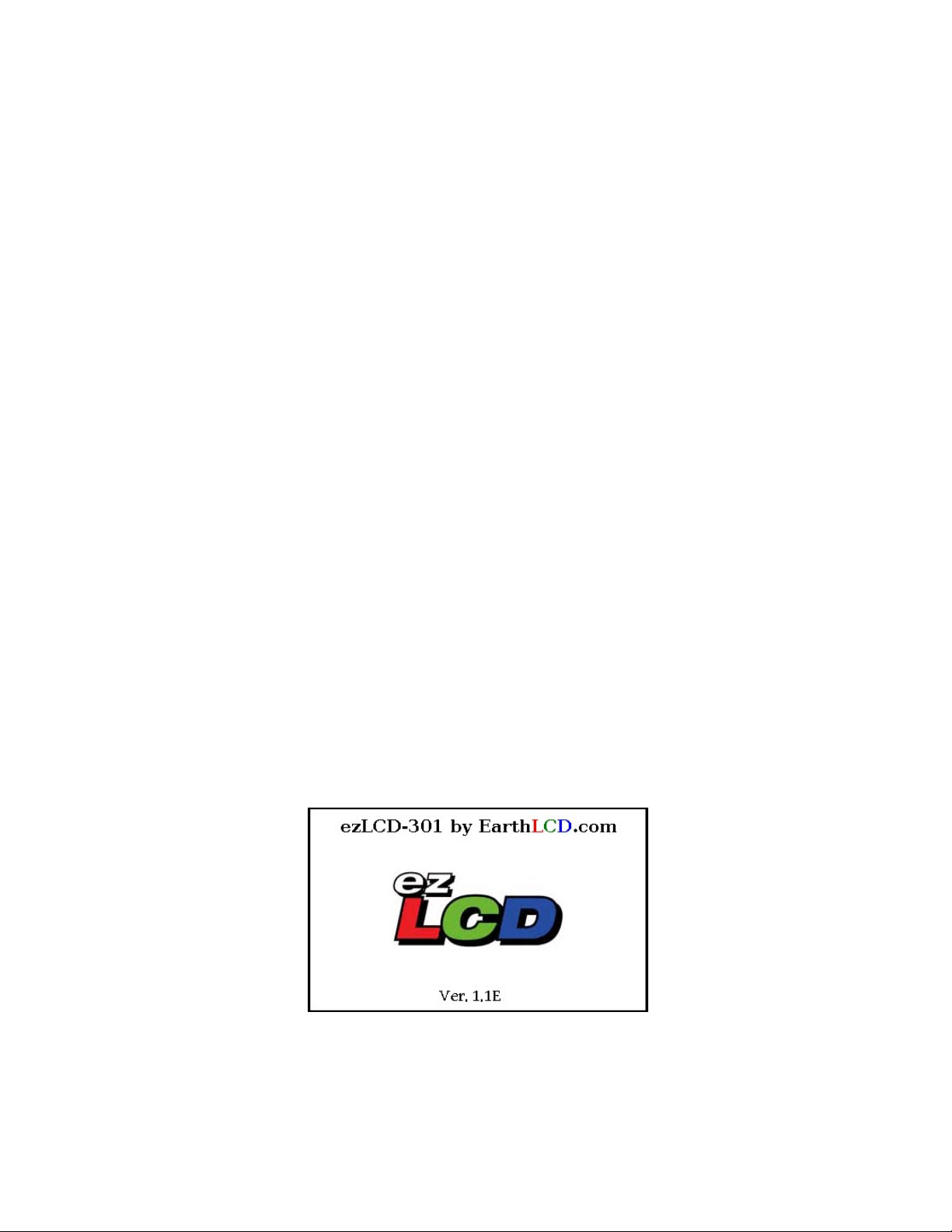
Connect the USB cable to the ezLCD-30x and then to our PC. The ezLCD-30x will power up and
displa the splash screen (Figure 1). The splash screen appearance will var depending on our
firmware version and ezLCD model. Figure 1 is for a ezLCD-301 with firmware 1.1 and file s stem E.
7
Figure 1

4.2 Verify the ezLCD SB Flash Drive Operation
When ou plug the ezLCD-30x into our PC, a window labeled AutoPlay (Figure 2) will appear on
our computer screen. Select the Open Folder to View Files option.
After clicking on Open Folder to View Files, ou will see a director for the contents of our ezLCD-
30x flash drive. This verifies that the USB flash drive is connected.
4.3a Installing the SB Driver on a Windows 7 Operating System
Note: You must be the computer’s administrator or ha e the password to install
windows dri ers.
Once the ezLCD-30x fails to install automaticall , open up the De ice Manager. The device should be
listed under Other De ices with an exclamation mark next to EarthLCD ezLCD-30x. Right click this
item and select Update Dri er Software.
On the next screen, select Browse my computer for dri er software.
Next, click the Browse button and select the flash drive labeled ezLCD-30x that was automaticall
installed earlier. Click the OK button and click the Next button. This will begin installing the software.
Windows Securit ma prompt ou that Windows can’t verif the publisher of this driver software.
Select the Install this dri er software anyway option. After a moment, the device should be installed
successfull .
When ou click the close button, the device manager should displa our device with a COM port in
parenthesis next to it (Figure 3). Make a note of this for the next step.
4.3b Installing the SB Driver on a Windows XP Operating System
The Welcome to Found New Hardware Wizard will come up first. Click Close to exit the install.
The Flash Driver will install automaticall and the Autoplay window will come up. Close the
Autoplay window and open up the De ice Manager. The device should be listed under Other De ices
with an exclamation mark next to Earth LCD ezLCD-30x. Right click this item and select Update
Dri er.
8
Figure 2

On the following screen, select No, not this time and click the Next button.
Select Install from a list or specific location and click the Next button.
Click the Browse button and select the flash drive labeled ezLCD-30x that was automaticall installed
earlier.
Click the OK button and click the Next button. This will begin installing the software.
The Hardware Installation ma prompt ou that the device has not passed Windows Logo testing to
verif its compatibilit with Windows XP. Click the Continue Anyway button. After a moment, the
device should be installed successfull .
When ou click the Finish button, the device manager will displa our device with a COM port in
parenthesis next to it (Figure 3). Make a note of this COM Port number to use in configuring the
Termie Terminal program in Chapter 4.4.
4.4 Run the “Termie” Terminal Program
Locate the “TERMIE.EXE” serial terminal software program which is located on the ezLCD-30x USB
flash drive and cop the program to our PC then click on it to Run it. Click settings and select the
COM Port number discussed in section 4.3 (Figure 4). Set the Baud rate to 115200, the Data bits to 8,
9
Figure 3
Figure 4

the Parity to None, the Stop bits to One, and make sure to uncheck Monospaced font and Local
echo. Select OK.
For purposes of this manual it is assumed that ou are using ‘Termie’, but most other ASCII terminal
programs will work as long as ou use the same comparable settings .
If ou do not remember the COM port, look in Control Panel/De ice Manager/Port (Figure 3).
4.5 Verify Connection
At the bottom of the Termie program window ou will see a SEND text box. T pe CLS in that box and
press Enter. The ezLCD-30x screen will turn black. T pe PLAY STARTUP and press Enter. The
ezLCD-30x splash screen will re-appear. Your connection test is now complete and ou can begin
programming our ezLCD-30x.
4.6 Flash Drive Access
When accessing the flash drive on the ezLCD-30x ou need to be careful with flash drive access.
1) To avoid problems do not have the flash drive open on the PC while ou are modif ing the contents
with serial commands.
2) When ou finish updating the flash drive contents on the PC, make sure ou eject the drive. The
drive ma be ejected from the PC b right clicking the ezLCD drive letter and clicking EJECT in
Windows Explorer.
3) The flash drive file s stem uses DOS 8.3 format that allows filenames up to 8 characters followed b
a period and a 3 character extension. If ou create a file from the PC with a file name longer that the 8
characters, the ezLCD-30x ou will not be able to access the file without knowing the DOS filename
the PC used to store it. Using the DIR (director ) command from ”Termie” will displa the DOS file
names for ou.
4) If files are changed on the flash drive using the internal ezLCD-30x capabilit , ou must press F5 or
refresh to see the changes on our PC. Example would be “rename serif48.ezf serif50.ezf”. The PC
would continue to show serif48.ezf until ou press F5, refresh or reboot the ezLCD-30x at which time
the PC will then show serif50.ezf.
5) For more information on the Flash File S stem please see section 13.0.
10
Ce manuel convient aux modèles suivants
1
Table des matières


