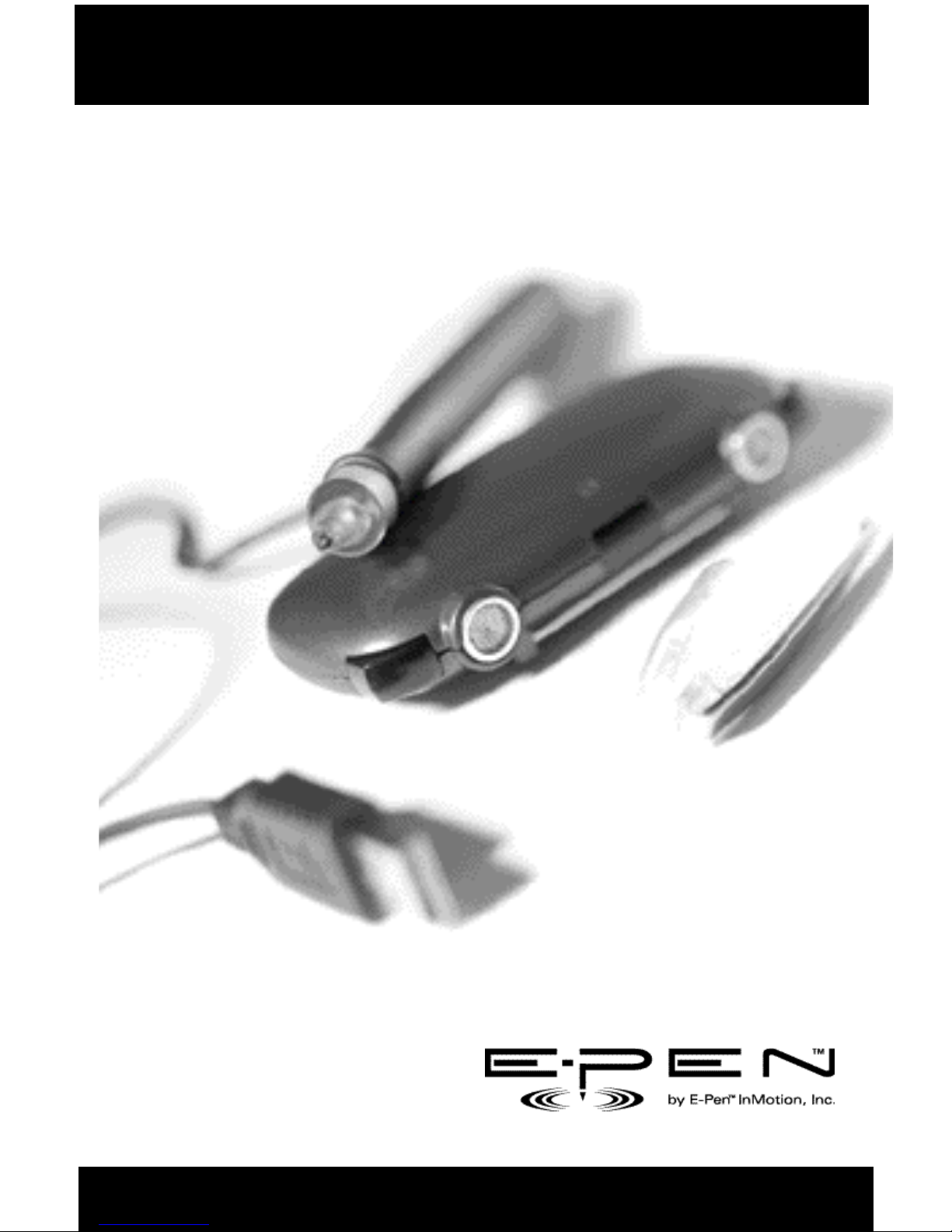
E-Pen InMotion E-Pen Manuel utilisateur

User's Guide
Natural Writing in a Digital WorldTM

10 11
Copyright © 2001 E-Pen InMotion Inc. or its subsidiaries. All rights reserved. E-Pen InMotion, the E-Pen InMotion logo,
E-Pen, DigiWrite and InkSoft are trademarks of E-Pen InMotion, Inc. or its subsidiaries.
Other product and brand names may be trademarks or registered trademarks of their respective owners.
Patent Pending
E-Pen InMotion, Inc.
P.O. Box 261548
Plano, Texas 75026-1548
E-Pen USB Version EP100
Tested to Comply with FCC Standards
FOR HOME OR OFFICE USE

i
TABLE OF CONTENTS
Chapter 1: Introducing the E-PenTM...................................................1
Package Contents........................................................................ 2
Chapter 2: Getting Started..................................................................3
Installing the DigiWriteTM Software..................................................3
Uninstalling the DigiWriteTM Software..............................................5
Connecting the Receiver to your Computer......................................6
Before Using the E-PenTM...............................................................6
Attaching the Clip to the Paper .................................................6
Page Position...........................................................................8
Writing Area............................................................................9
Possible Sources of Signal Interference.......................................9
Chapter 3: Using the E-PenTM............................................................10
Starting the DigiWriteTM Application...............................................10
The Main Window .................................................................10
Defining the Page (Background) Color...........................................13
Defining the Line (Ink) Color and Thickness ....................................14
Page View Options......................................................................16
Chapter 4: Writing and Drawing with the E-PenTM.......................17
Creating a New Page...................................................................17
Saving the Page..........................................................................17
Editing an Existing File.................................................................18
Undo/Redo.................................................................................18
Printing the Page........................................................................18
Sending the Page by Fax or E-mail...............................................18
Chapter 5: E-PenTM Maintenance....................................................20
Replacing the battery..................................................................20

ii
Replacing the Refill ...................................................................21
Storing the E-Pen.......................................................................21
Chapter 6: Troubleshooting..............................................................22

1
CHAPTER 1: INTRODUCING THE E-PEN
Congratulations on your purchase of the E-PenTM — a unique wireless digital
pen that can be used to write on just about any surface, including plain paper.
This guide will help you get maximum performance from your E-Pen system.
The E-Pen system captures your handwriting and converts it into "digital ink."
With the E-Pen you can:
n
Take notes in meetings
nDraw charts, maps and diagrams
n
Secure digital transactions with your E-Pen signature
n
Send a fax from virtually anywhere
n
Add a personal touch to emails by handwriting them
n
Capture technical drawings on the spot
You can then send the text or drawing by fax or email, save the file,
or print the image.
This guide will take you through the necessary steps to install the
software, connect the Receiver unit, use and maintain the E-Pen.
This guide assumes you are familiar with basic Windows procedures
and your computer’s hardware.
1
Note: When printing this document, you will receive best results if you
select "Print as image" from the Print dialog box.
.

2
PACKAGE CONTENTS
This package contains an E-Pen, Receiver, photo lithium battery, E-Pen
DigiWrite software installation CD and a printed Guide to Getting Started.
E-Pen. The E-Pen is a natural input device that provides enhanced
usability for mobile, wireless devices, by allowing you to write on just
about any surface and have that information captured for use in a
variety of applications.
Receiver. The E-Pen communicates with your computer through the
Receiver, by sending ultrasonic radio waves to the Receiver.
Photo Lithium Battery. The E-Pen requires a 3-volt photo lithium
battery. When replacing the battery, you can use a Duracell DL 1/3N,
E-Pen w/cap Receiver Photo Lithium Battery DigiWrite CD-ROM
(EP100P) (EP100R) (EP100B) (EP100CD)
Energizer 2L76 or two (2) "button" batteries LR44.
DigiWriteTM Installation CD. The DigiWrite program helps you use your
E-Pen more efficiently with your other computer applications.
Figure 1
Ultrasonic and Infrared transmission and receiving technology

3
CHAPTER 2: GETTING STARTED
This chapter describes:
n
Installing the battery
n
Installing and Uninstalling the DigiWrite software
n
Connecting the Receiver to your computer
n
Attaching the clip to paper
n
Page position and Writing area
INSTALLING THE BATTERY
The E-Pen cannot transmit a signal until the battery is installed.
Follow these steps to install the battery for the first time:
1. Remove the battery cover by placing a finger on the end of the pen,
applying light pressure and turning the cap counter-clockwise.
2. When you feel the inner clips fit into the grooves on the inside of the
pen; pull the battery cover away from the pen.
3. Insert the battery with the positive sign (+) facing up. See Figure 8,
Chapter 5: E-Pen Maintenance
4. Replace the battery cover by matching the clips in the cover with
the grooves on the inside of the pen and then turn the cover in a
clockwise direction to secure it.
7
INSTALLING THE SOFTWARE
Before installing the software, make sure that your computer complies
with the following System Requirements:
n
USB port
n
Windows 98/ME/2000/NT 4.0 operating system
n
PentiumTM II or higher processor
n
CD-ROM drive or Internet access
Note: The E-Pen DigiWrite software is provided on CD-ROM. If you do
not have a CD-ROM drive; you can download the files from the E-Pen
website at: www.e-pen.com.

To install the DigiWriteTM software:
1. Start Windows.
2. Insert the DigiWrite CD-ROM into your computer's CD-ROM drive.
If your CD-ROM drive has Auto Insert Notification enabled, it
automatically recognizes the setup.exe file and starts the DigiWrite
installation. Continue with step 4. If it does not, go to step 3.
3. From the Windows Start menu, select Run and type d:Setup.exe (where "d"
is the letter of your CD-ROM drive.) The Installation Wizard appears.
4. Follow the instructions of the Installation Wizard to install the
software.
5. At the end of the installation, restart your computer.
8
Note:After installing the software you must connect the Receiver
to the computer's USB port, before you can start using the pen.
the software.
4

5
UNINSTALLING THE SOFTWARE
WARNING: This procedure will permanently remove the E-Pen application
from your computer. The uninstall procedure will remove the E-Pen software
ONLY. It will NOT remove your E-Pen digital ink files. If you are using NT 4.0,
log in as an Administrator or another user with Administrator privileges.
To uninstall the DigiWrite software:
1.From the Windows Start menu select
Settings > Control Panel.
The Control Panel dialog box appears.
2. Double-click the Add/Remove Programsicon
The Add/Remove Programs screen appears.
3. From the list of currently installed programs, choose E-Pen DigiWrite
and click the Change/Remove button (for Windows
2000) or the Add/Remove button (for Windows 98).
The E-Pen DigiWrite Setup screen appears.
4. Select the Remove option and click Next.
The Select Components screen appears with the DigiWrite
components selected by default.
5. Click Next.Windows automatically removes the DigiWrite application
and all associated files from your hard drive.
At the end of the unistall process, the Maintenance Complete screen appears.
6. Click Finish to return to the Control Panel.
If you want to use your E-Pen system again, you must re-install
the software.

6
CONNECTING THE RECEIVER TO YOUR COMPUTER
The Receiver connects to your computer via a USB port.
To connect the Receiver to the computer:
1. Locate the computer’s USB port. If you are not familiar with the
computer’s setup, please refer to the computer’s hardware
manual.
2. Connect the E-Pen to the computer by inserting the USB
connector into the USB port on the computer. The LED on the
Receiver unit lights up when the connector is properly connected.
3. Start the E-Pen DigiWrite application.
Refer to Using the DigiWrite Application, later in this guide, for
instructions on how to use the software.
BEFORE USING THE E-PEN
This section highlights some of the operating requirements you should
follow to enable optimal performance of your E-Pen system.
WARNING: The tip of the pen (see Figure 1) contains ultrasonic and infrared
technology. This part of the pen, consisting of the "transducer" (flat silver ring) and
"light pipe" (clear plastic tip), must be handled with care and must not be subjected
to excessive moisture, pressure or banging. Do NOT place your fingers on this part of
the pen to hold it; Do NOT cover this part of the pen at any point in time as it
transmits and receives information to/from the Receiver.
Attention should also be taken NOT to drop the pen as it could damage the tip.
Attaching the Clip to the Paper
For best results when using the E-Pen, you should use A4 (8,268” x
11,693” / 21cm x 29,7cm) or Letter (8,5” x 11” / 21,59cm x
27,94cm) sized paper.
The clip is designed to hold up to ten (10) standard weight pages/sheets.
Table des matières