
Dragon Touch KidzPad Y88X 10 Manuel utilisateur
KidzPad Tablet
Y88X 10
V1.1


Features ------------------------------------------------------------------------------------------------- 02
Unit at A Glance -------------------------------------------------------------------------------------- 03
Getting Started---------------------------------------------------------------------------------------- 04
About Applications ---------------------------------------------------------------------------------- 06
Pre-Installed Applications------------------------------------------------------------------------- 07
Conneting to A Wifi Network--------------------------------------------------------------------- 08
Internet Navigating---------------------------------------------------------------------------------- 10
Connecting to A Bluetooth Device ------------------------------------------------------------- 11
Optional Connections ------------------------------------------------------------------------------ 12
Specifications------------------------------------------------------------------------------------------ 13
Troubleshooting-------------------------------------------------------------------------------------- 14
Contact Us---------------------------------------------------------------------------------------------- 15
CONTENTS
01 02 03 04 05 06 07 08 09 10 11 12 13 14 15
16 17 18 19 20 21 22 23 24 25 26 27 28 29 30
31 32 33 34 35 36 37 38 39 40 41 42 43 44 45
46 47 48 49 50 51 52 53 54 55 56 57 58 59 60
61 62 63 64 65 66 67 68 69 70 71 72 73 74 75
76 77 78 79 80 81 82 83 84 85 86 87 88 89 90
EN

Browse the web
Visit your favorite websites.
Check your e-mail
Keep in touch with friends and family.
Watch YouTube™ videos
Browse the world’s most popular video- sharing community.
Download your favorite Apps
Discover thousands of apps for Android games, applications, and more with Play
Store (Customers need to download it from Google Play Store).
Connect to the Internet wirelessly
With high-speed Wifi 802.11 a/b/g/n (2.4GHz/5GHz) networking, you can enjoy your
media library anytime and anywhere.
Portable powerhouse (5000mAh battery) makes you feel free to listen popular
music, watch videos, and search photos.
Enjoy your media library anywhere
Portable powerhouse plays popular music, video, and photo formats.
MicroSD memory card reader
Increase your storage capacity (up to 128GB supported)
Built-in camera
Convenient front-facing camera 2.0MP/rear camera 8.0MP (support flash).
Automatic orientation detection
Read any way you want; the display adjusts automatically!
FEATURES
01 02 03 04 05 06 07 08 09 10 11 12 13 14 15
16 17 18 19 20 21 22 23 24 25 26 27 28 29 30
31 32 33 34 35 36 37 38 39 40 41 42 43 44 45
46 47 48 49 50 51 52 53 54 55 56 57 58 59 60
61 62 63 64 65 66 67 68 69 70 71 72 73 74 75
76 77 78 79 80 81 82 83 84 85 86 87 88 89 90
EN

UNIT AT A GLANCE
Speaker
2
3
4
1
9
10
7
6
8
5
Front Camera
Headphone: Audio output connection for headphones.
VOL+/VOL-
Power Button/Screen Saver
Reset
Micro HDMI: Connect to a TV or other displays.
USB Port: Connect to a USB device/Power port.
MicroSD Card: Load external microSD cards here.
Rear Camera
1
2
3
4
5
6
7
8
9
10
01 02 03 04 05 06 07 08 09 10 11 12 13 14 15
16 17 18 19 20 21 22 23 24 25 26 27 28 29 30
31 32 33 34 35 36 37 38 39 40 41 42 43 44 45
46 47 48 49 50 51 52 53 54 55 56 57 58 59 60
61 62 63 64 65 66 67 68 69 70 71 72 73 74 75
76 77 78 79 80 81 82 83 84 85 86 87 88 89 90
EN
GETTING STARTED
Turning on/off the tablet
To turn on the tablet:
Press and hold the Power button until the LCD screen turns on. Wait until the Home
screen appears, the tablet is now ready for use.
To turn off the tablet:
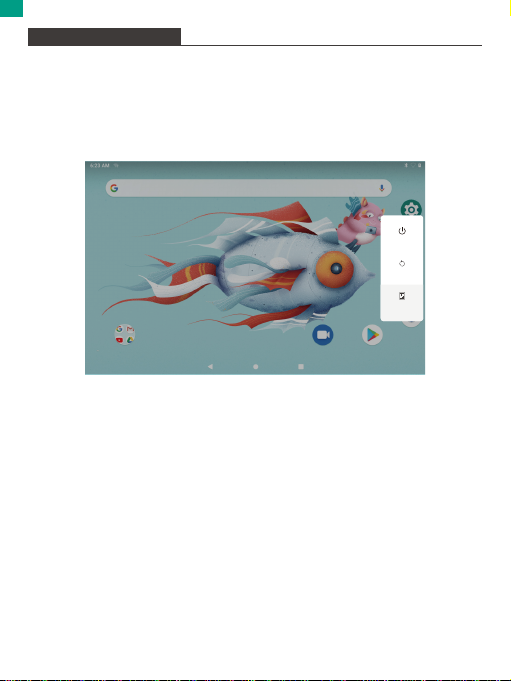
1. Press and hold the Power button until the Device Options menu appears.
2. Tap “OK” to turn off the tablet.
Turning on/off the screen (Sleep mode)
When the tablet is on, you can turn off the screen to save battery power.
Simply press the Power button once to turn the screen off. Press the Power button
again to turn the screen back on.
To save battery power, the screen can be set to turn off automatically when the
tablet is not in using(between 1 minute and 30 minutes).
This screen timeout option can be found in the Display menu.
Changing the language
Many users purchase Android tablets that come with the user interface in English,
and they want to use their native language, like Spanish, French, Chinese, German
and so on.
Power off
Restart
Screenshot
01 02 03 04 05 06 07 08 09 10 11 12 13 14 15
16 17 18 19 20 21 22 23 24 25 26 27 28 29 30
31 32 33 34 35 36 37 38 39 40 41 42 43 44 45
46 47 48 49 50 51 52 53 54 55 56 57 58 59 60
61 62 63 64 65 66 67 68 69 70 71 72 73 74 75
76 77 78 79 80 81 82 83 84 85 86 87 88 89 90
EN

Wallpaper
Tap and hold your finger in any blank space of the home screen, you will see a
pop-up menu; you can choose wallpaper from Gallery or your downloaded files or
those listed as options; set the one you like to be wall paper.
Widgets
Tap and hold your finger in any blank space of home screen, you will see a pop-up
menu with widget.
Tip:
1. Tap one icon and move on to top of another icon, you can create a new folder on
home screen. Open the folder; click ‘Unnamed Folder’ to rename the folder.
2. Swipe down vertically from top part of a display to enter quick notification menu.
Screen Lock
Set a screen lock to secure your tablet.
Tap →Setting →Security →Screen security → Select screen lock, and select a mode
from None, Swipe, Pattern, PIN and Password. You can create a Backup PIN as a
safety measure in case you forget your code.
Tap "settings →system →language & input →languages →add a language". A list
is shown with all the available display languages that you can use on your Android
device. Tap and hold the lines near the name of the language that you want to use,
and drag it to the top of the list.
If you do not need a particular display language, you can delete it. Click the three
dots in the top-right corner of the screen, near the text Language preferences.
A menu is shown, with only one option: "Remove". Tap on it.
Home Screen
① Back: Press to check previous operating display.
② Home Screen: Press to go to home screen.
③ Background: Press to check applications running on background. Existing idle
apps may provide a better performance.
④ Application Panel: Press to check all available Applications.
01 02 03 04 05 06 07 08 09 10 11 12 13 14 15
16 17 18 19 20 21 22 23 24 25 26 27 28 29 30
31 32 33 34 35 36 37 38 39 40 41 42 43 44 45
46 47 48 49 50 51 52 53 54 55 56 57 58 59 60
61 62 63 64 65 66 67 68 69 70 71 72 73 74 75
76 77 78 79 80 81 82 83 84 85 86 87 88 89 90
EN

ABOUT APPLICATIONS
To open an application, tap the application icon on the home screen or in the
Launcher where you can tap the icon right up on the home screen to get in.
Unlocking the Screen
When the screen turns off, you will have to unlock the screen when you turn it back
on. To unlock the screen, swipe up the lock icon.
Screen shot
Press and hold the power button until the Device Options menu appears, tap the
icon “Screenshot”. The screenshot will be saved in the photos file.
Choose screen lock
9:13 AM
None
PIN
Swipe
Current screen lock
Pattern
Password
01 02 03 04 05 06 07 08 09 10 11 12 13 14 15
16 17 18 19 20 21 22 23 24 25 26 27 28 29 30
31 32 33 34 35 36 37 38 39 40 41 42 43 44 45
46 47 48 49 50 51 52 53 54 55 56 57 58 59 60
61 62 63 64 65 66 67 68 69 70 71 72 73 74 75
76 77 78 79 80 81 82 83 84 85 86 87 88 89 90
EN

The screen shown above is for illustrative purposes only. We reserve the right to
modify and improve the final list of applications available on the tablet.
Pre-installed Applications
Some applications have been installed on your tablet for your convenience.
These applications include:
PRE-INSTALLED APPLICATIONS
Installing Applications
You can also download and install additional applications from the device’s
applications marketplace, the web browser, or other sources.
The tablet must be set to allow installation of applications from non-market sources.
The unknown sources option can be set in the Application settings menu.
Browse the web.
Perform simple mathematical operations.
Take pictures or videos with the camera.
Check your e-mail.
Play music.
Access the Settings menu to adjust the tablet’s options.
01 02 03 04 05 06 07 08 09 10 11 12 13 14 15
16 17 18 19 20 21 22 23 24 25 26 27 28 29 30
31 32 33 34 35 36 37 38 39 40 41 42 43 44 45
46 47 48 49 50 51 52 53 54 55 56 57 58 59 60
61 62 63 64 65 66 67 68 69 70 71 72 73 74 75
76 77 78 79 80 81 82 83 84 85 86 87 88 89 90
EN

Note:
1. Users are responsible for all charges from specific apps if it is necessary.
2. Manufacturers/sellers are not responsible for apps that are incompatible with the
device.
3. In some cases, there may be no icon in the app Panel after an app is installed.
Possible reasons may be that this app is not compatible with your OS or the
downloaded file is a broken one so you may need to download a full version.
If you install and use an OS other than the one provided by the manufacturer, it may
cause your device to malfunction, therefore, your device will no longer be covered
by the warranty in this condition.
CONNECT TO A Wifi NETWORK
The Notification bar displays icons that indicate your tablet’s Wifi status.
Notification that an open Wifi network is in range.
Connected to a Wifi network (waves indicate connection strength).
[no icon] There are no Wifi networks in range, or the Wifi radio is off.
1. Turn on the Wifi radio if it is not already on.
a. Go to the Home screen: Press the Home button.
b. Open the Settings menu: tap the icon right up on the home screen to get into the
launcher, then tap Settings icon.
c. Open the Wireless & networks menu: Slide the icon to ON status.
Wi-Fi
Use Wi-Fi
9:14 AM
CPGC-2.4G
HuaWei
aWiFi-b7d9
CPGC-5G
TP-LINKAD5E
TP-LINKAD5E-5G
01 02 03 04 05 06 07 08 09 10 11 12 13 14 15
16 17 18 19 20 21 22 23 24 25 26 27 28 29 30
31 32 33 34 35 36 37 38 39 40 41 42 43 44 45
46 47 48 49 50 51 52 53 54 55 56 57 58 59 60
61 62 63 64 65 66 67 68 69 70 71 72 73 74 75
76 77 78 79 80 81 82 83 84 85 86 87 88 89 90
EN
Autres manuels pour KidzPad Y88X 10
1
Table des matières
Langues :
Autres manuels Dragon Touch Comprimé

Dragon Touch
Dragon Touch K10 Manuel utilisateur

Dragon Touch
Dragon Touch M7 Manuel utilisateur

Dragon Touch
Dragon Touch Y88X Plus Manuel utilisateur

Dragon Touch
Dragon Touch NotePad T10M Manuel utilisateur

Dragon Touch
Dragon Touch KidzPad Y88X 10 Manuel utilisateur
Dragon Touch
Dragon Touch MAX 10 Manuel utilisateur

Dragon Touch
Dragon Touch Y88X Manuel utilisateur

Dragon Touch
Dragon Touch NotePad 102 Manuel utilisateur

Dragon Touch
Dragon Touch Y80 Manuel utilisateur

Dragon Touch
Dragon Touch NotePad-K10 Manuel utilisateur


