
Dolphin GuideReader Manuel utilisateur

Quick Start Guide

2
Contents
GuideReader Tablet ................................................... 03
What’s In The Box? .................................................... 03
Product Overview ...................................................... 04
Using Your GuideReader Tablet ............................... 06
Turning Your GuideReader Tablet On ..................... 06
Putting Your GuideReader Tablet Into
Sleep Mode .......................................................... 06
Turning Your GuideReader Tablet O ............. 06
Navigating Your GuideReader Tablet ............. 06
Navigate Using The Touch Screen ................... 07
Useful Touch Screen Gestures ......................... 08
Navigate Using The Dolphin Remote .............. 09
Connecting To The Internet ..................................... 10
Charging Your GuideReader Tablet ........................ 10
Adding Additional Storage ....................................... 11
Emergency Restart .................................................... 12
General Information ................................................. 12
Important Safety Information ......................... 12
Rechargeable Lithium-Ion Battery ................. 14
Licence And Warranty ....................................... 15
Notice ................................................................... 15

3
• GuideReader Tablet
• Power charger
• Reversible USB cable (to connect charger to
GuideReader)
• Earphones
• Dolphin Remote
• 2 x AAA batteries (for Dolphin Remote)
• Stand
• Quick start guide
• 32GB SD Card (pre-inserted)
GuideReader Tablet
This quick start guide will help you get to know your
GuideReader Tablet and explain how to get the most out
of all of its great features.
What’s In The Box?
Please ensure the following items are present in the box.
If an item is missing then please contact your supplier as
soon as possible.
4
7
8
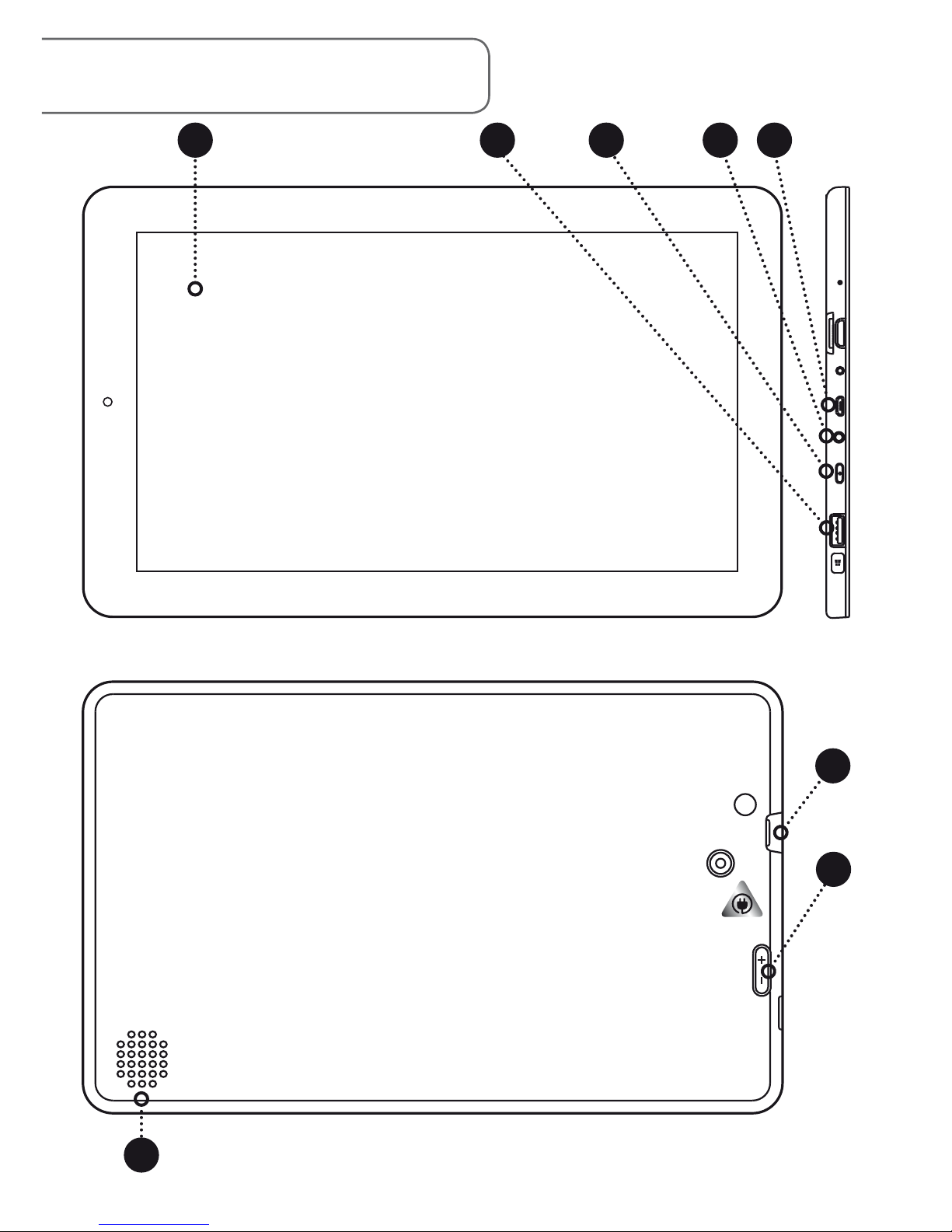
Product Overview
1 2 4 53
6

5
Touch screen - See page 7 for use using the touch
screen.
USB port.
Power/sleep button.
3.5mm stereo headphone port.
Micro USB power port - indicated by a tactile yellow
sticker on the back of your GuideReader Tablet.
Speaker - Your GuideReader speaker is positioned
on the back of the device. It is recommended
that you use the provided stand for optimal sound
quality.
Micro SD card slot (32GB card inserted).
Volume Up/Down button.
Dolphin
Remote
See page 9 for a
detailed overview
and user guide.
1
2
3
7
6
8
4
5

6
Using Your GuideReader Tablet
Turning your GuideReader tablet on:
Press and hold the Power/ Sleep button for
approximately 3 seconds or until your GuideReader
Tablet begins to power up.
Putting your GuideReader tablet into sleep
mode:
Press the Power/ Sleep button once. The screen
switches o and your GuideReader Tablet will be in
Sleep mode.
To wake GuideReader from Sleep mode, press the
Power/Sleep button once. The screen wakes up and
shows your GuideReader screen.
Turning your GuideReader tablet off:
Navigating your GuideReader tablet
You can use the on screen buttons or the Dolphin
Remote to navigate GuideReader.
Select Exit GuideReader from the Main Menu
and then choose Yes to conrm.
Your GuideReader Tablet will shut down and
power o.
3
3

7
It is strongly recommended that you go
through the training tutorials to help you get
familiar with using your GuideReader.
The training tutorials appear the rst time you start
your GuideReader and take only a few minutes to
complete.
You can revisit the training tutorials at any time
through the Tools Menu.
Tap the Dashboard
button for access to
system information.
Tap the Help button
to open (and close)
the help for when
you are stuck.
Tap the Back button
to go back one step.
Tap the OK button to
select an item.
Tap the Previous
button to move to
the previous item.
Tap the Next button
to move to the next
item.
Navigate Using The Touch Screen:

8
Important: Avoid scratching the touch screen.
Never use an actual pen, pencil, or other sharp
object on the touch screen.
To start (or stop) reading
or to repeat the last
message spoken in a
message box:
tap the screen with two
ngers.
To make the text and
images smaller:
place 2 ngers on the
screen and pinch them
together.
To make the text and
images larger:
place 2 ngers on the
screen close together and
slide them apart.
To select an item:
tap the item on the screen
with 1 nger.
Useful Touch Screen Gestures

9
Navigate Using The Dolphin Remote
The Dolphin Remote is a device you can use to control your
GuideReader. This device requires 2x AAA batteries (included).
Bluetooth Pairing - Pair the Dolphin Remote with your
GuideReader Tablet. NOTE: Your Remote has already been
paired to your Tablet and is ready to use.
Volume Up/
Down - Press to
make the system
volume louder/
quieter. Hold to
increase/decrease
magnication.
Start/Stop
Speech - Press
to start or stop the
speech.
Previous/Next
Move to the
previous/next item
in a menu or line in
a book.
OK - Select an
item or start/stop
reading in books,
newspapers and
magazines.
Help - Open (and
close) help when
you are stuck.
Battery
compartment -
Requires 2 x AAA
batteries.
Back - Move back
to the previous
menu. Hold to
return to
GuideReader’s main
menu.
Dashboard -
Open (and close)
GuideReader’s
Dashboard. Hold
whilst reading a
book/newspaper
to open a list of
chapters/headings.

10
Connecting To The Internet
You must connect your GuideReader to the
Internet to be able to download books,
newspapers and magazines from online libraries.
To connect to the Internet, from your GuideReader’s
Main Menu:
1. Select Settings.
2. Select Internet.
3. Select the Internet connection you want to use.
4. Select Connect.
5. If required, enter password.
Charging Your GuideReader Tablet
Your GuideReader has been charged at the
factory, but you may need to recharge it
before you can switch your GuideReader on for
the rst time.
1. Plug the charger into a wall outlet.
2. Connect the charger to your GuideReader via the
power port. The Power port is indicated by a
yellow tactile sticker.
3. When the battery is full, disconnect the charger
from your GuideReader Tablet, then from the wall
outlet.
4. You don’t need to charge your GuideReader
5
Table des matières


