
DigitaLinx DL-HD24A-H2 Manuel utilisateur

Rev 190717 Phone: 719-260-0061
Toll-Free: 800-530-8998
Fax: 719-260-0075
DL-HD24A-H2 Owners Manual
11675 Ridgeline Drive
Colorado Springs, CO
80921
DL-HD24A-H2 Owners Manual
2
Important Safety Instrucons
»Please completely read and verify you understand all instrucons in this manual before operang this equipment.
»Keep these instrucons in a safe, accessible place for future reference.
»Heed all warnings.
»Follow all instrucons.
»Do not use this apparatus near water.
»Clean only with a dry cloth.
»Do not install near any heat sources such as radiators, heat registers, stoves, or other apparatus (including ampliers)
that produce heat.
»Use only accessories specied or recommended by Intelix.
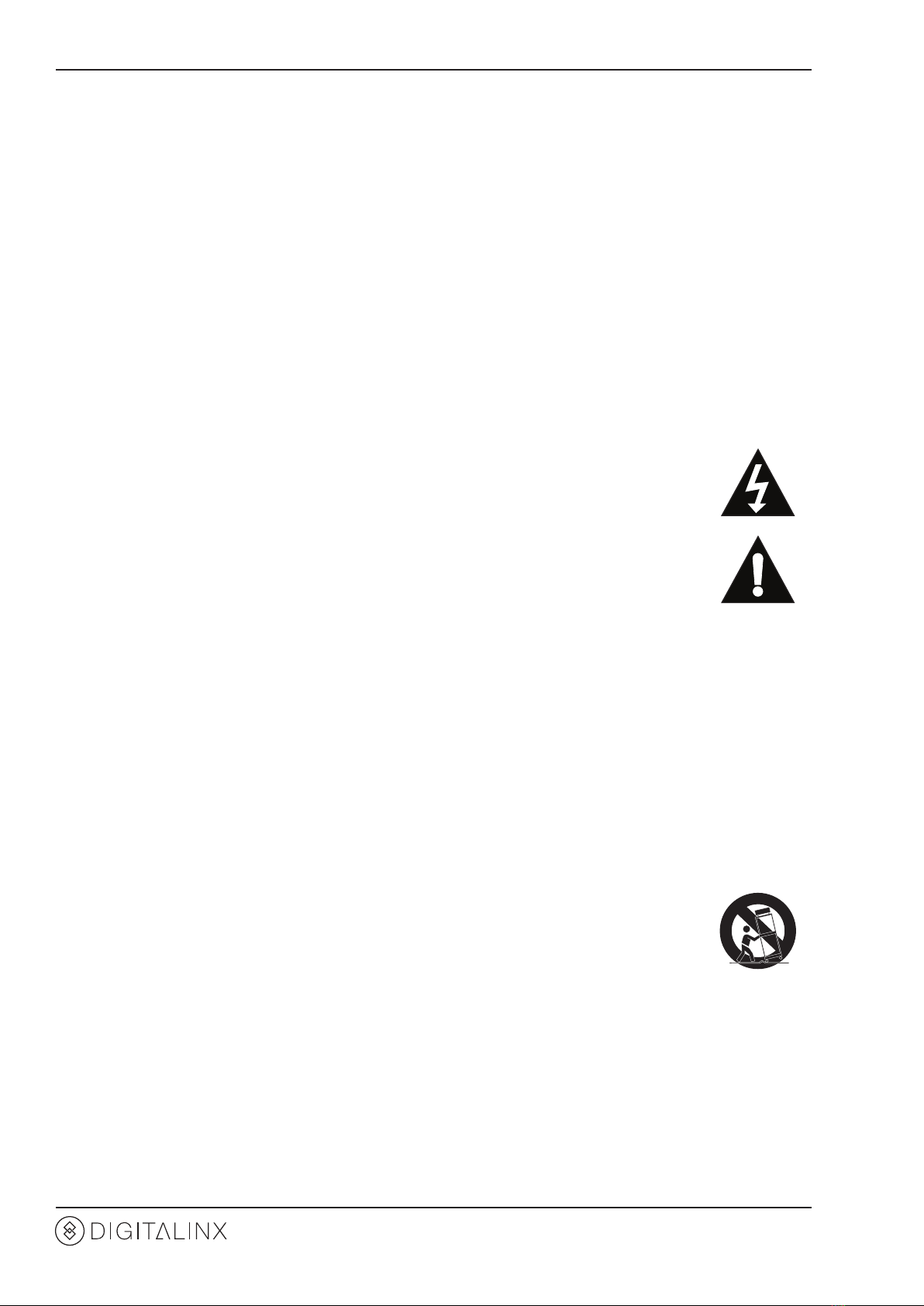
»Explanaon of graphical symbols:
◊ Lightning bolt/ash symbol: the lightning bolt/ash and arrowhead within an equilateral triangle
symbol is intended to alert the user to the presence of uninsulated “dangerous voltage” within the
product enclosure which may be of sucient magnitude to constute a risk of shock to a person or
persons.
◊ Exclamaon point symbol: the exclamaon point within an equilateral triangle symbol is intended
to alert the user to the presence of important operang and maintenance (servicing) instrucons
in the literature accompanying the product.
»WARNING: TO REDUCE THE RISK OF FIRE OR ELECTRIC SHOCK, DO NOT EXPOSE THIS APPARATUS TO RAIN OR
MOISTURE AND OBJECTS FILLED WITH LIQUIDS, SUCH AS VASES, SHOULD NOT BE PLACED ON THIS APPARATUS.
»Use the mains plug to disconnect the apparatus from the mains.
»THE MAINS PLUG OF THE POWER CORD MUST REMAIN READILY ACCESSIBLE.
»Do not defeat the safety purpose polarized or grounding-type plug. A polarized plug has two blades with one wider
than the other. A grounding-type plug has two blades and a third grounding prong. The wide blade or the third prong
is provided for your safety. If the provided plug does not t into your outlet, consult an electrician for replacement of
your obsolete outlet. Cauon! To reduce the risk of electrical shock, grounding of the center pin of this plug must be
maintained.
»Protect the power cord from being walked on or pinched parcularly at the plugs, convenience receptacles, and the
point where they exit from the apparatus.
»Do not block the air venlaon openings. Only mount the equipment per Intelix’s instrucons.
»Use only with the cart, stand, table, or rack specied by Intelix or sold with the equipment. When/if a
cart is used, use cauon when moving the cart/equipment combinaon to avoid injury from p-over.
»Unplug this apparatus during lightning storms or when unused for long periods of me.
»Cauon! Shock Hazard. Do not open the unit.
»Refer to qualied service personnel. Servicing is required when the apparatus has been damaged in any way, such as
power supply cord or plug is damaged, liquid has been spilled or objects have fallen into the apparatus, the apparatus
has been exposed to rain or moisture, does not operate normally, or has been dropped.

DL-HD24A-H2 Installaon Guide
3
Table of Contents
Product Overview��������������������������������������������������������������������������������������������������������������������������������������� 4
Product Overview��������������������������������������������������������������������������������������������������������������������������������������� 4
Product View���������������������������������������������������������������������������������������������������������������������������������������������� 5
Front Panel���������������������������������������������������������������������������������������������������������������������������������������������������� 5
Switcher - Rear Panel ������������������������������������������������������������������������������������������������������������������������������������ 6
Installaon Instrucons������������������������������������������������������������������������������������������������������������������������������ 7
Rack Mounng the Switcher ������������������������������������������������������������������������������������������������������������������������� 7
Connecng Video Sources����������������������������������������������������������������������������������������������������������������������������� 7
Connecng Displays �������������������������������������������������������������������������������������������������������������������������������������� 7
Connecng Audio Output������������������������������������������������������������������������������������������������������������������������������ 7
Connecng RS232 Control����������������������������������������������������������������������������������������������������������������������������� 8
Connecng Ethernet ������������������������������������������������������������������������������������������������������������������������������������� 9
Web Browser Control / GUI .................................................................................................................... 9
Telnet Control ......................................................................................................................................... 9
Applying Power ��������������������������������������������������������������������������������������������������������������������������������������������� 9
A/V Diagram �������������������������������������������������������������������������������������������������������������������������������������������� 10
Web Browser Control / System Sengs ���������������������������������������������������������������������������������������������������� 11
Connecng to Web Control Interface����������������������������������������������������������������������������������������������������������11
Audio / Video Switching������������������������������������������������������������������������������������������������������������������������������12
Display On/O Control�������������������������������������������������������������������������������������������������������������������������������� 13
Conguring and Tesng RS232 Display Commands������������������������������������������������������������������������������������14
Network Sengs�����������������������������������������������������������������������������������������������������������������������������������������15
Access Sengs�������������������������������������������������������������������������������������������������������������������������������������������� 16
EDID Management ����������������������������������������������������������������������������������������������������������������������������������� 17
Front Panel Sengs ������������������������������������������������������������������������������������������������������������������������������������ 17
Dipswitch Sengs���������������������������������������������������������������������������������������������������������������������������������������18
RS232 and TCP/IP Control ������������������������������������������������������������������������������������������������������������������������� 19
A/V Source Switching ���������������������������������������������������������������������������������������������������������������������������������� 19
Auto Switching Method ������������������������������������������������������������������������������������������������������������������������������19
Audio On/O Control ����������������������������������������������������������������������������������������������������������������������������������20
Display On/O CEC Control������������������������������������������������������������������������������������������������������������������������� 21
System Commands�������������������������������������������������������������������������������������������������������������������������������������� 22
Technical Specicaons ���������������������������������������������������������������������������������������������������������������������������� 23

DL-HD24A-H2 Owners Manual
4
The Digitalinx DL-HD24A-H2 is an HDMI 2.0 compable 2:4 auto scaling and auto switching HDMI
distribuon amp / splier that features two HDMI inputs and four HDMI outputs. The spliers HDMI
outputs can switch as a group to either input via auto or manual switching methods and supports down
scaling so a 4K video input can automacally be down scaled to an 1080p output when connecng
a display that only supports resoluons up to 1080p. The DL-HD24A-H2 supports 4K signals up to
4K@60Hz / 4:4:4 / 8 bit color and features an easy EDID management opon using dip switches on the
rear panel of the unit. Analog and digital audio can be de-embedded from the selected HDMI input
and the DL-HD24A-H2 supports CEC control and is HDCP 2.2 compliant. The DL-HD24A-H2 can be
controlled via front panel buons, RS232 or by TCP/IP control.
Product Overview
Product Overview
• DL-HD24A-H2 2:4 Switching DA
• Quick Install Guide
• (4) Plasc Cushions
• (2) Mounng Clips with (4) Mounng Screws
• 12V DC Power supply with US, EU, UK and AU power adapters.

DL-HD24A-H2 Installaon Guide
5
Product View
Front Panel
1 2 3 4 5 6 7 8 9
1. POWER LED INDICATOR - Illuminates solid RED when device is powered ON
2. OUTPUT LED INDICATORS - Illuminates solid GREEN when there is an HDMI output on
the corresponding channel
3. SOURCE BUTTON and LED INDICATORS
AUTO - Switching mode indicator; illuminates solid GREEN when device is in auto switching mode,
OFF when in manual switching mode. To change switching modes, hold down the SOURCE buon for
3 seconds.
IN1 / IN2 - Input indicator; illuminates solid when corresponding input channel has been selected.
To change inputs, use the SOURCE buon to toggle between inputs. Front panel input control only
works in manual switching mode.
4. DISPLAY ON - Press buon to turn connected displays ON via CEC or RS232
5. DISPLAY OFF - Press buon to turn connected displays OFF via CEC or RS232
6. VOLUME DOWN/MUTE - Press buon to turn connected display volume down via CEC
or RS232. To mute audio press and hold buon down for 3 seconds
7. VOLUME UP - Press buon to turn connected display volume UP via CEC or RS232. Use
up buon to exit audio mute mode
8. EDID - EDID value sengs selector
9. FW - Micro USB connector for rmware updates

DL-HD24A-H2 Owners Manual
6
Rear Panel
1. INPUTS - Two HDMI input ports to connect HDMI sources
2. OUTPUTS - Four HDMI output ports to connect HDMI displays
3. AUDIO OUT -3 pin phoenix connector for analog audio output
4. SPDIF OUT - Toslink digital audio output port for digital audio output
5. EDID - 4 pin dip switches for EDID sengs
6. RS232 - DB-9 female connector for RS232 control
7. TCP/IP - RJ45 for Telnet or web GUI control
8. DC12V - 2-pin terminal block for external power supply
1 2 3 4 5 6 7 8

DL-HD24A-H2 Installaon Guide
7
Installaon Instrucons
Rack Mounng the Switcher
Remove the screws on both sides of the distributor, then aach the supplied rack mounng ears / clips for rack-
mounng.
Connecng Video Sources
Connecng Displays
Connect source devices to the inputs on the DL-HD24A-H2. When using HDMI cables for source inputs, use a
High Speed HDMI cable that is less than or equal to 5 meters in length for 4k60 signals and 8 meters for 1080p
signals.
Connect the display devices to the HDMI output of the DL-HD24A-H2 using a High Speed HDMI cable that is less
than or equal to 5 meters in length for 4k60 signals and 8 meters for 1080p signals.
The DL-HD24A-H2 features two audio outputs, digital Toslink and unbalanced stereo analog. The audio outputs
will de-embed the HDMI audio stream of the selected HDMI input.
Note: When using mul channel audio signals only the digital audio output can be used. The analog output will
only pass 2 channel stereo audio.
To connect digital audio output, connect a Toslink digital audio cable from the DL-HD24A-H2 to a compable
audio receiver with the same input. To connect the 3 pin unbalanced stereo analog audio output, connect le
to le leads, right to right leads and ground to ground leads to an unbalanced audio connector / circuit.
Connecng Audio Output

DL-HD24A-H2 Installaon Guide
8
Connect a control system to the DL-HD24A-H2 switcher via RS232 so the switcher can be controlled by a 3rd
party control system using serial communicaon.
Connecng RS232 Control
RS232 Wiring
Connect the system controller RX signal
to TX on the DL-HD24A-H2 switcher, then
connect the controllers TX signal to RX.
Default RS232 Sengs:
• 9600 baud
• 8 Data Bits
• 1 Stop Bit
• Parity = none
PIN 2 - Transmit
PIN 3 - Receive
PIN 5 - Ground
PIN 1PIN 5
DL-HD24A-H2 DB9 FEMALE

DL-HD24A-H2 Installaon Guide
9
Connecng Ethernet
The DL-HD24A-H2 may be controlled via Ethernet using the internal web GUI or via Telnet server.
The TCP/IP port requires a standard straight-through Category 5
or greater cable with the TIA/EIA-568B crimp paern for opmal
operaon.
The default sengs for the TCP/IP port are:
IP address: 192.168.0.178, Telnet port 4001
TIA/EIA-568B
Orange/White
Orange
Green/White
Blue
Blue/White
Green
Brown/White
Brown
Pin 1
Pin 2
Pin 3
Pin 4
Pin 5
Pin 6
Pin 7
Pin 8
1 8
Web Browser Control / GUI
Telnet Control
To connect to the DL-HD24A-H2 web GUI, connect a computer to the same LAN as the DL-HD24A-H2 be sure
your computer is in the same network ID range as the switcher, enter in the default IP of the switcher into a web
browser. See page 11 for web GUI sengs and conguraon.
To connect to the DL-HD24A-H2 and control it as a Telnet client, connect a computer to the same LAN as the DL-
HD24A-H2 , be sure your computer is in the same network ID range as the switcher, enter in the default IP of the
switcher into a telnet server and use Port 4001 to connect. See page 19 for all the available control commands
for this switcher kit.
Connect the included power supply to the DL-HD24A-H2 and lock the power supply to the power connector by
twisng the locking collar clockwise.
Applying Power

DL-HD24A-H2 Installaon Guide
10
DL-HD24A-H2 A/V DIAGRAM
4K Display
Media Player 1
Media Player 2
Control System
HDMI
CATx
RS232
AUDIO
1080p Display
4K Display
1080p Display
Audio Amplifer / AVR
A/V Diagram
Ce manuel convient aux modèles suivants
1
Table des matières
Autres manuels DigitaLinx Amplificateur


