
Digisol DG-WN3300N Manuel utilisateur

DG-WN3300N
802.11b/g/n 300Mbps Wireless LAN USB Adapter
User Manual
V3.1
2017-01-10
As our products undergo continuous development the specifications are subject to change without prior notice

DG-WN3300N User Manual
2
COPYRIGHT
Copyright 2017 by DIGISOL SYSTEMS LTD. All rights reserved. No part of this
publication may be reproduced, transmitted, transcribed, stored in a retrieval system,
or translated into any language or computer language, in any form or by any means,
electronic, mechanical, magnetic, optical, chemical, manual or otherwise, without the
prior written permission of this company.
This company makes no representations or warranties, either expressed or implied,
with respect to the contents hereof and specifically disclaims any warranties,
merchantability or fitness for any particular purpose. Any software described in this
manual is sold or licensed "as is". Should the programs prove defective following
their purchase, the buyer (and not this company, its distributor, or its dealer) assumes
the entire cost of all necessary servicing, repair, and any incidental or consequential
damages resulting from any defect in the software. Further, this company reserves the
right to revise this publication and to make changes from time to time in the contents
thereof without obligation to notify any person of such revision or changes.
Trademarks:
DIGISOL™ is a trademark of Digisol Systems Limited. All other trademarks are the
property of the respective manufacturers.
Safety
This equipment is designed with the utmost care for the safety of those who install
and use it. However, special attention must be paid to the dangers of electric shock
and static electricity when working with electrical equipment. All guidelines of this
and of the computer manufacturer must therefore be allowed at all times to ensure the
safe use of the equipment.

DG-WN3300N User Manual
3
Index
1. Product Information ..................................................................................... 5
1-1 Introduction and Safety Information..................................................................... 5
1-2 Safety Information ........................................................................................................ 5
1-3 System Requirements ................................................................................................ 6
1-4 Package Contents ........................................................................................................ 6
1-5 Get familiar with your new wireless USB adapter ......................................... 7
2. Driver Installation and Configuration ........................................................ 8
2-1 Network Adapter Installation.................................................................................... 8
2-2 Configuration Utility....................................................................................................12
2-2-1 Utility Overview.................................................................................13
2-3 Connect to Wireless Access Point......................................................................16
2-3-1 Using Realtek Utility..........................................................................16
2-3-2 Using Windows Zero Configuration ..................................................23
2-4 Connection Profile Management .........................................................................27
2-4-1 Add a new profile ...............................................................................28
2-4-2 Remove an existing profile ................................................................34
2-4-3 Edit an existing profile .......................................................................34
2-4-4 Make a copy of existing profile..........................................................36
2-4-5 Set as default profile...........................................................................37
2-5 Network Statistics, General Information and Status...................................38
2-5-1 General Information ...........................................................................38
2-5-2 Status ..................................................................................................40
2-5-3 View Network Statistics .....................................................................41
2-6 Establish secure connection with AP by WPS ..............................................42
2-6-1 PIN Code ............................................................................................44
2-6-2 Push Button ........................................................................................46
3. Soft-AP Function ......................................................................................... 47
3-1 Switch to AP Mode and Station Mode...............................................................47
3-1-1 Configure SSID and Channel.............................................................49
3-1-2 Setup Soft-AP Security ......................................................................51
3-2 Advanced Settings......................................................................................................54
3-3 Wireless Statistics.......................................................................................................55
3-4 Internet Connection Sharing (ICS) .....................................................................56

DG-WN3300N User Manual
4
4 Virtual WI-FI Mode on Windows7/ Windows8 (32-bit) ........................... 57
4-1 Configure SSID and Soft-AP Security...............................................................59
5. Appendix ...................................................................................................... 61
5-1 Hardware Specification ............................................................................................61
5-2 Troubleshooting ...........................................................................................................62
5-3 Glossary ..........................................................................................................................64

DG-WN3300N User Manual
5
1. Product Information
1-1 Introduction and Safety Information
Thank you for purchasing DG-WN3300N IEEE 802.11b/g/n 300Mbps wireless N USB
adapter! This adapter has a tiny size design which enables users to plug it into the USB port
of your computer. DG-WN3300N supports wireless standards IEEE802.11b/g, this wireless
adapter also supports IEEE802.11n through which users can get data transfer speed up to
300Mbps.
Other features of this Wireless USB adapter include:
IEEE 802.11b/g/n compatible.
Wireless data transfer rate –upto 300Mbps.
Supports 64/128-bit WEP, WPS, WPA, WPA2 with IEEE 802.1x functions for high
level of security.
Supports the most popular operating system: Windows XP/Vista/7/8 (32-bit).
Supports soft AP function.
Supports USB 2.0 interface.
Portable and tiny size design.
1-2 Safety Information
In order to keep the safety of users and your properties, please follow the safety instructions
as mentioned below:
1. This wireless USB adapter is designed for indoor use only. DO NOT expose this
wireless adapter to direct sun light, rain, or snow.
2. DO NOT put this USB adapter at or near a hot or humid place, like kitchen or
bathroom. Also, do not leave this wireless adapter in the car in summer.
3. This USB adapter is small enough to put in a child‟s mouth, and it could cause
serious injury or could be fatal. If they throw the USB adapter, it will be damaged.
PLEASE KEEP THIS USB ADAPTER OUT OF REACH OF CHILDREN.

DG-WN3300N User Manual
6
4. This USB adapter can get heated up when being used for a long time (This is
normal and is not a malfunction). DO NOT put the USB adapter on a paper, cloth,
or other flammable objects after the USB adapter has been used for a long time.
5. There‟s no user-serviceable part inside the USB adapter. If you find that the USB
adapter is not working properly, please contact your dealer of purchase and ask for
help. DO NOT disassemble the USB adapter yourself, warranty will be void.
6. If the USB adapter falls into water, DO NOT USE IT AGAIN BEFORE YOU
SEND IT TO THE DEALER OF PURCHASE FOR INSPECTION.
7. If you smell something strange or even see some smoke coming out from the USB
adapter, switch the computer off immediately, and call the dealer of purchase for
help.
1-3 System Requirements
An empty USB 2.0 port
Windows XP, Vista, Windows7 or Windows 8 (32-bit) operating system
CD-ROM drive
At least 100MB of available disk space
1-4 Package Contents
Before you start using this wireless USB adapter, please check the following items in the
package.
DG-WN3300N 300Mbps Wireless USB Adapter (1 No.)
Quick installation guide
Installation software CD (includes User Manual & Driver/Utility)
If any of the above items are missing, contact your supplier as soon as possible.
DG-WN3300N User Manual
7
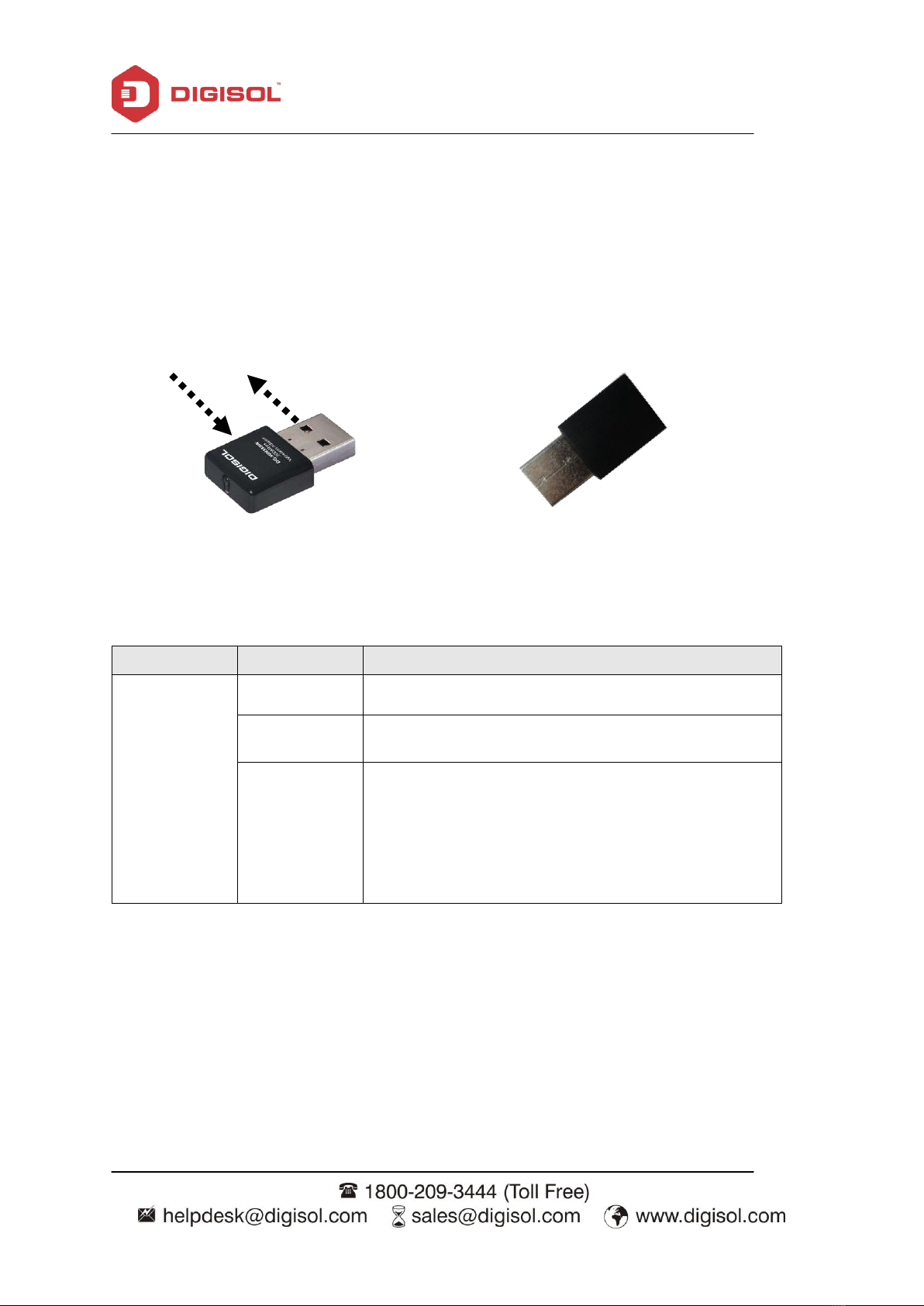
1-5 Get familiar with your new wireless USB adapter
1. USB interface
2. Status LED (Under the case)
LED Name
Light Status
Description
Status
Off
Wireless Radio is switched OFF.
On
Steady light 5 seconds means WPS connection is
established successfully.
Blinking
i) Wireless network adapter is normally installed.
ii) Linked to a wireless access point.
iii) Transferring or receiving data.
Fast Blinking three times per second means WPS is
activated. The USB adapter will wait for 2 minutes to
establish WPS connection.
2
1
Top View
Bottom View

DG-WN3300N User Manual
8
2. Driver Installation and Configuration
2-1 Network Adapter Installation
Please follow the instructions mentioned below to install your new wireless USB adapter:
Note1: The following installation was operated under Windows XP. (Procedures are
similar for Windows Vista/XP/7/8.)
Note2: If you have installed the Wireless PC Adapter driver & utility before, please
uninstall the previous version first.
1. Insert “Installation Software CD” into the CD/DVD ROM drive of your computer.
„AUTORUN.EXE‟ program will run automatically.

DG-WN3300N User Manual
9
2. Click „Drivers & Utility‟ to begin with the driver and utility installation. The following
screen appears. Click on “Next”.

DG-WN3300N User Manual
10
3. The Installation procedure will need few minutes to complete the setup, please be patient.
4. Click „Finish‟ to reboot your computer to complete the installation procedure. If you
don‟t want to reboot the computer now, select „No, I‟ll restart my computer later‟
option and click „Finish‟. Please note you have to reboot your computer before you can
use your new wireless USB adapter.
Table des matières
Autres manuels Digisol Adaptateur

Digisol
Digisol DG-WN3150Nu Manuel utilisateur

Digisol
Digisol DG-WN3150Nu Manuel utilisateur

Digisol
Digisol DG-WN3860AC Manuel utilisateur

Digisol
Digisol DG-WN3430AC Manuel utilisateur

Digisol
Digisol DG-WN3150Nu Instructions de montage

Digisol
Digisol DG-BA3370 Manuel utilisateur

Digisol
Digisol DG-WN3150Nu Manuel utilisateur

Digisol
Digisol DG-WN3150N Manuel utilisateur


