
DigiGrid IOC Manuel utilisateur
IOC

IOC
2
Table of Contents
Introduction ............................................................................................................................................................................................4
1. Getting Started..................................................................................................................................................................................5
1.1 System Requirements ..............................................................................................................................................................5
1.2 Registration..................................................................................................................................................................................5
1.3 Software Installation.................................................................................................................................................................6
1.4 Licenses .........................................................................................................................................................................................6
2. Hardware .............................................................................................................................................................................................7
3. Suggested Uses And Congurations.........................................................................................................................................9
3.1 One Computer with a DiGiGrid IOC ....................................................................................................................................9
3.2 Adding More I/Os to Your System...................................................................................................................................... 10
3.3 Adding a Server........................................................................................................................................................................ 11
3.4 Multiple Computers with a Single DiGiGrid IOC........................................................................................................... 12
3.5 HD Mix Room and Several Smaller Recording/Editing Rooms................................................................................ 13
4. Software Setup And Controls..................................................................................................................................................... 15
4.1 Device Firmware....................................................................................................................................................................... 18
4.1.1 Resetting the Unit......................................................................................................................................................... 18
4.2 Identifying a Device from the SoundGrid Studio Device Rack................................................................................ 18
IOC

IOC
5. Control Panel.................................................................................................................................................................................... 19
5.1 Controls Page ............................................................................................................................................................................ 21
5.1.1 Top Bar............................................................................................................................................................................... 22
5.1.2 Analog Section............................................................................................................................................................... 22
5.1.3 Digital Section................................................................................................................................................................ 25
5.1.4 Clip Indication and Small Meters............................................................................................................................. 26
5.2 Clock Page .................................................................................................................................................................................. 27
6. Adding a Server to the IOC ......................................................................................................................................................................29
6.1 Applications of an External Server ................................................................................................................................... 30
6.1.1 eMotion ST mixer.......................................................................................................................................................... 30
6.1.2 StudioRack.............................................................................................................................................................................. 31
7. Moving Audio in a Soundgrid Network.............................................................................................................................................32
7.1 Using an I/O Device with a DAW ........................................................................................................................................ 33
7.2 Patching I/O to Driver and Driver to I/O ......................................................................................................................... 34
7.3 eMotion ST Mixer Patching ..............................................................................................................................................................37
7.4 Device-to-Device Patching................................................................................................................................................... 38
7.5 Headphone Patching ..........................................................................................................................................................................39
8. Technical Specications................................................................................................................................................................ 40
8.1 Installation Notes..................................................................................................................................................................... 42

4
IOC
INTRODUCTION
Thank you for choosing the DiGiGrid IOC interface for SoundGrid systems. In order to get the most out of your product,
please take some time to read this manual. We also suggest that you become familiar with our support sites, www.digigrid.net
and www.waves.com/support, where you will nd an extensive answer base, the latest tech specs, detailed installation guides,
software updates, and current information about licensing and registration.
About SoundGrid and DiGiGrid IOC
SoundGrid is a scalable infrastructure that provides a variety of cost-eective, high-quality solutions for studio production. It can be
congured in many ways, with many hardware possibilities, to provide a very exible work environment. This framework is managed
by the SoundGrid Studio Application, which congures the network, assigns and manages I/Os, controllers and servers, and patches
audio throughout the system. Any user, anywhere on the SoundGrid network, has access to all available network I/O devices. Adding
a SoundGrid DSP server enables processing and monitoring.
Perfect for the control room, the DiGiGrid IOC audio interface oers a wide range of connectivity options, including 2 mic/line
inputs with broadcast-grade preamps, 8 line inputs/outputs, 16 AES/EBU inputs/outputs, and one ADAT 8-channel I/O, plus two
powerful headphone outputs.
Connect the IOC to your SoundGrid network with a single Ethernet cable. DiGiGrid IOC can be used as your primary audio interface,
or as an additional I/O expansion to an existing SoundGrid system.
Add a SoundGrid DSP server, and you’ll be able to run hundreds of SoundGrid-compatible plugins, fully integrated within your DAW,
with incredibly low latency.

5
IOC
1. GETTING STARTED
Aside from setting up your microphone preamps, there’s not much you need to know to begin working with your IOC.
1.1 System Requirements
■SoundGrid Studio running on a Mac or PC (consult the Waves website for current OS and DAW compatibility).
■Compatible native DAW (Logic, Cubase, Nuendo, Ableton, Pro Tools Native, and many more). A list of SoundGrid-compatible hosts
is available at the Waves website.
■IOC / SoundGrid Studio software installed on the host computer.
■Cat 5e or Cat 6 Ethernet cables.
1.2 Registration
To download IOC software you will need to register your device at www.digigrid.net or www.waves.com. You must know the serial
number of your IOC in order to register it, so sign up before you mount it in a rack. The serial number appears on a label on the
bottom of the unit or on a sticker on the box.
Once you register you will receive two emails:
■A notication that you can now download the installer.
■Instructions about authorizing your license.

6
IOC
1.3 Software Installation
After you register your new IOC, you can download the installer from the Download/Hardware Drivers section of the Waves website.
Since SoundGrid enables you to access an I/O device from any computer in the network, you will need to install the software on
each computer in the network.
The IOC installer consists of:
■The IOC I/O hardware driver.
■The SoundGrid ASIO/Core Audio driver, which serves as a bridge between the DAW and the SoundGrid network.
■The SoundGrid Studio Application, which manages all SoundGrid network resources and assigns devices to computers.
■StudioRack, a software plugin rack, or chainer, that hosts up to eight plugins and can move their processing from the DAW to
an external SoundGrid server such as the one built into the DiGiGrid IOS interface. (External server is not included with the IOC.)
■eMotion ST, a software mixer that provides low-latency plugin processing and monitor mixing (requires an external server).
1.4 Licenses
DiGiGrid I/O devices do not require a license to operate in a SoundGrid network. However, certain advanced features, such as
using StudioRack and eMotion ST for low-latency monitoring, or ooading processing from the host CPU, require a server and a
SoundGrid license. This license is included with the purchase of IOC.
When you register your device, the relevant licenses are deposited in your Waves account. Use the Waves License Center application
to activate your licenses and install them on your computer or on a USB ash drive.
7
IOC
2. HARDWARE
DiGiGrid IOC is a 1U rack-mounted device. Aside from headphone jacks, all connections are on the rear panel.
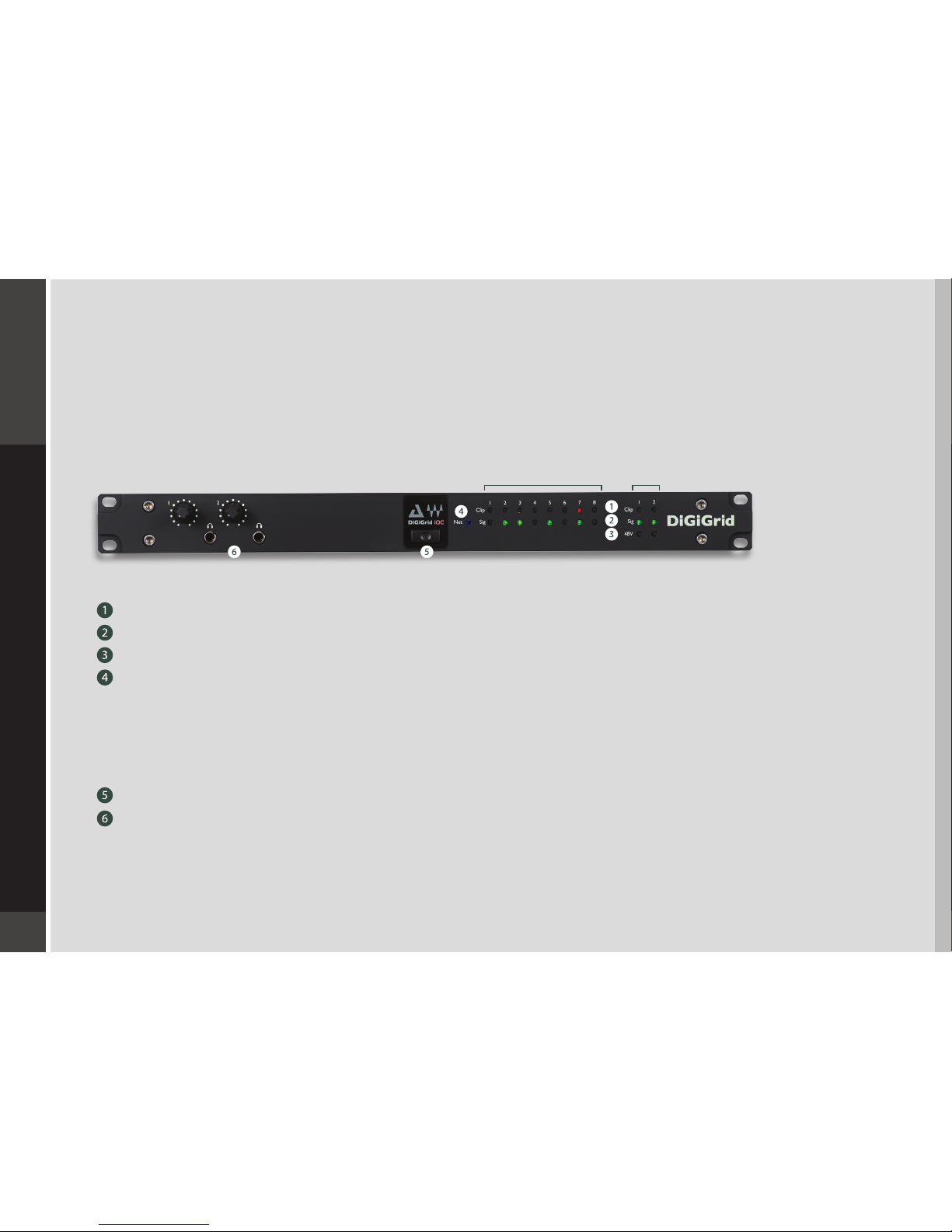
IOC Front Panel
Front panel LEDs indicate the status of essential device functions for each channel.
Input clipping Red = clipping (level can be set through the control panel)
Input signal present Green = signal present
48v phantom power Orange = ON
Network status indicator
Blue: Device recognized by the SoundGrid network
Red (ashing): Device not recognized by the SoundGrid network
Yellow: Updating
White: Unit malfunction (e.g., rmware did not load properly, unit did not boot properly)
Cycling through colors: This LED is used to identify the unit from the control panel
Power switch/indicator
2 ¼-inch TRS headphone jacks with individual volume control knobs
8–600 ohms; gain = OFF to +15 dB
8 line in (DB25) 2 mic/line combo

8
IOC
IOC Rear Panel
Mains input: 90–240 V AC 50/60 Hz
Built-in 1GB Ethernet switch, two ports
Recovery/reset button
Analog Connections
2 mic/line inputs (combo XLR/TRS connectors)
8 line in (DB25 8-channel balanced connector)*
8 line out (DB25 8-channel balanced connector)*
Digital and Clock Connections
16 AES/EBU I/O (2x 25-pin DB25)*
1 ADAT I/O (8 channels @ 48 kHz; 4 channels @ 96 kHz)
Clock in and out (BNC connectors for external Word Clock)
* See the Connections diagram in the Technical Specications section at the end of this user guide.
4
5
6
3
7
8
9

9
IOC
3. SUGGESTED USES AND CONFIGURATIONS
There are many ways to use your DiGiGrid IOC. Your existing (or future) equipment, how you work, and what you need to accomplish
are factors to consider when incorporating an IOC into your studio. Project studios with one or two DAWs can share I/O resources.
Studios with several rooms and many DAWs can stream audio between rooms and quickly swap out devices. But no matter how
simple or complex your setup is, connecting an IOC involves only one cable, an Ethernet Cat 5e or Cat 6.
3.1 One Computer with a DiGiGrid IOC
This is the most basic studio conguration. It includes a host computer with a native DAW and a single DiGiGrid IOC that connects
microphones, instruments, headphones, and monitors to the SoundGrid ASIO/Core Audio driver. This driver controls the network
and all its devices.
Ethernet
Analog
Clock
Host Computer
External
Clock
DiGiGrid IOC

10
IOC
3.2 Adding More I/Os to Your System
Add a DiGiGrid IOX and you pick up another 12 mic inputs, 6 line outputs, and 4 more individual headphone outputs.
Connect the IOX to the built-in Ethernet switch on the rear of the IOC. You can add up to eight SoundGrid I/O devices to
a single host. Each of these can be accessed by any computer on the network.
Audio and clock pass through the same Ethernet cable. This means of distributing clock is called “Sync over Ethernet” (SoE) and is
used between all SoundGrid devices. To clock the entire network to an external clock source such as house sync, use Word Clock or
Digital In as clock master for the IOC. If the IOC is the SoE master, the entire network will be locked to this external source.
External
Clock
Host Computer
Ethernet
Analog
Clock
DiGiGrid IOC DiGiGrid IOX
Table des matières
Autres manuels DigiGrid Matériel de musique


