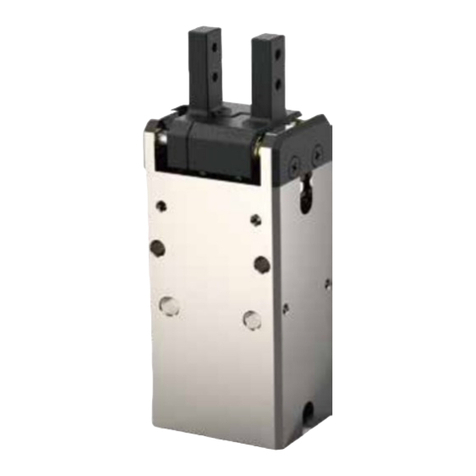
Dh-Robotics CGE-10 Comment utiliser

CGE-10 Gripper
Short Manual
Content
Revisions...........................................................................................................................................1
1 Specifications.................................................................................................................................2
1.1 Performance Parameter.......................................................................................................2
1.2 Dimensions..........................................................................................................................3
1.3 Indicator ..............................................................................................................................3
1.4 Pinout Description...............................................................................................................4
2 Modbus-RTU Control ....................................................................................................................5
2.1 Debugging software description .........................................................................................5
2.1.1 Installation and wiring of debugging software.........................................................5
2.1.2 Debugging software instructions..............................................................................6
2.2 Default Communication Parameters ...................................................................................9
2.3 Modbus-RTU Description.................................................................................................10
2.3.1 RTU Framing .........................................................................................................10
2.3.2 Supported Modbus Function Code.........................................................................10
2.3.3 Register Mapping...................................................................................................10
2.3.4 Register Description...............................................................................................12
2.3.4.1 Initialization ................................................................................................12
2.3.4.2 Force............................................................................................................12
2.3.4.3 Position........................................................................................................13
2.3.4.4 Speed...........................................................................................................13
2.3.4.5 Initialization State .......................................................................................14
2.3.4.6 Gripper State ...............................................................................................14
2.3.4.7 Current Position ..........................................................................................15
2.3.4.8 Save Parameter............................................................................................15
2.3.4.9 Initialization Direction ................................................................................15
2.3.4.10 Slave Address............................................................................................16
2.3.4.11 Baud Rate ..................................................................................................16
2.3.4.12 Stop Bits....................................................................................................17
2.3.4.13 Parity .........................................................................................................17
2.3.4.14 Test I/O Parameters ...................................................................................18
2.3.4.15 I/O Mode Switch.......................................................................................18
2.3.4.16 I/O Parameter Configuration.....................................................................19
3 I/O Control...................................................................................................................................21

Tel/Fax: 0755-82734836 www.dh-robotics.com
1
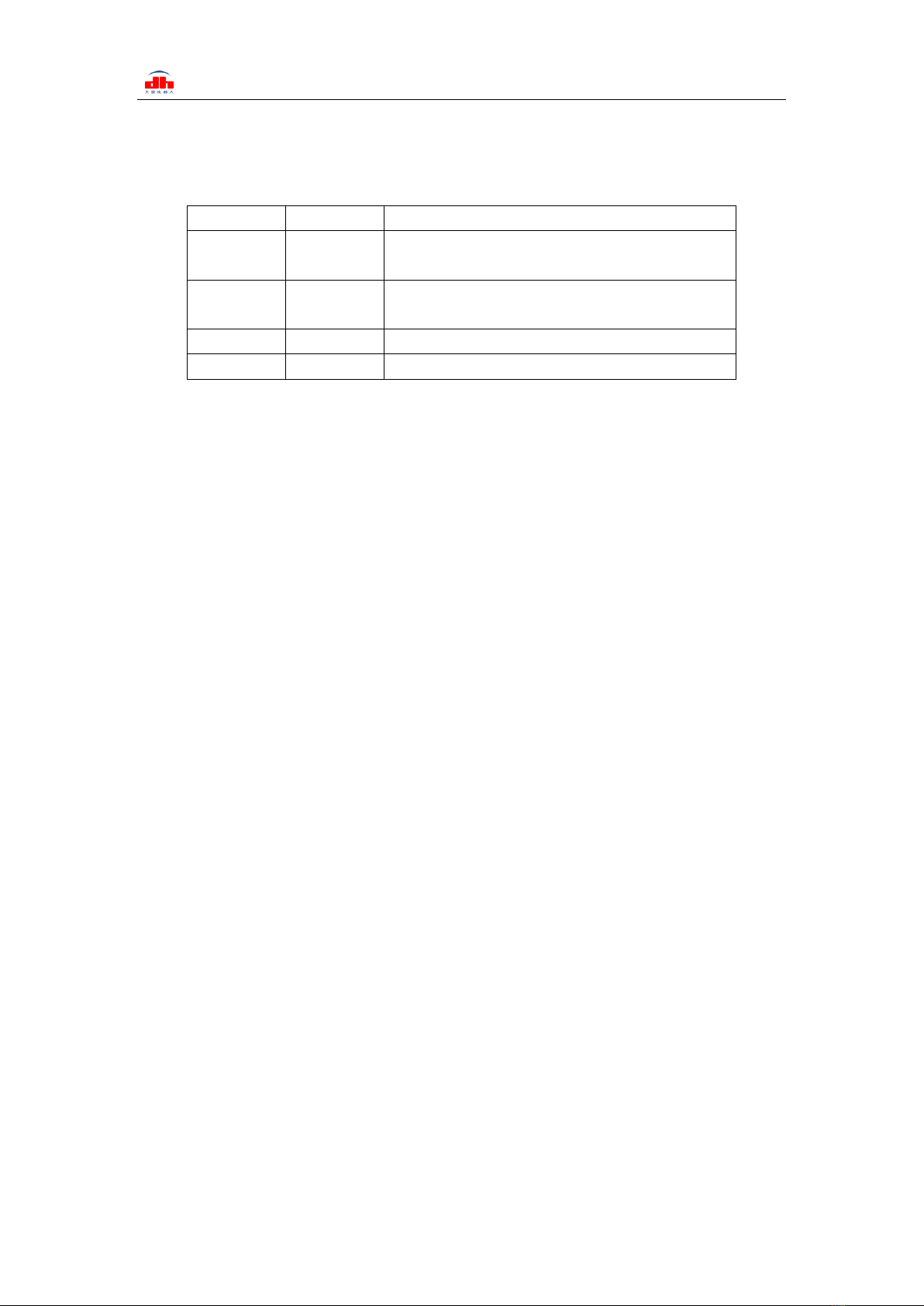
Revisions
Date
Version
Revised content
20200426
V1.0
First edition, write wiring instructions and
command instructions
20200904
V2.0
Change some instructions , Update the description
of IO mode
20210401
V2.1
Normal update

Tel/Fax: 0755-82734836 www.dh-robotics.com
2
1 Specifications
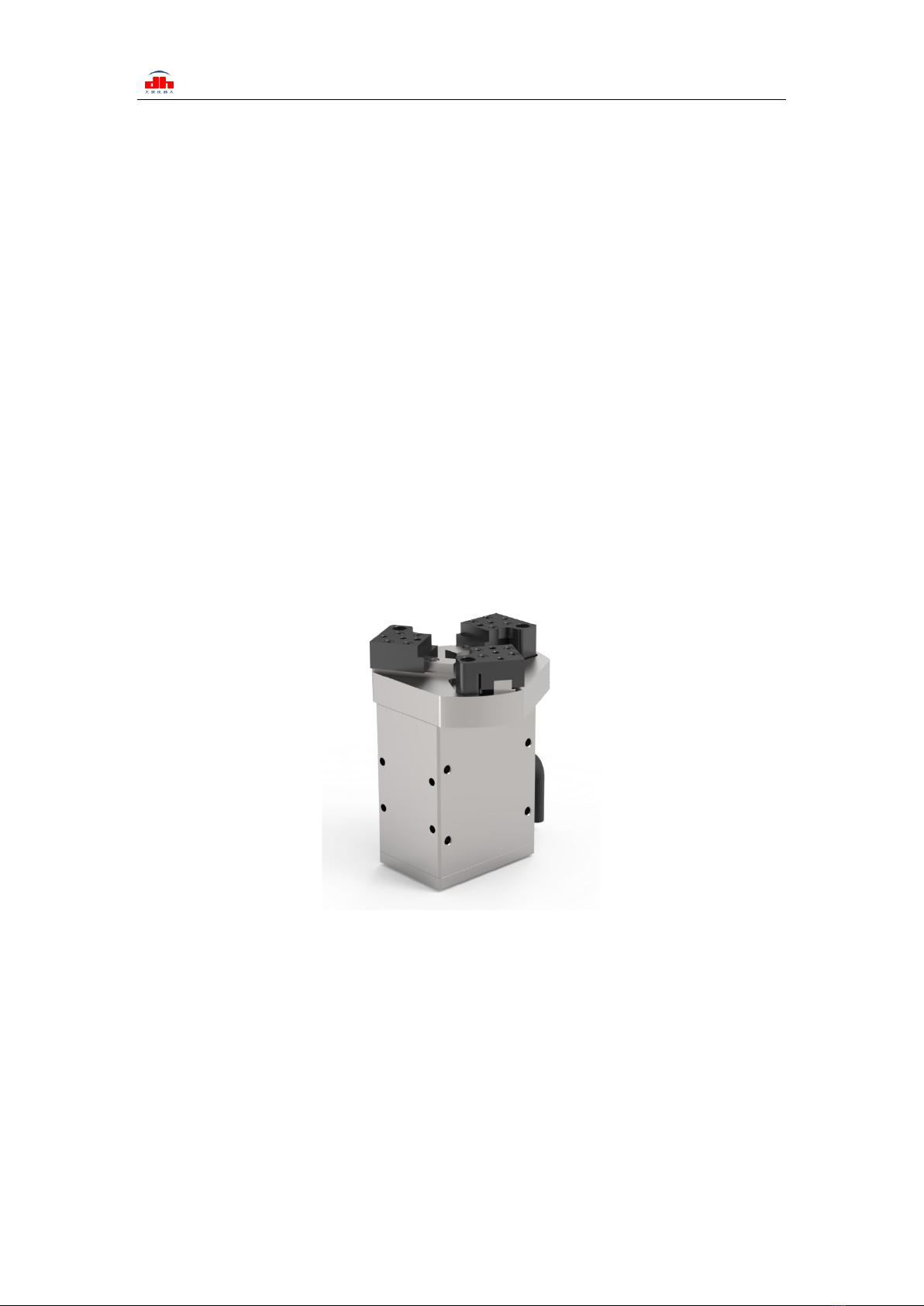
CGE series are three finger cooperative gripper. The number represents the maximum clamping
force of a single fingertip. The gripper are equipped with three fingertips, which are evenly
distributed in a circle.The main structure of the gripper is a smooth rectangular structure. It is
equipped with an 8-core communication interface, as shown in Figure 1.1. It has the following
characteristics:
Controllable force/position/speed: The gripper can program and adjust the grip position,
grip force and speed.
Multiple communication modes: The gripper supports Modbus RTU protocol and IO mode
control. Other communication protocols such as Ethernet and ETHERNET can be transferred
through protocol converter.
Gripping Detection: The combination of force control and position control is adopted in the
gripping process.
Gripping feedback: The state of the gripper can be read by programming, and can also be
judged according to the indicator of the gripper.
Fingertips can be customized: Fingertips can be replaced according to situation, which is
suitable for precision machining, parts assembly, and other fields.
Figure 1.1 CGC series gripper
1.1 Performance Parameter
The specific parameters of CGC-80 gripper are listed in Table 1.1.

Tel/Fax: 0755-82734836 www.dh-robotics.com
3
Table 1.1 CGC-80 specifications
CGC-80 performance parameters.
Gripping force (per jaw)
3-10N
Opening/closing stroke (both sides)
0-10mm
Opening/Closing time
0.2s/0.2s
Weight
0.43kg
Position repeatability (both sides)
±0 .03mm
Communication protocols
Modbus RTU(RS485), I/O
Nominal voltage
24V DC±10%
Nominal current
0.3 A
Peak current
0.6 A
1.2 Dimensions
The gripper hardware parameters contain the specific size of the gripper, the mounting hole, as
shown in Figure 1.2.
Figure 1.2 Dimensional drawing
1.3 Indicator
The gripper can feed back the state of the gripper in real time. In addition to the command
reading, it can also be judged on the color of the indicator:

Tel/Fax: 0755-82734836 www.dh-robotics.com
4
1.4 Pinout Description
The pinout of the gripper is shown in Figure 1.3, and the pin description is shown in
Table 1.3.
Figure1.3 Pinout assignment
Table 1.3 Pinout assignment
Wire color
Description
Brown
INPUT 2
White
INPUT 1
Blue
485_B
Black
485_A
Red
24 V
Grey/Pink
GND
Yellow
OUTPUT 1
Green
OUTPUT 2
Color description of indicator light
·Uninitialized state: Red light blinks, other lights are off.
·Initialized State: the blue light is always on, indicating that it is in the operable state.
·Received command state: the red light blink once quickly (because the blue light is
always on at this time, the gripper indicator light will looks like a purple light).
·Object Caught state: green light is always on, other lights are off.
·Object dropped state: green light blinking.

Tel/Fax: 0755-82734836 www.dh-robotics.com
5
2 Modbus-RTU Control
2.1 Debugging software description
The debugging software is specially used to control the gripper and set debugging parameters
on the computer. Because there is no RS485 interface in the computer, the USB to 485 module is
needed to convert the interface to USB interface, which is convenient for the debugging and
control of the gripper in the computer.
2.1.1 Installation and wiring of debugging software
Connecting by debugging software is essentially controlled by RS485 interface. The specific
connection needs to be connected to the 24 V, GND, 485_ A(T/R+,485+) , 485_ B (T / R -, 485 -) 4
wires in total. The power supply is a 24 V DC regulated power supply. Plug the USB port of the
module into the USB port of the computer. The wiring definitions of different series are different.
Please connect according to the instruction of specific clamping claw, as shown below:
Figure 2.1 RS485 Connection
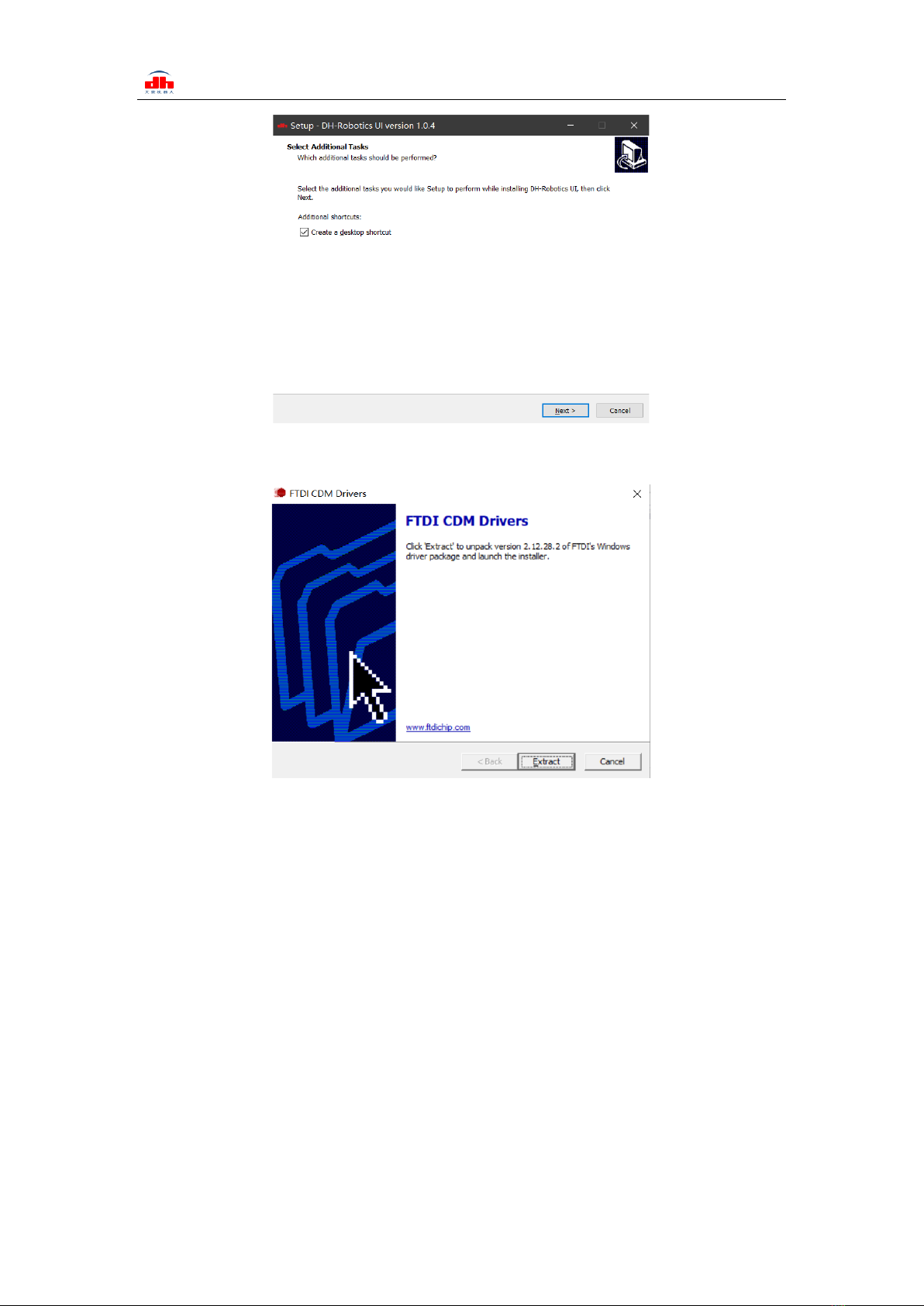
Software can be downloaded on the official website. Software and driver are integrated in the
process of software installation, and both are installed together. It is recommended to check the
create shortcut during installation.
Wiring instructions
·① : when the device (computer) has RS485 interface, the communication can be directly
connected to RS485_A and RS485_B communication lines without transferring to 485
module through USB
·② : in this way, other serial port debugging software (such as MODBUS poll) can be
used for debugging

Tel/Fax: 0755-82734836 www.dh-robotics.com
6
Figure 2.2 (a) installation interface 1
Figure 2.2 (b) driver installation interface
2.1.2 Debugging software instructions
‘Before use, it is necessary to connect the corresponding wiring according to the instructions
(see 2.1.1 Installation and wiring of debugging software).
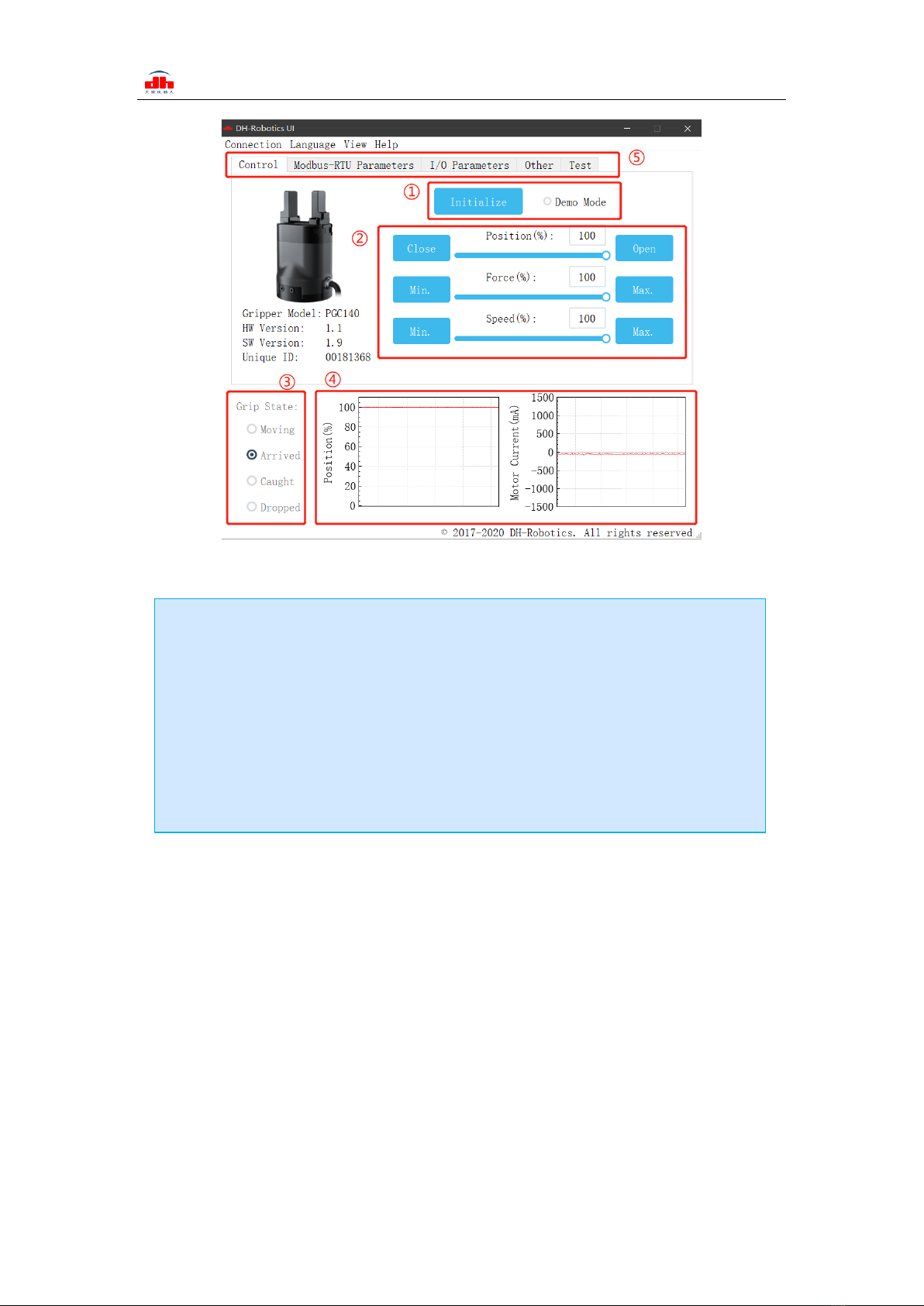
Open the software, the software will automatically identify the serial port, baud rate, ID number
and other information of the gripper for automatic connection. As shown in the figure below:

Tel/Fax: 0755-82734836 www.dh-robotics.com
7
Figure 2.3 main control interface
The specific interface description is as follows:
The gripper body uses Modbus RTU for communication, and can read and write data into the
register. The data can be read and written at the view register. The data includes control, feedback,
user parameters and I/O parameters as shown in the following figure:
Interface description
·① Initialization and demonstration mode: the gripper needs to be initialized before
operation to calibrate the zero point. The demonstration mode is a cyclic program.
·② Control interface: it can control the position, force and speed of the gripper.
·③ Clamping status: real time display of clamping status of clamping claw.
·④ Position current real time graph: real time display position and current. The
current represents the current of the internal motor, not the current actually consumed by
the gripper. The current real-time graph can reflect the stability of clamping force.
·⑤ Parameter setting: the configuration parameters of Modbus RTU, such as baud rate
and check bit, can be configured; IO mode is to configure the parameters related to IO
mode;

Tel/Fax: 0755-82734836 www.dh-robotics.com
8
Figure 2.4 View
If there are multiple 485 devices, sometimes the baud rate and ID number of the gripper need
to be modified, the parameters can be modified in Modbus RTU parameters
Figure 2.5 Modbus RTU parameters
You can set and configure the gripper I / O parameters in [I / O parameters]. After modifying
the parameters, please click Save button to save. The following figure shows the operation of
opening IO mode:

Tel/Fax: 0755-82734836 www.dh-robotics.com
9
Figure 2.6 Modbus RTU parameters
The steps of switching IO are as follows:
2.2 Default Communication Parameters
Slave Address :1
Baud Rate :115200
Data Bits :8 bits
Stop Bits :1 stop bit
Parity :None
Steps to switch IO mode
·① Open IO mode: open IO mode first.
·② Configure four groups of IO parameters: set the four groups of parameters of
gripper, including position, force and speed.
·③ Save: click the Save button to write the parameters to the internal register of flash,
and restart to control.
·④ Restart: after the restart, the switch to IO mode is successful. You can control the
gripper according to the input signal, and the running status will be fed back through
output.
Table des matières
Autres manuels Dh-Robotics Outils