DGSI EZ-DAQ Manuel utilisateur

EZ-DAQ™
User
Manual
Version 1.4
Durham Geo Slope Indicator
2175 West Park Court
Stone Mountain, GA 30087
USA
Phone: 800-837-0864 or +1.770.465.7557
Fax: 770.465.7447
e-mail: [email protected]
www.DurhamGeo.com

Disclaimer
Durham Geo-Enterprises, Inc. (including all affiliates to include its trade name of
DGSI) makes no representations or warranties with respect to the contents
hereof and specifically disclaim any implied warranties of merchantability or
fitness for any particular purpose. Durham Geo Slope Indicator reserves the right
to revise this publication and to make changes from time to time in its content
without obligations to notify any person or organization of such revision or
changes.
Information Record
Model #: ____________
Serial #: ______________
Sold By: ___________________
Date Purchased: _____________
IMPORTANT
Before beginning installation procedures, these installation and
operating instructions should be studied carefully. The installation and
operation should also be in accordance with local regulations and
accepted codes of good practice.

Table of Contents
INTRODUCTION.................................................................................................................4
1.0 Overview...............................................................................................................4
2.0 System Requirements..........................................................................................5
3.0 Summary of Installation instructions — Software for PC (details on p.14) ..........5
4.0 Summary of Installation Instructions — Ethernet Adaptor (details on p.16) ........5
EZ-DAQ PANEL.................................................................................................................6
1.0 Screen Description...............................................................................................6
EZ-DAQ-SOFT™ SOFTWARE..........................................................................................8
1.0 Communications...................................................................................................8
2.0 EZ-DAQ-Soft™ Software Installation.................................................................12
3.0 EZ-DAQ-Soft™ — Individual Test Setup ...........................................................14
4.0 How to customize your PC screen.....................................................................15
5.0 Displaying Your Results. ....................................................................................16
CALIBRATION .................................................................................................................18
1.0 Calibration of Sensors........................................................................................18
2.0 Important Information .........................................................................................23
TROUBLESHOOTING .....................................................................................................24
1.0 Troubleshooting:.................................................................................................24
LIMITED WARRANTY......................................................................................................25
SOFTWARE CODE
The software code is copyrighted 2008 by Durham Geo Slope Indicator.
All rights reserved.
SOFTWARE LICENSE AND REGISTRATION
The purchase of one EZ-DAQ-Soft™ software program gives the
purchaser the right to install the program on multiple machines, however
only one (1) EZ-DAQ can be run at a time.
© 2008 Durham Geo Slope Indicator. All rights reserved. Printed in USA.

EZ-DAQ™ INTRODUCTION
Operator’s Manual EZ-DAQ™ version 1.4 4 of 25
INTRODUCTION
1.0 Overview
The EZ-DAQ is a USB-Ethernet data acquisition system used in conjunction with
EZ-DAQ-Soft software. The software is formulated for communication with only the
EZ-DAQ data acquisition system for recording readings and storing them in user
defined directories.
EZ-DAQ has provisions for 8 sensor inputs. It gives the user the convenience of digital
indicators at the test stand with the ability of transferring test data to the EZ-DAQ-Soft
software via standard Ethernet protocol. The EZ-DAQ can enable 1-to-8 industry-
standard analog sensors with multiple input ranges. With multiple input channels and
ranges, the channels can have different input ranges simultaneously, For example,
Channel 1 can be configured for a 200 mV input signal while Channel 8 can be
configured for 4-20 mA signal. These readings will be displayed on the screen and
uploaded to the software.
All calibrations are held in the EZ-DAQ and are password protected.
Sensor Input Type: mV, V, mA.
Sensor Input range: 150 mV, 500 mV, 1 V, 5 V, 10 V, 20 V, 4-20 mA
EZ-DAQ is configured for either SI or US customary units. At present, the internal
software does NOT allow the user to switch between the two units.
The EZ-DAQ-Soft™ software is user friendly, displaying all sensors on the PC screen.
The screen allows information from up to six sensors to be saved on 6 individual files
with 6 different sampling rates to be setup before the test begins. Files are saved as
delimited text which may be easily imported into a spread sheet program, or can be
opened as a simple text file.
Communication from the EZ-DAQ to the customers PC is accomplished using standard
Ethernet protocol with a USB to Ethernet adaptor. Setup is easy because it uses a static
IP address.

EZ-DAQ™ INTRODUCTION
Operator’s Manual EZ-DAQ™ version 1.4 5 of 25
2.0 System Requirements
`Microsoft Windows 98, 2000,NT or XP
Note: This software is not compatible with Windows 95 or
Windows ME. Not recommended for XP-Home Edition.
`500 MHz processor --- (Faster processor recommended)
`64 MB RAM --- (128 MB(+) recommended)
`Approximately 12 MB free disk space
`CD drive to load program
`VGA display
`USB 2.0 port
3.0 Summary of Installation instructions — Software for PC (details on p.14)
Insert CD into computer. Open the PC DAQ Software Installation folder, and double-click
setup.exe -or- Select Start/Run/ (CD Drive letter):/ PC DAQ Software Installation /Setup.exe.
Follow instructions. Default installation is on C: drive, but the user can define the installation
directory.
4.0 Summary of Installation Instructions — Ethernet Adaptor (details on p.16)
Plug the Belkin adaptor into a USB port on the host computer.
Windows will begin the installation process and ask for the driver information for the adaptor.
Browse the CD and select the Belkin ethernet adaptor.
Windows will search the directory and load the correct driver for your machines.
IMPORTANT NOTE
The use of a UPS (Uninterruptible Power Supply is highly recommended for both the
EZ-DAQ and corresponding PC. Without battery backup, loss of data, and loss of
test could occur in the event of a power failure.
IMPORTANT NOTE
To un-install the software, simply double-click the setup.exe again from the CD drive
and software will unload automatically.
(Some files will not remove automatically and will need to be removed manually.)
IMPORTANT NOTE
Installation on WinNT, Win2000, or WinXP requires Administrator privileges.

EZ-DAQ™ EZ-DAQ PANEL
Operator’s Manual EZ-DAQ™ version 1.4 6 of 25
LDT
column
with a
0.000
precision
display
LOAD
CELL
column
with a
0.0
precision
display
PORE
pressure
column
with a
0.0
precision
display
PSI
column
with a
.0.0
precision
display
EZ-DAQ PANEL
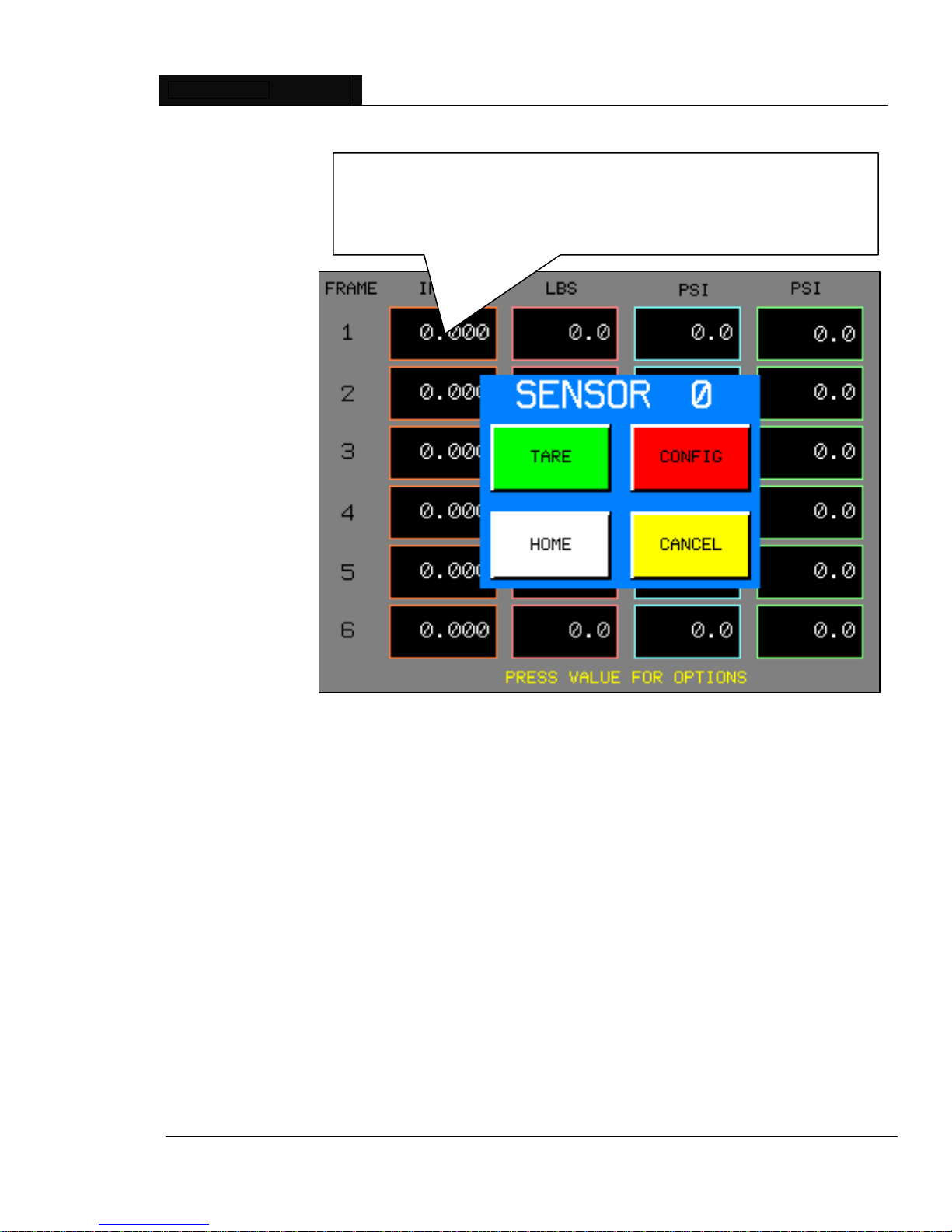
1.0 Screen Description
Sensor Display Panel — Home Screen
A sensor is not a channel. A sensor may be
plugged into different channels. Channels are
numbered on the back of the EZ-DAQ panel.
(Sensor 2 can be plugged into channel 8).
Main screen of touch panel
(Up to 8 inputs in real-time
display of sensors).
Sensor configuration screen:
Press “Monitor” to
go to the next page
Frame 1 or
machine 1 with a
total of 4 sensors.
Different Tests
Different Sensors

EZ-DAQ™ EZ-DAQ PANEL
Operator’s Manual EZ-DAQ™ version 1.4 7 of 25
Remember,
touching in a
sensor box
applies to
configurations for
that particular
sensor only.
Note: A single sensor may be set-up for different test scenarios. For Example, you could
have two sensors and run five tests with them.
Touch in CENTER of block to bring up “Sensor Configuration Block” –SCB-
“TARE” (Zero) sensor reading
“CONFIG” calibration of sensor
“Home” start-up screen
“Cancel” turns off -SCB-

EZ-DAQ™ EZ-DAQ-Soft SOFTWARE
Operator’s Manual EZ-DAQ™ version 1.4 8 of 25
EZ-DAQ-Soft™ SOFTWARE
1.0 Communications
Connect the ethernet cable (c) to the Belkin
adaptor (d).Plug Belkin USB Ethernet Adaptor
into the computer’s USB port (e).
NOTE: Standard cat-5 ethernet cable,
not a cross-over cable.
The computer will recognize the new hardware and will start loading software and drivers
automatically.
On a new installation, the computer will ask for
drivers to be loaded.
Browse to D:\EZ-Daq Belkin Ethernet Adapter.
Left-click on this directory. Drivers for your
operating system will automatically load.
Ç
c
Ç
d
Ç
e

EZ-DAQ™ EZ-DAQ-Soft SOFTWARE
Operator’s Manual EZ-DAQ™ version 1.4 9 of 25
After installation of USB
software, the IP address
must be changed to enable
communications between
the EZ-DAQ unit and
EZ-DAQ-Soft software.
IMPORTANT NOTE
The next few pages describe how to
configure the IP address on the Belkin
adaptor. Please read carefully for a
trouble-free installation.
cLeft-click on “Start”.
dRight-click on “My Network Places”.
eLeft-click on “Properties”.

EZ-DAQ™ EZ-DAQ-Soft SOFTWARE
Operator’s Manual EZ-DAQ™ version 1.4 10 of 25
cLeft-click on
“Internet Protocol”
(TCP-IP).
dLeft-click on
“Properties”.
Right-click on the newly-installed USB device. Left-click
on “Properties”. ”BELKIN USB Ethernet Adaptor” will
be the device name.
Table des matières
Manuels Instrument analytique populaires d'autres marques

EXTOL PREMIUM
EXTOL PREMIUM 8820043 Instructions d'installation et d'utilisation

RIDGID
RIDGID SeeSnake Compact Manuel utilisateur

Teledyne
Teledyne 3000PA Manuel utilisateur

YDLIDAR
YDLIDAR TIA Manuel utilisateur

Olympus
Olympus IPLEX FX Series Manuel utilisateur

Bosch
Bosch GLM 50 C Professional Manuel utilisateur