Pachette4Quick Reference Guide : Page 2
DOCUMENT NUMBER: THIS GUIDE FOR USE WITH:
DGH 555B-INS-QKREF Rev.0 FIRMWARE v3.0.0
SOFTWARE v1.1.0
Molenstraat 15
2513 BH, The H ag ue
The Netherlands
Phone: +31.70.345.8570
EC REP
EMERGO EUROPEDGH TECHNOLOGY, INC.
110 SUMMIT DRIVE
SUITE B
EXTO N, PA 19341
USA (6 10) 594-9100
FOR TECHNICAL ASSISTANCE, CALL:
(610) 594-9100
(800) 722-3883
Mon-Fri: 9:00am –5:00pm EST
www.dghkoi.com
NOTE: Bluetooth®
features can only be used for a Pachette 4 with the Bluetooth®
option installed.
PAIRING WITH A BLUETOOTH®
ENABLED PRINTER
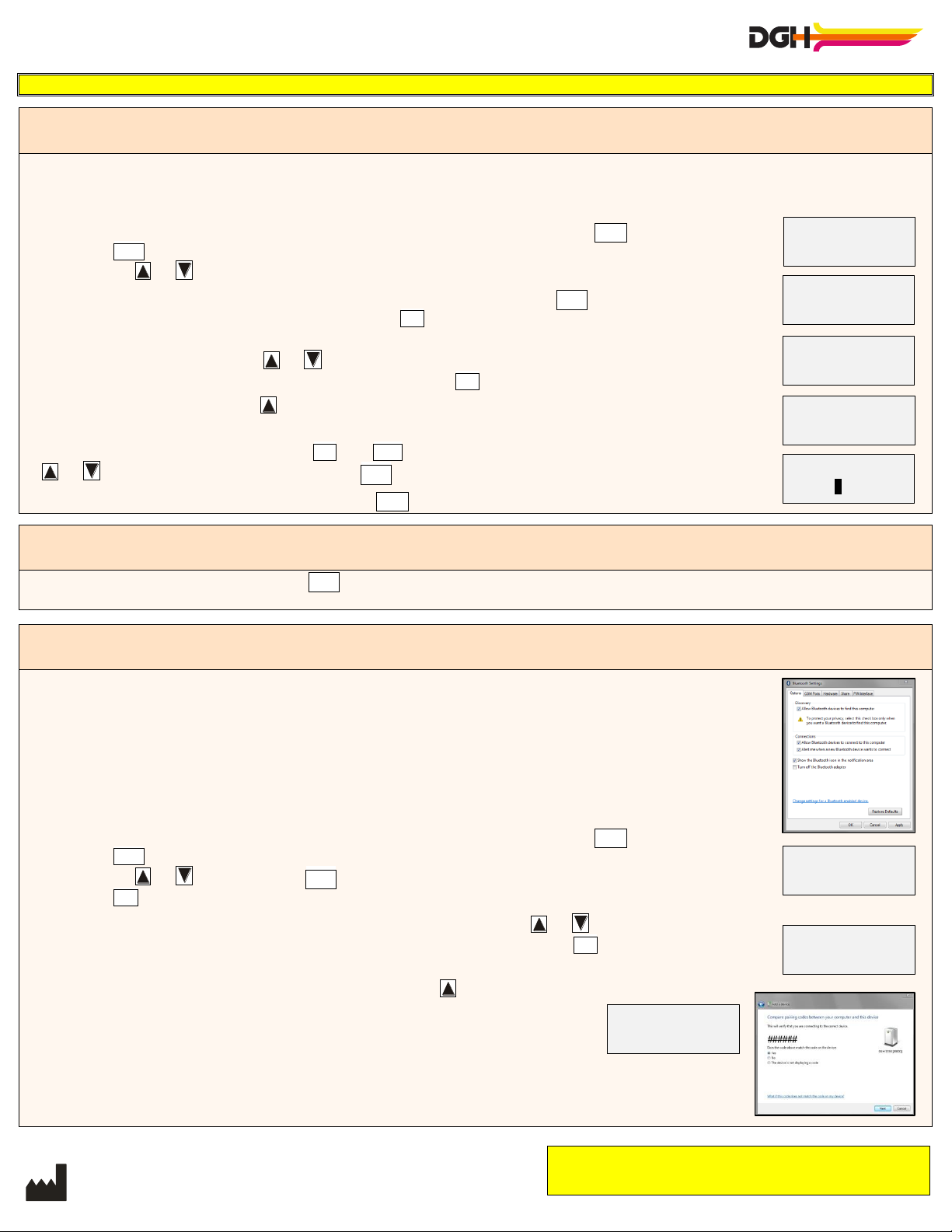
See section 10.2 of the operator’s manual for instructions on pairing a Pachette 4 and a printer.
POWER ON: Turn on both the Bluetooth®
enabled printer and the Pachette 4.
ENABLE BLUETOOTH®
ON THE PRINTER: It may be necesssary to enable Bluetooth®
features on
the printer, or to put the printer in discoverable mode.
ENABLE BLUETOOTH®
ON THE PACHETTE 4: On the Pachette 4, press the CFG key, then
press the ENT key 1 time. The Bluetooth Menu w ill be displayed. Make sure Bluetooth is ‘ On’ by
pressing the or key.
ADD PC/PRINTER ON THE PACHETTE 4: On the Pachette 4, press the ENT key 2 more times. The
Add PC/Printer Menu will be displayed. Press the OD button. The Pachette 4 will create a list of all
available Bluetooth®
devices.
SELECT PC/PRINTER: Use the or key to scroll through available devices. Find the name of the
printer in the list. While the name is displayed, press the OD button to ‘Add’ the device.
CONFIRM DEVICE: Press the key to confirm selection of the preferred printer.
ENTER PIN: When prompted, enter the Pin Code for the printer. The Pin Code is provided by the
manufacturer of the printer. Use the OS and OD keys to move the cursor left and right. Use the
or key to change the value. Press the ENT key to accept the Pin Code.
EXIT THE CONFIGURATION MENU: Press the CFG key to exit the Configuration Menu.
PRINTING DIRECTLY TO A BLUETOOTH®
ENABLED PRINTER
The printer must first be paired with the Pachette 4 before printing. See section 10.3 of the operator’s manual for instructions on direct printing .
SEND TO PRINT: Press and hold the ENT key until t he Pachette 4 displays the message ‘ Connecting to BT Device’ . The
printer will automatically print the results.
PAIRING WITH A BLUETOOTH®
ENABLED PC
See section 10.4 and 10.5 of the operator’s manual for instructions on pairing a Pachette 4 and a PC.
POWER ON: Turn on both the Bluetooth enabled PC and the Pachette 4.
INSTALL THE DGH CONNECT SOFTWARE: Insert the USB flash drive that was provided with
the Pachette 4 into an available USB port on the computer. The software will automatically install
the application and necessary prerequisites. Follow the prompts for installation.
ENABLE BLUETOOTH ON THE PC: Navigate to the Windows Control Panel and
select the ‘ Bluetooth Set tings’ item. Confirm that the PC will allow devices to pair to it,
allow discovery, show an alert when a device is trying to connect and display an icon in the
notification area.
ENABLE BLUETOOTH®
ON THE PACHETTE 4: On the Pachette 4, press the CFG key, then
press the ENT key 1 time. The Bluetoot h Menu w ill be displayed. Make sure Bluet ooth is ‘ On’ by
pressing the or key. Press the ENT key 2 more times. The ’Add PC/Printer’menu is displayed.
Press the OD key to initiate a scan.
SELECT THE PC:Once the Pachette 4 completes the scan, use the or key to scroll through the
available devices. With the PC you wish to pair with displayed, press the OD key.
ACCEPT PASSKEY: Both the Pachette 4 and the PC will show a passkey
and require the user to accept it as a match. Press the key on the
Pachette 4 to accept. Windows will show a prompt requiring confirmation.
Select ‘Yes’ and click ‘ Next’ to allow the connection.
START THE SOFTWARE: The Pachette 4 and the PC are now paired. Start
the software and click t he ‘ Add Devices’ button in the upper left-hand corner
of the DGH Connect application to use your Pachette 4.
#PRINTER# #/#
←Rescan Add→
PASSKEY ######
Accept? ↑=Y ↓=N
##NAME## #/#
←ReScan Add→