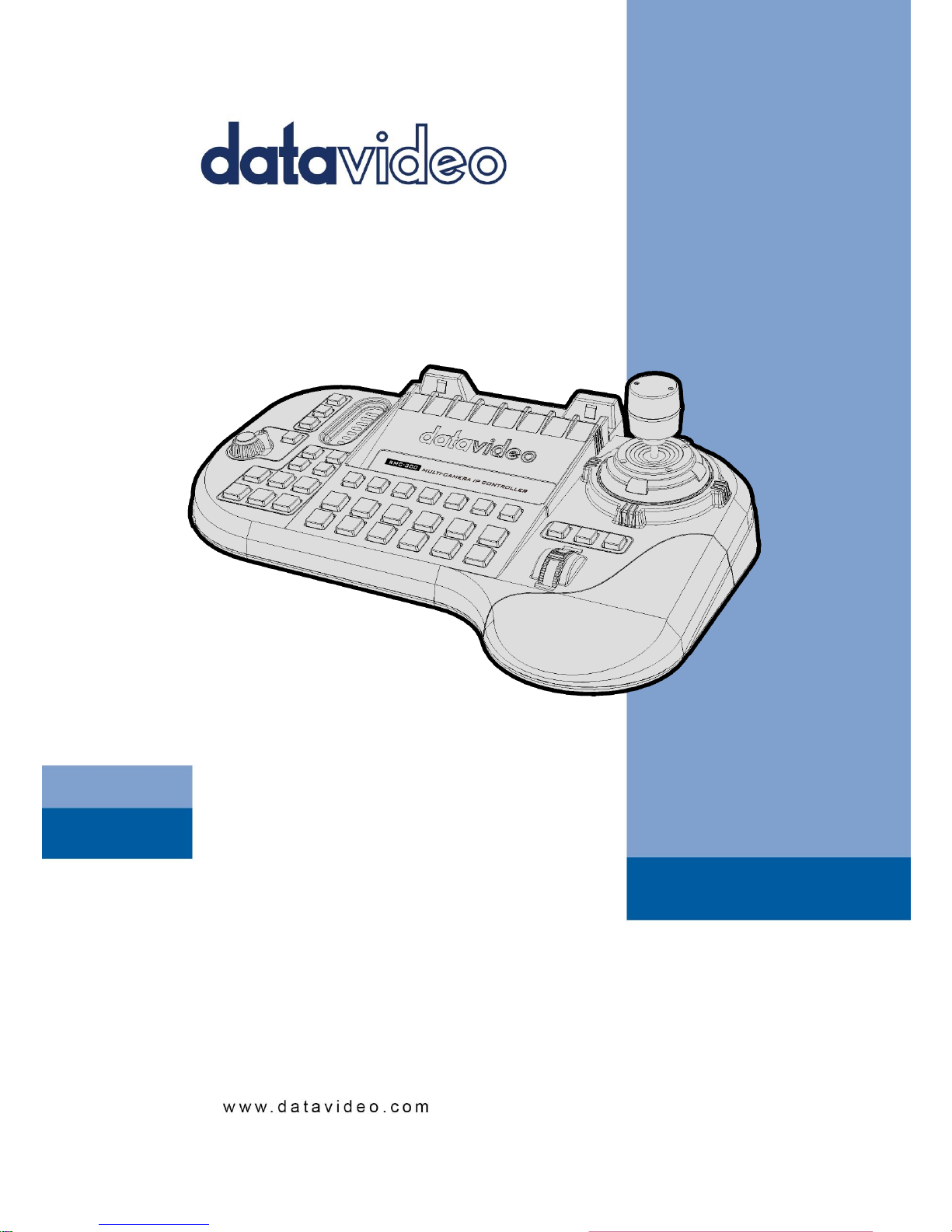
Data Video RMC-300C Manuel utilisateur

RMC-300C
MULTI-CAMERA IP
CONTROLLER
Instruction Manual

2
Table of Contents
TABLE OF CONTENTS .......................................................................................................................................................... 2
FCC COMPLIANCE STATEMENT .................................................................................................................................................... 3
WARNINGS AND PRECAUTIONS .................................................................................................................................................. 3
WARRANTY ................................................................................................................................................................................ 4
STANDARD WARRANTY.................................................................................................................................................................. 4
THREE YEAR WARRANTY ................................................................................................................................................................ 4
CHAPTER 1 INTRODUCTION ........................................................................................................................................................ 5
1.1 FEATURES ....................................................................................................................................................................... 5
CHAPTER 2 I/O INTERFACE .......................................................................................................................................................... 6
2.1 KEYBOARD DEFINITION ...................................................................................................................................................... 6
2.2 DEFINITION FOR THE OUTPUTS ON THE REAR PANEL ................................................................................................................ 10
CHAPTER 3 BASIC SETUP ........................................................................................................................................................... 11
3.1 BASIC SETUP ................................................................................................................................................................. 11
3.2 IMPORTANT NOTICES ....................................................................................................................................................... 12
CHAPTER 4 RMC-300C SETUP SOP ............................................................................................................................................ 13
4.1 RMC-300C SETUP DIAGRAM ........................................................................................................................................... 13
4.2 HOW TO SET THE CAMERAS CONNECTED TO THE RMC-300C IN STATIC IP MODE .......................................................................... 13
CHAPTER 5 THE OPERATION OF THE RMC-300C ........................................................................................................................ 19
CHAPTER 6 ETHERNET CONTROL .............................................................................................................................................. 26
6.1 DVIP ................................................................................................................................................................................ 26
CHAPTER 7 FIRMWARE UPGRADE............................................................................................................................................. 27
CHAPTER 8 FREQUENTLY-ASKED QUESTIONS ............................................................................................................................ 28
CHAPTER 9 SPECIFICATIONS ...................................................................................................................................................... 29
CHAPTER 10 DIMENSIONS ........................................................................................................................................................ 30
SERVICE AND SUPPORT ............................................................................................................................................................ 32
Disclaimer of Product & Services
The information offered in this instruction manual is intended as a guide only. At all times, Datavideo
Technologies will try to give correct, complete and suitable information. However, Datavideo Technologies
cannot exclude that some information in this manual, from time to time, may not be correct or may be
incomplete. This manual may contain typing errors, omissions or incorrect information. Datavideo
Technologies always recommend that you double check the information in this document for accuracy
before making any purchase decision or using the product. Datavideo Technologies is not responsible for
any omissions or errors, or for any subsequent loss or damage caused by using the information contained
within this manual. Further advice on the content of this manual or on the product can be obtained by
contacting your local Datavideo Office or dealer.

3
FCC Compliance Statement
This device complies with part 15 of the FCC rules. Operation is subject to the following two conditions:
1. This device may not cause harmful interference, and
2. This device must accept any interference received, including interference that may cause undesired
operation.
Warnings and Precautions
1. Read all of these warnings and save them for later reference.
2. Follow all warnings and instructions marked on this unit.
3. Unplug this unit from the wall outlet before cleaning. Do not use liquid or aerosol cleaners. Use a damp
cloth for cleaning.
4. Do not use this unit in or near water.
5. Do not place this unit on an unstable cart, stand, or table. The unit may fall, causing serious damage.
6. Slots and openings on the cabinet top, back, and bottom are provided for ventilation. To ensure safe and
reliable operation of this unit, and to protect it from overheating, do not block or cover these openings.
Do not place this unit on a bed, sofa, rug, or similar surface, as the ventilation openings on the bottom
of the cabinet will be blocked. This unit should never be placed near or over a heat register or radiator.
This unit should not be placed in a built-in installation unless proper ventilation is provided.
7. This product should only be operated from the type of power source indicated on the marking label of
the AC adapter. If you are not sure of the type of power available, consult your Datavideo dealer or your
local power company.
8. Do not allow anything to rest on the power cord. Do not locate this unit where the power cord will be
walked on, rolled over, or otherwise stressed.
9. If an extension cord must be used with this unit, make sure that the total of the ampere ratings on the
products plugged into the extension cord do not exceed the extension cord rating.
10. Make sure that the total amperes of all the units that are plugged into a single wall outlet do not exceed
15 amperes.
11. Never push objects of any kind into this unit through the cabinet ventilation slots, as they may touch
dangerous voltage points or short out parts that could result in risk of fire or electric shock. Never spill
liquid of any kind onto or into this unit.
12. Except as specifically explained elsewhere in this manual, do not attempt to service this product yourself.
Opening or removing covers that are marked “Do Not Remove” may expose you to dangerous voltage
points or other risks, and will void your warranty. Refer all service issues to qualified service personnel.
13. Unplug this product from the wall outlet and refer to qualified service personnel under the following
conditions:
a. When the power cord is damaged or frayed;
b. When liquid has spilled into the unit;
c. When the product has been exposed to rain or water;
d. When the product does not operate normally under normal operating conditions. Adjust only those
controls that are covered by the operating instructions in this manual; improper adjustment of other
controls may result in damage to the unit and may often require extensive work by a qualified
technician to restore the unit to normal operation;
e. When the product has been dropped or the cabinet has been damaged;
f. When the product exhibits a distinct change in performance, indicating a need for service.

4
Warranty
Standard Warranty
Datavideo equipment is guaranteed against any manufacturing defects for one year from the date of
purchase.
The original purchase invoice or other documentary evidence should be supplied at the time of any
request for repair under warranty.
The product warranty period beings on the purchase date. If the purchase date is unknown, the product
warranty period begins on the thirtieth day after shipment from a Datavideo office.
All non-Datavideo manufactured products (product without Datavideo logo) have only one year warranty
from the date of purchase.
Damage caused by accident, misuse, unauthorized repairs, sand, grit or water is not covered under
warranty.
Viruses and malware infections on the computer systems are not covered under warranty.
Any errors that are caused by unauthorized third-party software installations, which are not required by our
computer systems, are not covered under warranty.
All mail or transportation costs including insurance are at the expense of the owner.
All other claims of any nature are not covered.
All accessories including headphones, cables, batteries, metal parts, housing, cable reel and consumable
parts are not covered under warranty.
Warranty only valid in the country or region of purchase.
Your statutory rights are not affected.
Three Year Warranty
All Datavideo products purchased after July 1st, 2017 qualify for a free two years
extension to the standard warranty, providing the product is registered with
Datavideo within 30 days of purchase.
Certain parts with limited lifetime expectancy such as LCD panels, DVD drives, Hard
Drive, Solid State Drive, SD Card, USB Thumb Drive, Lighting, Non-PCIe Card and third party provided PC
components are covered for 1 year.
The three-year warranty must be registered on Datavideo's official website or with your local Datavideo
office or one of its authorized distributors within 30 days of purchase.
Disposal
For EU Customers only - WEEE Marking
This symbol on the product or on its packaging indicates that this product must not be
disposed of with your other household waste. Instead, it is your responsibility to dispose
of your waste equipment by handing it over to a designated collection point for the
recycling of waste electrical and electronic equipment. The separate collection and
recycling of your waste equipment at the time of disposal will help to conserve natural
resources and ensure that it is recycled in a manner that protects human health and the
environment. For more information about where you can drop off your waste equipment for recycling, please
contact your local city office, your household waste disposal service or the shop where you purchased the
product.
CE Marking is the symbol as shown on the left of this page. The letters "CE" are the
abbreviation of French phrase "Conformité Européene" which literally means "European
Conformity". The term initially used was "EC Mark" and it was officially replaced by "CE
Marking" in the Directive 93/68/EEC in 1993. "CE Marking" is now used in all EU official
documents.

5
Chapter 1 Introduction
The RMC-300C is a multi-functional remote controller to control up to 24 PTC/BC series cameras via
Ethernet connection.
The RMC-300C can control the PTC-150/PTC-150T/PTC-200/PTC-200T and Block Camera BC-80/BC-200/BC-
200T by Ethernet cable connection. Moreover, the RMC-300C allows multiple camera control by the
Android/iOS tablet with the RMC-300C remote control app through Wi-Fi connection. Furthermore, the
RMC-300C provides users several advantages such as affordable and easy cabling, an intuitive controller by
pushing the hard keys and a friendly user interface for the iOS/Android based remote control system app.
1.1 Features
Allows Remote Controlling for multiple cameras via Ethernet
Allows users to control up to 24 Datavideo PTZ/block cameras and 14 presets can be set for each
camera.
All of the camera parameters can be set easily via the friendly User Interface of the RMC-300C
Remote Control System App.
Setting up the axis zoom by the knob, the axis pan/tilt by the joystick
Allows Firmware Upgrade/Tablet Charging by multiple USB ports.

6
Chapter 2 I/O Interface
2.1 Keyboard Definition
Cam 1-24
Users need to select the desired cameras at first for
activating button functions of the RMC-300C. Users can
select the cameras that are connected to the router. Please
press the desired camera button once to select the camera.
The selection is completed once the red/green light lights
up. If the shift key is activated, the selected cameras will be
13 to 24.
Preset 1-14
Those Preset keys allow users to select default values of the
camera. Please press the Preset key once. After the blue
light lights up, the selection is completed. For each default
value, it includes default values for Shutter Speed, White
Balance, Focus and P/T/Z positions. If the shift button is
activated, the selected cameras will be 8 to 14.

7
IRIS
Manual
IRIS-: When the Auto IRIS button is unlighted, press this
button to shrink the IRIS.
IRIS+: When the Auto IRIS button is unlighted, press this
button to enlarge the IRIS.
Auto
Auto IRIS: Press this button and then it will light up, which
means that the camera is set at Auto IRIS.
White Balance
Manual
MWB: Please set the MWB setting from the color
temperature option in the App. After the setting is done,
each time when this button is pressed, the button will light
up to show current manual temperature setting in the App.
Auto
AWB: Press this button once and then the AWB function will
be executed once this button lights up.
One Push
Press this button to run the One Push function to adjust the
White Balance. Users can calibrate the White Balance value
according to the site environment by pushing the One Push
button.
Auto Focus
Press this button and the Auto Focus function will be
executed if the button lights up. If the Manual Focus is
needed, please confirm whether this button is lighted up or
not. The Manual Focus function can not be executed if this
button lights up. Please press this button again and the light
of the button will be off for turning off the Auto Focus
function.
The Shift button
Cam Shift: Press this button once, if the button lights up, it
means that Cam 13 to Cam 24 can be selected. After that,
users can select their desired camera.
Preset Shift: Press this button once, if the button lights up, it
means that Preset 8 to Preset 14 can be selected. After that,
users can select their desired Preset value.

8
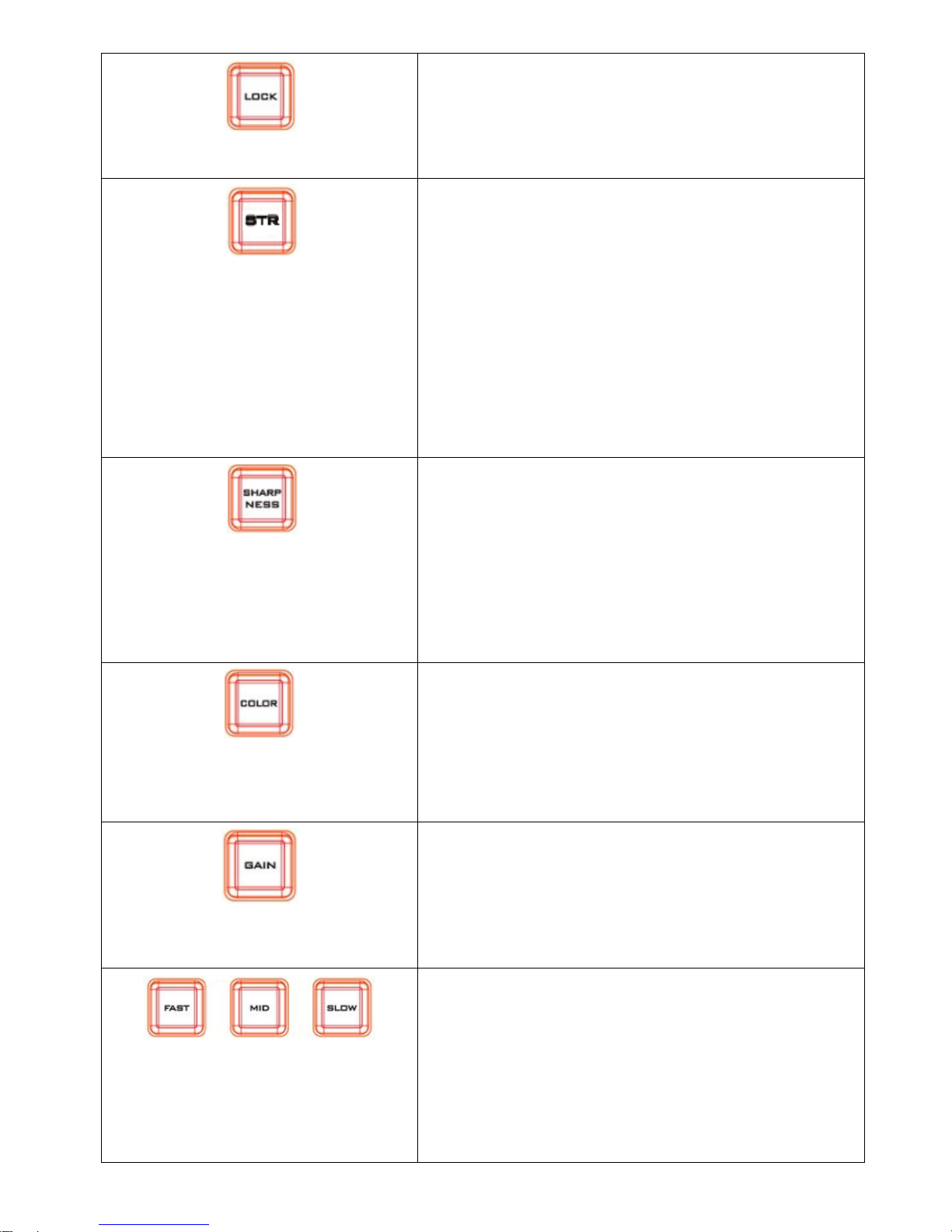
Lock Button
Press this button once and this button will light up, which
means that the Zoom Knob and the joystick function for
Pan/Tilt will be turned off.
STR
Press this button once and this button will light up. After the
button lights up, please press the button PST 1 to PST 7 and
then users can save preset camera parameters and PTZ
positions into PST 1~PST 7.
Press this button once and this button will light up. Please
press the PST SHIFT button at first and then please press the
button PST 8 to PST 14 to save preset camera parameter and
PTZ positions into PST 8~PST 14.
Sharpness
Press this button once, if the button lights up, it means that
the sharpness can be adjusted by the joystick. Pull the
joystick up to increase the sharpness value and pull the
joystick down to reduce the sharpness value.
Color
Press this button once, if the button lights up, it means that
the saturation of the image can be adjusted by the joystick.
Pull the joystick up to increase the value and pull the
joystick down to reduce the value.
Gain
Press this button once, if the button lights up, it means that
the Gain of the image can be adjusted by the joystick. Pull
the joystick up to increase the value and pull the joystick
down to reduce the value. The Gain-adjusting function is not
available for the PTC-140 and PTC-140T series.
Adjusting Pan/Tilt/Zoom Speed
Fast: Press this button once, if the button lights up, it means
that when executing the Pan/Tilt/Zoom functions, the
moving speed is set at high speed.
Mid: Press this button once, if the button lights up, it means
that when executing the Pan/Tilt/Zoom functions, the
moving speed is set at mid speed.

9
Slow: Press this button once, if the button lights up, it
means that when executing the Pan/Tilt/Zoom functions,
the moving speed is set at slow speed.
Focus Rolling Wheel (Automatic Homing)
Roll the rolling wheel to upside means that the focal length
for the subject is getting farther (Far-Focusing). Roll the
rolling wheel to downside means that the focal length for
the subject is getting closer (Near-Focusing).
Touch Slider
This touch slider allows users to adjust many parameters
including Gain, Saturation and Sharpness. Please slide the
touch slider to upside to increase the value and please slide
the touch slider to downside to reduce the value.
Zoom Wheel
Move the zoom wheel clockwise and counter-clockwise for
zooming in/zooming out the camera lenses.
Joystick for Controlling P/T Angles of the PTC Series
Camera
This joystick is used for users to control the Pan and Tilt
angles of the PTC series camera. Users can change Pan and
Tilt angles by pushing the joystick to upside, downside, left
side and right side.
Mounting Slot for an iPad or Android Tablet
This mounting slot is used for users to mount their iPad or
Android-based tablet for achieving multi-camera control up
to 24 cameras by the RMC-300C Remote Control app
through Wi-Fi Network connection.

10
2.2 Definition for the Outputs on the Rear Panel
DC 12V
This is used for supplying 12V DC input.
HDMI OUT
Not available yet.
RS-232/RS-422
This is the D-sub 9 pin connector for controlling by the RS-
232/RS-422. (Not available yet).
. Ethernet
This Ethernet port is used for DVIP connection.
USB
These USB ports are used for firmware upgrade and tablet
charging. The USB port on the bottom-left side can supply
5V/0.5A for tablet charging.
Table des matières
Autres manuels Data Video Contrôleurs

Data Video
Data Video TPC-700P Manuel utilisateur

Data Video
Data Video RMC-400 Manuel utilisateur

Data Video
Data Video CCU-100J Manuel utilisateur

Data Video
Data Video TPC-700 Manuel utilisateur

Data Video
Data Video MCU-100 Manuel utilisateur

Data Video
Data Video RMC-180 MARK II Manuel utilisateur

Data Video
Data Video RMC-200 Manuel utilisateur

Data Video
Data Video TPC-700 Manuel utilisateur

Data Video
Data Video RMC-150 Manuel utilisateur

Data Video
Data Video LD-1 Manuel utilisateur