Dark Matter 43305 Manuel utilisateur

49" Curved Gaming Monitor
P/N 43305
User's Manual

2
SAFETY WARNINGS AND GUIDELINES
Please read this entire manual before using this device, paying extra
attention to these safety warnings and guidelines. Please keep this manual
in a safe place for future reference.
•This device is intended for indoor use only.
•Do not expose this device to water or moisture of any kind. Do not
place drinks or other containers with moisture on or near the
device. If moisture does get in or on the device, immediately
remove it from its power source and allow it to fully dry before
reapplying power.
•Do not place the monitor on an unstable surface where it could fall
and cause either personal injury or damage to the monitor and/or
other equipment.
•Do not expose this device to excessive vibration or extreme force,
shock, or fluctuations in temperature or humidity.
•Do not expose this device to excessively high temperatures. Do
not place it in, on, or near a heat source, such as a fireplace, stove,
radiator, etc. Do not leave it in direct sunlight.
•This device ventilates excessive heat through the slots and
openings in the case. Do not block or cover these openings. Ensure
that the device is in an open area where it can get sufficient
airflow to keep from overheating.
•Do not place or install this device in an area where it can be
exposed to excessive amounts of dust, humidity, oil, smoke, or
combustible vapors.
•Prior to operation, check the unit and power cord for physical
damage. Do not use if physical damage has occurred.

3
•Before plugging the unit into a power outlet, ensure that the
outlet provides the same type and level of power required by the
device.
•This device uses a grounded power cord and requires a ground
connection for safe operation. Ensure that the power source has a
proper ground connection. Do not modify the plug or use a
"cheater" plug to bypass the ground connection.
•Unplug this device from the power source when not in use.
•Take care to prevent damage to the power cord. Do not allow it to
become crimped, pinched, walked on, or become tangled with
other cords. Ensure that the power cord does not present a
tripping hazard.
•Never unplug the unit by pulling on the power cord. Always grasp
the connector head or adapter body.
•Ensure that power is turned off and disconnected before making
any electrical connections.
•Clean using a soft, dry cloth only. Do not use chemical cleaners,
solvents, or detergents. For stubborn deposits, moisten the cloth
with warm water.
•This device has no user serviceable parts. Do not attempt to open,
service, or modify this device.
•Do not leave a single image on the display for a long period of
time. Doing so could cause "burn-in" of the image. It is
recommended to use a variable desktop background and to use a
screen saver to prevent "burn-in". Alternatively, ensure that the
monitor is powered off for at least 2 hours out of every 12.
•Keep the original foam packaging material for use when installing
or removing the included stand.

4
FEATURES
•49" display with 1800R curvature
•2x HDMI® 2.0, and 2x DisplayPort® 1.4 video inputs
•5120x1440p @120Hz maximum video resolution
•Quantum Dot Display
•32:9 aspect ratio
•4ms response time
•3000:1 contrast ratio
•400 cd/m2brightness
•Supports Adaptive-Sync technology
•Supports Picture-by-Picture (PbP) display mode
•75 x 75 VESA® mounting pattern
CUSTOMER SERVICE
The Monoprice™ Customer Service department is dedicated to ensuring
that your ordering, purchasing, and delivery experience is second to none. If
you have any problem with your order, please give us an opportunity to
make it right. You can contact a Monoprice Customer Service
representative through the Live Chat link on our website
www.monoprice.com or via email at support@monoprice.com. Check the
website for support times and links.

5
PACKAGE CONTENTS
Please take an inventory of the package contents to ensure you have all the
items listed below. If anything is missing or damaged, please contact
Monoprice™ Customer Service for a replacement.
1x 49" Curved Gaming Monitor
1x DisplayPort® Cable
1x Stand Stem
1x Stand Base
4x M5x12 Stand Screws
4x Wall Mount Screws (2x 2"x1/4", 2x 1"x1/4")
4x Wall Mount Spacers
1x AC Power Cable
1x User's Manual
PRODUCT OVERVIEW
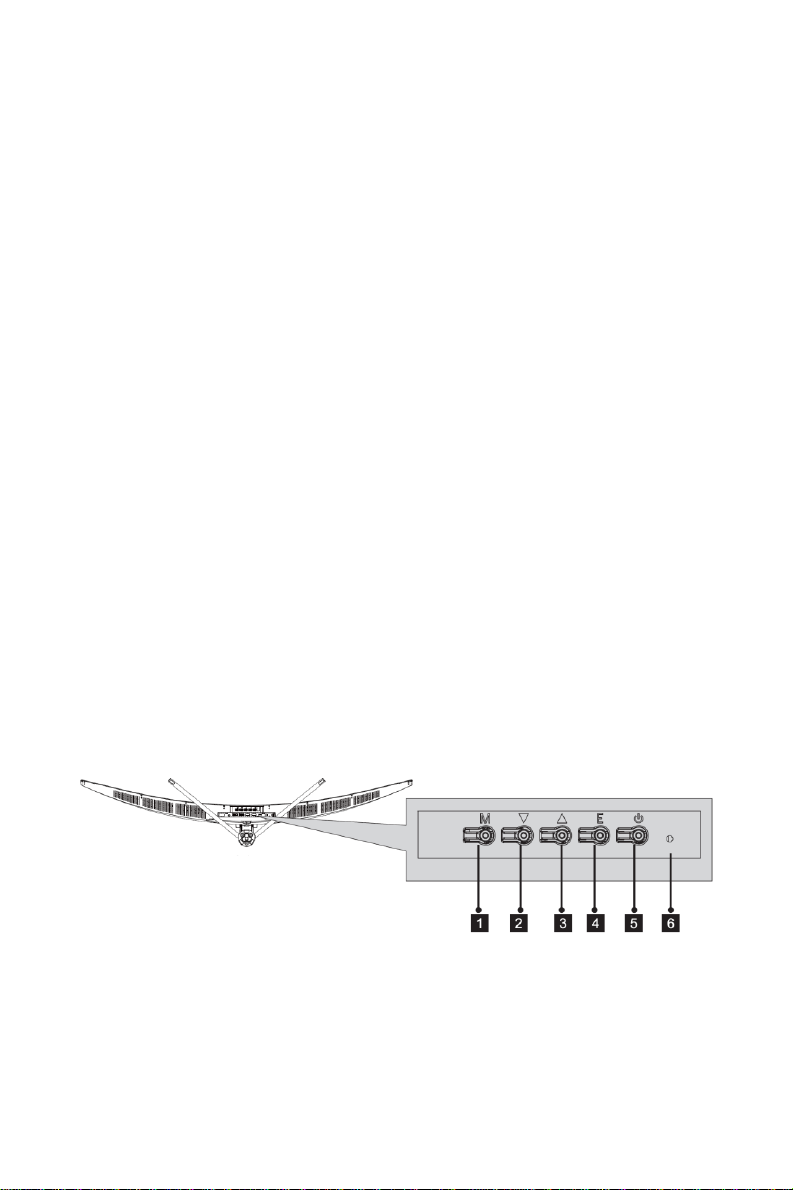
Controls
1. MENU: If the OSD menu is not displayed, press the MENU button
to display the OSD menu. If the OSD menu is displayed, press the
MENU button enter a highlighted submenu or to edit a highlighted
value. If editing a value, press the MENU button to save the edited
value and exit editing.

6
2. DOWN: If the OSD menu is displayed, press the DOWN button to
move the highlight down. If editing a value, press the DOWN
button to decrease the value.
3. UP: If the OSD menu is not displayed, press the UP button to turn
the FPS crosshairs in the center of the screen on or off and to cycle
through the four different crosshair values. If the OSD menu is
displayed press the UP button to move the highlight up. If editing a
value, press the UP button to increase the value.
4. EXIT: If the OSD menu is displayed, press the EXIT button to go
back to the previous menu level. If already at the top level of the
OSD menu, press the EXIT button to close the OSD menu. If editing
a value, press the EXIT button to cancel any changes made and exit
editing.
5. POWER: Press the POWER button to turn the monitor on or off.
6. LED INDICATOR: If the monitor is powered on and operating
normally, the LED INDICATOR will illuminate solid blue. If there is
no video source, no horizontal or vertical signal detected, or the
voltage is too low, the LED INDICATOR will flash blue. If the
monitor is in standby mode, the LED INDICATOR will illuminate
solid red. If the monitor is powered off, the LED INDICATOR will be
off.

7
Connections
7. AUDIO: 3.5mm stereo audio jack for connecting headphones or a
pair of powered speakers.
8. DisplayPort 1: DisplayPort® 1.4 video input.
9. DisplayPort 2: DisplayPort 1.4 video input.
10. HDMI 1: HDMI® 2.0 video input.
11. HDMI 2: HDMI 2.0 video input.
12. USB: USB Type-A port for charging mobile devices and for
performing firmware updates, in the event that an update is
available.
13. AC INPUT: AC power socket for connecting the included AC power
cord.

8
INSTALLING THE STAND
Perform the following steps to assemble the stand and attach it to the
monitor.
1. Open the box and remove the monitor in its foam packaging, then
place it on a flat surface.
2. Remove the Stand Base, Stand Stem, and the M5x12 Stand Screws
from the packaging.
3. Attach the Stand Base to the Stand Stem using three of the four
M5x12 Stand Screws.

9
4. Place the monitor in its foam packaging on the top end, then
remove the bottom section of the foam packaging.
5. Align the bracket on the stand assembly with the opening on the
back of the monitor, then carefully insert the bracket into the
opening until it clicks into place.
6. Place the foam packaging back in the box, then store it in a safe
place for future use.
REMOVING THE STAND
Perform the following steps to remove the stand from the monitor.
1. Retrieve the shipping box with the foam packaging, then remove
the foam packaging.

10
2. Place the top piece of foam packaging on the top of the monitor,
then invert the monitor so that it is standing upside down in the
foam packaging, as shown in the image below.
3. Locate the button shown in the image below, then press it to
release the stand assembly. Remove the stand assembly from the
opening in the back of the monitor.
Table des matières
Autres manuels Dark Matter Moniteur