
D-JIX MEDIA Manuel utilisateur

D-JIX Media user guide
May 2007
Copyright ©2006-2007 DigDash SAS 1

Contents
D-JIX Media user guide.................................................................................................1
Contents......................................................................................................................2
I. My podcasts............................................................................................................4
1. Creating My Podcasts ......................................................................................4
2. Opening a podcasts list.....................................................................................4
. Configuring My Podcasts.................................................................................5
II. Podcasts ................................................................................................................6
1. The podcasts directory......................................................................................6
1.1 Adding a podcast in the directory..............................................................7
1.2 Removing a podcast from the directory ...................................................7
1. Searching for a podcast in the directory.....................................................7
2. Adding a podcast in My Podcasts.....................................................................7
2.1 Adding a podcast from the podcasts pane..................................................8
2.2 Adding a podcast from the podcasts directory...........................................9
. Editing a podcast.............................................................................................10
.1 Changing a podcast name.........................................................................10
.2 Modifying your podcast history properties .............................................11
4. Synchronizing podcasts on your mobile device..............................................12
4.1 Automatic synchronization .....................................................................12
4.2 Manual synchronization...........................................................................1
5. Playing podcast...............................................................................................14
6. Getting information regarding your podcast...................................................14
III. My Media...........................................................................................................16
1. Playing a media file........................................................................................16
2. Synchronizing media files on your mobile device..........................................17
. Sorting your media files .................................................................................17
4. Searching for media files................................................................................18
IV. Configuring your mobile device........................................................................19
1. Adding a mobile device in the favorite devices list........................................19
2. Configuring a mobile device ..........................................................................20
. Removing a mobile device .............................................................................21
V. Tabs in D-JIX Media...........................................................................................22
VI. Menus.................................................................................................................2
1. File..................................................................................................................2
2. Edit..................................................................................................................24
. View................................................................................................................24
4. Podcast............................................................................................................24
5. Tools...............................................................................................................25
6. Help.................................................................................................................26
VII. Shortcut keys in D-JIX Media..........................................................................27
Copyright ©2006-2007 DigDash SAS 2

D-JIX Media is designed for users who want to listen to music, watch video or
subscribe to podcasts published on the internet.
In few clicks, you can play your preferred audio and video files or transfer them to
your D-JIX mobile device to listen to them later.
In D-JIX Media, you can also access D-JIX web site to get some information on the
product line.
Supported data sources :
●Audio Podcasts
●Video Podcasts
●Movies and other video files
●Music and other audio files
Supported D-JIX devices:
●D-JIX 150
●D-JIX C1 0
●D-JIX 15
●D-JIX 5
●D-JIX 40SDFM
●D-JIX 45
Copyright ©2006-2007 DigDash SAS 3

I. My podcasts
“My Podcasts” stores your list of podcasts. You can create and use several podcasts
list to answer several needs (podcasts you want to listen to during the week-end might
be different from the one you listen to the rest of the week).
To view your podcasts, open “My podcasts” tab and click the plus sign (+) besides the
name of your podcasts list.
You can organize podcasts by :
•Adding podcasts
•Removing podcasts
•Moving podcasts up and down in the podcasts list
1. Creating My Podcasts
When you launch D-JIX Media for the first time, your podcasts list is empty and you
can add the podcasts you want.
To create a new list of podcasts, choose « File/New » and add the podcasts you are
interested in.
2. Opening a podcasts list
To open a podcasts list, choose « File/open » and select your list.
Copyright ©2006-2007 DigDash SAS 4

3. Configuring My Podcasts
Select “My Podcasts” and double click on it or click the « Edit » icon in the toolbar.
This action opens the «My Podcasts properties » dialog where you can modify the
properties of your podcasts :
•Change “My podcasts” name
•Select the device on which you synchronize your podcasts
•Define the synchronization frequency of your podcasts (see chapter
« automatic refresh »)
You can organize podcasts in your list by moving them up and down. To do so, select
your podcast and click on the « Move up» or the « Move down» arrows in the toolbar.
Copyright ©2006-2007 DigDash SAS 5
II. Podcasts
Podcasts are audio and video programs published on the internet. To identify audio
and video podcasts easily, look at the icons next to the podcasts titles. D-JIX Media
displays music notes for audio podcasts and video tape for video podcasts.
1. The podcasts directory
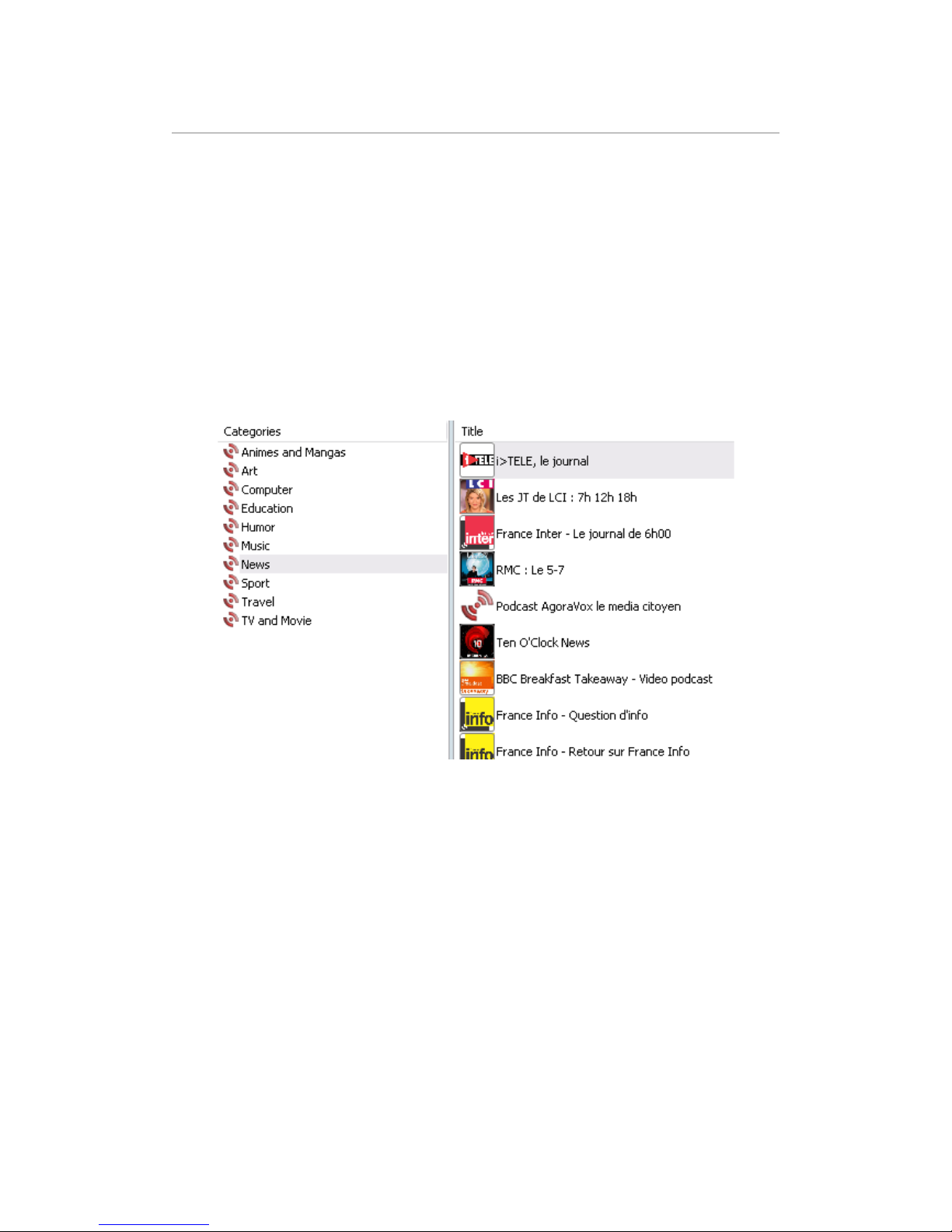
D-JIX Media provides a directory containing a set of popular podcasts. These
podcasts are grouped into several categories designed to facilitate browsing.
Choose « Tools/podcasts directory » or click the podcast tab to display this directory.
If you want more information about a podcast, select it and click the details button.
You will get a brief description and a link to the podcast provider web site.
You can modify the content of the podcasts directory to get a list matching exactly
your interest by adding and removing podcasts as described in sections 1.1 and 1.2.
Copyright ©2006-2007 DigDash SAS 6

1.1 Adding a podcast in the directory
You can add a podcast in the podcasts directory. If you know its URL, click the add
button, then type your podcast URL and select a category. Click the OK button to
insert the podcast in the directory.
Note : You can create a new category by typing a new name in the category field.
You can use an OPML file to import a complete list of podcasts in your podcasts
directory. Click the « Import an OPML » button and select your OPML file.
Note : You can find OPML files containing podcasts on Internet. You can also use
OPML file to migrate from ITunes to -JIX Media. Export your podcasts in an
OPML file from Itunes, then import the file in -JIX Media.
1.2 Removing a podcast from the directory
Select the podcasts you want to remove, right-click and choose « remove » .
You can delete the full content of a category by selecting directly the category, right-
clicking and choosing « remove »
1.3 earching for a podcast in the directory
To search for a podcast, type its name or part of its name in the « title and key words»
field. You can narrow your research by selecting the language or type (audio or video)
of your podcast.
2. Adding a podcast in My Podcasts
When adding a podcast in your podcasts list, the most recent episode is checked. This
episode will be transferred to your device during the next synchronization. If you
don't want to transfer the episode, unchek it.
Copyright ©2006-2007 DigDash SAS 7

2.1 Adding a podcast from the podcasts pane
Some very popular podcasts are available in the podcasts pane of D-JIX Media (left
pane of the application). There are two ways of adding them in your podcasts list :
•Open “My podcasts” tab and drag and drop the podcast in your list.
•Double click on the podcast. “My podcasts” tab opens and the podcast is
added in your podcasts list.
Copyright ©2006-2007 DigDash SAS 8

2.2 Adding a podcast from the podcasts directory
There are two ways of adding a podcast from the podcasts directory:
1- Open the podcast tab, select the podcasts you want to add and click the « Add to
my podcasts » button in the toolbar . “My Podcasts” tab opens and selected
podcasts are added to your current list of podcasts.
Note : You can select several podcasts at the same time by pressing the CTRL key
(apple key on MAC) or SHIFT key while selecting the podcasts.
2- Choose «Podcast\Add podcast» to open the « podcast selection » dialog. Select the
podcast you want to add and click the OK button. The podcast is added to your
podcasts list.
Copyright ©2006-2007 DigDash SAS 9

3. Editing a podcast
You can change the name of your podcast and modify its history properties.
3.1 Changing a podcast name
Select your podcast and click the Edit button in the toolbar or right click the podcast
and choose « Properties ». The « Podcast properties » dialog opens. Type the name of
your podcast in the « Name » field.
Copyright ©2006-2007 DigDash SAS 10
Table des matières
Manuels Logiciel populaires d'autres marques


PS Audio
PS Audio PowerPlay Manuel du propriétaire

Brady
Brady LOCKOUT PRO 3.0 Manuel de service

Avaya
Avaya Interaction Center Manuel utilisateur

Texas Instruments
Texas Instruments TI-83 Plus Silver Edition Manuel

Novell
Novell GROUPWISE 8 - INTERNET AGENT Manuel utilisateur

Oracle
Oracle Application 9i Manuel utilisateur

Acer
Acer RDM Manuel utilisateur

Canon
Canon Vixia HF21 Manuel utilisateur

Canon
Canon ZR950 Manuel utilisateur

Samsung
Samsung Auto Backup Manuel utilisateur

Polycom
Polycom Vortex EF2201 Instructions d'installation et d'utilisation

Brocade Communications Systems
Brocade Communications Systems Brocade 8/12c Manuel utilisateur